
Reservations and Folios - Overview
On this page
A folio is the single record of one guest stay in one room: the guest, dates, room, rate, extra charges, payments, documents and remarks. Everything about a booking lives on the folio screen (#/folio). The same screen is used for a future reservation, a walk-in check-in, an in-house stay and a checked-out stay. The status chip at the top shows where the stay is.
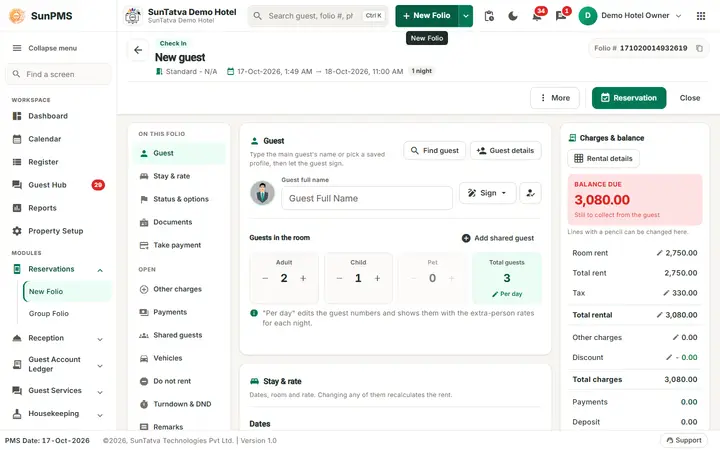
How the folio screen is laid out
The folio is one page with three columns (on a tablet the section list becomes a row of chips, on a phone the balance becomes a bar under the section chips that opens the full summary, and Save, Check Out and Close stay in a footer above the bottom menu).


| Area | What it holds |
|---|---|
| Identity header (top) | Back arrow; status chips (for example Check In, or Reserved + Confirmed); the guest name (with an i button once the folio is saved); room, arrival and departure and number of nights; the Folio # pill with a copy icon; the audit line ("Res.# 34 By... "). On the right the action buttons (see below). |
| ON THIS FOLIO (left list) | Guest, Stay & rate, Status & options, Documents, Take payment: click one to jump to that section. |
| OPEN (left list) | Windows: Other charges, Payments, Shared guests, Vehicles, Do not rent, Turndown & DND, Remarks, Stay history (and Spa when SunSpa is linked). Small badges show how many items each already holds. |
| Folio sections (middle) | Guest, Stay & rate, Status & options, Documentation (with Scan ID and Add Document), Take payment. |
| Charges & balance (right) | Room rent, Total rent, Tax, Total rental, Other charges, Discount, Total charges, Payments, Deposit, CC authorized and the big Balance due figure. Lines with a pencil can be changed in place. Rental details opens the day-by-day rent. |
When Simplified Check-In / Reservation Screen is ticked in Property Setup > Feature Setting (Folio Screen Layout), the folio opens as the guided screen instead; the same rules and messages apply. See Simplified Check-In / Reservation Screen. Groups: Simplified group screen.
Life cycle of a booking
| Stage | Status chip | How it gets there | Room status |
|---|---|---|---|
| Reservation (future or today) | Reserved | Reservation button on a new folio | Reservation Ready on the stay dates |
| Reservation status Confirmed / Unconfirmed | Reserved | Status buttons in Status & options (new folios start with the property default, setting DEFAULT_RESERVATION_STATUS) |
- |
| Check-in (in-house) | Check In | Check In button on a new folio (walk-in) or on a reservation dated today | Occupied (clean/dirty) |
| Check-out | Checked Out | Check Out button | Vacant Dirty (then Vacant Clean / Vacant Ready) |
| No-Show | No-Show | Noshow status button, or the no-show routine | Room released |
| Cancelled | Cancelled | Cancel button | Room released |
| Transfer-Out | Reserved | Transfer-Out status button | - |
Transaction statuses used by the system: Confirmed (1), Unconfirmed (2), No-Show (3), Cancelled (4), Transfer-Out (5). Folio status is either Reservation or Check-In.
Folio number and the header
- Folio # is a pill at the top right with a copy icon. Click the pill to open the Audit trail of the folio. The number is built from the date when Folio type is 1, otherwise from the folio prefix plus an incrementing number.
- For online (OTA/CRS) bookings a second pill shows the CRS folio number with the channel name.
- The i (info) button next to the guest name appears once the folio is saved. It lists who reserved, when, who checked in/out, and who cancelled.
- Print, Email and (with WhatsApp enabled) WhatsApp icons, and the Guest link button, appear once the folio is saved (see Print and e-mail and Guest link panel).
Buttons at the top right of the folio
Which buttons show depends on the stage. Full rules are in the topic files.
| Button | Shown when | Topic |
|---|---|---|
| Guest link | Saved, confirmed, not checked out, and the Guest Portal is on | Guest link panel |
| More (menu) | Always. Holds Change Room (in-house, before departure date, privilege Change room), Set room V/Ready / V/Clean (needs the privilege Access to vacant/clean room), DoorLock Key (a door-lock device is configured and the folio is saved), Audit trail and Undo (same-day check-in or check-out, privilege Undo room) | Room change, Check-out, Undo |
| Cancel | Reservation not yet checked in, status Confirmed/Unconfirmed | Cancel |
| Reservation | New folio, stay has at least one night, not hourly | Saving |
| Check In | New folio dated today (or earlier), or a reservation dated today, room selected (disabled for an Unconfirmed reservation) | Check-in |
| Check Out | In-house folio | Check-out |
| Save | Saved folio whose status is Confirmed, Unconfirmed or No-Show/Cancelled-edit | Saving |
| Close | Always. Asks Do you sure want to save changes? if you changed something | Saving |
What happens behind the scenes
- Saving writes the folio, rental per day, taxes, other charges, payments, guests, documents and housekeeping tasks in one call. Room availability, overbooking, block dates and booking-control restrictions are checked on the server.
- Room charges from SunPOS and parking charges from SunParking are posted to the folio as Other Charges (see Other charges).
- Folio changes feed the night audit, the reports and, for online bookings, the channel manager.
More folio topics (header, undo, guest search, lock, documents)
| Topic | What it covers |
|---|---|
| Header, information icon, folio number, Audit trail | Identity header, information table, copy of the folio number, print and e-mail windows. |
| Undo check-in | Undo Room window, room status after undo, refusal reasons, reservation versus walk-in. |
| Find guest, Keep or New, Name Detail | Finding a returning guest, the stay history, title / suffix / greetings. |
| Locked reservation, Copy Reservation, read-only states | Lock, Non-Refundable, Prepaid options, copying a booking, cancelled and checked-in folios. |
| WhatsApp, Reservation Chat, guest portal link | Controls that appear with a licence, a setting or an online channel. |
| Guest link panel | Link sent / opened / online check-in / notifications / unread messages, QR code, send and resend. |
| Documents with front and back images, Scan ID | Every field of Add Document, the crop window, scanning, the read message, delete. |
| Remarks, turndown, Do Not Rent, history | The OPEN windows, with a tested walk-through. |
| Simplified Check-In / Reservation Screen | The guided folio used when Folio Screen Layout is on. |
| Simplified Group Check-In / Reservation Screen | The guided group screen and the simplified Search Group. |
Tips and FAQ
- Q: Where do I find a booking? A: Use Find Reservation (Reception menu), the Dashboard lists, the Register or the Calendar, then open the folio.
- Q: Why does the chip say "Reserved" and not "Check In"? A: The stay has not been checked in. Use Check In on the day of arrival.
- Q: The old addresses
#/folioand#/group-foliostill work? A: Yes, they redirect to#/folioand#/group-folio, so saved bookmarks keep working.
Money on the folio (detail pages)
| Topic | Page |
|---|---|
| How Balance Due is calculated (formula with real numbers) | Balance formula |
| Rate per night, rate change, tax exempt | Rate and tax |
| Discount by percentage or amount | Discount |
| Other charges: add, edit, delete, totals | Other charges worked through |
| Payments: types, foreign currency, edit, delete, refund, receipt | Payments in detail |
| Payment transfer to another room, billing to a company | Transfer and company |
| Correct today's rent on an in-house folio | Rental adjustment |
| Deposits, invoice, credit note (not available) | Deposits and invoice |
| Complimentary and house-use stays | Complimentary and house use |
| Money when a booking is cancelled (non-refundable) | Cancel and non-refundable |