Simplified Group Check-In / Reservation Screen (guided group)
On this page
The simplified group screen leads you through a group booking in 8 sections: Group details, Stay & rate, Rooms & members, Charges, Payments, Documents, Remarks and Check in / out. You create the group, set its dates and rate, add rooms and members, post shared charges, take group payments and check members in. It has every feature, rule, privilege and message of the standard group screen; only the layout differs. Search Group uses the same simplified style when this setting is on.
Before you start
- Tick Simplified Group Check-In / Reservation Screen under Folio Screen Layout in Property Setup > Feature Setting (Feature Setting). The Group feature must be on. Untick to return to the standard screens.
- A new group opens on Group details. A saved group opened from Search Group opens on Rooms & members, on the first status tab that has members.
- Member folios open in the single folio screen chosen by the other setting (see Simplified folio).
Screen layout
| Area | What it shows |
|---|---|
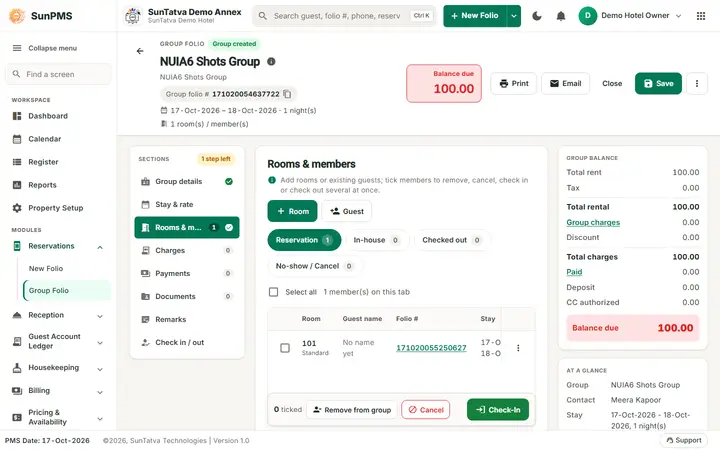
| Identity header (top) | Back arrow, the eyebrow GROUP FOLIO with the chip New group / Group created, the group name with an info button (saved group), the line "Create the group first, then add rooms, then check members in together." (new group) or the group name again, the Group folio # pill with copy icon, the stay dates with the number of nights, "n room(s) / member(s)", a Balance due / Settled box with the amount and the buttons Print, Email (saved group), Close, Create Group (new) or Save (saved; Ctrl+S) and the three-dot More menu. |
| Section list (left) | SECTIONS with "n steps left" or All set, then the 8 sections with a tick when complete and a count badge on Rooms & members, Charges, Payments and Documents. Click any section. On tablets and phones the list becomes a sideways scrolling chip bar. |
| Section panel (centre) | The title, a one-line help text, the section, and a footer with Back, Create Group / Save and Continue: |
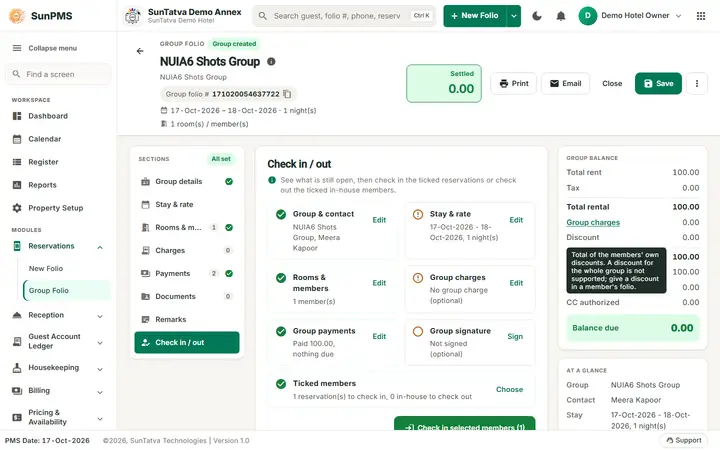
| GROUP BALANCE (right) | Total rent, Tax, Total rental, Group charges (opens Charges), Discount, Total charges, Paid (opens Payments), Deposit, CC authorized, Balance due. Discount is a read-only label: it shows the total of the members' own discounts, and its tooltip says Total of the members' own discounts. A discount for the whole group is not supported; give a discount in a member's folio. |
| AT A GLANCE (right) | Group, Contact, Stay, Rate type, Members (reservations, in-house, checked out) and, in orange, rooms still missing. |
On a screen under 1600 px wide the right-hand cards move under the section when Rooms & members is open, so the members table has the full width; a table that is still too wide scrolls sideways.
The More menu (three dots in the header)
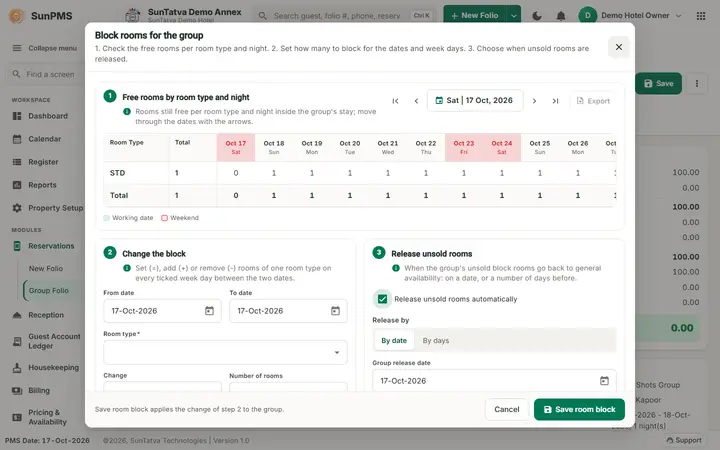
Block rooms for this group (saved group; opens Block rooms for the group with the release rule, see Group block rooms), Group signature (menu: pads, phone / tablet, on screen), Show group signature, Group remarks (popup), Group info (contact details) and Find group (stay history).
The 8 sections
1 Group details
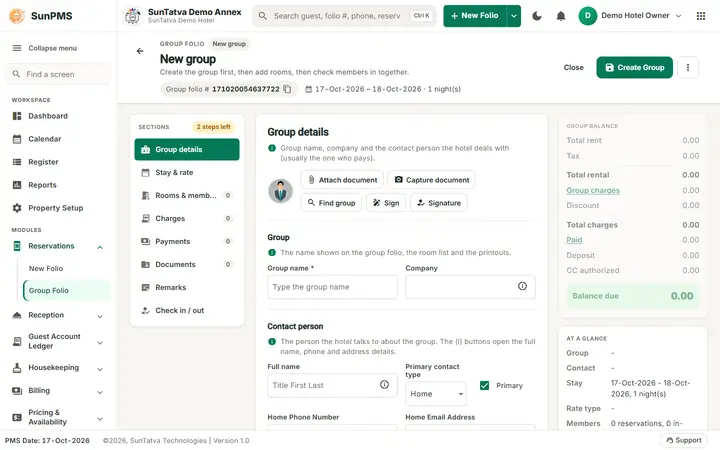
Tools: Attach document, Capture document, Find group, Sign, Signature. Group: Group name *, Company. Contact person: Full name (the info icon opens Name details: Title, First name, Middle name, Last name, Suffix, Nationality, Birth date, Gender, Guest category, Letter greeting, Address greeting; there is no Stay private choice for a group: mark a stay private in each member's folio), Primary contact type, Primary, phone and e-mail of that type, and Address (type, address, city, state, zip code, country). Create Group saves the group.
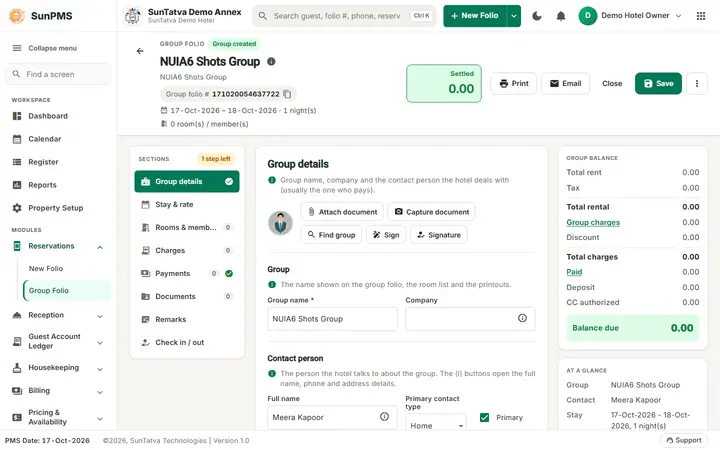
2 Stay & rate
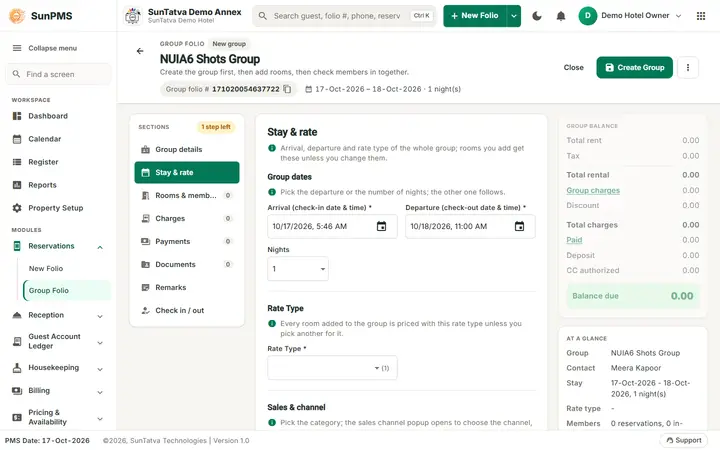
Group dates: Arrival (check-in date & time) *, Departure (check-out date & time) * and Nights (pick the departure or the nights; the other follows). Rate Type *: every room added to the group is priced with it unless you pick another for that room. Sales & channel: pick the Sales & channel category; the Sales & channel popup opens to choose the channel, prepaid, tax exempt, rate and commission. Members get these dates and this rate unless you change them for a member. Changing the dates of a saved group asks whether the members change too.
3 Rooms & members
Buttons + Room (add rooms for the group dates) and + Guest (bring existing reservations into the group); the status tabs Reservation, In-house, Checked out, No-show / Cancel with counts (+ Room and + Guest are disabled on the last two); Select all with "n member(s) on this tab". The members table: tick box, Room (with its room type; "No room yet" when unassigned), Guest name ("No name yet"), Folio # (click to open the member folio), Stay, Status, Balance and the row menu (Open, Cancel reservation, Remove from group). When members are ticked a bar shows "n ticked" with Remove from group, Cancel and Check-In (Check-Out on the In-house tab).
4 Charges
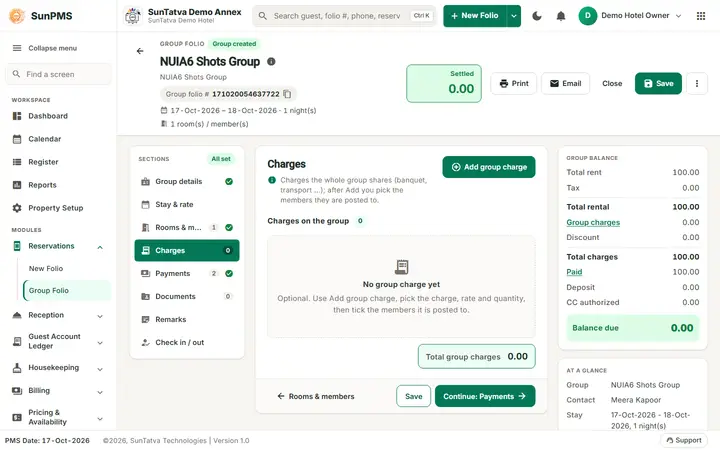
Add group charge opens the Group charges popup. Charges on the group (n) lists the charges with Total group charges; with none the section says "No group charge yet" (optional).
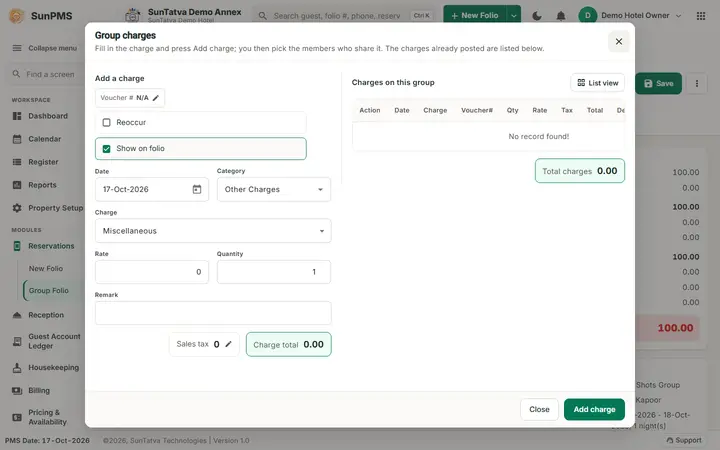
The popup has Add a charge (Voucher #, Reoccur, Show on folio, Date, Category, Charge, Rate, Quantity, Remark, Sales tax with a pencil for tax exempt, Charge total) and Charges on this group (grid / list view, Edit and Delete, Total charges). Add charge then opens Who shares this charge?: tick the members the charge is posted to.
5 Payments
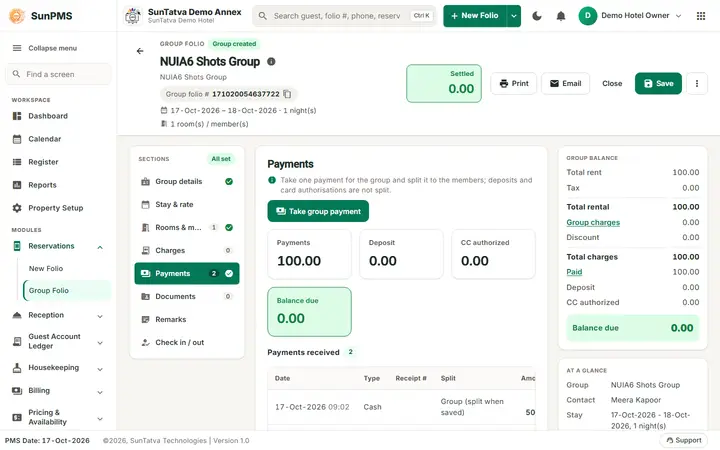
Take group payment opens the Group payments popup. Boxes: Payments, Deposit, CC authorized, Balance due. Payments received (n): Date, Type, Receipt #, Split (Member folio, Not split (authorisation), Not split (deposit), Group (split when saved)), Amount, with Delete, Refund and Auth to sale where allowed. A box explains the split: when you save a payment that is not a deposit and not a card authorisation, the split window opens - choose how it is shared to the members and confirm.
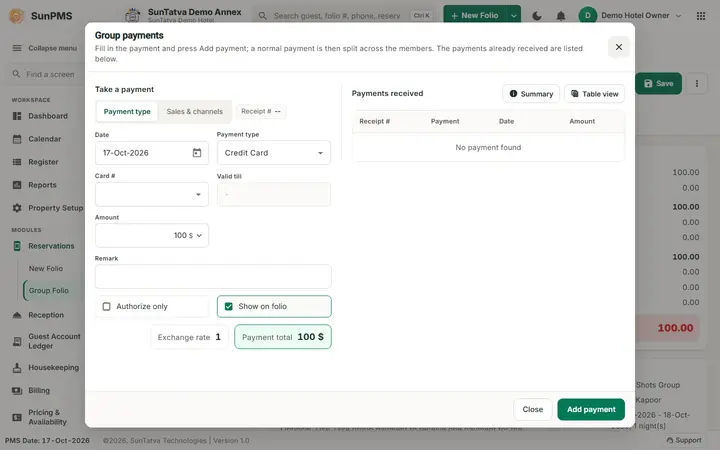
The popup has Take a payment (tabs Payment type, Sales & channels, Receipt #; Date, Payment type, card fields for card types, Amount, Remark, Authorize only, Show on folio, Exchange rate, Payment total) and Payments received (Summary, Table view).
6 Documents
The contact person's ID, cards and company letters (optional): Add document and the list ("No document yet").
7 Remarks
Notes for the desk by category - Group Remark, In House, Check-In, Check-Out, Payment, Special Request - saved with the group (500 characters each).
8 Check in / out
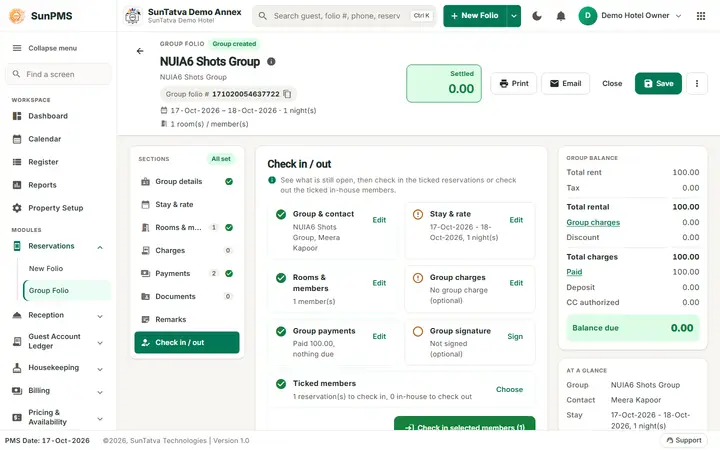
Tiles with a tick or !: Group & contact, Stay & rate, Rooms & members, Group charges, Group payments, Group signature (Sign / Show) and Ticked members ("n reservation(s) to check in, n in-house to check out"; Choose goes to Rooms & members). The buttons Check in selected members (n) and, with in-house members ticked, Check out selected (n). The box "What happens when you click Check in selected members" explains the rules.
Add rooms / add guests popup
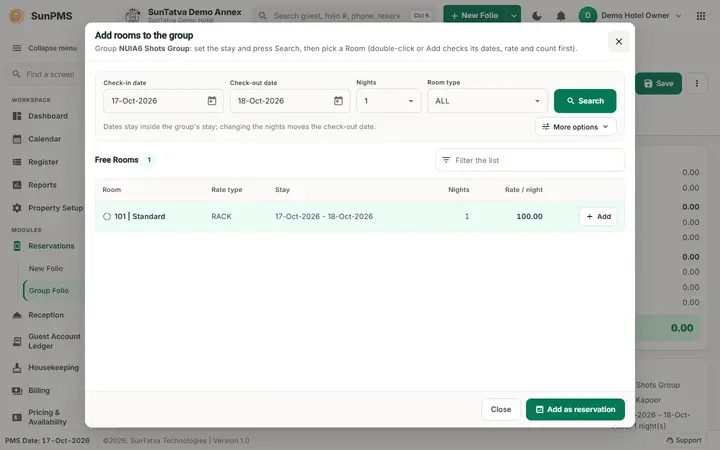
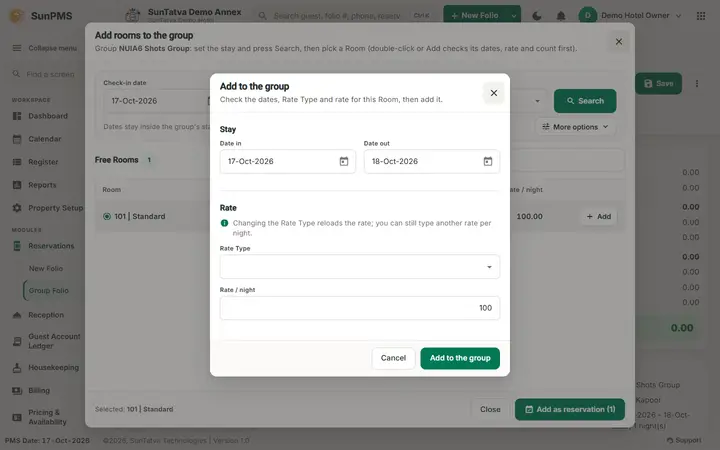
Add rooms to the group: Check-in date, Check-out date, Nights, Room type, Search; More options (Check-in time, Check-out time, Building, Floor and the option Without Room numbers (add by Room type, assign later)), then Free Rooms with Rate type, Stay, Nights, Rate / night (and Free for these dates / Rooms to add by room type). Add on a row (or a double-click) opens Add to the group (Date in, Date out, Rate Type, Rate / night); the footer button Add as reservation (n) adds the chosen rooms. + Guest works the same way for existing reservations.
How to create a group
- Open the group entry in the sidebar (or Create group on Search Group). Group details opens.
- Type the Group name and the contact Full name; phone, email and address are optional.
- Continue: Stay & rate: set arrival, departure or nights and the rate type.
- Click Create Group (or Ctrl+S). Result: "Group created successfully.", the header shows Group folio # and the chip Group created.
How to add rooms
- Rooms & members, Reservation tab, click + Room.
- Check dates and filters, click Search.
- Click Add on a free room, check dates, rate type and rate, click Add to the group. Result: "Reservation member(s) created successfully." Repeat for more rooms, then close the popup.
How to check in selected members
- Rooms & members, Reservation tab: tick the members who have arrived (each needs a room; arrival must be today).
- Click Check-In (n), or open Check in / out and click Check in selected members (n). Result: "Reservation(s) successfully checked-in." and the members move to In-house. To check out, tick in-house members and click Check-Out (n) or Check out selected (n): "Member(s) successfully checked-out."
How to take a group payment and split it
- Payments, Take group payment.
- Choose the Payment type, enter the Amount, click Add payment.
- The Split group payment window opens (not for a deposit or a card authorisation): choose None, By balance, Proportionate, Equally or Manually (type each member's share). The table lists each room with Charge, Recevie (received), Due and Gets, and the boxes Allocated / Not allocated show what is left. Click Save split. Proportionate shares the payment in proportion to what each room still owes (its due): rounded to the property's decimals, the last room that owes takes the rounding difference, a room that owes nothing gets 0 and no room gets more than it owes; a payment larger than all rooms owe leaves the rest unallocated (
stays unallocated: the rooms owe ). The rules are those of the standard screen.in total. - For cash, when Display Change Screen On Cash Payment is on (Display Setting), the Cash denomination window opens first: tap the notes and coins the guest hands over, or click Use this amount. A cash drawer chosen in Hardware Setting opens when the payment is saved.
- Click Close. The payment is listed under Payments received.
How to add a group charge
- Charges, Add group charge.
- Pick Category and Charge, set Rate and Quantity, click Add charge.
- In Who shares this charge? tick the members and confirm. Result: "Other Charge added successfully."
Simplified Search Group
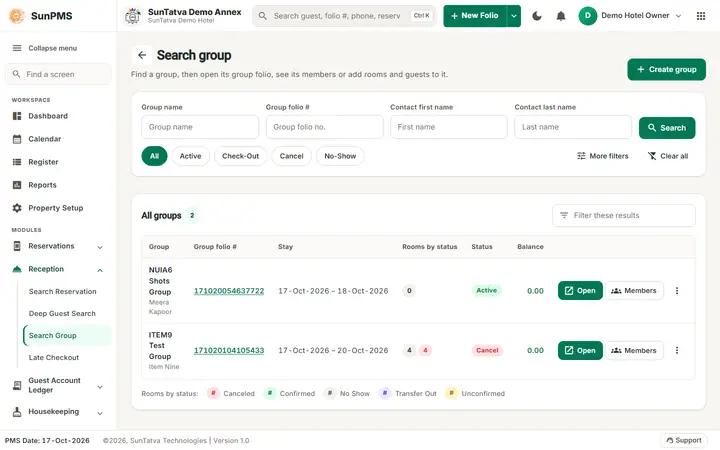
With the group setting on, Reception > Search Group shows Search group: Create group at the top right; a search card with Group name, Group folio #, Contact first name, Contact last name and Search (Enter in a box also searches), the type chips All, Active, Check-Out, Cancel, No-Show, More filters (Date in (tick to use), Source; a number shows the filters in use) and Clear all; and All groups (n) with Filter these results and a colour legend (Canceled, Confirmed, No Show, Transfer Out, Unconfirmed). Columns: Group (and contact), Group folio #, Stay, Rooms by status (total and count per status), Status (Active, Cancel...), Balance, and the buttons Open (double-click on the row also opens), Members and a three-dot menu (Cancel group, Delete group).
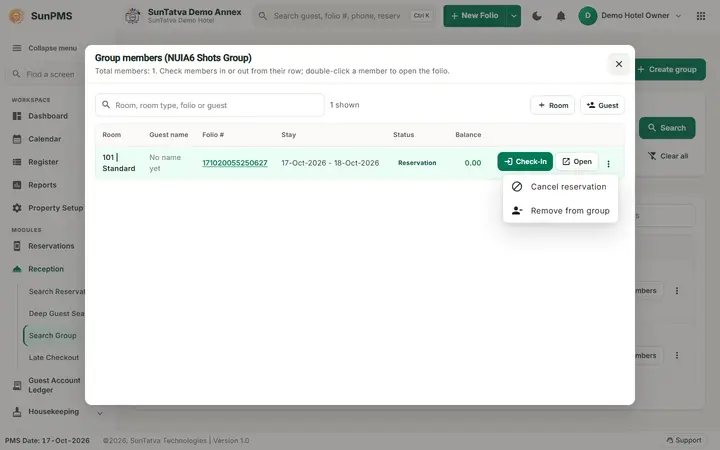
Members opens Group members (
How to cancel one member or the whole group
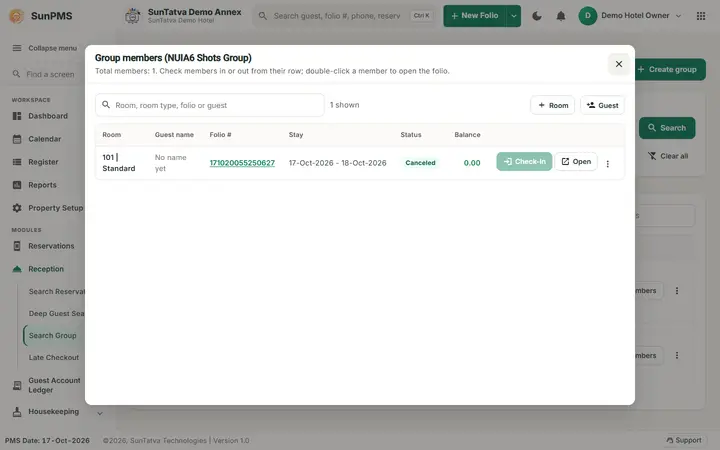
- One member: in Group members, open the member's three-dot menu and click Cancel reservation. Answer Yes to Are you sure you want to cancel?. Result: Group Member cancelled successfully. Only that member is cancelled; the other members and the group stay. The member's Status changes to Canceled, Check-In greys out, and the group row counts it under Canceled. The menu item is not offered for checked-in, cancelled or no-show members and without the cancel privilege (Access to Cancel CRS Reservation for a CRS group).
- Whole group: open the group row's three-dot menu and click Cancel group. Answer Yes to Are you sure you want to cancel this group?. Result: Group cancelled successfully.; every member is cancelled and the block is released. Refused when a member is checked in. Payments already taken stay on the group (the balance then shows as a credit); refund them first if the guest has to be paid back.
- Remove from group takes the member out of the group without cancelling the reservation.
Messages you may see
| Message (exact text) | Why | What to do |
|---|---|---|
| Please enter Group Name. | Create Group without a name | Type the name. |
| Group created successfully. | Group saved for the first time | Add rooms. |
| Information saved. | Group saved | - |
| Reservation member(s) created successfully. | Rooms added | - |
| Please select Member(s). | Check-In / Remove without ticks | Tick members. |
| Please assign Room to reservation before converted it to Check-In. | A ticked member has no room | Open the member, assign a room. |
| Back date reservation can not be converted to Check-In. / Invalid Check-In Date. | Arrival is not today | Untick or change the dates. |
| Reservation(s) successfully checked-in. | Check-in done | - |
| Member(s) successfully checked-out. | Check-out done | - |
| Are you sure you want to cancel selected member(s)? | Bulk Cancel | Yes: "Group Member(s) cancelled successfully." |
| Are you sure you want to cancel? | Cancel reservation on a member in Group members | Yes: "Group Member cancelled successfully." Only that member is cancelled. |
| Are you sure you want to cancel this group? | Cancel group on Search Group | Yes: "Group cancelled successfully." Refused when a member is checked in. |
| Are you sure you want to delete this group? | Delete group | Refused while members exist. |
| Do you sure want to save changes? | Close with unsaved changes | Yes saves first. |
All messages are the standard ones: Messages - group check-in.
Tips and FAQ
- Q: How do I go back to the standard group screen? A: Untick Simplified Group Check-In / Reservation Screen in Feature Setting and click Save.
- Q: Where did the standard buttons go? A: Additional Group Details -> Group details (inline; Group info in the More menu from other sections). Members grid and its tabs -> Rooms & members. Other charges -> Charges. Payments -> Payments. Block Room, Comments, Sign, Show signature, Search -> the More menu.
- Q: The members have "No name yet". A: Rooms are added without names; open each member folio (click the folio number) and type the guest name.
- Q: After Undo on a member, a blank group opens. A: Known behaviour of the standard code; open the group again from Search Group.
- Q: How do I give the whole group a discount? A: You cannot: Discount in GROUP BALANCE only adds up the members' own discounts. Give the discount in each member's folio.
- Q: Where is Stay private for a group? A: It is set per member, in the member's folio; the group contact has no such choice.
Screenshots