Hardware Setting
On this page
Links the hotel to a SunHardware property of the same owner. Paired phones and tablets and the front-desk stations (ID scanner, signature pad, key card encoder, cash drawer) then scan guests' ID documents, collect signatures and encode key cards during check-in.
Before you start
- Licence: SunHardware Integration (
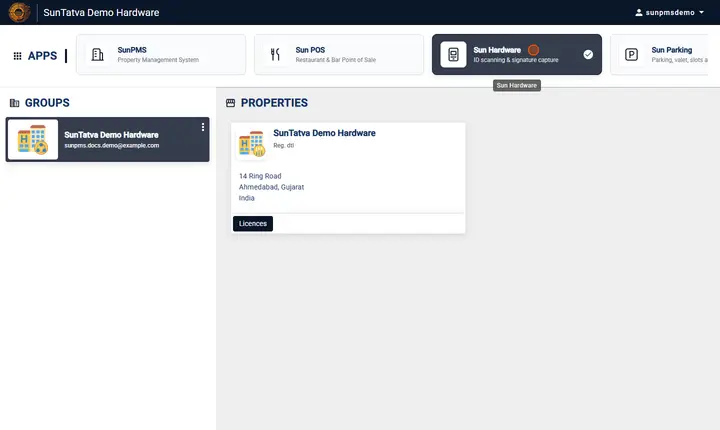
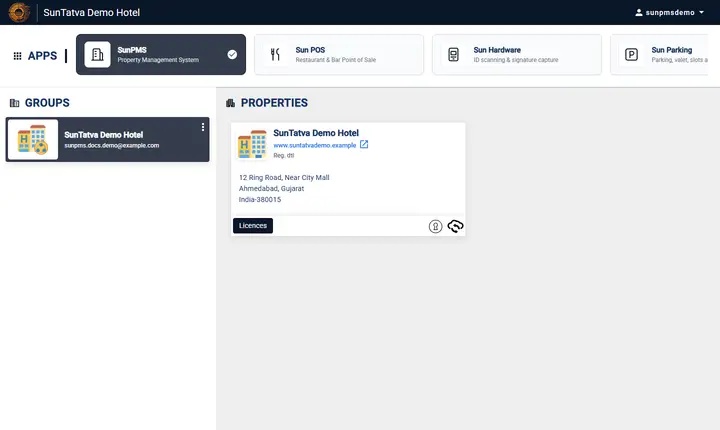
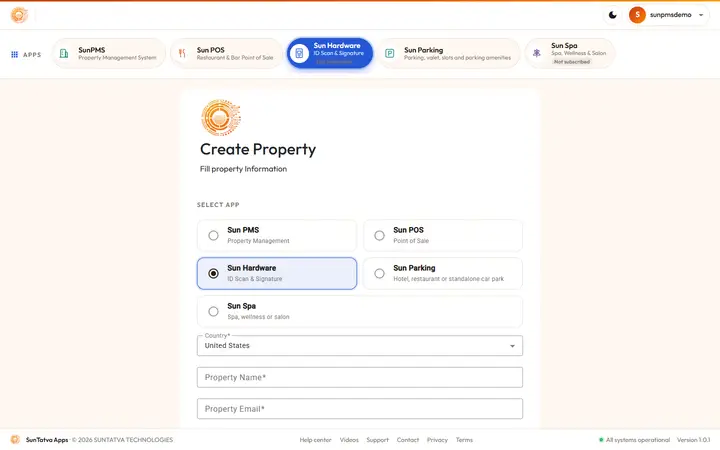
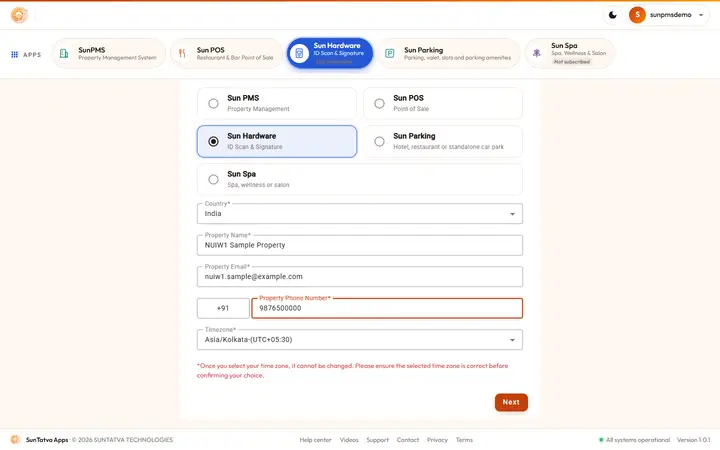
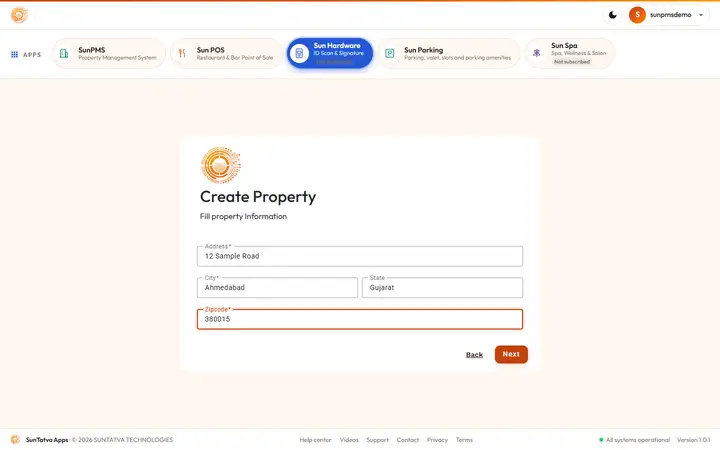
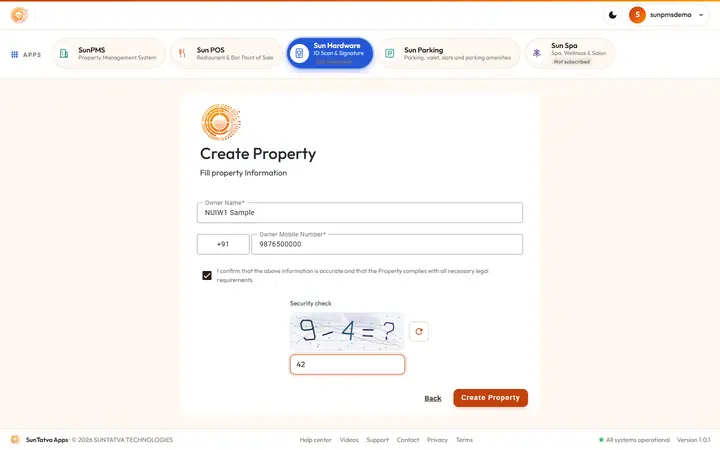
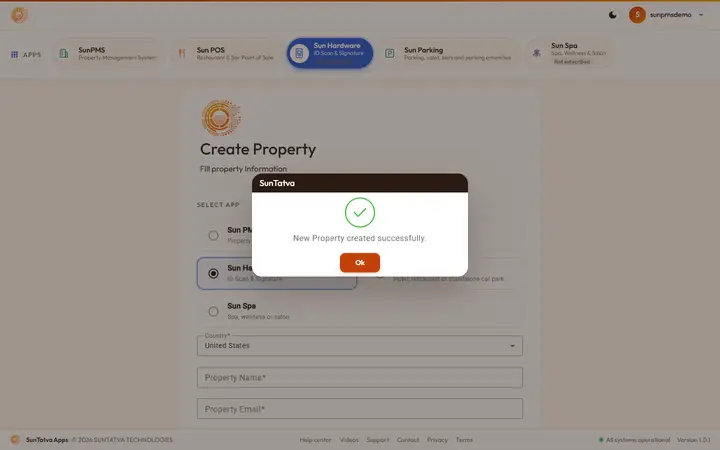
HARDWARE_INTEGRATION). Without it the Property Setup card is hidden; if the page is opened by address it shows a SunHardware card with Not licensed: "The hardware link needs the SunHardware Integration licence - the property owner can buy it from Settings → Licences." See 90-licences. - A SunHardware property of the same owner must exist (create it from the SunAuth landing page: Sun Hardware > create). Devices are paired, and agreements edited, in SunHardware itself.
Screen layout
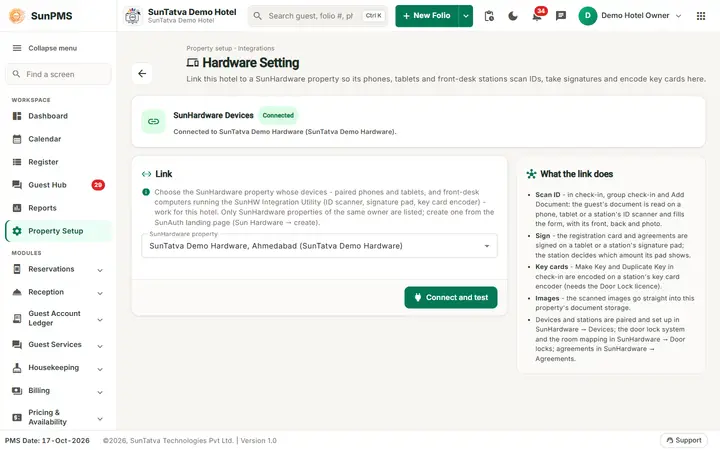
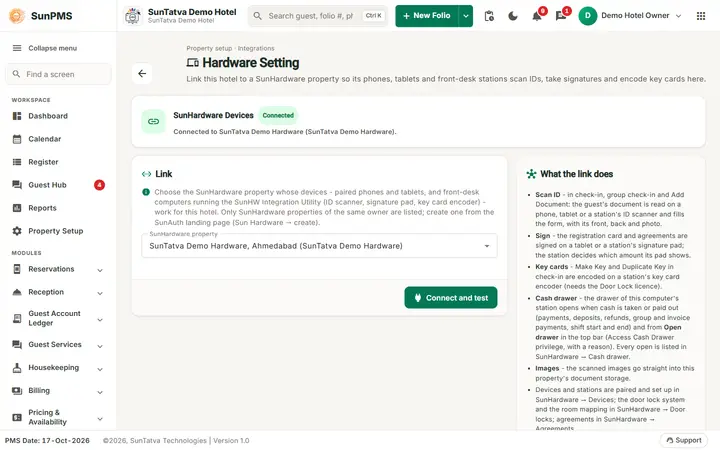
The page header shows the title Hardware Setting, the line "Property setup · Integrations", a description and a back arrow to the Property Setup hub.
| Part | Meaning | Rules |
|---|---|---|
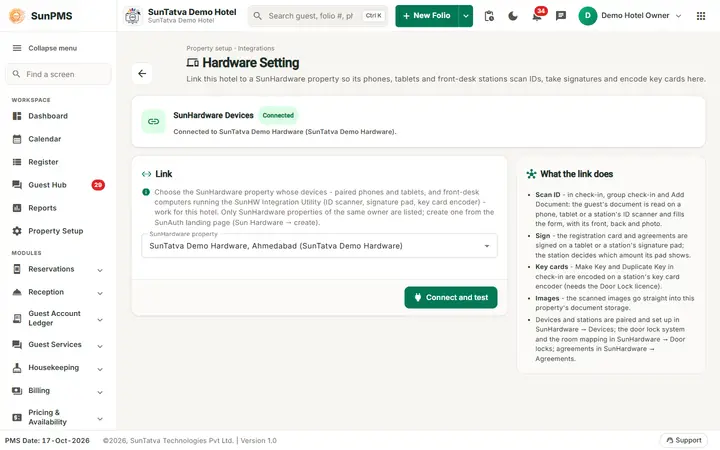
| Card SunHardware Devices with a status chip | Connected, Not connected or Needs attention, with a sentence under it: "Connected to |
Read only. |
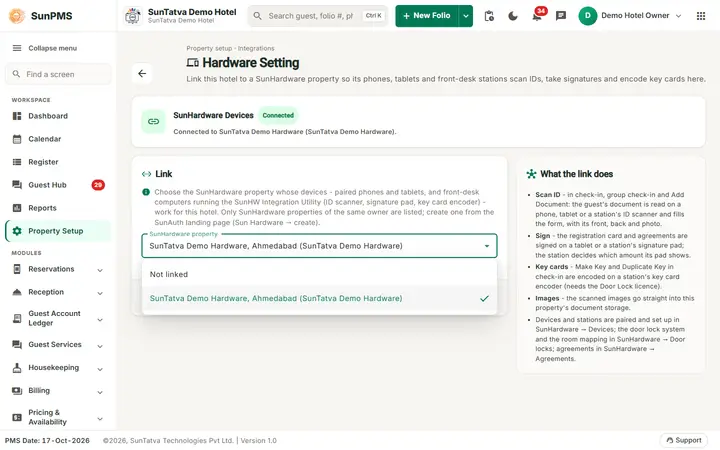
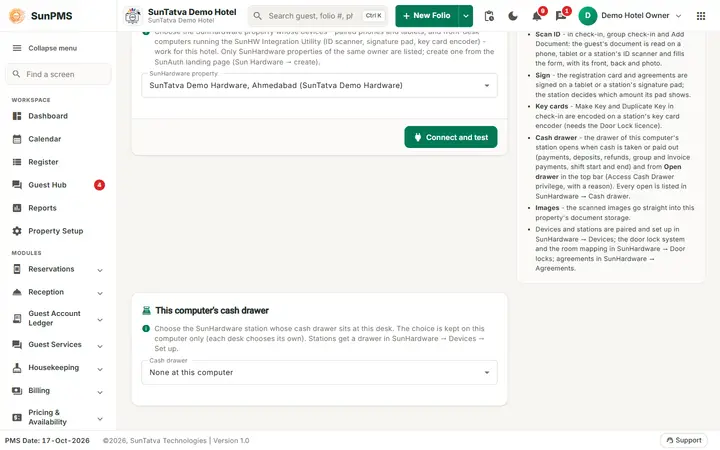
| Link card, field SunHardware property | Drop-down of SunHardware properties of the owner, shown as name, city (group). Not linked removes the link. If the owner has exactly one property and nothing is linked yet, it is pre-selected. |
Message "No SunHardware property was found for this owner." when the list is empty. Help text: only properties of the same owner are listed; create one from the SunAuth landing page (Sun Hardware > create). |
| Button Connect and test (reads Disconnect while Not linked is chosen) | Stores the link and immediately tests it: SunAuth must issue a token for the linked group. | Shown only with the licence. |
| Card What the link does | Lists the functions the link switches on (see below). | Read only. |
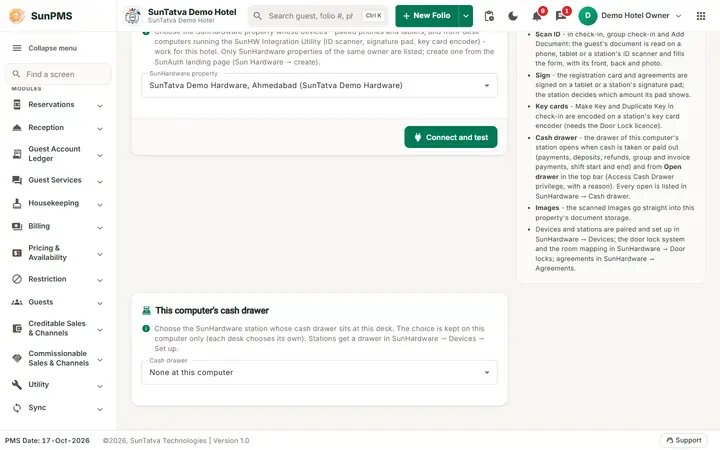
| Card This computer's cash drawer, field Cash drawer | Choose the SunHardware station whose cash drawer sits at this desk. Entries: None at this computer and every station that has a drawer, shown by its name and "(offline)" when it is not connected. | Shown only once the link is saved. The choice is kept in this browser only, so each desk chooses its own; it takes effect at once and a message "This computer uses the cash drawer of |
| Button Test: open drawer | Opens the chosen drawer once with the reason "Test from Hardware Setting"; message "Opening the cash drawer". | Shown only when a drawer is chosen and you have the Access Cash Drawer privilege. |
How to choose this computer's cash drawer
- Link the SunHardware property first (below) so the card This computer's cash drawer appears.
- Open the Cash drawer list and pick the station at this desk. The message "This computer uses the cash drawer of
" confirms it. - Optional: click Test: open drawer to check the drawer opens. Repeat on every computer that has a drawer. To stop opening a drawer from this computer choose None at this computer.
How to link or unlink
- Open Property Setup in the left menu and click the Hardware Setting card (group Configuration).
- Choose the SunHardware property (or Not linked).
- Click Connect and test (or Disconnect). Result: a short message "Connected", "Saved" or "Disconnected" and the status chip changes.
What happens behind the scenes
- Scan ID: in check-in, group check-in and Add Document, the guest's document is read on a phone, tablet or a station's ID scanner and fills the guest form with front, back and photo.
- Sign: the registration card and agreements are signed on a tablet or a station's signature pad (also satisfies Sign Mandatory at check-in in Guest Mandatory Data); the station decides which amount its pad shows.
- Key cards: Make Key and Duplicate Key in check-in are encoded on a station's key card encoder (needs the Door Lock licence).
- Where devices are managed: devices and stations are paired and set up in SunHardware > Devices; the door lock system and the room mapping in SunHardware > Door locks; agreements in SunHardware > Agreements. ID scanners, signature pads and door locks are no longer entered in the PMS (see Device Configuration).
- Cash drawer: every request of this browser carries the chosen station; when cash is taken or paid out the server sends a "cash drawer" task to that station and the drawer opens. It opens for: payments saved on a folio, at check-in and at check-out (a payment type of the Cash category; refunds count as cash out, deposits are logged as deposits), group payments, business source (invoice) payments, Start Shift (the opening balance) and End Shift (the closing count). Card, UPI and other non-cash types never open it. Open cash drawer (cash register icon) in the header opens it by hand without a sale: it asks for a Reason (up to 200 characters, required), and needs the Access Cash Drawer privilege and the licence. Every open, with its reason and user, is listed in SunHardware > Cash drawer.
- A failed open never blocks work: automatic opens are best effort. If the station does not answer within 5 seconds, or SunHardware is unreachable, the payment or shift is saved normally and the drawer simply does not open. Only the manual Open cash drawer shows an error, for example "Say why the drawer is opened without a payment." or "Choose this computer's cash drawer first (Property Setup -> Hardware Setting)."
- Images: scanned images go straight into the property's document storage (see Document Storage).
Messages you may see
| Message | Why | What to do |
|---|---|---|
| Connected / Saved / Disconnected | Link stored (and tested) | - |
| Could not save the hardware link. | Server error | Retry; check licence and owner |
| Error text under the drop-down | Link or list failed to load | Retry |
| This computer uses the cash drawer of |
Cash drawer choice stored or removed | - |
| Opening the cash drawer | The open command was sent | Watch the drawer; see SunHardware > Cash drawer if it did not open |
| You do not have the Access Cash Drawer privilege. | Manual open without the privilege | Ask the owner to add it to your role |
| Say why the drawer is opened without a payment. | Reason empty | Type a reason |
| Choose this computer's cash drawer first (Property Setup -> Hardware Setting). | No drawer chosen in this browser | Choose it here |
Tips and FAQ
- Q: The drawer did not open after a cash payment. A: Check that this computer has a drawer chosen, the station shows online, the payment type belongs to the Cash category, and look at SunHardware > Cash drawer. Another or a cleared browser has no choice stored.
- Q: The drop-down is empty. A: The owner has no SunHardware property; create one in the SunAuth landing page.
Screenshots