
Features
Hotel property setup: rooms, taxes, rates and settings
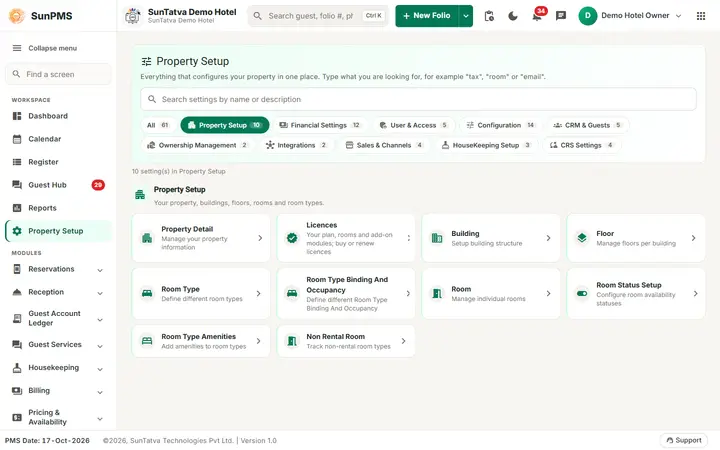
A new hotel uses Property Setup once, in a fixed order, to describe its buildings, rooms, taxes and rates. Afterwards the same area holds the masters and settings the hotel adjusts over time, from night audit time to folio and guest portal settings.
What you can do
Guides for property setup and settings
Every screen, field and message is explained in the Help Center.
Property Setup (settings hub)
Property Setup is the home page for every master and setting in SunPMS. It shows one card per screen, grouped into setting…
Read the guide →Tax
The Tax master (hub card Tax, page title Tax Master) is the list of tax names the hotel charges: GST, State Tax, City Tax…
Read the guide →Configuration
The Configuration group holds the masters that every reservation, folio and report uses, plus the people who may use the system.
Read the guide →Settings overview
Settings control how the PMS behaves for one property: renting rules, features, night audit, language of labels, folio numbers…
Read the guide →New hotel go-live checklist
Follow this order the first time you set up a hotel. Later steps depend on earlier ones, for example rooms need room types, and…
Read the guide →Property Detail
Property Detail holds the identity of the hotel: name, address, phone, e-mail, logo, photo and (for Indian hotels) GSTIN and…
Read the guide →Building
A building is the top level of the room location (a block, tower or wing). Every room must belong to a building and a floor.
Read the guide →Floor
A floor is the level on which a room sits. The system creates one floor, Lobby Floor.
Read the guide →Room Type
A room type is a category of rooms that share a price, a tax and an inventory count (Standard, Deluxe, Suite).
Read the guide →Room Type Binding And Occupancy
This screen sets how many guests a room type holds and, optionally, binds its rates to the base room type so you only maintain…
Read the guide →Room
The Room master lists every physical room. Each room has a name (the room number guests see), a code, a room type, a building, a…
Read the guide →Room Status Setup
Room statuses describe the condition of a room (Vacant Ready, Occupied Dirty...). The list is fixed by the system.
Read the guide →Room Type Amenities
A simple list of facilities (Wi-Fi, Air conditioning, TV) that you can attach to room types. It is empty in a new property.
Read the guide →Tax Configuration
Tax Configuration gives each tax name a rate and the date from which it applies.
Read the guide →Room Type Content Configuration
This page holds the extra descriptive details about one room type that online travel agents (through the CRS / channel manager)…
Read the guide →Rate Type
A rate type is a named price list for rooms, for example RACK, Corporate, Weekend or Hourly.
Read the guide →Rate Type Binding
Rate Type Binding lets a rate type follow the base (RACK) rate automatically, for example "Corporate = base rate minus 10%".
Read the guide →Document Type
Document types are the kinds of guest documents you can attach to a reservation: passport, driver licence, state ID, credit card.
Read the guide →Frequently asked questions
I cannot find a card such as Parking Setting.
Its licence is not active for the property. See Licences.
Where are the "Extra" masters?
They sit in the groups above: Financial Settings (extra income and extra expense categories, deposits), CRM & Guests (DNR reasons, notices), Ownership Management (room owners) and Property Setup (non rental rooms).
After I open a screen and press the back arrow I land on a different group.
The page remembers the group that was selected when you last clicked a card. Click All before opening a card if you want to see the full list again.
Is there a quicker way to a setup screen?
Yes. The Find a screen box at the top of the left sidebar finds screens by name.
I picked a logo but it vanished after I left the page.
Picking only previews; click Update to save.
Why can I not edit Country?
It is locked after it is first stored because tax and currency behaviour depend on it. Contact support.
See SunPMS with your own hotel in mind
Request a walkthrough and we will show the screens your team will use every day.