Building
On this page
A building is the top level of the room location (a block, tower or wing). Every room must belong to a building and a floor. Small hotels keep the single building that the system creates automatically (named Main).
Before you start
- Nothing else is needed. Create buildings before rooms.
Screen layout
| Field / column / button | What it means | Rules |
|---|---|---|
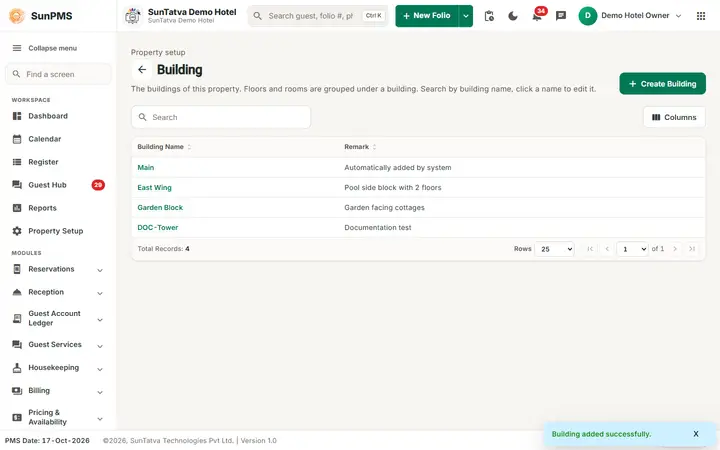
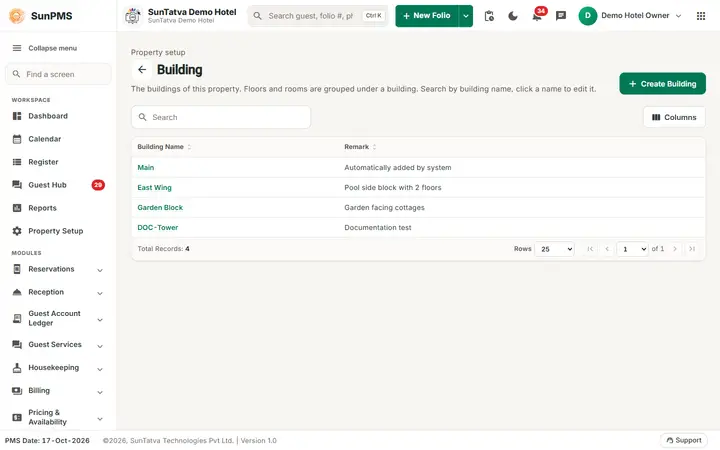
| Search box | Filters the list by building name while you type. | The x clears it; "n found" shows beside it. |
| Create Building (top right) | Opens the add window. | |
| Back arrow (beside the title) | Returns to Property Setup. | |
| Building Name column | Name of the building. Click the highlighted (green) name to edit. | Click the column heading to sort. |
| Remark column | Free note. | |
| Columns button (above the table, right) | Opens a side panel to hide, show or re-order columns. | Per screen only. |
| Footer | Total Records, Rows (25 / 50 / 100), first / previous / next / last page and page drop-down. | |
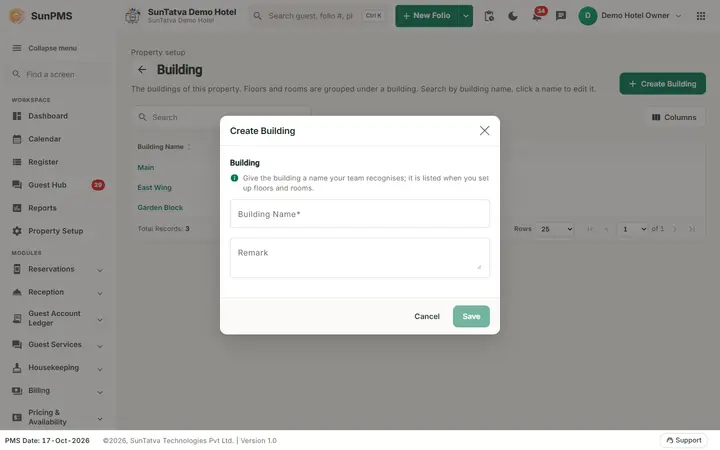
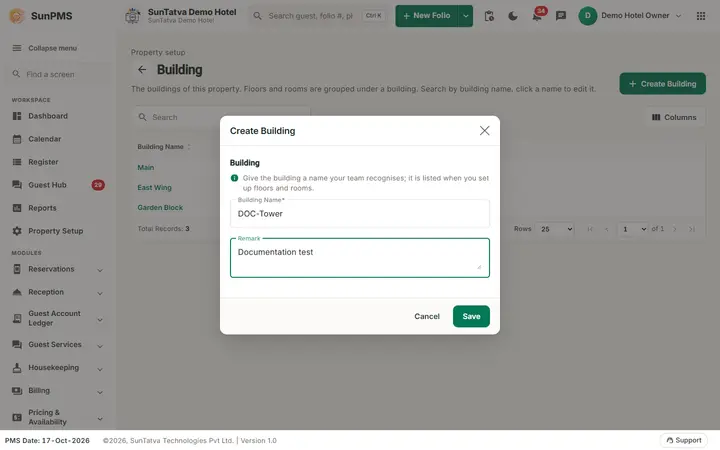
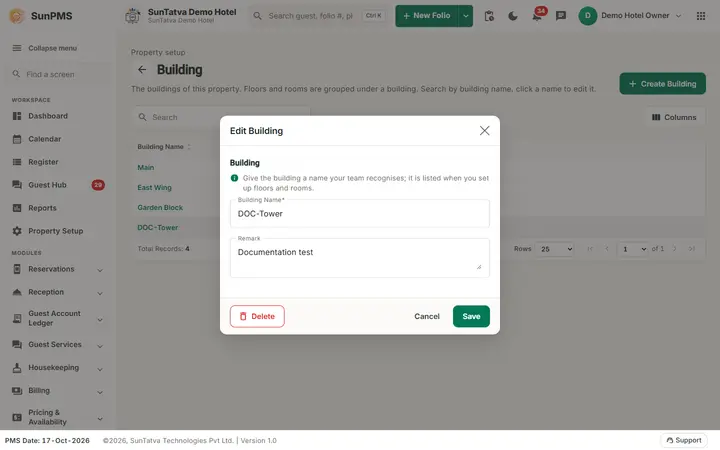
| Window section Building: Building Name | Name. The help line says it is listed when you set up floors and rooms. | Required, limited length. Must be unique. |
| Remark | Note. | Optional, limited length. |
| Save, Cancel, Delete (window footer) | Delete (left) shows only when editing. | Save stays disabled until the name is typed. |
Only active buildings are listed. Deleted (inactive) buildings are hidden.
How to add a building
- Click Create Building.
- Type the Building Name and an optional Remark.
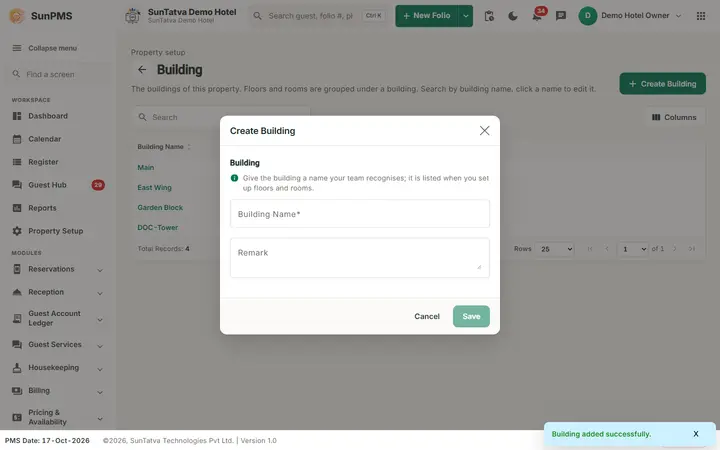
- Click Save. Result: Building added successfully. The window stays open with an empty form (title Create Building) so you can add the next one. Click Cancel to close it.
How to edit a building
- Click the building name in the list.
- The window opens with the title Edit Building. Change the name or remark.
- Click Save. Message: Building updated successfully.
How to delete a building
- Click the building name, then Delete.
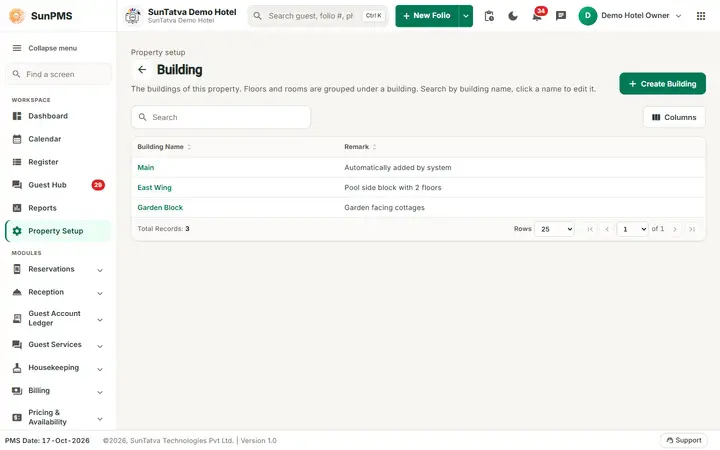
- Confirm Are you sure want to delete this Building? Result: Building deleted successfully. The building disappears from the list and from the Room drop-downs (it becomes inactive from the PMS date).
What happens behind the scenes
Delete is a soft delete: the building is made inactive and old data still shows its name. PMS refuses the delete if an active room is in the building or if a guest is checked in / reserved in one of its rooms.
Messages you may see
| Message (exact text) | Why it appears | What to do |
|---|---|---|
| Please enter Building Name. | Name empty. | Type a name. |
| Record Already Exist. | Another building has that name. | Use a different name. |
| This building cannot be deleted because it has rooms or active reservations. Move or delete its rooms first. | Shown when a delete is refused because rooms or stays use the building. (Before 2026-10-17 the text wrongly talked about a room type.) | Move or delete the rooms first. |
| Building added successfully. / Building updated successfully. / Building deleted successfully. | Success. | None. |
Tips and FAQ
- Q: Can I rename Main? A: Yes, click it and change the name.
- Q: I need two towers with the same floor names. A: Floors are not tied to a building, so create the floors once and choose the building on each room.
- Q: Where is the Active tick box? A: Not shown; use Delete to deactivate.
Screenshots