
Property Setup (settings hub)
On this page
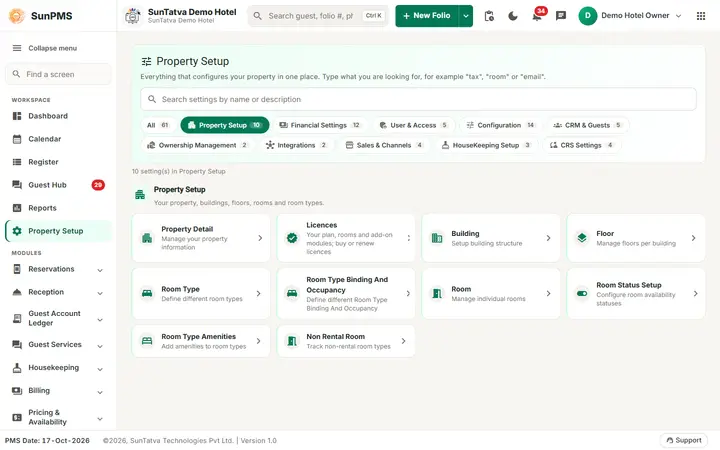
Property Setup is the home page for every master and setting in SunPMS. It shows one card per screen, grouped into setting groups, with a search box on top. A new hotel uses it once, in a fixed order, to describe its buildings, rooms, taxes and rates. After go-live it is the place you come back to when something about the property changes.
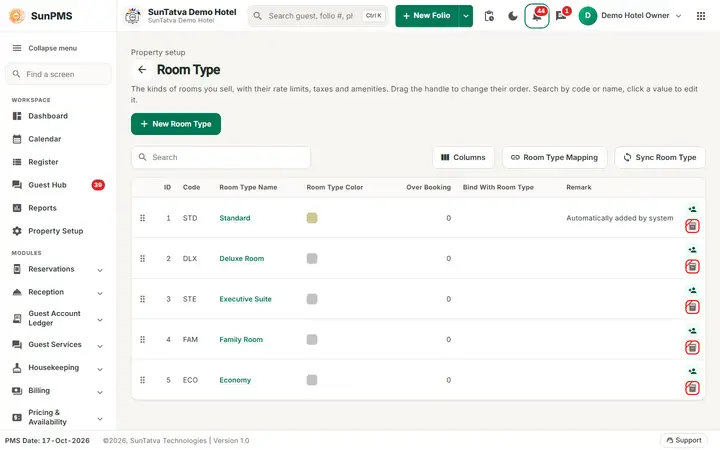
The Room Type list, one of the master screens of Property Configuration.
Before you start
- You need to be signed in to the property you want to configure (the property name is shown at the top right).
- Each card opens a screen that has its own privilege; cards for unlicensed features are hidden. A screen you have no privilege for blocks you when you open it.
- Every master screen in this manual opens from Property Setup in the left sidebar (under Workspace) and has a back arrow next to its title that returns here. The address of each screen is
#/setup/<name>(for example#/setup/buildings); the older#/admin/...addresses still redirect.
Screen layout
| Element | What it means | Rules |
|---|---|---|
| Search box (Search settings by name or description) | Type a word such as "tax", "room" or "email". The page then shows every card whose name or one-line description contains it, across all groups; the x clears it. | Typing ignores the selected group chip. The line under the chips reads n setting(s) match "text". |
| Group chips: All, Property Setup, Financial Settings, User & Access, Configuration, CRM & Guests, Ownership Management, Integrations, Sales & Channels, HouseKeeping Setup | Each chip shows how many cards its group holds. Click one to see only that group; All shows every group one under the other. CRS Settings appears only for properties connected to a channel manager (CRS). FAS Settings appears only for FAS properties. | The chips wrap onto several lines instead of scrolling. A chip with no visible card is not shown. |
| Group heading (icon, name, one-line help) | Names the group, for example Financial Settings: Taxes, rates, charges, currencies, payment types and deposits. | |
| Card | Icon, name and one-line description. Click anywhere on the card to open the screen. | The group you were in is remembered (in this browser), so the back arrow on a screen returns you to the same group. |
Cards in the groups covered by this manual
| Group | Cards |
|---|---|
| Property Setup | Property Detail, Licences, Building, Floor, Room Type, Room Type Binding And Occupancy, Room, Room Status Setup, Room Type Amenities, Non Rental Room |
| Financial Settings | Tax, Tax Configuration, Rate Type, Rate Type Binding, Other Charge Category, Other Charges, Measurement Unit, Exchange Rate, Payment Type, Extra Income Category, Extra Expense Category, Deposit Setup |
| User & Access | Roles, Assign Transaction Privileges, Assign Report Privileges, User, Ip White List |
| Configuration | Policy, Rental Setting, Feature Setting, Night Audit Setting, Localization Setting, Document Storage, Display Setting, Folio Setting, Credit Card Setting, Email Setting, plus licence-gated cards: Guest Portal Setting (licence ONLINE_CHECKIN or GUEST_MODULE), Hardware Setting (HARDWARE_INTEGRATION), Parking Setting (PARKING_INTEGRATION), Spa Setting (SPA_INTEGRATION), WhatsApp Setting (WHATSAPP) |
| CRM & Guests | Guest Mandatory Data, E-Mail Templates, DNR Reason, Notice Setup, Document Type |
| Ownership Management | Room Owner, Owner Room Assignment |
| Integrations | WebHook, Payment Gateway Integration (licence PAYMENT_GATEWAY) |
| Sales & Channels | Sales & Channels Category, Sales & Channels, Commissionable Sales & Channels, Creditable Sales & Channels |
| HouseKeeping Setup | HouseKeeping Task, House Keeping Group, House Keeping Member Assignment |
| CRS Settings (channel-manager properties only) | CRS Tax Exempt, Bulk Inventory Update, Bulk Restrictions Update, Bulk Rate Update |
How to open a setting
- Click Property Setup in the left sidebar (under Workspace).
- Type part of the name in the search box, or click a group chip.
- Click the card. The screen opens with its title, a short explanation and a back arrow that returns to this page.
Result: the card's screen. Master screens (Building, Floor, Room Type...) all follow the pattern in the next section.
Master screens: one pattern
Almost every master in Property Setup looks the same:
- Header: a small grey line "Property setup", the back arrow with the screen title, one sentence saying what the master is for, and the main action on the right (for example Create Building, New Floor).
- Search box and a Columns button above the table. Search filters while you type; "n found" appears beside it.
- Table with sortable column headings (click a heading to sort, click again to reverse) and sticky headings. The first value of each row is highlighted: click it to open the record in an edit window. On a phone each row becomes a card.
- Columns opens a side panel in which you tick the columns to show and drag them into a new order. It applies to this screen only.
- Footer: Total Records, Rows (25 / 50 / 100) and first / previous / next / last page buttons with a page drop-down.
- Add / edit window: a panel with a title, the fields grouped into titled sections with a one-line explanation, and a footer with Delete (left, only when editing), Cancel and Save (right).
- Delete is a soft delete: the record becomes inactive from the PMS date; records in use may refuse.
How to set up a new hotel (recommended order)
Each step depends on the one before it. For example a room needs a room type, a building and a floor, and a rate needs a room type.
- Property Detail: name, address, contact, logo (01-property-detail.md).
- Feature Setting, Localization Setting, Rental Setting screens: turn on the features you need (Group, Tax Inclusive, Range Tax, Deposit...), currency, date format, check-in / check-out times. Do this early because it changes which fields later screens show.
- Building and Floor (02-building.md, 03-floor.md). A new property already has one building (Main) and one floor (Lobby Floor); rename them instead of adding if you only need one.
- Tax then Tax Configuration (09-tax.md, 10-tax-configuration.md). Create the tax names first and give each a rate and a start date. Do this before room types so you can attach taxes to them.
- Room Type Amenities (08-room-type-amenities.md), then Room Type (04-room-type.md); attach taxes and amenities. Then Room Type Binding And Occupancy for base / adult / child occupancy and linked rates (05-room-type-binding-occupancy.md).
- Room (06-room.md): create rooms one by one.
- Room Status Setup (07-room-status.md): optional, rename or recolour statuses.
- Rate Type, Rate Type Binding, then enter rates in Rate Manager.
- Other Charge Category and Other Charges (minibar, laundry, extra bed...), Payment Type, Exchange Rate if you use more than one currency.
- Roles, privileges and User: create staff logins.
- Housekeeping Setup and the extra masters (../05-extra-masters/).
- Sales & Channels, Policy, E-Mail Templates, integrations.
The demo hotel used in the screenshots and videos
The SunTatva Demo Hotel was set up with this layout (as of 17-Oct-2026); examples in this manual use it. Demo figures change.
| Item | Demo value |
|---|---|
| Rooms | 28 in total: Standard (STD) 101-108, Economy (ECO) 109-112, Deluxe Room (DLX) 201-208, Family Room (FAM) 301-304, Executive Suite (STE) 305-308 |
| Rate types | RACK (base), Corporate (RACK minus 10 percent), Weekend Special (bound to RACK, minus 5 percent) |
| Base rates (RACK, per night) | STD 2,500; ECO 1,800; DLX 4,000; FAM 5,200; STE 9,500; Friday and Saturday are 10 percent higher (for example STD 2,750) |
| Tax | GST 12 percent, effective 17-Oct-2026 (a tax cannot start on the day it is created; the earliest start date is the next day) |
| Buildings and floors | Main, East Wing, Garden Block; Second Floor and Third Floor were added for the demo |
Go-live checklist
- Property Detail filled in, logo uploaded.
- Building and floors named correctly.
- Taxes created and configured with the correct start date (the first rate of a tax may start on the PMS date; later changes start tomorrow or later).
- Every room type has a Code, a name, taxes, min / max rate and an occupancy.
- Every room exists and is linked to the correct room type, building and floor. Count the rooms against your licence.
- Rates entered for the next 12 months.
- Users and roles created; owner password changed.
- A test reservation: check in, post a charge, check the tax on the folio, check out.
What happens behind the scenes
Masters are saved in the property's own database. Most masters are never physically deleted: Delete makes the record inactive from the PMS date, so old folios and reports keep showing it. Several screens refuse to inactivate a record that is still used (for example a room type that still has rooms).
Messages you may see
| Message (exact text) | Why it appears | What to do |
|---|---|---|
| No matching settings found. | The search found no card. | Click Clear search or change the search text. |
Tips and FAQ
- Q: I cannot find a card such as Parking Setting. A: Its licence is not active for the property. See Licences.
- Q: Where are the "Extra" masters? A: They sit in the groups above: Financial Settings (extra income and extra expense categories, deposits), CRM & Guests (DNR reasons, notices), Ownership Management (room owners) and Property Setup (non rental rooms).
- Q: After I open a screen and press the back arrow I land on a different group. A: The page remembers the group that was selected when you last clicked a card. Click All before opening a card if you want to see the full list again.
- Q: Is there a quicker way to a setup screen? A: Yes. The Find a screen box at the top of the left sidebar finds screens by name.