Tax
On this page
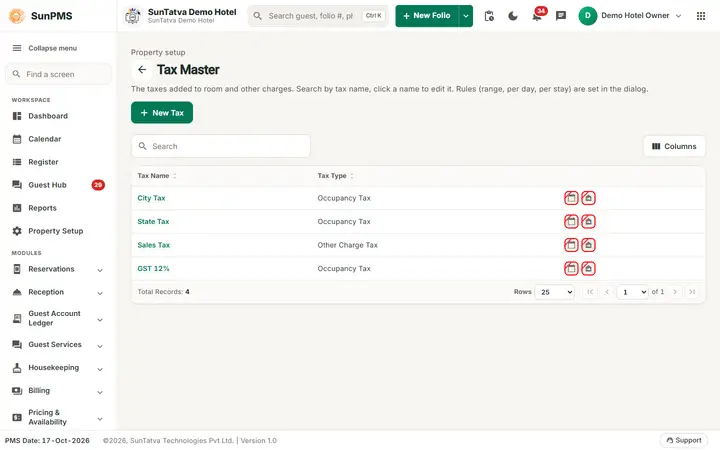
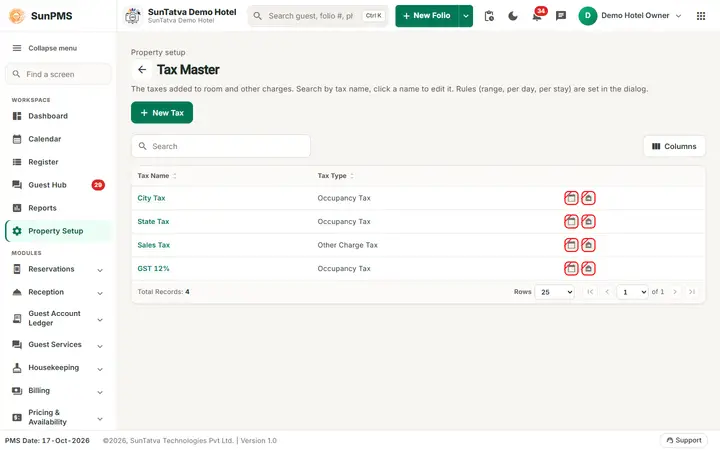
The Tax master (hub card Tax, page title Tax Master) is the list of tax names the hotel charges: GST, State Tax, City Tax, Service Charge. A tax name has no rate yet. The rate and the date from which it applies are set in Tax Configuration (10-tax-configuration.md). A tax only reaches a guest folio after you also attach it to a room type (room rent) or to an other-charge item.
Before you start
- Decide which taxes apply to room rent (type Occupancy Tax) and which to extra charges such as minibar or laundry (type Other Charges Tax).
- For slab taxes (for example 12% up to a tariff and 18% above it) switch on Range Tax in Feature Setting. Without it the Range Tax tick box and the range columns are hidden.
- A new property starts with three taxes: City Tax (Occupancy), State Tax (Occupancy) and Sales Tax (Other Charges), all at 0%.
Screen layout (list)
This screen follows the common master layout described in Property Setup (section "Master screens: one pattern"): a header with the back arrow, the title, a one-line explanation and the main button on the right; a Search box and a Columns button above a sortable table; a footer with Total Records, Rows and page buttons; and an add / edit window with Delete (left, only when editing), Cancel and Save. Specific to this screen:
| Column / button | What it means |
|---|---|
| Search | By tax name or tax type. The page title is Tax Master; its explanation reads "The taxes added to room and other charges." |
| New Tax | Opens the window (Add Tax). |
| Tax Name | Click the highlighted name to edit (Edit Tax). |
| Tax Type | Occupancy Tax (room rent) or Other Charge Tax. |
| Icon column | Calendar icon = Per Day Tax, night-shelter icon = Per Stay Tax, tune icon = Range Tax (only when the Range Tax feature is on). A crossed icon means No. |
Screen layout (window)
| Field | What it means | Rules |
|---|---|---|
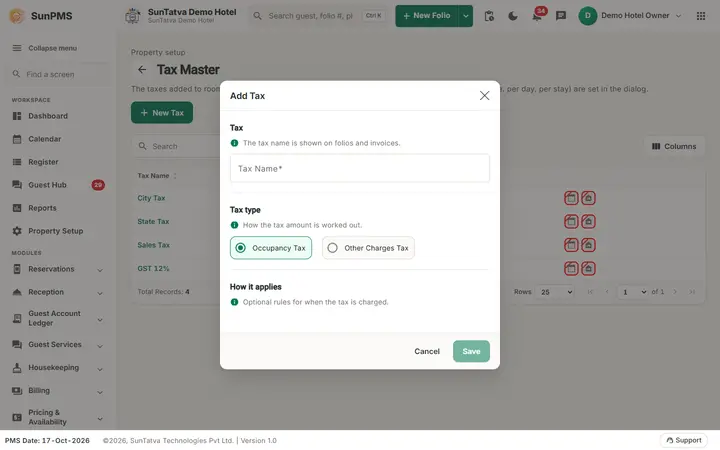
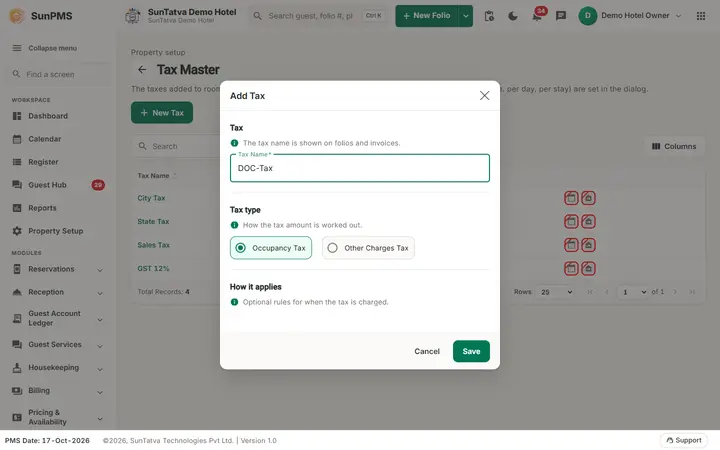
| Section Tax (help: "The tax name is shown on folios and invoices."): Tax Name | Name printed on the folio. | Required, up to 100 characters. Unique per tax type. |
| Tax Type | Radio buttons: Occupancy Tax or Other Charges Tax. (The wording can be renamed in Localization settings.) Section Tax type, help: "How the tax amount is worked out." | Pick one. A new tax has none pre-selected. |
| Section How it applies (help: "Optional rules for when the tax is charged."), tick boxes: Range Tax | The rate depends on the nightly room rate band. | Only visible when the Range Tax feature is on. |
| Per Day Tax | A fixed money amount charged every night instead of a percentage. | Only for Occupancy Tax. Mutually exclusive with Per Stay Tax. |
| Per Stay Tax | A fixed money amount charged once, on the arrival night. | Only for Occupancy Tax. |
| Save, Cancel, Delete (window footer) | Delete only when editing. |
How the three kinds work:
| Kind | Rate meaning | Charged |
|---|---|---|
| Normal (none ticked) | Percentage of the nightly room rent (or other charge amount). | Every night / every charge. |
| Range Tax | Percentage chosen by the nightly rate band in Tax Configuration (Start Range to End Range). | Every night, only when the night's rent falls inside a band. |
| Per Day Tax | A currency amount (for example 100). | Every night. |
| Per Stay Tax | A currency amount. | Once per stay, on the first night. |
How to add a tax
- Click New Tax.
- Type Tax Name.
- Choose Tax Type. For Occupancy Tax the kind options appear.
- Tick Range Tax, Per Day Tax or Per Stay Tax if needed.
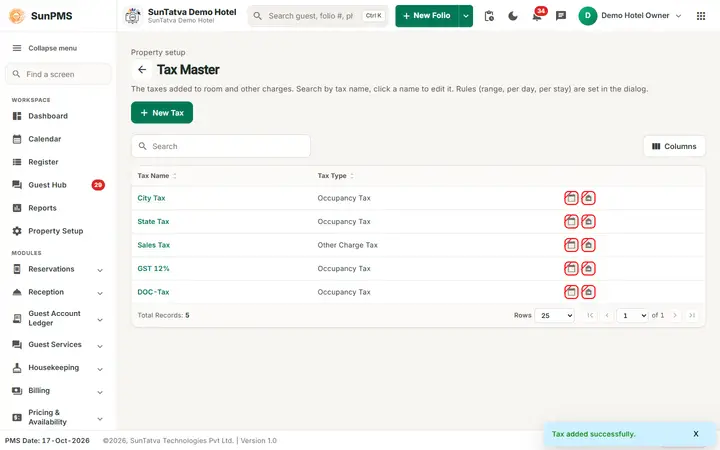
- Click Save. Result: Tax added successfully. The window stays open and empty for the next tax; Cancel closes it. Now open Tax Configuration and give the tax a rate.
How to edit a tax
Click the name, change it, Save (Tax updated successfully.). A tax that already has a configuration cannot be renamed or switched off (see messages).
How to delete a tax
Open the tax, Delete, confirm Are you sure want to delete this Tax? Message Tax Master deleted successfully. The tax becomes inactive from the PMS date.
What happens behind the scenes
- The master only defines name, type and kind; rates come from Tax Configuration.
- At reservation / check-in PMS looks up the taxes of the room type for each night, takes the rate valid on that night and posts the tax as separate lines under the room rent.
Messages you may see
| Message (exact text) | Why it appears | What to do |
|---|---|---|
| Please enter Tax Name. | Empty name. | Type it. |
| Record Already Exist. | Name already used for this tax type. | Rename. |
| Tax Configuration exists. | You tried to deactivate or rename a tax that still has configured rates. | Remove or end its configuration first (not possible once used on folios; ask support). |
| Invalid Tax Name | Blank name on update. | Type a name. |
Tips and FAQ
- Q: I created a tax but the guest is not charged. A: Check three things: the tax has a row in Tax Configuration with a start date that has arrived, the tax is ticked on the room type, and the rate is not 0.
- Q: Why can I not see Range Tax? A: Turn on Range Tax in Feature Setting.
- Q: Can one tax be both per day and per stay? A: No. Ticking one clears the other.
Screenshots