Tax Configuration
On this page
Tax Configuration gives each tax name a rate and the date from which it applies. PMS keeps the full history: when you add a new rate with a later start date, the old rate is closed the day before. Every night of a stay is taxed with the rate that was valid on that night.
Before you start
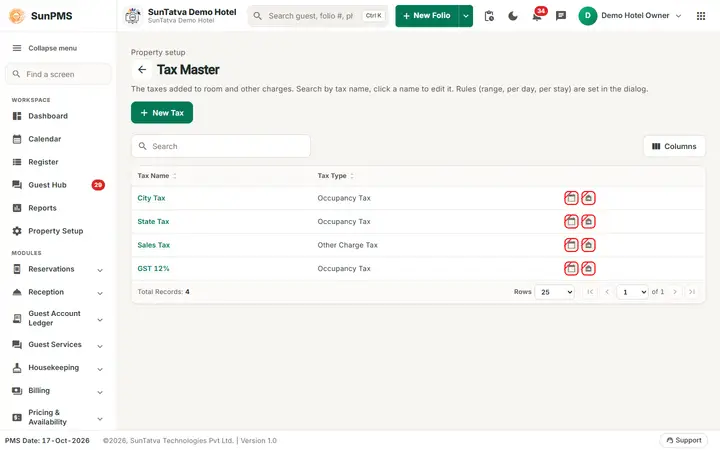
- Create the tax name in Tax (09-tax.md).
- Attach the tax to the room type (Room Type > Tax Name) for room rent, or to the other-charge item (Other Charges) for extra charges.
- For slab rates turn on Range Tax in Feature Setting and tick Range Tax on the tax name.
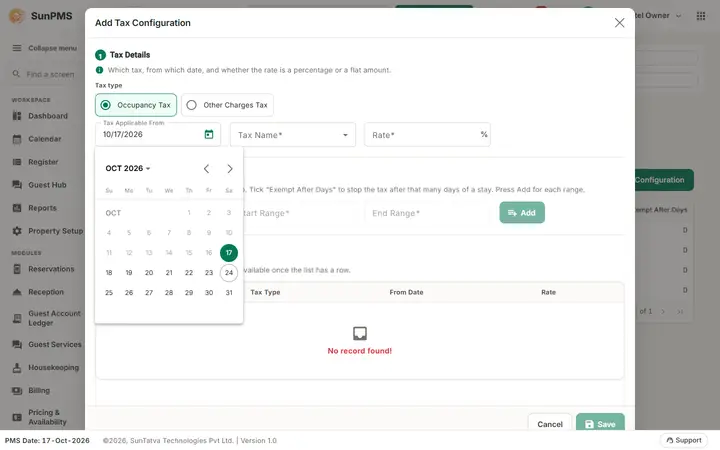
- Start date rule (since 2026-10-18): the first rate of a tax (a tax with no configuration in the list yet) may start on the PMS date, so a new property can charge tax from its first night. Every later rate of a tax that already has a configuration cannot start today or earlier: the earliest date offered is tomorrow (PMS date + 1). The earliest date is re-evaluated when you change the Tax Name.
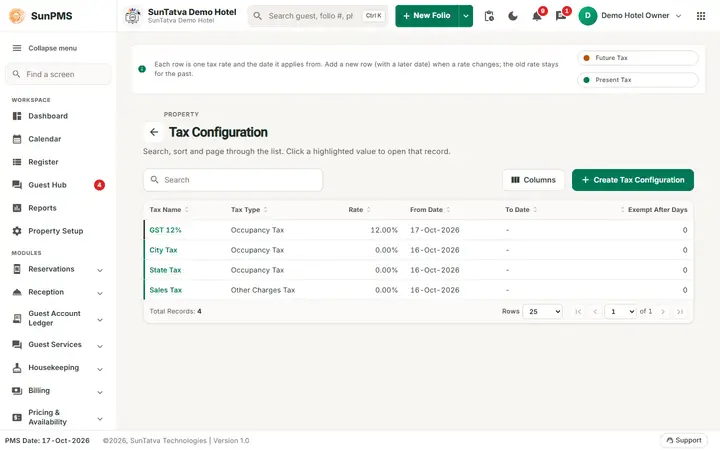
Screen layout (list)
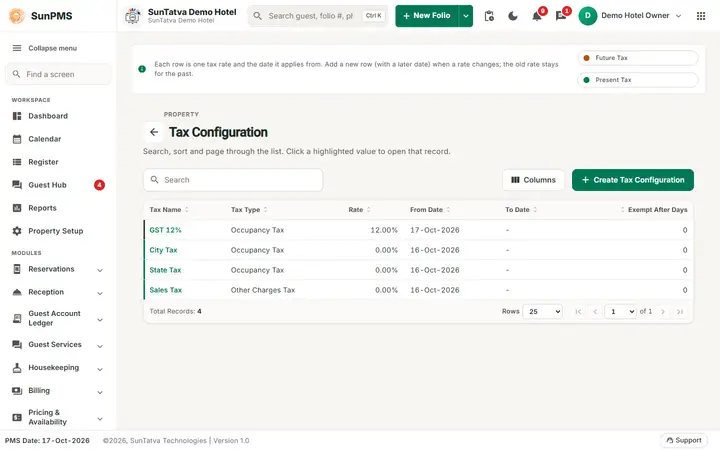
| Column / button | What it means |
|---|---|
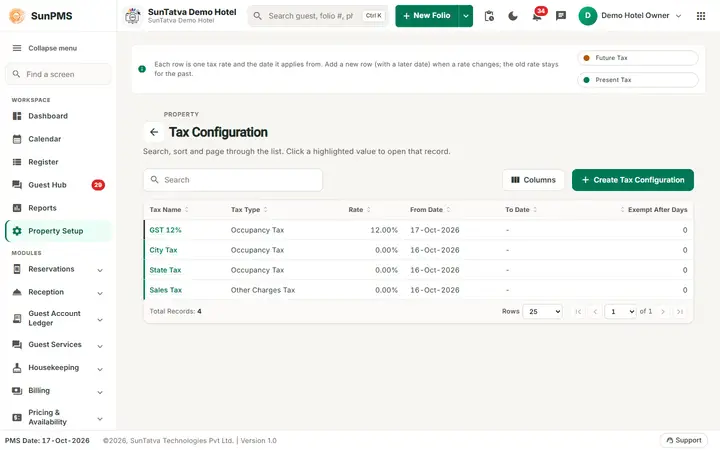
| Note line above the title | "Each row is one tax rate and the date it applies from. Add a new row (with a later date) when a rate changes; the old rate stays for the past." and the colour key Future Tax / Present Tax. |
| Search, Columns, back arrow | By tax name; choose columns; back to Property Setup. |
| Create Tax Configuration (top right) | Opens Add Tax Configuration. |
| Tax Name | Click the highlighted name to edit that row. |
| Tax Type | Occupancy Tax or Other Charges Tax; "(Per Day)" or "(Per Stay)" is added for fixed-amount taxes. |
| Rate | Percentage such as 12.00%, or a fixed amount in the property currency symbol for Per Day / Per Stay taxes. |
| From Date | First night the rate applies. |
| To Date | Last night; - means open-ended (current). |
| Exempt After Days | Tax stops after this many nights of one stay (0 = never). |
| Start Range, End Range | Rate band the row is valid for. Visible only when the Range Tax feature is on. |
| Row marker and legend (top) | Future Tax (amber marker): starts after today. Present Tax (green marker): in force now. |
The list shows only rates that are open-ended or whose end date is today or later. Fully expired rates are hidden.
Screen layout (Add Tax Configuration window)
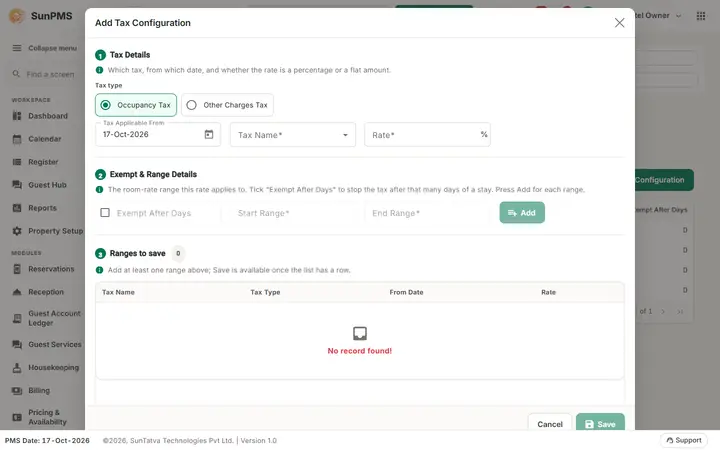
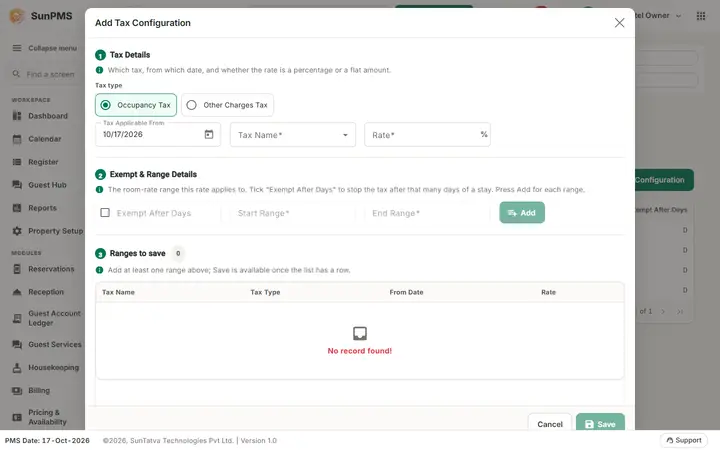
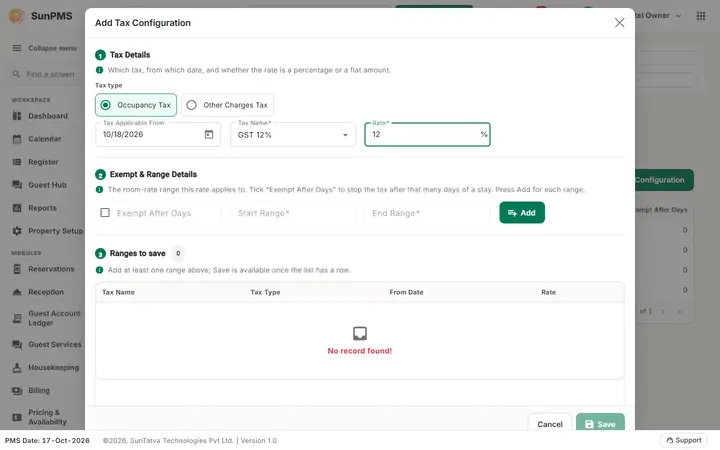
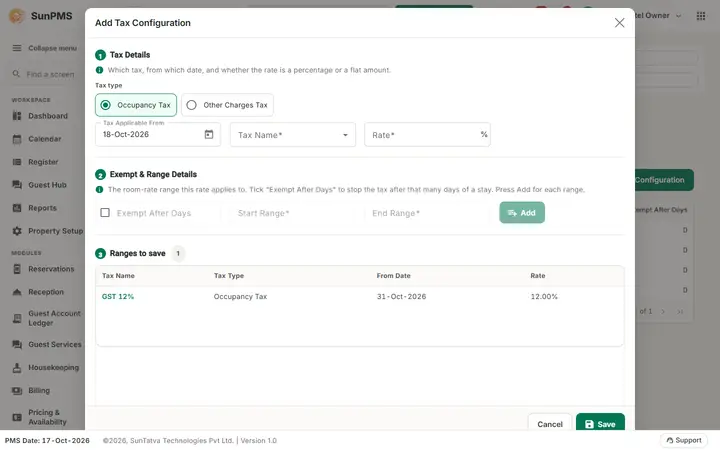
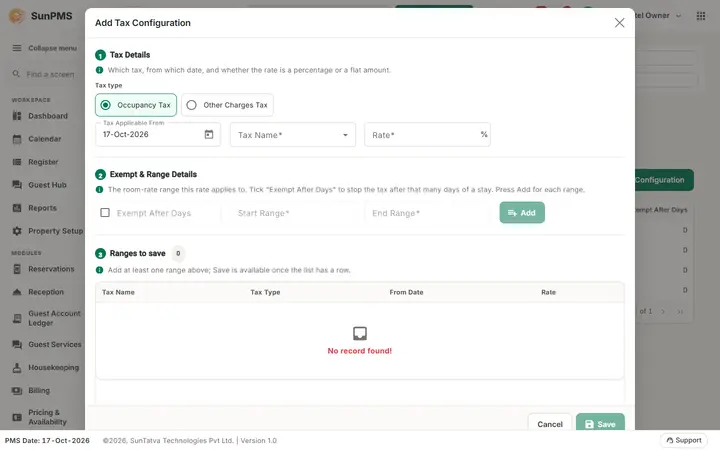
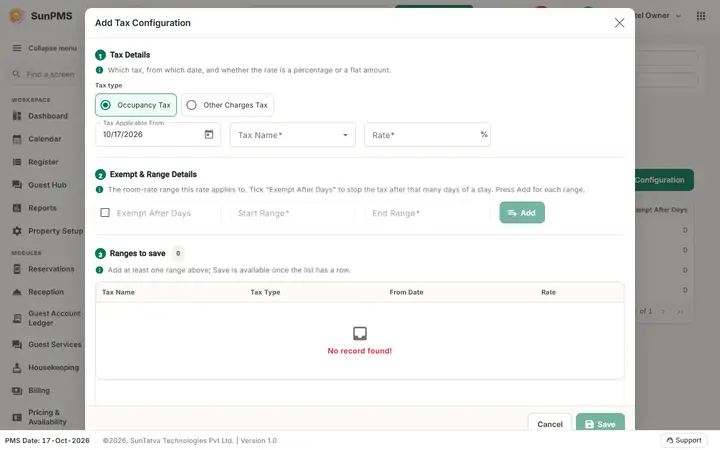
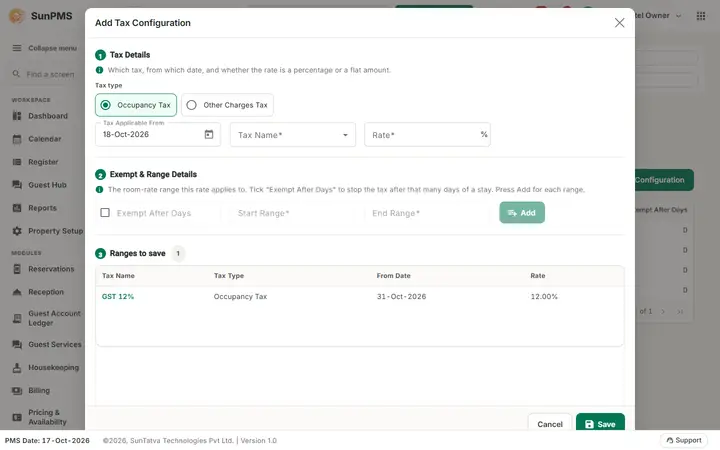
The window has three numbered sections: 1 Tax Details ("Which tax, from which date, and whether the rate is a percentage or a flat amount."), 2 Exempt & Range Details ("The room-rate range this rate applies to. Tick "Exempt After Days" to stop the tax after that many days of a stay. Press Add for each range.") and 3 Ranges to save (the rows added so far, with a count; "Add at least one range above; Save is available once the list has a row.").
| Field | What it means | Rules |
|---|---|---|
| Tax Applicable From | Start date. | Date picker; earliest the PMS date for the first rate of a tax, otherwise tomorrow (PMS date + 1). Read-only text, pick from the calendar. |
| Tax type radio | Occupancy Tax or Other Charges Tax. | Filters the Tax Name list. |
| Tax Name | The tax from the master. | Required. Choosing it sets the rate suffix: % for normal / range taxes, currency symbol for Per Day / Per Stay. |
| Rate | The value. | Required, decimal. Percentage or fixed amount per the tax kind. |
| Exempt After Days | Tick the box, then type the number of nights after which the tax is not charged. | Only for Occupancy Tax and not for Per Stay. Must be above 0 when ticked. |
| Start Range / End Range | Lower and upper nightly rent of the slab. | Enabled only when the chosen tax is a Range Tax. Both required; End must be greater than Start; max 12 digits; values 0 to 9,999,999. |
| Add | Puts the row in the grid below. | Disabled until the form is valid. |
| Grid of rows | Tax Name, Tax Type, From Date, Rate (+ Start / End Range). Click a name to open a small card with Delete (removes the row from the grid only) and Cancel. | |
| Save | Saves all rows in the list at once. | Disabled while the list is empty. |
| Cancel | Closes without saving. |
How to add a rate
- Click Create Tax Configuration.
- Pick Tax Applicable From, the tax type and the Tax Name.
- Type the Rate. For a slab tax also type Start Range and End Range. For an exempt rule tick Exempt After Days and type the nights.
- Click Add. Repeat for further taxes or slabs (you can queue several).
- Click Save. Result: Tax configuration added successfully. The list shows the new rows with the amber Future Tax marker until the start date arrives. The previous open-ended rate of the same tax gets a To Date of the day before the new start.
Slab (range) taxes
For a range tax, add one row per slab, all with the same start date. Slabs of the same tax and date must not overlap. If you add a slab that overlaps an existing open slab, a Range Tax Comparison window shows Existing Tax and Tax to be Added. The conflicting existing slab is marked Conflicting Range; if the new start date is later, the old slab is given a To Date (shown in the note "ToDate will be set for Conflicting Range Which is shown in Bold Red color."). Click Yes to continue or Cancel.
How to edit a rate
- Click the tax name in the list. The window Edit Tax Configuration opens with the tax and date locked.
- You can change Rate, Exempt After Days and the ranges (if range tax). The Save button appears only for rows whose From Date is today or later (future rates). A rate already in force cannot be edited: add a new row with a later start date instead.
- Click Save. Message: Tax Configuration updated successfully.
How to delete a rate
Worked examples
In all examples PMS multiplies the nightly room rent before tax by the rate valid on that night.
1. One percentage tax (exclusive). GST 12% from 1 Apr. Room rent 4,000 per night, 3 nights. Tax per night = 4,000 x 12% = 480. Folio: rent 12,000 + GST 1,440 = 13,440.
2. Indian GST slabs by tariff (Range Tax). Create tax GST as Occupancy Tax with Range Tax on. Add two rows from the same date: Rate 12, Start Range 0.00, End Range 7500.00; and Rate 18, Start Range 7500.01, End Range 99999999 (use the slabs that are in force for your hotel; these figures are examples).
- Night at 6,000: falls in the first slab, tax 720, total 6,720.
- Night at 9,000: second slab, tax 1,620, total 10,620.
- A stay with 7,000 on weekdays and 8,000 on weekends is taxed night by night: 12% on the weekday nights, 18% on the weekend nights.
- A night whose rent matches no slab gets no tax from this tax name, so leave no gaps between End Range and the next Start Range.
3. Two taxes on the same room. City Tax 5% and State Tax 7% both ticked on the room type. Rent 2,000: City 100, State 140, total 2,240. Each appears as its own line.
4. Per Day and Per Stay (fixed amounts). Per Day tax "Tourism Fee" 100: a 3-night stay pays 300 (100 each night, regardless of rent). Per Stay tax "Entry Fee" 250: charged once on the first night, 250 for the whole stay. Rate is a money amount, shown with the currency symbol; no range applies.
5. Exempt After Days. City Tax 10%, Exempt After Days 3, rent 2,000, 5 nights. Nights 1 to 3: 200 each = 600. Nights 4 and 5 are marked exempt and no tax is added. Per Stay taxes ignore this rule.
6. Inclusive vs exclusive. With Tax Inclusive off (default, in Feature Setting) the rate you enter in Rate Manager is the rent before tax and the tax is added on top (example 1). With Tax Inclusive on you quote the price including tax. Example: quoted 5,600 with a 12% tax: rent = 5,600 x 100 / 112 = 5,000 and tax = 600; the guest still pays 5,600. When the setting is switched on, PMS converts the future room-type rates using the plain percentage taxes of each room type; range and fixed taxes are not part of this conversion.
7. Other charges tax. Sales Tax 5% (Other Charges Tax) attached to Minibar. A charge of 400 posts tax 20 on the folio line. Exempt After Days works the same way, counted by charge date.
How it shows on the folio
For every night, the room rent is posted and the taxes of the room type follow it as separate lines named with the Tax Name (for example GST, City Tax), each with its own amount; Per Day and Per Stay taxes show as fixed amounts. Exempt nights are recorded as tax-exempt and are not added to the total. Other-charge taxes appear with the charge line. Folio totals, night audit postings and the daily tax report use the same tax lines.
What happens behind the scenes
- When you save, PMS immediately recalculates the tax of all existing future reservations and in-house stays from the start date (and for the tax type changed). Printed folios of departed guests are not changed.
- For non-range taxes PMS closes the open rate on the day before the new start and also ends the new rate before any already-existing later rate.
- A change to a tax that already has a rate cannot start in the past or today, so changes always begin tomorrow or later. Only the first rate of a tax can start on the PMS date.
Messages you may see
| Message (exact text) | Why it appears | What to do |
|---|---|---|
| Start range and End Range can not be empty. | Range tax chosen but a range box is empty. | Fill both. |
| End Range should be greater than Start range. | End is not above Start. | Correct. |
| Please enter no. of Exempt After Days. | Exempt box ticked but nights are 0 or empty. | Type the nights or untick. |
| Invalid Request, |
A row for that tax and start date (or overlapping slab) already exists. | Edit the existing row or choose another date. |
| Specified Range Tax configuration is already exist, So please modify it do not add new. | In the comparison window the new slab duplicates an existing one. | Cancel and edit. |
| ToDate will be set for Conflicting Range Which is shown in Bold Red color. | Informational: the old slab will be closed. | Click Yes or Cancel. |
| Are you sure you want to add this Range Tax? | Confirmation of the comparison window. | Yes / Cancel. |
| Tax configuration added successfully. / Tax Configuration updated successfully. | Success. | None. |
| Something wrong, Please try again. | Save failed on the server. | Retry; contact support if repeated. |
Tips and FAQ
- Q: I changed the rate today but guests are still charged the old one. A: A change to an existing tax starts tomorrow at the earliest; tonight is taxed at the old rate. (The first rate of a brand-new tax can start on the PMS date.)
- Q: I cannot edit the current rate. A: Add a new row with a start date of tomorrow or later.
- Q: How do I stop charging a tax? A: Add a new row for it with rate 0 from the date you stop.
- Q: The tax does not appear on a new reservation. A: Make sure the tax is selected on the room type.
- Q: Where are range columns? A: Only when the Range Tax feature is on.
After Save. When you click Save, the window shows "Tax configuration added successfully." and the new rate appears in the grid behind it. A saved rate cannot be deleted again on this screen, so no screenshot of the saved state is shown here; check the grid and the Rate Manager figures instead.
Screenshots