
Room Type Content Configuration
On this page
This page holds the extra descriptive details about one room type that online travel agents (through the CRS / channel manager) show to guests: the room code, cribs and rollaway beds, room size, amenities with quantities, sub rooms such as bedrooms in an apartment, and photos. A hotel uses it once per room type when connecting to a channel manager, and again whenever the room content changes.
Before you start
- The property is connected to a channel manager (CRS) and the room type has Is CRS Enable ticked in Room Type.
- Amenities and sub room types are loaded from the channel manager's catalogue, so the channel manager connection must be working.
How to open it
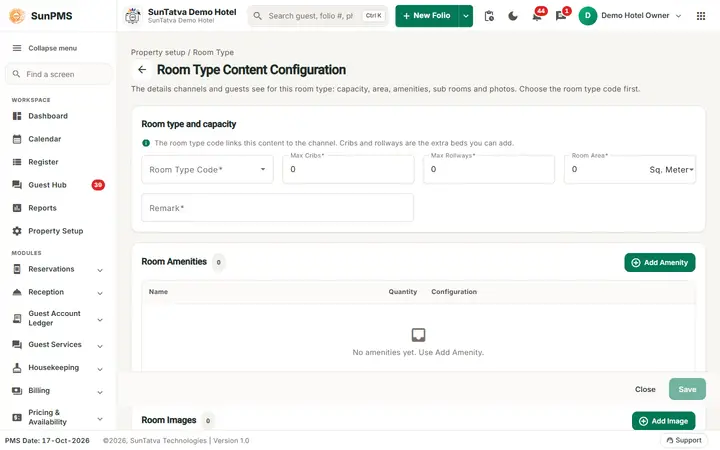
The screen opens empty until you choose the Room Type Code.
The Room Type list has code for a settings icon that would open this page, but the icon is currently switched off, so the page has no menu entry. Support staff or an administrator can open it by typing the address #/room-type/<room type ID> (the ID column of the Room Type list). Close goes back to the previous page.
Screen layout
Section "Room type and capacity" (help: "The room type code links this content to the channel. Cribs and rollways are the extra beds you can add.")
| Field | What it means | Rules |
|---|---|---|
| Room Type Code | The channel manager's room type this PMS room type is published as (for example Apartment, Suite, Double). | Required. Save stays disabled until one is chosen. |
| Max Cribs | Number of baby cots the room can take. | Required, whole number; 0 is allowed (blank or negative is rejected). |
| Max Rollways | Number of rollaway (extra) beds. | Required, whole number; 0 is allowed (blank or negative is rejected). |
| Room Area | Size of the room, with a unit drop-down: Sq. Feet or Sq. Meter. | Required, number; 0 is allowed (blank or negative is rejected; decimals allowed). |
| Remark | Free text description. | Required field. |
Room Amenities section
| Item | Meaning |
|---|---|
| Add Amenity | Opens the Add Amenity window. |
| Table columns Name, Quantity, Configuration | Amenities already added. Edit and delete icons in the Actions column of each row. |
Sub Room Types section: shown only when the chosen Room Type Code is one of Apartment, Suite, Chalet, Bungalow, Holiday home, Villa or Mobile home.
| Item | Meaning |
|---|---|
| New Sub Room | Opens the Add Subroom window. |
| Table columns Sub Room Name, Max Guests, # of Subroom, Private Bathroom, Remark, Amenities | Existing sub rooms. The Show button (eye icon) in the Amenities column lists that sub room's amenities in a window titled Sub Room Name: |
Room Images section
| Item | Meaning |
|---|---|
| Add Image | Pick one or several pictures from your computer (help: "Add photos and tag what each one shows so channels can place it correctly."). |
| Picture with a close icon | Click the icon to remove the picture. |
| Tags (under each picture) | Multi-select describing the picture, for example Shower, Toilet, Property building, Patio, Nearby landmark, Staff, Restaurant/places to eat, Communal lounge/ TV room, Facade/entrance, Bed, Night, Day, People, Neighbourhood, Natural landscape, Activities. |
| No Images found! | Shown while there are no pictures. |
Buttons at the bottom: Save and Close.
Windows
Add / Edit Amenity: Amenity (required list), Quantity (required whole number), Configuration (required: Standard Arrangement or Alternative Arrangement). Buttons Add (or Update when editing) and Close.
Add / Edit Subroom: Sub Room Type (required list), Max Guests, No. of subrooms, Remark, tick box Is Private Bathroom, and a Room Amenities table with New Amenity for amenities specific to the sub room. Buttons Add / Update and Close.
How to fill the content
- Choose the Room Type Code.
- Enter Max Cribs, Max Rollways, Room Area (and its unit) and Remark.
- Click Add Amenity for each amenity, choose its Quantity and Configuration, and click Add.
- If Sub Room Types appears, click New Sub Room, fill the window and click Add.
- Click Add Image, pick pictures, then choose Tags for each.
- Click Save. Result: Successfully Updated and you return to the list.
How to edit or delete a line
- Click the edit icon on an amenity or sub room row, change it and click Update.
- Click the delete icon and answer Are you sure want to delete this Amenity? or Are you sure want to delete this Sub Room?.
What happens behind the scenes
- Pictures are uploaded as soon as you pick them (large pictures are compressed first); removing a picture deletes the uploaded copy at once, even if you then click Close without saving.
- Save stores the content, and the channel manager receives it with the next room type synchronisation (Sync overview).
Messages you may see
| Message (exact text) | Why it appears | What to do |
|---|---|---|
| Please select Room Type Code | No code chosen. | Choose one. |
| Please enter MaxCribs | Max Cribs blank or negative (0 is accepted since 2026-10-18). | Enter 0 or more. |
| Please enter MaxRollways | Max Rollways blank or negative (0 is accepted). | Enter 0 or more. |
| Please enter SizeMeasurement | Room Area blank or negative (0 is accepted). | Enter the area. |
| Please select Amenity Configuration | Amenity saved without a Configuration. | Choose Standard or Alternative Arrangement. |
| Please select Sub RoomType / Please enter Max Guests / Please enter Number of SubRoom | Sub room window incomplete. | Fill the missing field. |
| Subroom do not have Amenity | You clicked Amenities on a sub room without amenities. | Edit the sub room and add them. |
| Successfully Updated | Saved. | None. |
Tips and FAQ
- Q: My rooms have no cot or rollaway. What do I enter? A: Enter 0. Since 2026-10-18 the screen accepts 0 for cribs, rollaways and area (it used to demand a value above 0).
- Q: I cannot see Sub Room Types. A: The Room Type Code is not one of the apartment-style types listed above.
- Q: Where is this page in the menu? A: Nowhere in this version; open it by address. Treat this as a known gap and ask support if you need it.