Room Type
On this page
A room type is a category of rooms that share a price, a tax and an inventory count (Standard, Deluxe, Suite). Reservations are taken against a room type; the actual room is assigned later. Rates in Rate Manager are set per room type.
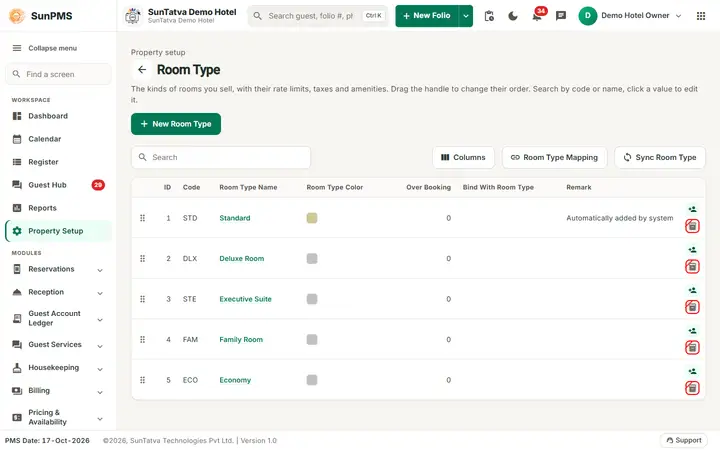
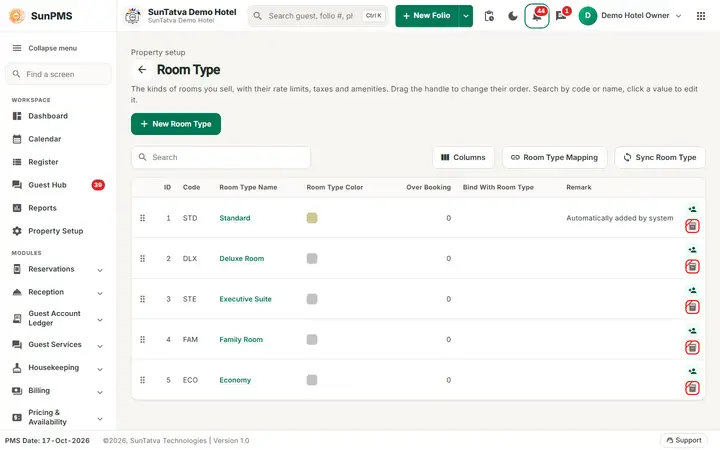
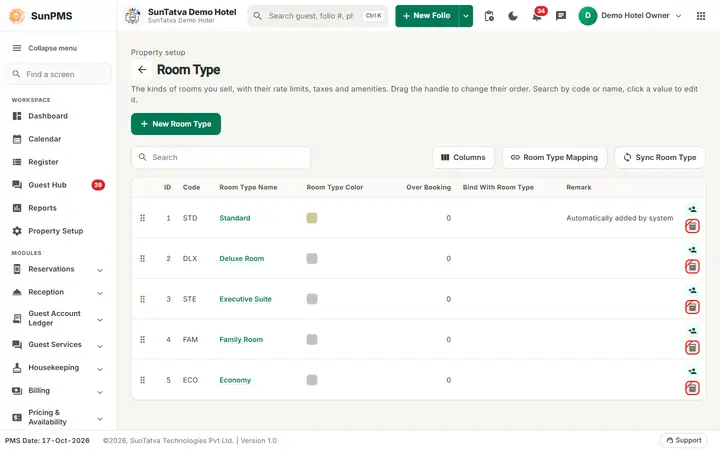
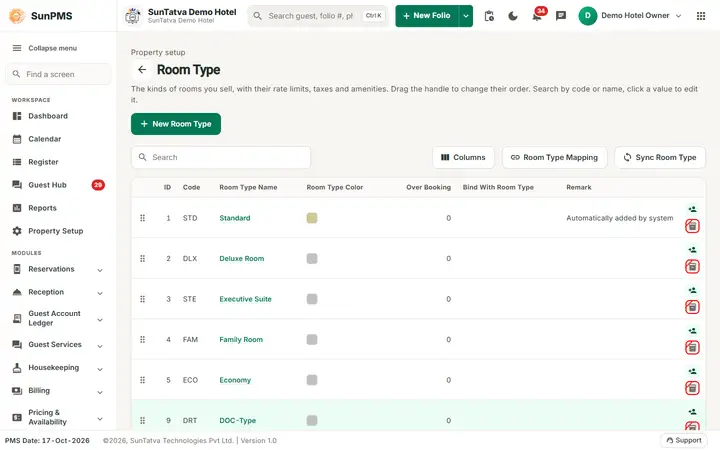
The Room Type list: drag the handle to reorder, click a highlighted value to edit.
Before you start
- Create the taxes you want on the room (see 09-tax.md and 10-tax-configuration.md) and, if you want them, amenities (08-room-type-amenities.md).
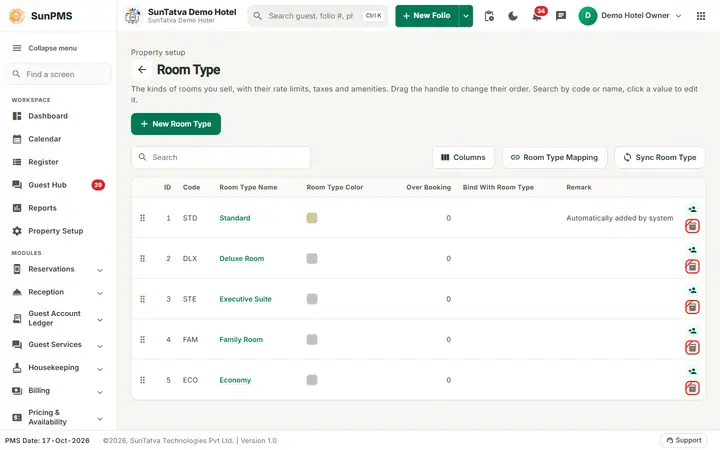
- A new property already has one room type, STD / Standard.
Screen layout (list)
| Column / button | What it means | Rules |
|---|---|---|
| Search | Searches ID, Code and Room Type Name while you type. | |
| Back arrow | Returns to Property Setup. | |
| New Room Type (top right) | Opens the add window. | |
| Columns | Side panel to hide, show or re-order columns. | |
| Drag handle (left of each row) | Drag a row up or down to change the order in which room types appear everywhere (Rate Manager, calendar). | Saves at once: Room Type order updated Successfully. |
| ID | System number. | |
| Code | Short code (for example STD). | |
| Room Type Name | Click the highlighted name to edit. | |
| Room Type Color | Colour swatch used on the calendar and charts. | |
| Over Booking | Allowed over-booking percentage. | |
| Bind With Room Type | Shows the base room type this one is linked to (see 05-room-type-binding-occupancy.md). | |
| Remark | Note. | |
| Last column | Icons showing Include in Occupancy (person icon) and, for channel-manager properties, Is CRS (box icon). A crossed-out icon means No. | |
| Room Type Mapping and Sync Room Type buttons (toolbar, next to Columns) | Shown only when the property is connected to a channel manager (CRS). | See the channel manager chapter. Room Type Mapping opens a three-step window: 1. Choose the channel (Select OTA, Fetch), 2. Map a room type (SunTatva Room Type against the channel room type, Map; a missing one can be created from here with Create), 3. Mapping Details (UnMap, Deactivate room type on |
Screen layout (add / edit window)
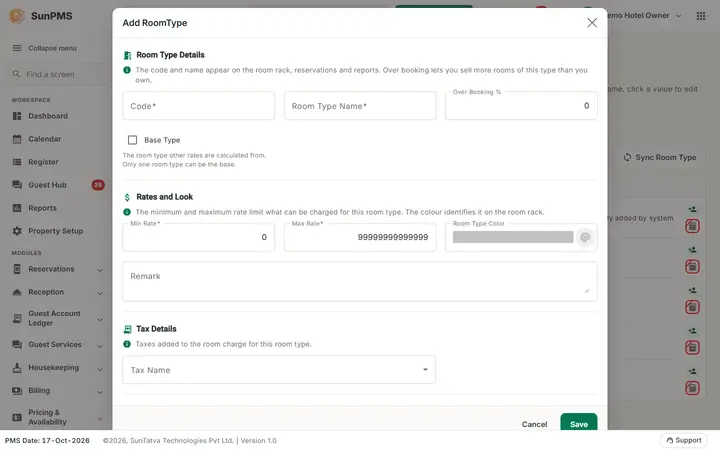
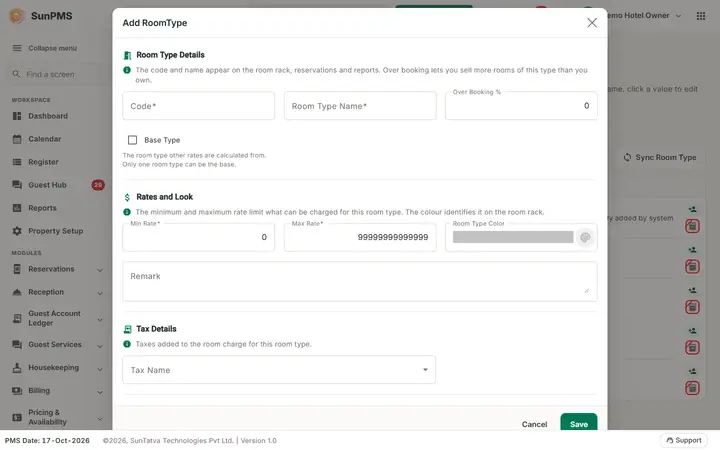
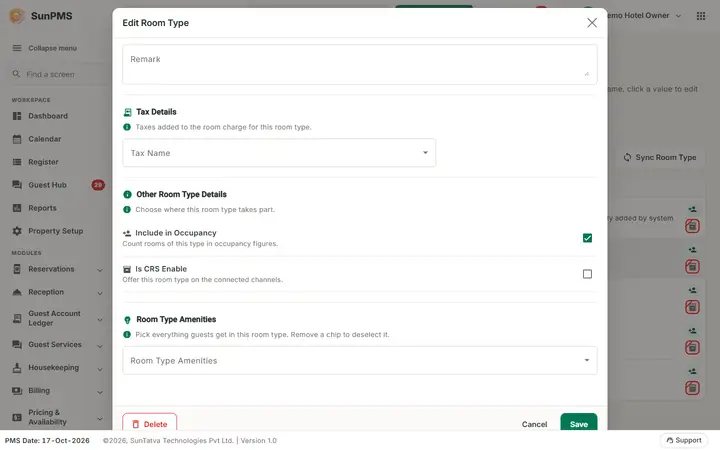
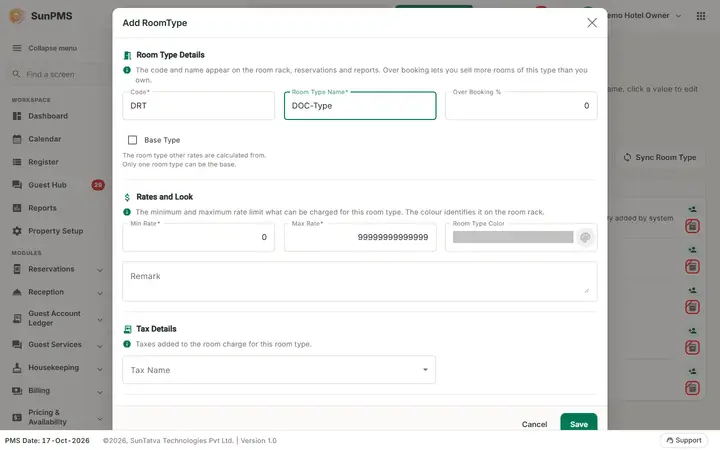
The window is split into titled sections, each with a one-line help text: Room Type Details, Rates and Look, Tax Details, Other Room Type Details and (only when at least one amenity exists) Room Type Amenities.
| Field | What it means | Rules |
|---|---|---|
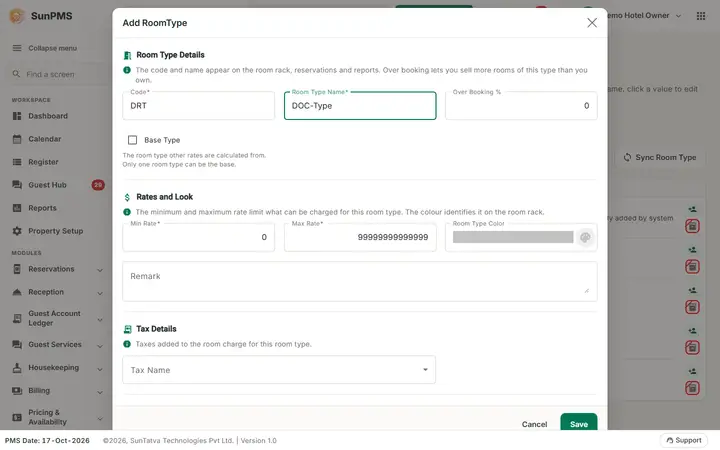
| Code | Short code. | Required, short length. |
| Room Type Name | Full name. | Required, up to 100 characters, unique. |
| Over Booking % | Percentage of extra bookings accepted above the number of rooms (help: "Over booking lets you sell more rooms of this type than you own."). | Number, default 0. |
| Base Type (tick box under Room Type Details; hint "The room type other rates are calculated from. Only one room type can be the base.") | Marks this room type as the base that others can be bound to. | Only one active base type is allowed. Disabled while another active base type exists or while this one has a bound rate. |
| Tax Name (section Tax Details: "Taxes added to the room charge for this room type.") | Pick one or more occupancy taxes that apply to room rent of this type. | Only taxes of type Occupancy Tax are listed. Without a tax here no tax is charged on the room rent. |
| Include in Occupancy (tick box, hint "Count rooms of this type in occupancy figures.") | Counts rooms of this type in occupancy statistics. | Default on for a new type. |
| Is CRS Enable (tick box, hint "Offer this room type on the connected channels.") | Sends this room type to the channel manager. | Off by default. |
| Min Rate, Max Rate | Lowest and highest nightly rate allowed for the type. | Numbers, 0 or more; Max must not be below Min. Default 0 and 99999999999999. |
| Room Type Color | Colour picker (hint: the colour identifies the type on the room rack). | Default grey. |
| Remark | Note. | Optional. |
| Room Type Amenities | Multi-select of amenities; chips show the choice and the x on a chip deselects it. | Section appears only when at least one amenity exists. |
| Save, Cancel, Delete (window footer) | Delete (left) only when editing. |
Hidden defaults for a new type: base adults 2, base children 1, base pets 0, max occupancy 3, max adults 2, max children 1. Change them in Room Type Binding And Occupancy.
How to add a room type
- Click New Room Type.
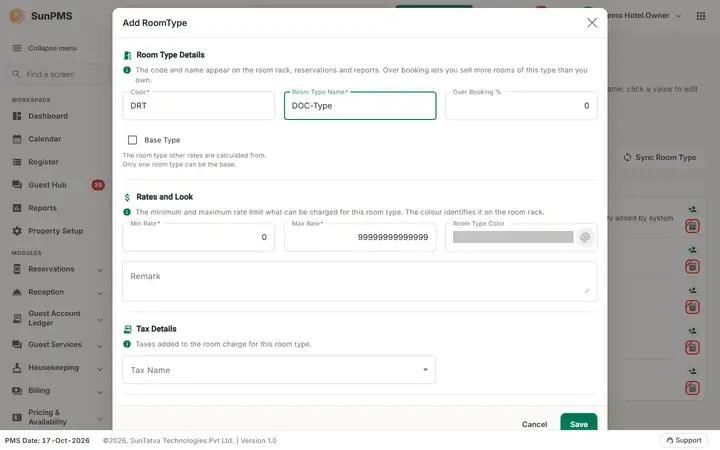
- Enter Code and Room Type Name.
- Pick Tax Name values, set Min Rate and Max Rate, colour and remark.
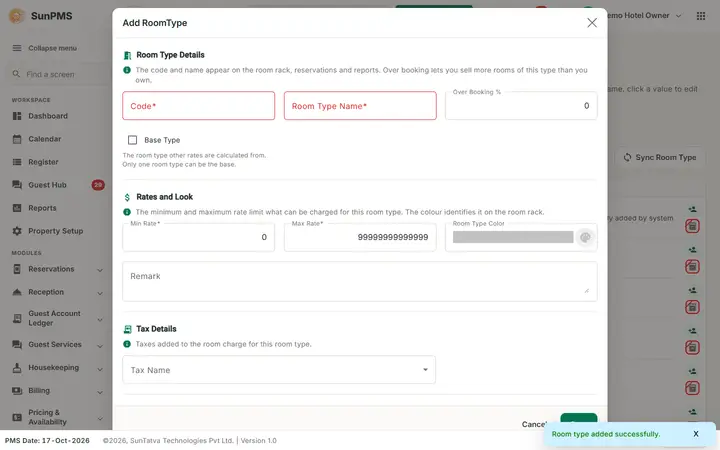
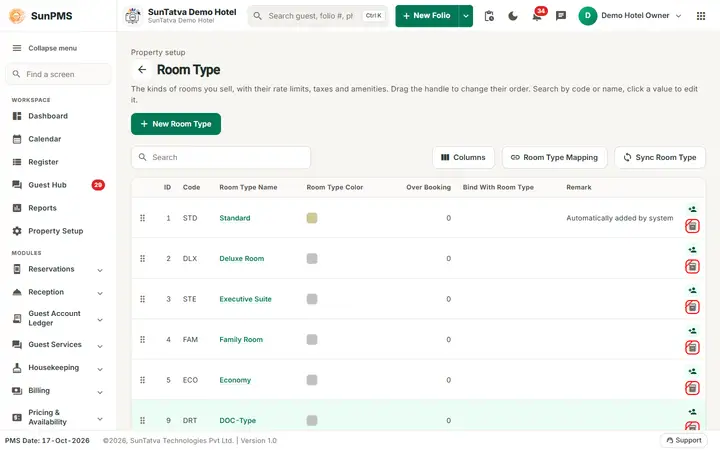
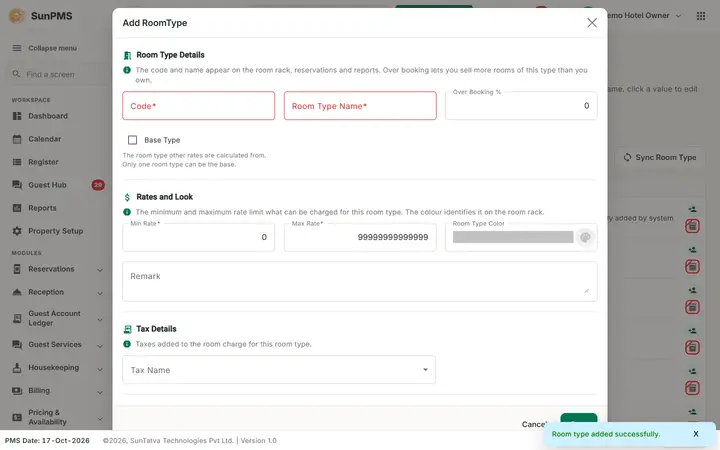
- Click Save. Result: Room type added successfully. The window remains open and empty (title Add RoomType) for the next one; click Cancel to leave.
How to edit a room type
Click the room type name, change fields, Save. Message Room type updated successfully.
How to delete (deactivate) a room type
Open the room type, click Delete, confirm Are you sure want to delete this Room Type? Message Room Type deleted successfully. Allowed only when no active room uses the type and no reservation or stay uses it.
What happens behind the scenes
- Changing the Tax Name selection recalculates the tax on existing future reservations and in-house stays of this room type from the current PMS date.
- Changing rate bindings (Binding screen) rewrites future rates of this type.
- Turning Is CRS Enable on pushes inventory, restrictions and rates to the channel manager for the next 364 days; turning it off or deleting the type stops the sync.
- Delete is a soft delete from the PMS date.
Messages you may see
| Message (exact text) | Why it appears | What to do |
|---|---|---|
| Please enter Code. / Please enter Room Type Name. | Required field empty. | Fill it in. |
| Please enter valid Minimum Rate. / Please enter valid Maximum Rate. | Value empty, negative or too large. | Correct it. |
| Maximum Rate should be greater than Minimum Rate. | Max below Min. | Correct it. |
| Max Adult and Child cannot be greater than Max Occupancy. / Base Adult cannot be greater than Max Adult. / Base child cannot be greater than Max Child. / Please enter at least one Base Adult Occupancy. | Occupancy rules (edited on the Binding screen) are broken. | Fix them on Room Type Binding And Occupancy. |
| Record Already Exist. | Name already used. | Use a different name. |
| Current Room Type already binded with another Room Types. | You tried to remove the Base Type flag while other types are bound to it. | Unbind the others first. |
| Please delete the active rooms that already exist for this room type first. | Delete refused. | Delete or move the rooms first. |
| Room type added successfully. / updated successfully. / Room Type deleted successfully. | Success. | None. |
Tips and FAQ
- Q: My new amenity selection is not saved. A: Amenities picked in the drop-down are saved with the room type. Reopen the room type to check; if one is missing, pick it again and save.
- Q: What is Min / Max Rate for? A: Limits for the nightly rate typed in Rate Manager and on reservations.
- Q: Why is Base Type greyed out? A: Another active room type is already the base, or this type has a linked rate.
Screenshots