Room
On this page
The Room master lists every physical room. Each room has a name (the room number guests see), a code, a room type, a building, a floor and a few features (smoking, handicap, pet, hourly).
Before you start
- Building, Floor and Room Type must exist.
- Your licence limits the number of active rooms. If you reach it you must buy extra rooms from Licences.
- For hourly rooms an Hourly rate type must exist in Rate Type.
Screen layout (list)
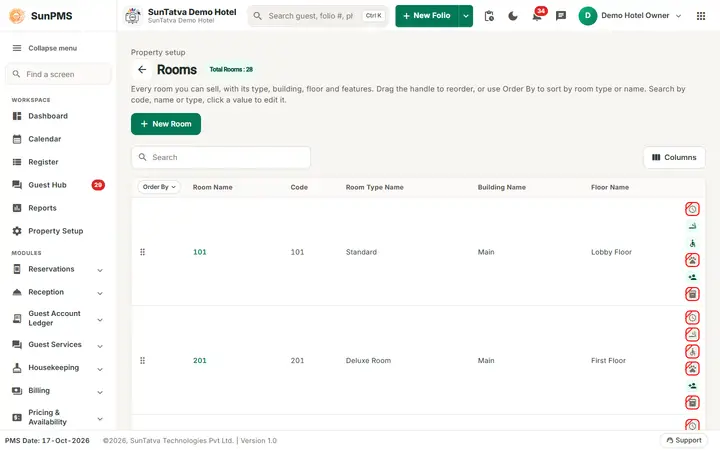
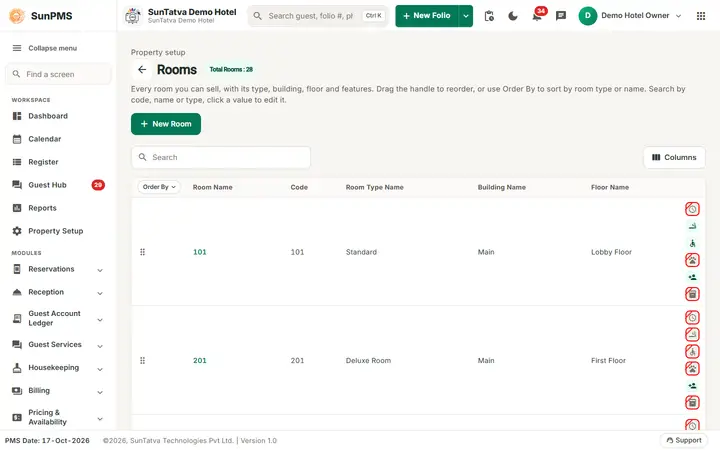
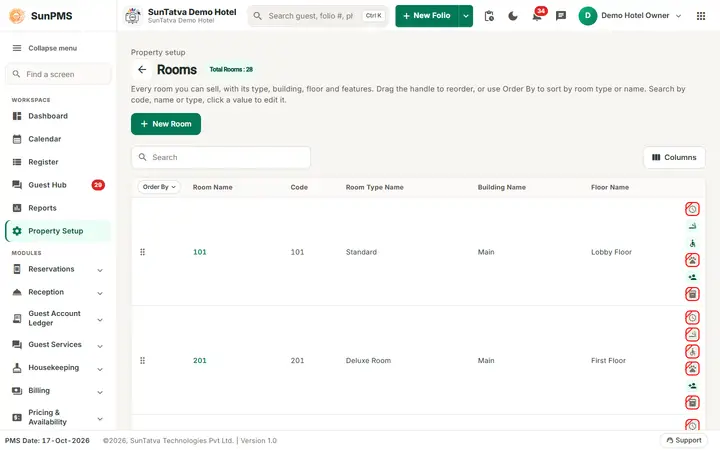
The page title shows Rooms with Total Rooms: n for the rooms currently listed (active rooms).
| Column / button | What it means |
|---|---|
| Search | Searches room name, code, room type, building and floor while you type. |
| Back arrow | Returns to Property Setup. |
| New Room (top right) | Opens the add window (Add Room). |
| Columns | Side panel to hide, show or re-order columns. |
| Drag handle | Drag a row to change the room order used in lists. Saves at once (Rooms order updated Successfully.). |
| Order By (button in the heading of the first, drag-handle column) | Room Type or Room Name: re-sorts all rooms after you confirm Are you sure want to reorder according to Room Type? or ... according to Room Name? |
| Room Name | Click the highlighted name to edit. |
| Code | Short code. |
| Room Type Name, Building Name, Floor Name | Where the room belongs. |
| Last column icons | Hourly Rental (clock), Smoking, Handicap, Pet, In Occupancy (person), and Include in CRS Inventory (box, only for channel-manager properties). A crossed icon means not allowed; hover for the text. |
Screen layout (add / edit window)
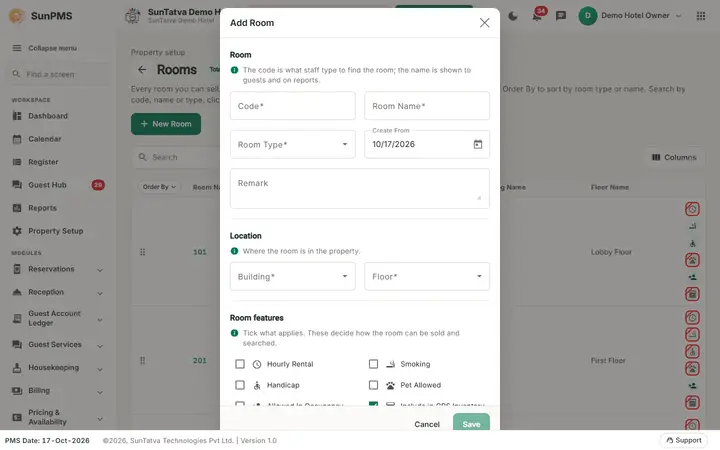
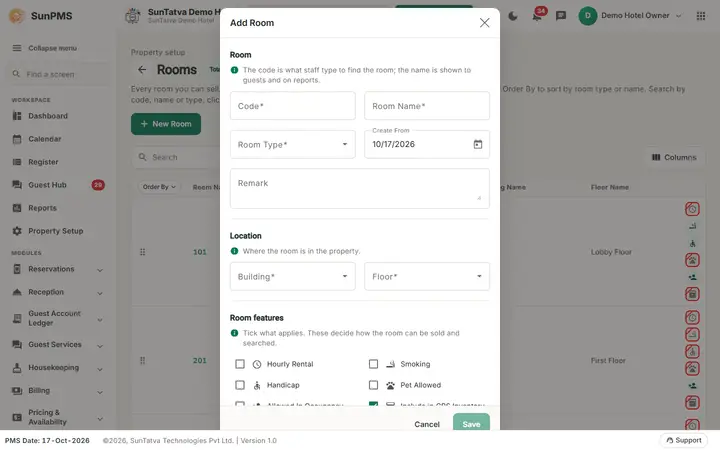
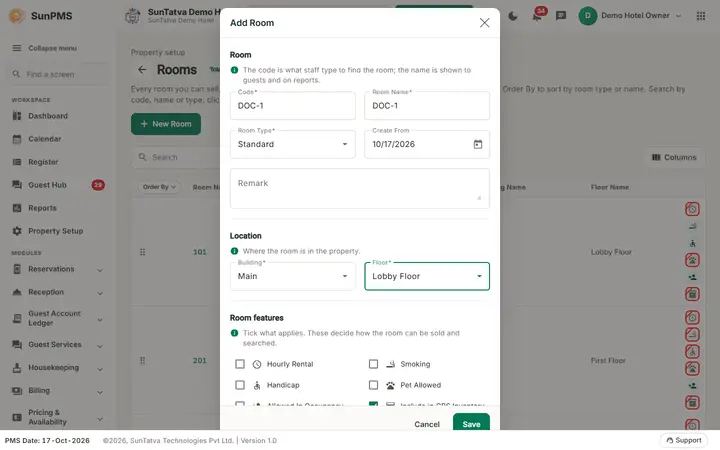
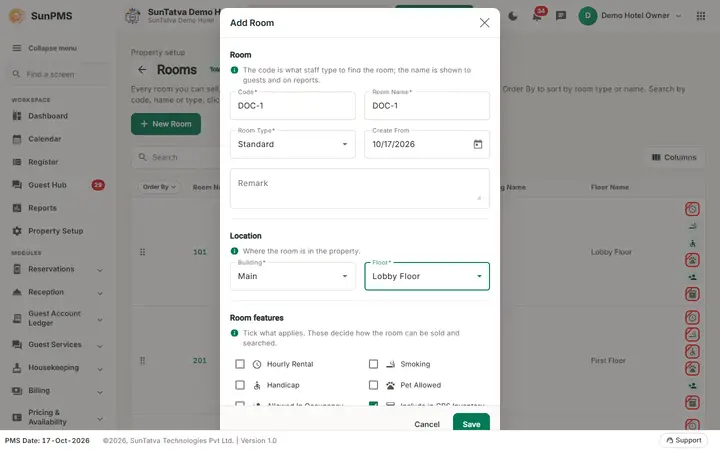
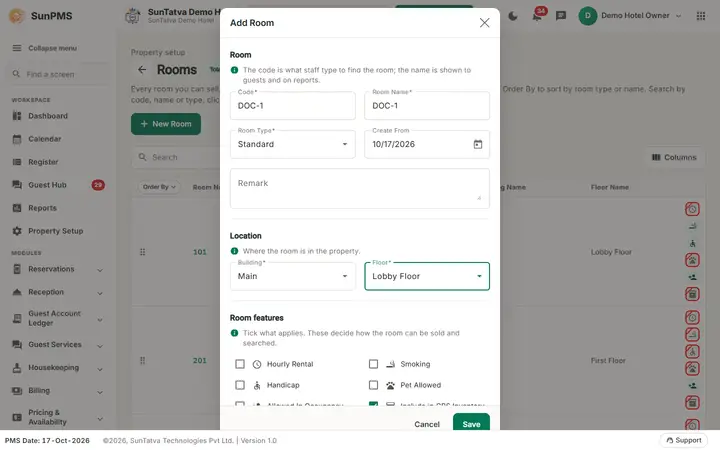
Three titled sections: Room (code, name, type, date, remark), Location (building, floor) and Room features (the tick boxes; help: "Tick what applies. These decide how the room can be sold and searched.").
| Field | Rules |
|---|---|
| Code | Required, short. Typing a code also fills Room Name with the same text. |
| Room Name | Required, up to 100 characters. Spaces are removed on save (101 A becomes 101A). Unique within a building. |
| Room Type, Building, Floor | Required; only active ones are listed. |
| Create From | Date the room becomes available. Cannot be later than the PMS date. Default = PMS date. |
| Remark | Optional. |
| Tick boxes | Hourly Rental, Smoking, Handicap, Pet Allowed, Allowed In Occupancy, Include in CRS Inventory (only when the property uses a channel manager; ticked by default there). |
| Save, Cancel, Delete (window footer) | Delete (left) only when editing. |
How to add a room
- Click New Room.
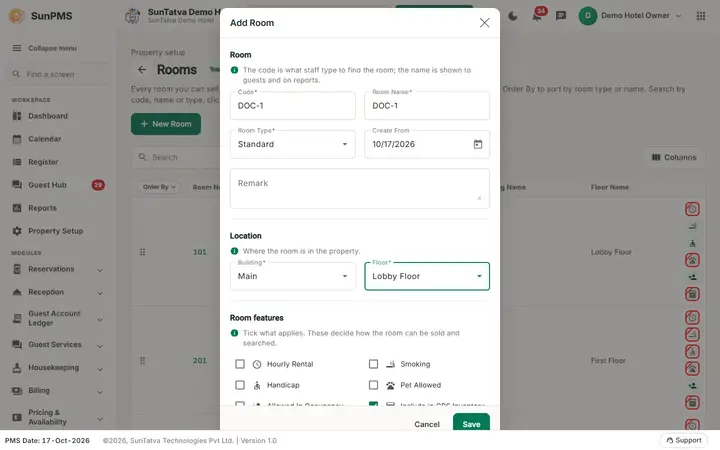
- Type Code (the Room Name fills in; change it if different).
- Choose Room Type, Building, Floor; set the tick boxes.
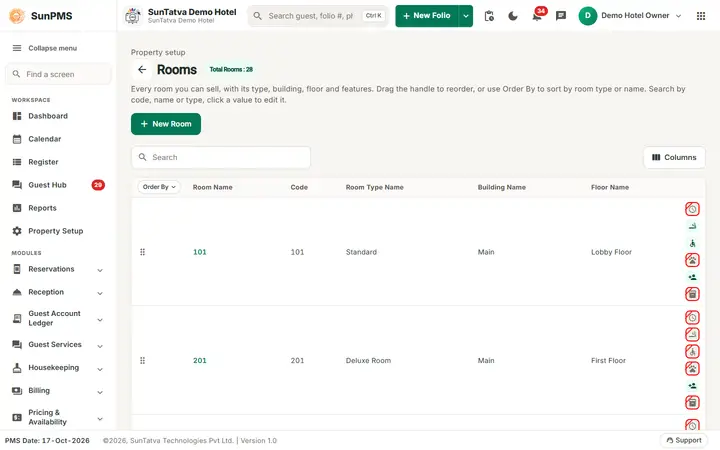
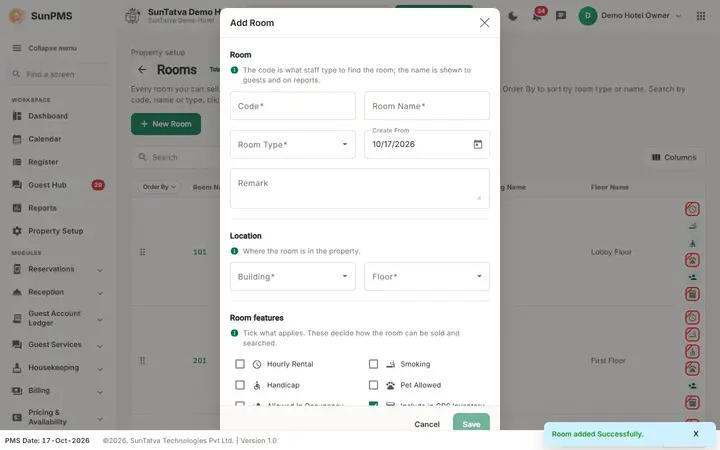
- Click Save. Result: Room added Successfully. The window resets so you can add the next room; click Cancel to close.
How to edit a room
Click the room name, change the fields, Save (Room updated Successfully.). Changing the room type of a room that has reservations or stays is blocked.
How to delete a room
Open the room, Delete, confirm Are you sure want to delete this Room? Message Rooms deleted successfully. A room with an active stay or reservation cannot be deleted.
How to add many rooms at once (Copy Rooms)
The code contains a Copy Rooms window (sections New rooms, Room features and Which rooms: a range From / To such as 101 to 110, or Comma Separate Rooms; maximum range 100 rooms; button Make Copy) but the copy icon is not shown in the current list, so it is not available from the screen.
What happens behind the scenes
- New rooms appear at once in the Register, the calendar and availability. A channel-manager inventory update is queued when the room is included in CRS inventory.
- Delete makes the room inactive from the PMS date; history keeps the name.
- If hourly is ticked PMS checks that an hourly rate type exists.
Messages you may see
| Message (exact text) | Why it appears | What to do |
|---|---|---|
| Please enter Code. / Please enter Room Name. | Empty. | Fill in. |
| Record Already exists. / Record Already Exist. | Same code or name in the same building. | Change it. |
| You have N room licenses available. If you need to create more rooms, Please reach out to the SunTatva Support Team for assistance. | Room limit reached (check on the screen). | Contact support / buy rooms. |
| Your |
Server-side licence limit. | Buy additional rooms in Licences. |
| You cannot modify Room Type. Reason: Room is in use. | Room type change refused because of bookings. | Move the bookings first. |
| You can not delete this room. Reason: Room is in use. | Room has an active stay or reservation. | Wait or move the guest. |
| Hourly Rate Type Not Exists | Hourly Rental ticked without an hourly rate type. | Create one in Rate Type. |
| BuildingID is required. / FloorID is required / Room Type is required | A drop-down was left empty. | Choose a value. |
Tips and FAQ
- Q: Why is Save greyed? A: Code or Room Name is empty.
- Q: Where do I mark a room out of order? A: Not here; use Block / Unblock or Change Room Status.
Screenshots