Room Status Setup
On this page
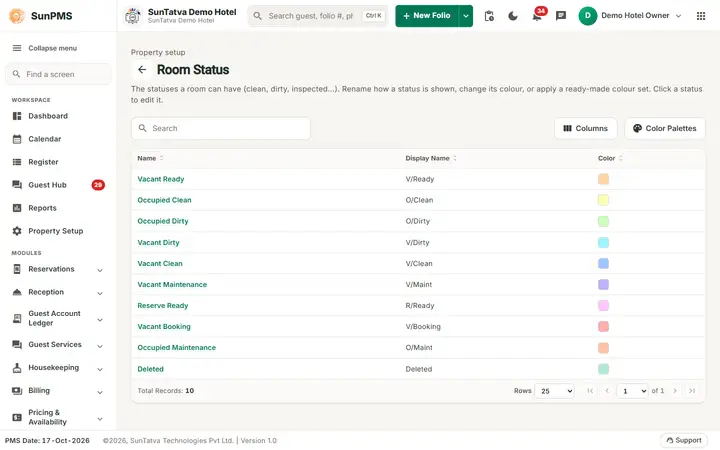
Room statuses describe the condition of a room (Vacant Ready, Occupied Dirty...). The list is fixed by the system. You can change only the Display Name (the short label on screens) and the colour used in the Register, Calendar and housekeeping.
Screen layout
| Column / button | Meaning |
|---|---|
| Back arrow | Returns to Property Setup. |
| Search, Columns | Filter the rows; choose the visible columns. |
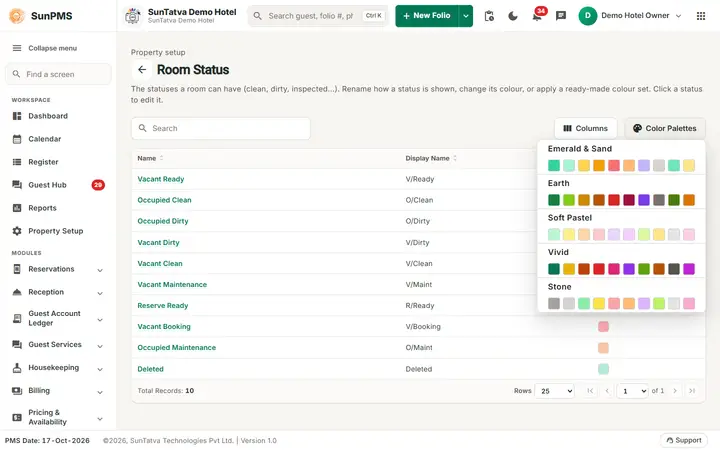
| Color Palettes (toolbar button, tooltip "Apply a ready-made set of colours to every status") | Menu of five ready-made colour sets, each shown as a strip of swatches: Emerald & Sand, Earth, Soft Pastel, Vivid, Stone. |
| Name | System name; click to edit. Standard rows: Vacant Ready, Occupied Clean, Occupied Dirty, Vacant Dirty, Vacant Clean, Vacant Maintenance, Reserve Ready, Vacant Booking, Occupied Maintenance, Deleted. |
| Display Name | Label shown on screens such as the Register (V/Ready, O/Clean...). |
| Color | Swatch. |
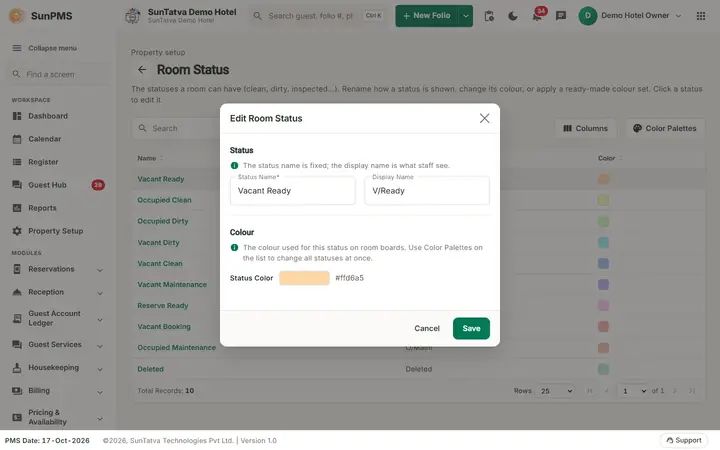
| Window section Status (help: "The status name is fixed; the display name is what staff see."): Status Name | Read-only. |
| Display Name | Required, up to 256 characters. |
| Window section Colour (help: "The colour used for this status on room boards. Use Color Palettes on the list to change all statuses at once."): Status Color | Shows the current colour only; it cannot be changed in the window. Use a palette. |
How to rename a status label
- Click the status Name.
- Change Display Name.
- Click Save. Message: Room status updated successfully.
How to recolour all statuses
- Click Color Palettes.
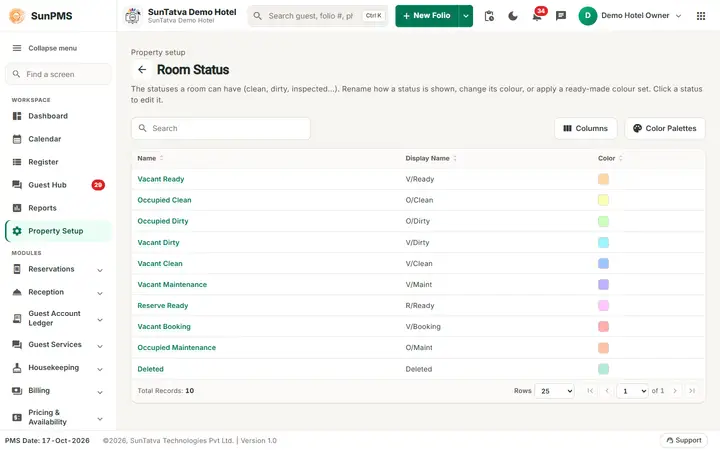
- Click a palette. Result: the palette colours are applied to the statuses in order and saved at once (no confirmation). The text colour of each status is set at the same time to dark or white, whichever is easier to read on the new colour, so the label stays readable on the Register, Calendar and Change Room Status boards. A snackbar Room status color updated. appears for each row.
What happens behind the scenes
Statuses cannot be added or deleted. The new labels and colours are used by the Register, Calendar, Change Room Status, housekeeping assignment and reports.
Messages you may see
| Message (exact text) | Why it appears | What to do |
|---|---|---|
| Please enter Status Title. | Display Name empty. | Type a label. |
| Room status updated successfully. | Saved. | None. |
Tips and FAQ
- Q: I want a custom colour for one status. A: Not possible from the screen; palettes recolour every status.
- Q: Can I add a new status? A: No.
Screenshots