Property Detail
On this page
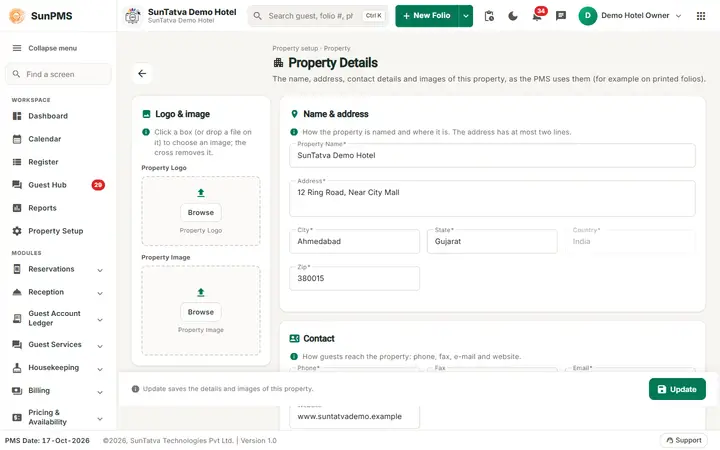
Property Detail holds the identity of the hotel: name, address, phone, e-mail, logo, photo and (for Indian hotels) GSTIN and bank details. These values are printed on folios, invoices, receipts and e-mails, so fill them in before the first guest checks in.
Before you start
- The property already exists (created in the Create Property wizard). You only edit it here; you cannot add or delete a property on this screen.
Screen layout
| Field / button | What it means | Rules |
|---|---|---|
| Section Logo & image (help: "Click a box (or drop a file on it) to choose an image; the cross removes it.") | Two boxes: Property Logo (used on printed documents) and Property Image (the property photo). Browse or a dropped file picks the picture. | jpg, jpeg, png or bmp only. Large pictures are compressed automatically. The X on the picture removes it after a confirmation. |
| Section Name & address (help: the address has at most two lines): Property Name | Name of the hotel. | Required. Maximum length is the system name length. |
| Address | Street address. | Required. Only two lines are allowed; extra lines are cut off. |
| City, State | Location. | Required, up to 256 characters. |
| Country | Country of the property. | Required. Greyed out: it cannot be changed here. |
| Zip | Postal code. | Required, up to 128 characters; the field filters invalid characters. |
| Section Contact (help: how guests reach the property): Phone | Main phone number. | Required, up to 100 characters. |
| Fax | Fax number. | Optional, up to 20 characters. |
| Property e-mail. | Required, up to 128 characters. | |
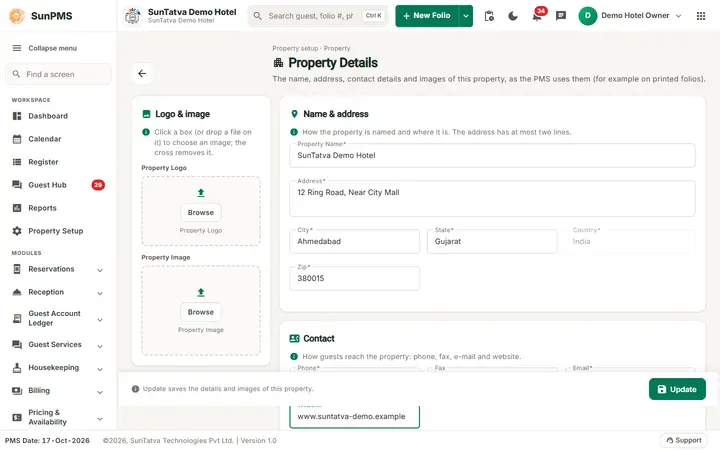
| Website | Web address. | Optional, up to 64 characters. |
| Section Registration & bank: License Details | Free-text registration / licence number printed on documents. | Optional, up to 256 characters. |
| Bank Details block (inside Registration & bank) | Bank Name, IFSC Code, Account No, Branch Name, Company Name, Hotel GSTIN. | Shown only for an India property: the COUNTRY setting, or the property's own country, is India (name or code IN). Printed on invoices. The block states "These fields cannot be changed on this screen": the fields are shown greyed out (read only) and are filled by support when the property is set up. |
| Update (bottom of the page) | Saves the page. | The help line beside it says Update saves the details and images of this property. |
| Back arrow (beside the title) | Returns to Property Setup. |
Since 2026-10-18 the Bank Details section (with Hotel GSTIN) is shown whenever the property is in India, whether India comes from the country setting or from the property's own country (India / IN). Before that fix it stayed hidden for the India demo property, so the GSTIN could not be entered.
How to change the property details
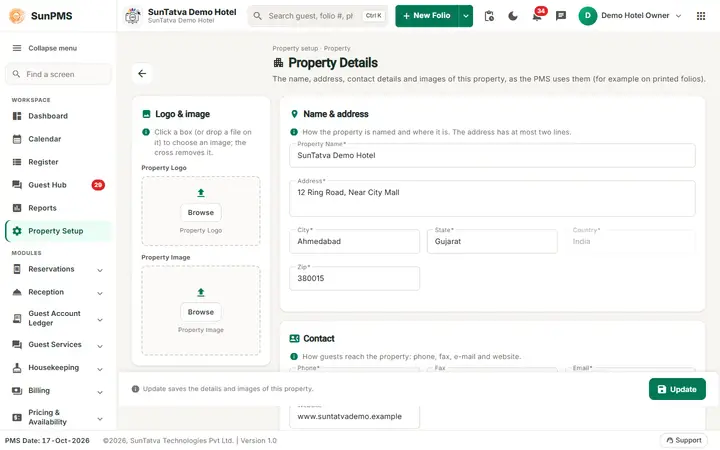
- Open Property Setup in the sidebar and click the card Property Detail.
- Edit the fields you need. To change the logo click Browse in the Property Logo or Property Image box (or the old picture's X to remove it first).
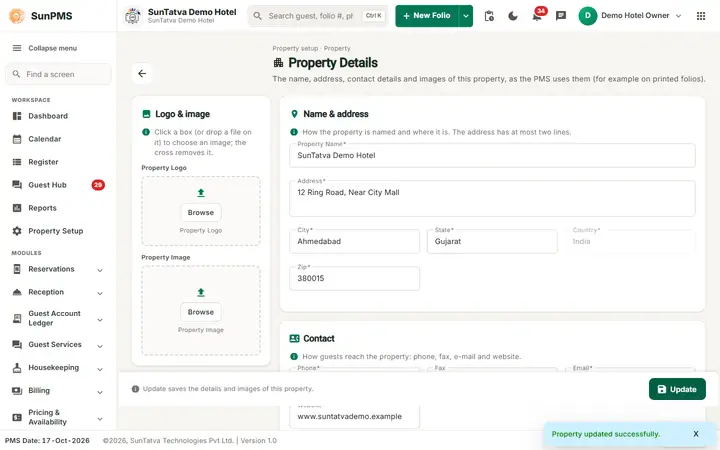
- Click Update. Result: the message Property updated successfully. appears and the new values are used everywhere. The same details are also sent to the central SunAuth account so the landing page shows the new name and address.
What happens behind the scenes
- The property record in the PMS database is updated, then the name, address and contact fields are pushed to the central account so every portal shows the same data.
- Changing the name does not change old folios that were already printed.
Messages you may see
| Message (exact text) | Why it appears | What to do |
|---|---|---|
| Please enter Property Name. | Name is empty. | Type the name. |
| Please enter Address. | Address empty. | Type the address. |
| Please enter City. / State. / Zip. / Country. / Phone. / Email. | The matching required field is empty. | Fill it in. |
| Only jpg/jpeg, png and bmp files are allowed! | You chose another file type. | Pick an image file. |
| Image uploaded successfully. | The picture was read; you still must click Update to save. | Click Update. |
| Are you sure you want to delete this logo? / Are you sure you want to delete this property image? | Confirmation when you click the X. | Confirm to remove. |
| Property updated successfully. | Saved. | None. |
Tips and FAQ
- Q: I picked a logo but it vanished after I left the page. A: Picking only previews; click Update to save.
- Q: Why can I not edit Country? A: It is locked after it is first stored because tax and currency behaviour depend on it. Contact support.
- Q: Where do I put the GST number? A: In Hotel GSTIN under Bank Details (visible for India only).
- Q: The IP white list and Booking.com connect windows exist in the code. A: Their buttons are currently hidden on this screen; use Ip White List under User & Access and the channel manager screens instead.
Screenshots