
Settings overview
On this page
Settings control how the PMS behaves for one property: renting rules, features, night audit, language of labels, folio numbers, card processing, e-mail and the connections to devices and other SunTatva apps. Every setting is stored per property as a named key (for example IS_GROUP, NIGHT_AUDIT_TIME) and is loaded into the browser when you open the property, so a change normally needs a page reload to appear everywhere.
How to reach the settings
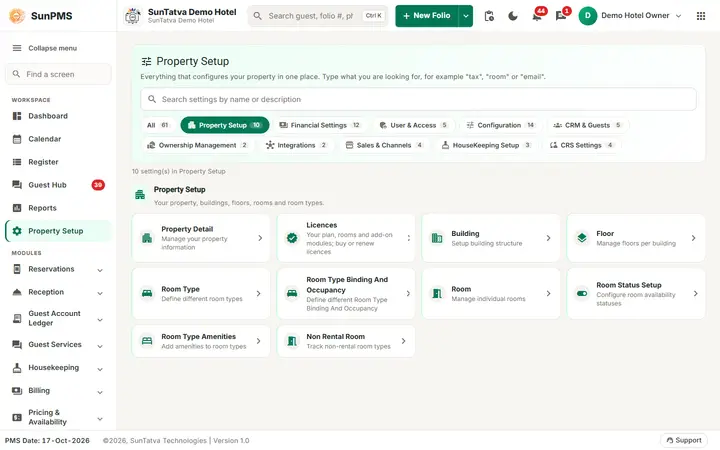
The Property Setup hub: type in the search box or pick a category tab.
- Click Property Setup in the left menu (address
#/setup). The page is a searchable library: a search box ("Search settings by name or description"), group chips with a count (All and one chip per group) and a card for every setting with its name and a one-line description. The hub opens on the first group (Property Setup); click All to list every setting. Click a card to open the screen; the back arrow on the screen returns to the hub. - Groups: Property Setup, Financial Settings, User & Access, Configuration, CRM & Guests, Ownership Management, Integrations, Sales & Channels, HouseKeeping Setup, CRS Settings (only for properties connected to a CRS) and FAS Settings (only when FAS is enabled).
- Addresses are readable: every setting screen lives under
#/setup/<name>(for example#/setup/rental,#/setup/night-audit,#/setup/folio). The old#/admin/...addresses still redirect to the new ones. - Two screens have no card in the hub: Register Column Setup (
#/setup/register-columns) and Device Configuration (#/setup/devices).
Which file explains which screen
| Screen | Card (group) / address | File |
|---|---|---|
| Register Settings (Register Column Setup) | #/setup/register-columns (no card) |
11-register-settings |
| Guest Mandatory Data | CRM & Guests | 10-guest-mandatory-data |
| Rental Setting | Configuration | 12-rental-setting |
| Feature Setting | Configuration | 13-feature-setting |
| Night Audit Setting | Configuration | 14-night-audit-setting |
| Localization Setting | Configuration | 15-localization-setting |
| Display Setting | Configuration | 16-display-setting |
| Folio Setting | Configuration | 17-folio-setting |
| Credit Card Setting | Configuration | 18-credit-card-setting |
| Guest Portal Setting | Configuration (licence) | 20-guest-portal-setting |
| Hardware Setting | Configuration (licence) | 21-hardware-setting |
| Parking Setting | Configuration (licence) | 22-parking-setting |
| Spa Setting | Configuration (licence) | 26-spa-setting |
| WhatsApp Setting | Configuration (licence) | 23-whatsapp-setting |
| Email Setting | Configuration | 24-email-setting |
| WebHook | Integrations (Owner) | 25-webhook |
| Payment Gateway Integration | Integrations (licence) | 30-payment-gateway-integration |
| Scanner, Signature Pad and Door Lock | SunHardware (no PMS screen) | 31-scanner-integration, 33-signature-pad-integration, 34-door-lock-integration |
| Document Storage | Configuration | 32-document-storage |
| Device Configuration | #/setup/devices (no card) |
35-device-configuration |
| CRS Tax Exempt | CRS Settings (CRS properties) | 40-crs-tax-exempt |
| FAS Settings | FAS Settings (FAS properties) | 41-fas-settings |
| Licences | Property Setup | 90-licences |
Layout of the setting screens
The settings in the Configuration group (Rental, Feature, Night Audit, Localization, Display, Folio, Credit Card, Email) and the integration pages share one layout:
- A header with a back arrow, the page title, a line such as "Property setup · Settings" and a description. A yellow Unsaved changes chip appears there as soon as you edit something.
- An On this page index on the left that jumps to a section (on small screens the sections follow each other).
- Section cards, each with a one-line explanation. Yes/no options are switches with a hint under the label; number fields have - / + buttons.
- A bar fixed at the bottom of the page that shows "All changes saved." or "You have unsaved changes." and holds the Save button.
- Integration pages (Hardware, Parking, Spa, WhatsApp, Document Storage) add a status card (Connected / Not connected / Needs attention), a "What the link does" card and, without the licence, a Not licensed card. Lists (WebHook, Payment Gateway Integration, CRS Tax Exempt and the masters) use the grid: title with a back arrow, a search box, a Columns button, a create button and paging.
Licences, privileges and role rules
| Card | Needs |
|---|---|
| Guest Portal Setting | Licence Guest Interface (check-in or services & chat); privilege Configure Guest Portal to edit |
| Hardware Setting | Licence SunHardware Integration |
| Parking Setting | Licence SunParking Integration |
| Spa Setting | Licence SunSpa Integration |
| WhatsApp Setting | Licence WhatsApp; privilege Configure WhatsApp to edit |
| Payment Gateway Integration | Licence Payment Gateway |
| Make key card (SunHardware) | Licence Door Lock |
| WebHook | Owner role |
| CRS Tax Exempt | Property connected to a CRS |
| FAS Settings | FAS accounting enabled / licensed |
| Room-service link in Guest Portal Setting | Licence SunPOS Integration |
| A property with no licence information shows everything. A missing card therefore usually means "not licensed"; check Licences (see 90-licences). Where a server call is made for an unlicensed module the message is: " |
How settings are saved (important)
- Configuration screens (Rental, Feature, Night Audit, Localization, Display, Folio, Credit Card, Email) all share one record. Their Save writes every setting of the property at once and shows "Setting updated successfully."
- Dedicated screens (Guest Mandatory Data, Register Settings, Guest Portal, Hardware, Parking, Spa, WhatsApp, Document Storage, FAS, device lists, WebHook, CRS Tax Exempt) save their own data.
- Settings that rename things (Localization titles) and hide things (Feature switches) take effect after a reload.
Shared validation you will meet
Any Save from the Configuration screens first checks: "Please enter State Label.", "Please enter Zip Label.", and valid e-mail formats for the cancellation-letter CC, e-mail recipient, CC and reply-to ("Please enter valid email for..."). Fix these in Localization Setting / Folio Setting / Email Setting even if you are on a different screen.
Tips and FAQ
- Q: I changed a setting but nothing happened. A: Reload the page (F5). Some settings are read once at login.
- Q: A feature is hidden for me but others see it. A: Privilege or role (for example WebHook is Owner only).
- Q: I cannot find a setting. A: Type part of its name or description in the Property Setup search box; the group chips show how many settings each group holds.
- Q: Where do I turn on group reservations? A: Feature Setting > Group.
- Q: Where do I change the word "Room" or "Guest"? A: Localization Setting > Display Title Settings.
- Q: Where do I limit who can check out with a balance? A: Rental Setting > Check-out rules.