Guest Mandatory Data
On this page
This screen lets you decide which guest details must be filled in before a reservation can be checked in or a guest profile can be saved. A hotel uses it to enforce its own policy (for example "mobile number and ID document are compulsory" or "guest must sign at check-in").
Before you start
- No licence is needed. Changes apply to the active property only.
- Changes take effect immediately for new check-ins. Existing reservations are not re-checked until they are saved or checked in again.
Screen layout
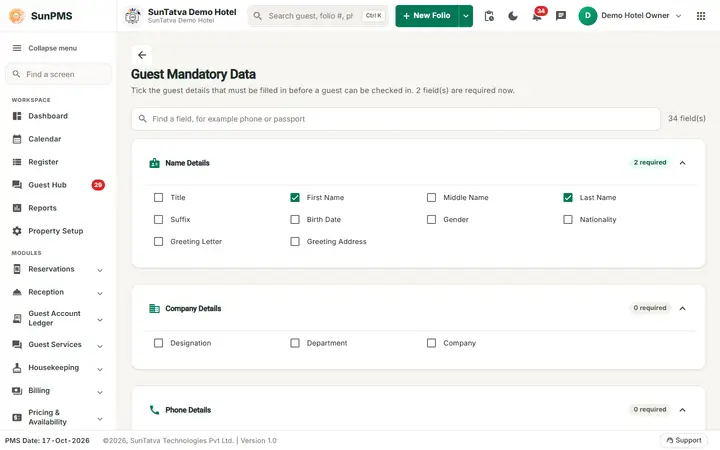
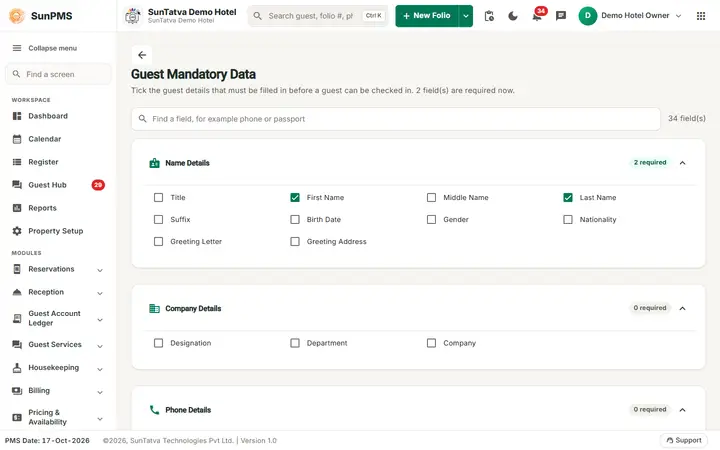
The header shows the title Guest Mandatory Data with a back arrow and the line "Tick the guest details that must be filled in before a guest can be checked in. N field(s) are required now." Under it a search box ("Find a field, for example phone or passport") filters the fields and shows how many match ("No field matches your search." with Clear search when none do). The fields are a list of collapsible groups (click a group bar to collapse or expand it); each group bar has an icon, the group name and a chip "N required". Each group holds one check box per guest field. Tick the box to make the field mandatory.
| Group | Fields (check boxes) |
|---|---|
| Name Details | Title, First Name, Middle Name, Last Name, Suffix, Birth Date, Gender, Nationality, Greeting Letter, Greeting Address |
| Company Details | Designation, Department, Company |
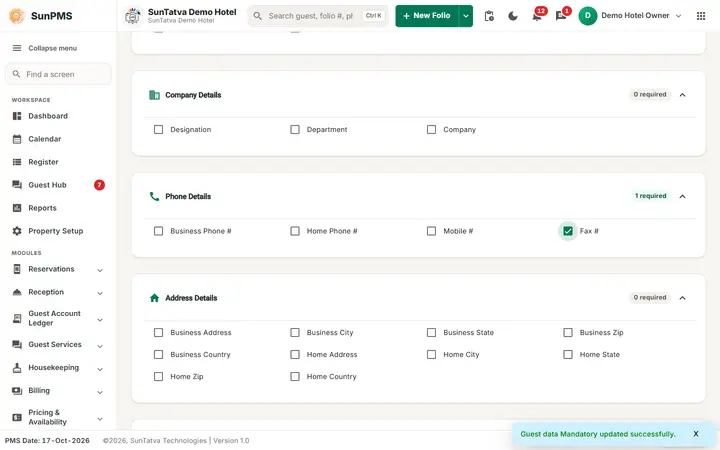
| Phone Details | Business Phone #, Home Phone #, Mobile #, Fax # |
| Address Details | Business Address, Business City, Business State, Business Zip, Business Country, Home Address, Home City, Home State, Home Zip, Home Country |
| Email Details | Business Email, Home Email |
| Document Details | Credit Card, Other Document |
| Vehicle Details | Vehicle |
| Sales & Channel Details | The group bar is always shown; it can be empty (no fields were listed in the demo property) |
| Signature | Sign Mandatory at check-in |
Rules:
- There is no Save button. Each tick or un-tick is saved the moment you click it.
- The back arrow at the top returns to Property Setup.
- Fields come from the database, so a group can be empty if the property has no rows for it.
How to make a field mandatory
- Open Property Setup in the left menu and, under CRM & Guests, click the Guest Mandatory Data card.
- Find the group that contains the field (or type part of its name in the search box).
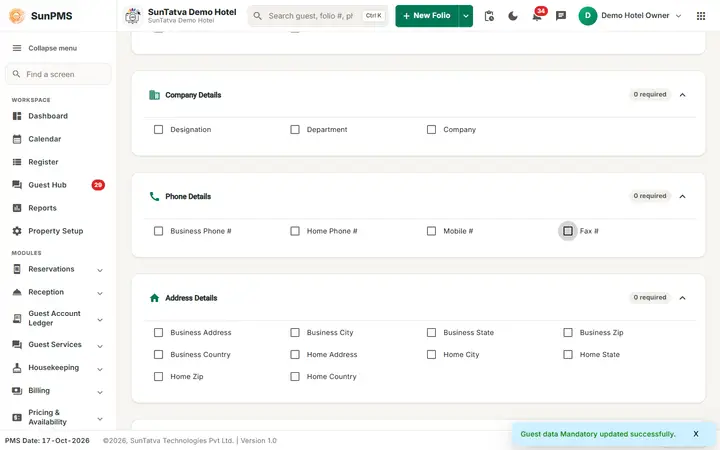
- Tick the field's check box. Result: the message "Guest data Mandatory updated successfully." appears. To remove the rule, untick the box (same message).
What happens behind the scenes
- Check-in / new folio: when a reservation is checked in (single-room, non-CRS reservations), the server compares the primary guest against every ticked field. If any are empty it rejects the check-in with "Below fields are mandatory fields." followed by the list of missing fields.
- Credit Card is satisfied by a credit-card document on the guest; Other Document by any non-credit-card document; Vehicle by at least one vehicle row.
- Sign Mandatory at check-in requires a captured signature. Without it the check-in is blocked with a "Signature Required" message and the screen opens the signature step.
- Requests that come from the mobile app skip a fixed list of fields (Sales & Channel, Vehicle, Other Document, Title, Gender, Nationality, Greeting Letter/Address, Business Phone #, Mobile #, Fax #, the Business address and e-mail fields, Home Email, Credit Card, Sign Mandatory at check-in and Suffix).
- Guest profile save: the guest master (guest profile edit) applies the same check when the screen asks for validation.
- Phone fields at check-in: the check-in guest tab reads the ticked Phone Details entries to mark those phone types as compulsory.
- Guest import: the Import Guest template marks the column headings of mandatory fields in red.
- Group reservations and CRS (channel) reservations skip the check.
Messages you may see
| Message (exact text) | Why it appears | What to do |
|---|---|---|
| Guest data Mandatory updated successfully. | A check box was saved. | Nothing. |
| Below fields are mandatory fields. + field list | Check-in or guest save with a mandatory field empty. | Fill the listed fields or untick the rule here. |
| Server error text | The update failed (shown in an error box). | Retry; contact support if it repeats. |
Tips and FAQ
- Q: Why can the front desk not check in a guest without a signature? A: Sign Mandatory at check-in is ticked. Untick it here, or capture the signature (see Signature Pad Integration / Hardware Setting).
- Q: Do online check-in and CRS bookings obey these rules? A: CRS reservations and group reservations skip the check; the Guest Portal has its own required fields.
Signature and notice (one flow)
Sign Mandatory at check-in is checked in one place for every check-in: single folio, reservation to check-in, each group member (the group signature counts when it is the same notice), and OTA bookings (setting SIGNATURE_ONLY_FOR_OTA, on by default). A reservation is never refused for a missing signature. The refusal is always: Guest signature required. Please ask the guest to sign the notice (Sign menu on the guest, or on the group folio) before checking in. See Signature and notice flow.
Screenshots