Register Settings (Register Column Setup)
On this page
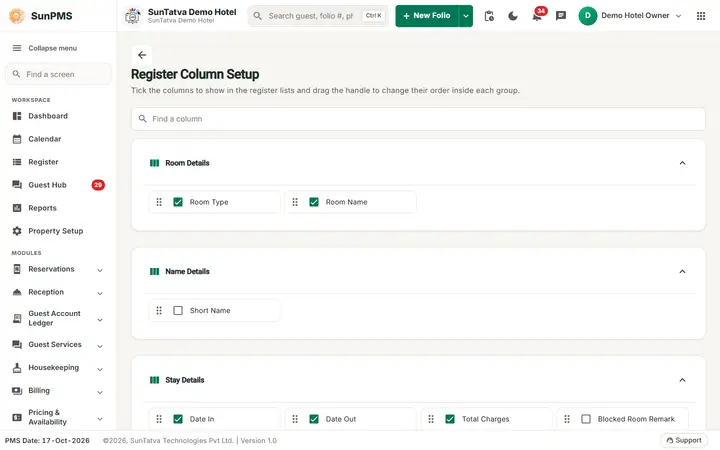
Controls which columns the Register (list view of reservations) shows and in what order. The page title on the screen is Register Column Setup. Its Property Setup card is switched off, so most users change columns from the Register screen; this page is reachable by the route above.
Screen layout
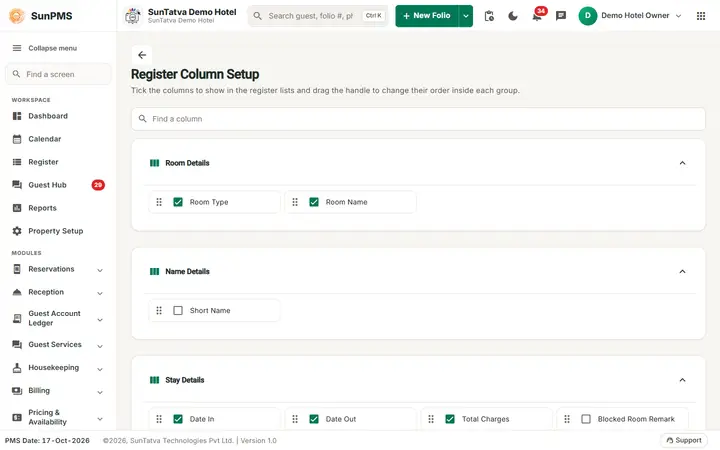
The header shows the title Register Column Setup with a back arrow and the line "Tick the columns to show in the register lists and drag the handle to change their order inside each group." A search box ("Find a column") hides the columns that do not match. Columns are grouped in collapsible folders (click a folder bar to collapse it). Each column is a tile with a drag handle and a check box.
| Group | Columns |
|---|---|
| Room Details | Room Type, Room Name |
| Name Details | Short Name |
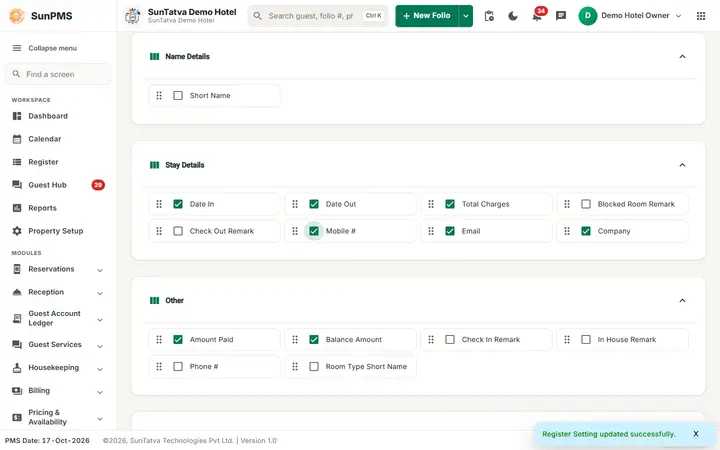
| Stay Details | Date In, Date Out, Total Charges, Blocked Room Remark, Check Out Remark, Mobile #, Email, Company |
| Other | Amount Paid, Balance Amount, Check In Remark, In House Remark, Phone #, Room Type Short Name |
| Guest Remarks | Payment Remark, Guest Remark, Special Request Remark, Folio #, # of Days, Total Guest, Address |
| Contact Details | Authorized Amount, Credit Card, Driver License, Vehicle, Passport |
| Financial Info | Total Deposit |
| Identification Details | ADR, Sales & Channel |
| Vehicle & Access | Guest Name |
The folder names are only a screen grouping (a column not in the mapping falls into Other). What is saved is visibility and order per column.
How to show or hide a column
- Open the page by its address (
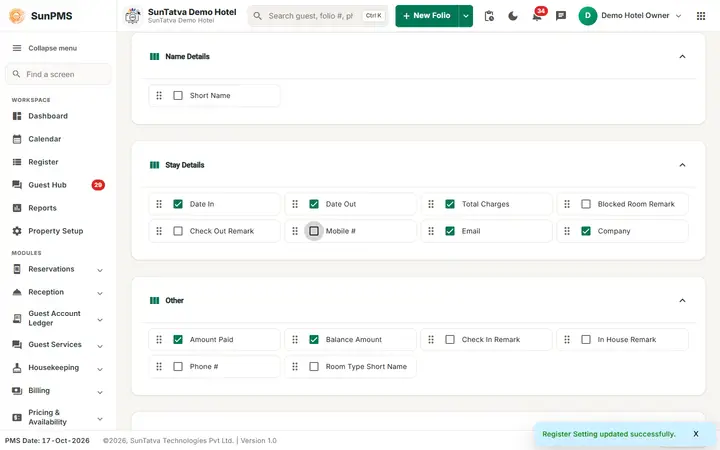
#/setup/register-columns) or use the column picker of the Register. All groups are expanded; click a group bar to collapse it. - Tick a column's check box to show it in the Register; untick to hide it. Result: "Register Setting updated successfully." The change is saved at once (no Save button).
How to reorder columns
- Press and hold the drag handle (three-line icon) of a column.
- Drop it at the new place inside the same group. Result: "Register Setting order updated successfully."
What happens behind the scenes
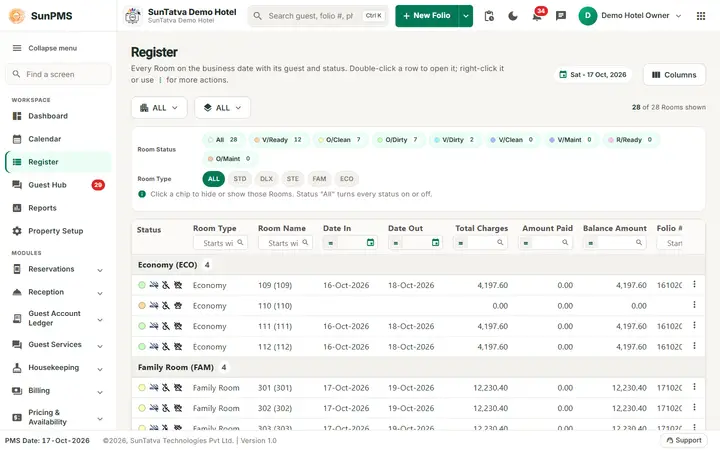
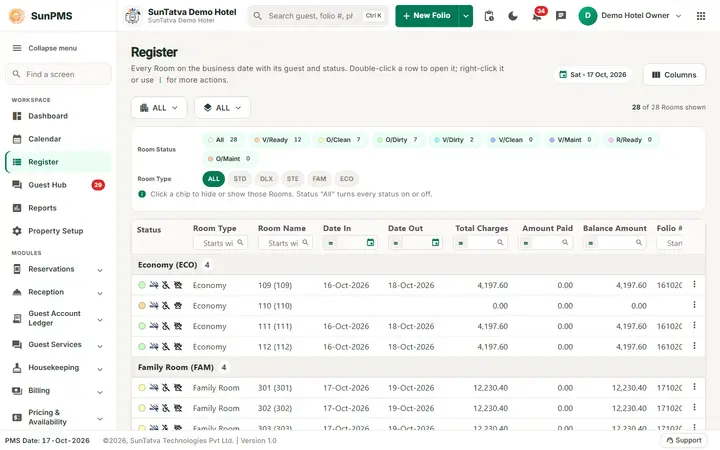
The Register screen (#/register) reads the same stored setting and draws its columns in the saved order. The Register has its own column picker that writes to the same data. The setting is per property, so it affects all users.
Messages you may see
| Message | Why | What to do |
|---|---|---|
| Register Setting updated successfully. | Visibility saved | - |
| Register Setting order updated successfully. | Order saved | - |
| Server error text | Save failed | Retry |
Tips and FAQ
- Q: I hid a column, where is it? A: Come back to this page (or the Register column picker) and tick it again.
- Q: Does this affect other users? A: Yes, it is a property-wide setting.
Screenshots