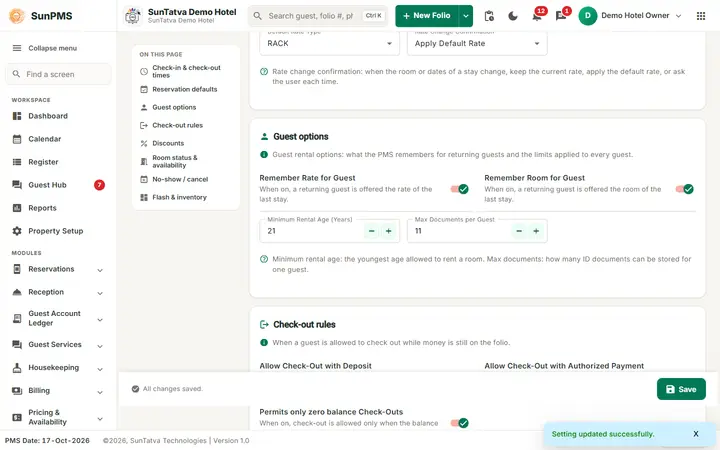
Defines how rooms are rented: default check-in and check-out times, reservation defaults, guest rules, what blocks a check-out, which charges can be discounted, room status and availability rules and no-show handling.
Before you start
The page loads and saves the same property-wide settings record as the other setting screens (Feature, Night Audit, Localization, Display, Folio, Credit Card, Email). Save writes every setting of the property at once, so reload the page if someone else changed settings meanwhile.
Rate types (Rate Type master) and room statuses must exist for the drop-downs.
Screen layout
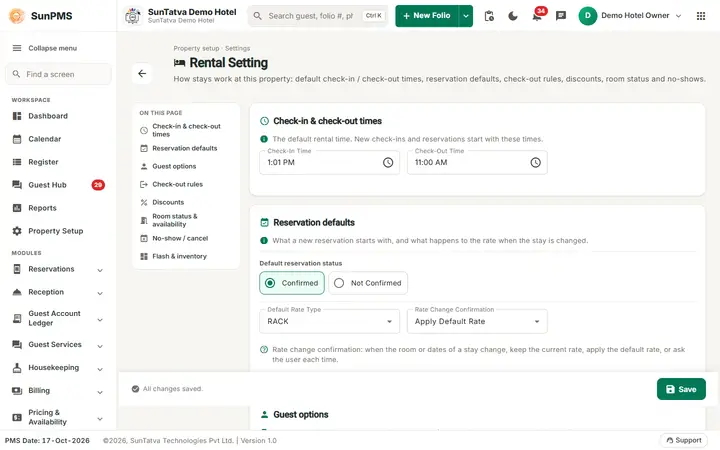
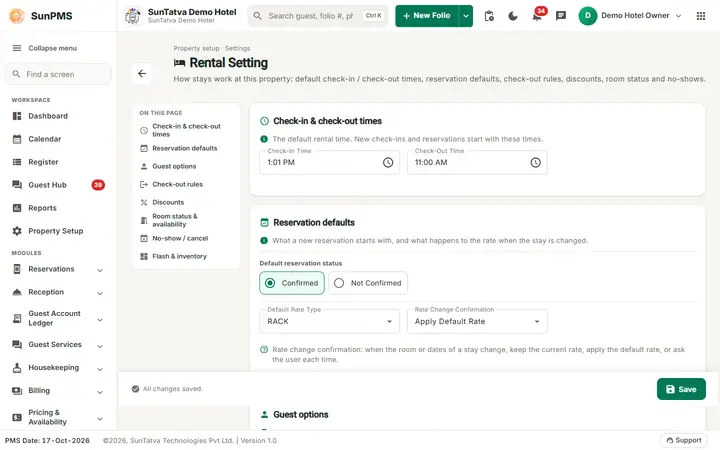
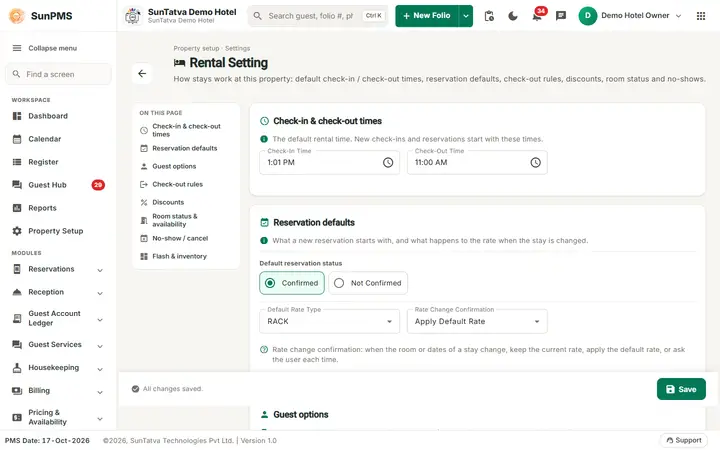
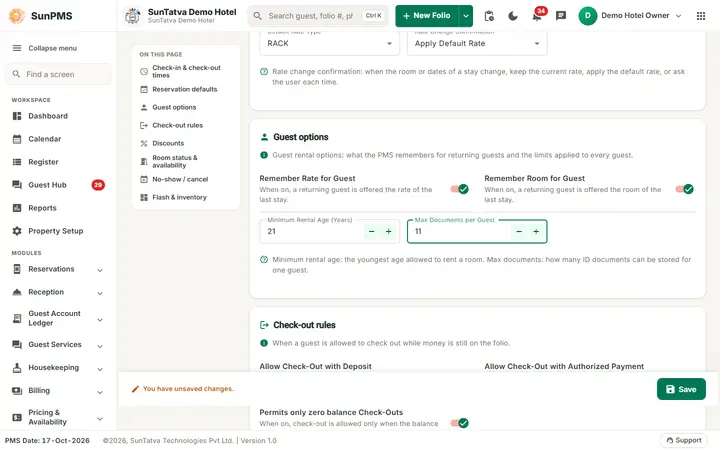
The page header shows the title Rental Setting, the line "Property setup · Settings", a short description and a back arrow to the Property Setup hub. A yellow Unsaved changes chip appears in the header as soon as you edit something. On the left, the On this page index jumps to a section; on small screens the sections simply follow each other. Each section is a card with a one-line explanation. Number fields have - / + buttons; yes/no options are switches with a hint under the label. A bar at the bottom of the page shows "All changes saved." or "You have unsaved changes." and holds the Save button.
Check-in & check-out times
Check-In Time and Check-Out Time (a time picker opens when you click the field; the value is shown like 1:01 PM). Defaults 13:01 and 11:00. Used to prefill time on new folio, group check-in, CRS and kiosk reservations, and by blocked rooms.
Reservation defaults
Field
Meaning
Default
Default reservation status
Confirmed / Not Confirmed, prefilled in the new folio and used for CRS bookings.
Confirmed
Default Rate Type
Prefilled in the new folio; used for CRS bookings.
RACK
Rate Change Confirmation
When room type or stay length changes: Do Not Change (keep rate), Apply Default Rate (re-price), Ask Confirmation For Change Rate (prompt).
Apply Default Rate
Guest options
Field
Meaning
Default
Effect elsewhere
Remember Rate for Guest (switch)
Reuse the rate last given to a returning guest.
On
New folio: when a known guest is picked, the previous rate is prefilled.
Remember Room for Guest (switch)
Reuse the room last used.
On
Same, for the room.
Minimum Rental Age (Years)
Youngest permitted primary guest. 0 = no check.
21
On check-in, if the primary guest's birth date is entered and the age is lower: "Minimum Rental Age must be more then N years." (CRS bookings skip it.)
Max Documents per Guest
Number of documents (excluding credit cards) a guest profile may hold.
10
The folio Documents section blocks further uploads at the limit.
Check-out rules
Field
Meaning
Default
Effect
Allow Check-Out with Deposit
When off, check-out is stopped while deposits exist and the deposit dialog opens.
Off
Folio and group folio check-out.
Allow Check-Out with Authorized Payment
When off, check-out is blocked while a card authorization is open: "...Reason: Authorized payment exist."
On
Also validated on the server.
Permits only zero balance Check-Outs
When on, the balance must fall inside the range below.
On
Message "You can not perform checkout operation on this guest. Reason: Balance is not zero."
Balance range treated as zero: From Balance / To Balance
Lower and upper balance. Check-out is allowed when the folio balance is between them.
0 / 0
Lets you tolerate small round-off, e.g. -1 to 1.
Discounts
Four switches choose which parts a discount may apply to: Rent, Occupancy Tax, Other Charges, Other Charges Tax. Stored as a 4-digit flag (default Rent + Occupancy Tax = 1100). Used by the discount fields in new folio / stay details.
Room status & availability
Field
Meaning
Default
Room Status After CheckOut
Status set when a guest checks out.
V/Dirty
Room Status After Maintenance
Status after maintenance/DNR ends.
V/Dirty
Display V/Dirty room in checkin & reservation
Whether vacant-dirty rooms are listed when a room is picked.
On
Room Status as Available Room: V/Dirty, V/Clean
Which vacant statuses count as available in availability.
Both on
Fill Available Room
At stay-days change, only fill rooms that are available.
On
Auto assign room to CRS Reservation
Assign a room automatically to incoming channel reservations.
Off
No-show / cancel
Field
Meaning
Default
Manual Posting No-Show/Cancel Revenue
When on, no-show/cancel revenue is not posted automatically; staff posts it (screen No-Show Posting).
Off
Noshow Cancel On Occupancy & Revenue
Include no-show/cancel in the Occupancy & Revenue forecast.
Off
Auto No-show After Days
Night audit marks unarrived reservations as no-show after this many days (0 = the next night).
0
Flash & inventory
Field
Meaning
Default
Max Stay Days on Flash and Flash Delinquent Balance
Stored with the property record. The on-screen hint says they drive the Flash filters, but no screen reads them in the current code (the old Room View filters were removed), so changing them has no visible effect.
10 / 0
Include Unposted Reservation in Inventory
Count unposted (pending) reservations when computing availability.
Off
How to change and save
Open Property Setup in the left menu and click the Rental Setting card (group Configuration), or type "rental" in the hub search.
Edit the fields; use On this page to jump to a section. The header shows Unsaved changes.
Click Save in the bar at the bottom. Result: "Setting updated successfully." and the bar reads "All changes saved."
Messages you may see
Message
Why
What to do
Setting updated successfully.
Saved
-
Please enter State Label. / Please enter Zip Label.