Folio Setting
On this page
Decides how folio, group folio, payment receipt, sales and channel invoice and extra income receipt numbers are generated, what is printed on the folio, and which folios and letters are printed or e-mailed automatically at reservation, check-in and check-out.
Before you start
- Automatic e-mails need Email Setting (SMTP or the shared sender) working and the guest's e-mail address on the folio.
- Numbering choices affect new documents only; existing numbers are never changed.
Screen layout
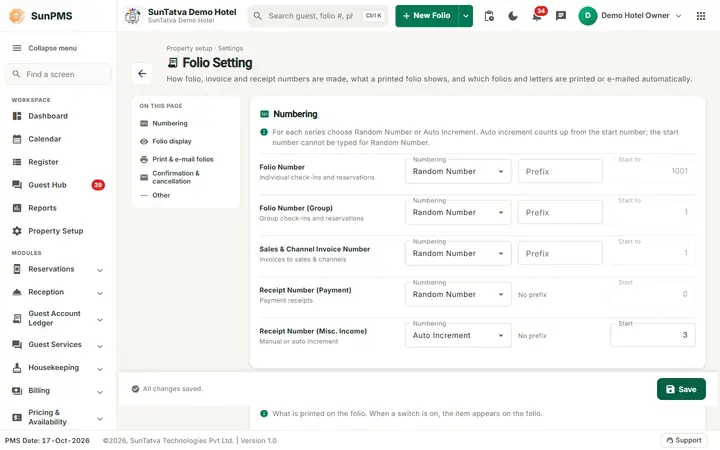
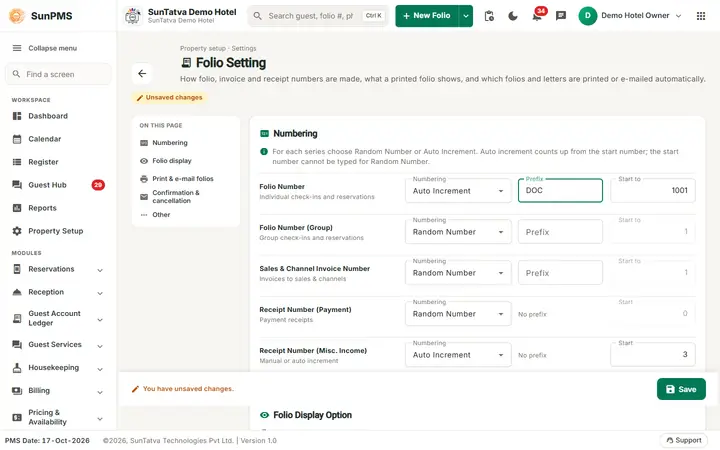
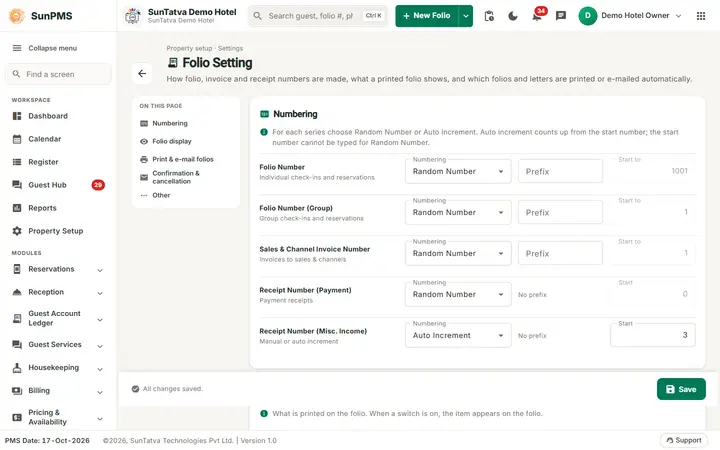
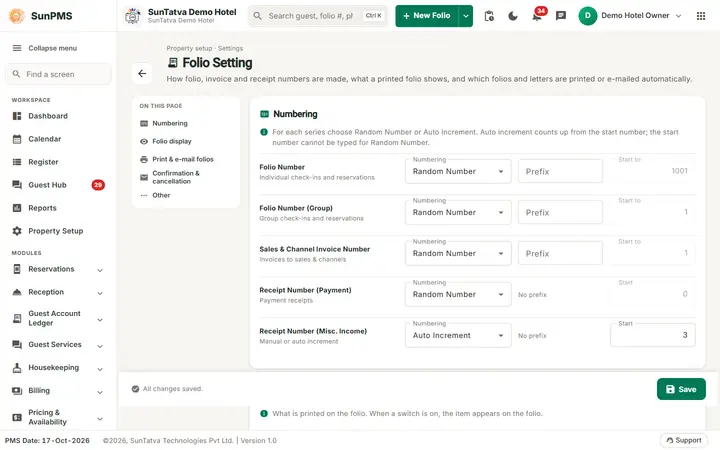
The page header shows the title Folio Setting, the line "Property setup · Settings", a description and a back arrow to the Property Setup hub. The On this page index jumps to Numbering, Folio display, Print & e-mail folios, Confirmation & cancellation and Other. The bottom bar shows "All changes saved." / "You have unsaved changes." and holds Save.
Numbering
The card says: for each series choose Random Number or Auto Increment; auto increment counts up from the start number, which cannot be typed for Random Number. Each block has a Numbering drop-down, an optional Prefix and a Start to / Start number.
| Block | Keys | Default | How it works |
|---|---|---|---|
| Folio Number | FOLIO_TYPE, FOLIO_PREFIX, FOLIO_INITIAL_VALUE | Random Number, no prefix, 1 | Random Number builds a number from the check-in date and time; Auto Increment uses Prefix + next number, starting at Start to. Start to is enabled only for Auto Increment. |
| Folio Number (Group) | GROUP_FOLIO_TYPE, GROUP_FOLIO_PREFIX, GROUP_FOLIO_INITIAL_VALUE | Random Number | Same for group reservations. |
| Receipt Number (Payment) | PAYMENT_RECEIPT_TYPE, PAYMENT_RECEIPT_INITIAL_VALUE | Random Number | With Auto Increment the payment tab fills the receipt number automatically; with Random Number staff or the system generate one. Start enabled for Auto Increment. |
| Sales & Channel Invoice Number | BUSINESS_SOURCE_INVOICE_TYPE / _PREFIX / _INITIAL_VALUE | Random Number | Numbering of sales & channel and commission invoices. |
| Receipt Number (Misc. Income) | MISCELLANEOUS_INCOME_RECEIPT_TYPE / _INITIAL_VALUE | Auto Increment (options Manual / Auto Increment) | Manual lets the user type the receipt number on Extra Income; Auto Increment numbers it from Start. |
Folio Display Option
Six switches: Display Rate Type, Display Sales & Channels, Display Room Type, Display Desk User Name, Display Guest Sign, Display Printed-by And Printed-date (defaults On, Off, On, Off, On, On). When a switch is on the item appears on the folio; they add or remove those items on folio printouts and split folios.
Print & e-mail folios (Check-in, Check-out and Reservation folio options)
The card says: turn a switch on, then pick Folio or Detail Folio. The switches sit in three groups, Check-in Folio Option, Check-out Folio Option and Reservation Folio Option.
| Switch | Drop-down | Effect |
|---|---|---|
| Print Check-in Folio | Folio Type: Folio or Detail Folio | Automatically prints the folio after check-in. Drop-down disabled until the switch is on. |
| Email Check-in Folio | Folio Type | E-mails the folio to the guest at check-in. |
| Print Registration Form At Check-in | - | Prints the registration card at check-in. |
| Print Check-out Folio, Email Check-out Folio | Folio Type | Same at check-out. |
| Print Reservation Folio, Email Reservation Folio | Folio Type | Same when a reservation is saved. |
| (All Off by default. Copies per folio are stored as 1.) |
Booking Confirmation & Cancellation Options
| Field | Meaning |
|---|---|
| Reservation Cancellation Letter | Sends a cancellation letter to the guest when a reservation is cancelled. |
| Email CC | Extra address copied on the cancellation letter; enabled only when the letter is on. Must be a valid e-mail. |
| Email Confirmation Letter | Sends the booking confirmation letter by e-mail when a reservation is saved. |
Other Folio Option
Folio On Print Button (default On): the Print button on the folio prints the folio directly.
The Email CC box sits under the cancellation letter switch and is enabled only when the letter is on.
How to change and save
- Open Property Setup in the left menu and click the Folio Setting card (group Configuration).
- Choose numbering types and prefixes; turn on the print/e-mail options.
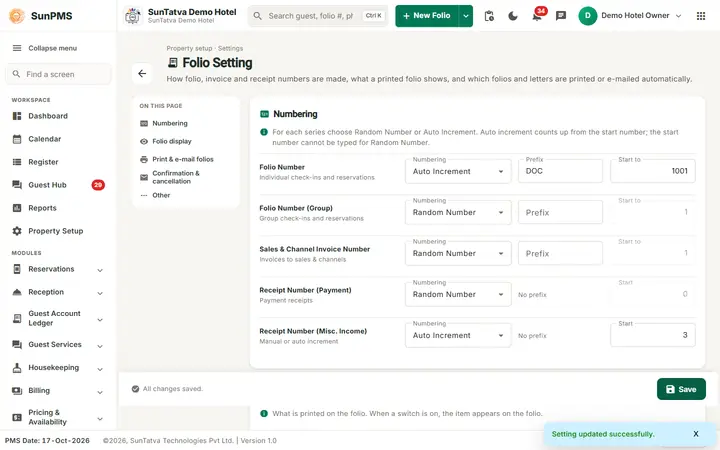
- Click Save in the bottom bar. Result: "Setting updated successfully."
What happens behind the scenes
- Check-in, group check-in and import-reservation screens read the folio type/prefix; the database functions for check-in, group, payment, invoice and extra income add-update use the types and start numbers.
- Turning a print/e-mail option off stores its type as 0 and the copy count as 1.
- If Auto Increment is chosen for payment receipts with an empty start value, it is saved as 1.
Messages you may see
| Message | Why | What to do |
|---|---|---|
| Setting updated successfully. | Saved | - |
| Please enter valid email for reservation cancellation letter. | Email CC invalid while the letter is on | Correct the address |
| Please enter State Label. / Please enter Zip Label. | Shared validation | Fill them in Localization Setting |
Tips and FAQ
- Q: I want sequential folio numbers like HTL1001. A: Folio Number > Auto Increment, Prefix HTL, Start to 1001.
- Q: Why does the guest not get the check-out folio mail? A:Email Check-out Folio is off, the guest has no e-mail, or Email Setting is disabled.
Screenshots