Email Setting
On this page
Configures how the PMS sends e-mail: folios, confirmation and cancellation letters, night-audit reports, invoices and test mails. You can use your own SMTP server or keep the default sender provided with the PMS.
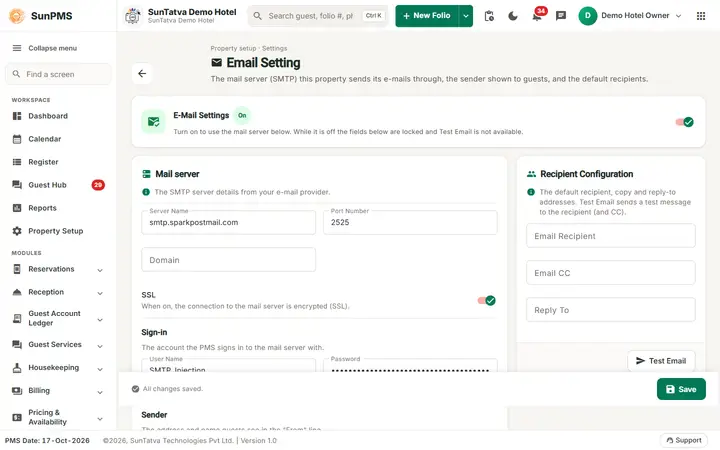
Screen layout
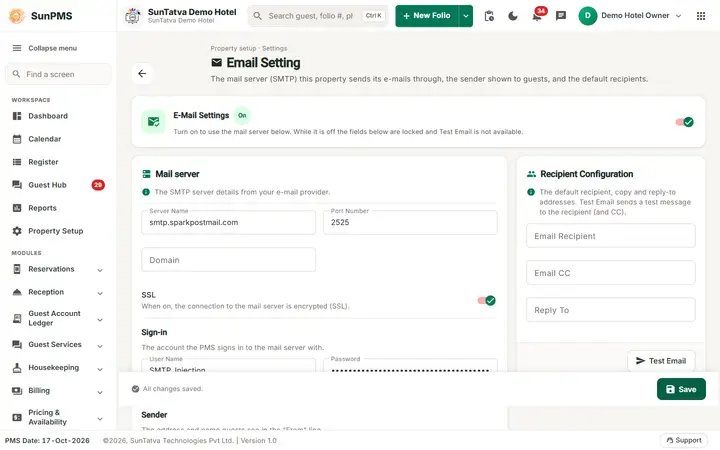
The page header shows the title Email Setting, the line "Property setup · Settings", a description and a back arrow to the Property Setup hub. The top card E-Mail Settings has an On / Off chip and says: turn on to use the mail server below; while it is off the fields are locked and Test Email is not available. The other cards are Mail server (Server Name, Port Number, Domain, SSL, with the block Sign-in for User Name and Password and the block Sender for Email From and Email From Display Name) and Recipient Configuration (Email Recipient, Email CC, Reply To and the Test Email button). The bottom bar shows "All changes saved." / "You have unsaved changes." and holds Save.
| Field | Key | Meaning / rules |
|---|---|---|
| E-Mail Settings (switch in the top card) | IS_EMAIL (default On) | Master switch. Off disables all fields and the server sends no mail at all (the e-mail service checks this first). |
| Server Name | EMAIL_SERVER | SMTP host. Max 500. |
| Port Number | EMAIL_PORT | SMTP port, e.g. 25, 465, 587, 2525. |
| Domain | EMAIL_DOMAIN | Optional SMTP domain. |
| SSL (switch) | EMAIL_SSL (default On) | Use a secure connection. |
| User Name / Password | EMAIL_USER_NAME / EMAIL_PASSWORD | SMTP login. The password is stored encrypted; the box is a password field. |
| Email From | EMAIL_FROM | Sender address shown to guests. |
| Email From Display Name | DISPLAY_FROM_NAME | Sender name shown to guests. |
| Test Email | - | Sends "SUNPMS Test Email" to Email Recipient (and Email CC if set). |
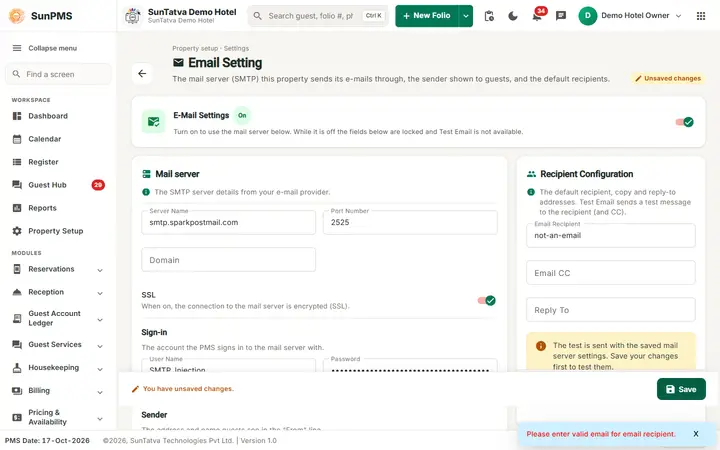
| Email Recipient | EMAIL_RECIPIENT | Property mailbox that receives night-audit reports and internal copies. Must be a valid address. |
| Email CC | EMAIL_CC | Copy address on folios, invoices, night-audit mails. Valid address. |
| Reply To | EMAIL_REPLY_TO | Where guests' replies go. Valid address. |
| Save | Stores all settings. |
How to set up and test
- Open Property Setup in the left menu and click the Email Setting card (group Configuration).
- Make sure the E-Mail Settings switch is on; fill server, port, SSL, user name, password, Email From and display name.
- Fill Email Recipient (and CC / Reply To).
- Click Save, then Test Email. Result: "Email send successfully." and the mail arrives.
What happens behind the scenes
- Used by check-in (folio, confirmation/cancellation letters, see Folio Setting), night audit (reports to Email Recipient/CC), sales & channel and commission invoices, and the Reservation e-mails.
- Fallback: a new property starts with a shared sender (noreply address) so mail works before you configure your own server.
Messages you may see
| Message | Why | What to do |
|---|---|---|
| Please enter valid email for email recipient. / email cc. / email reply to. | Invalid address format | Correct it |
| Please enter Email Recipient | Test Email clicked with Recipient empty | Fill it |
| Email send successfully. | Test mail sent | - |
| Server error text | SMTP failed | Check host, port, SSL, login |
| Setting updated successfully. | Saved | - |
Tips and FAQ
- Q: No mails leave the PMS. A: The E-Mail Settings switch is off, or the SMTP login failed. Use Test Email.
- Q: Guests see a different sender name. A: Change Email From Display Name.
Screenshots