WhatsApp Setting
On this page
Connects the hotel's own WhatsApp Business number (Meta WhatsApp Cloud API). Documents, automatic messages and guest chat go out from this number, and guests can write back from booking to check-out.
Before you start
- Licence: WhatsApp (
WHATSAPP). Without it the card is hidden; opening the address shows a WhatsApp card with Not licensed and the text: "WhatsApp needs its own licence - the property owner can buy it from Settings → Licences." The server also refuses WhatsApp calls with "WhatsApp is not licensed for this property...". See 90-licences. - A Meta Business app with a WhatsApp phone number, a permanent system-user token, and approved Utility message templates.
- Without the privilege the form is read-only: View only - changing these settings needs the "Configure WhatsApp" right on your role.
Screen layout
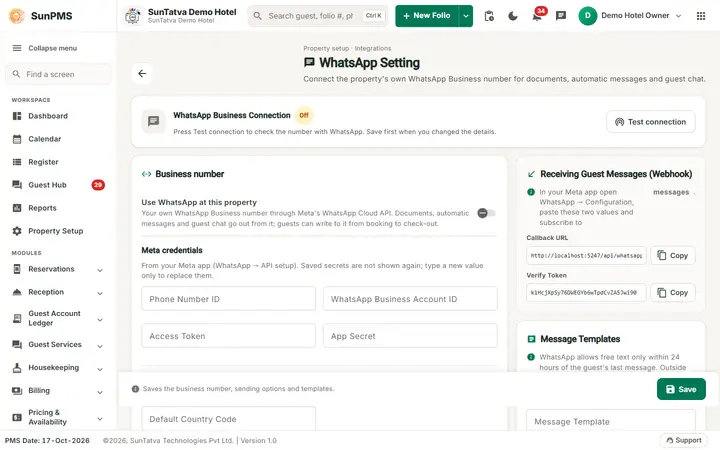
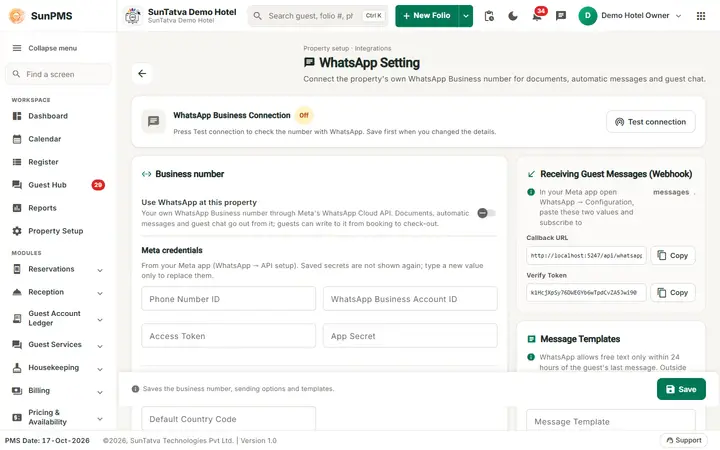
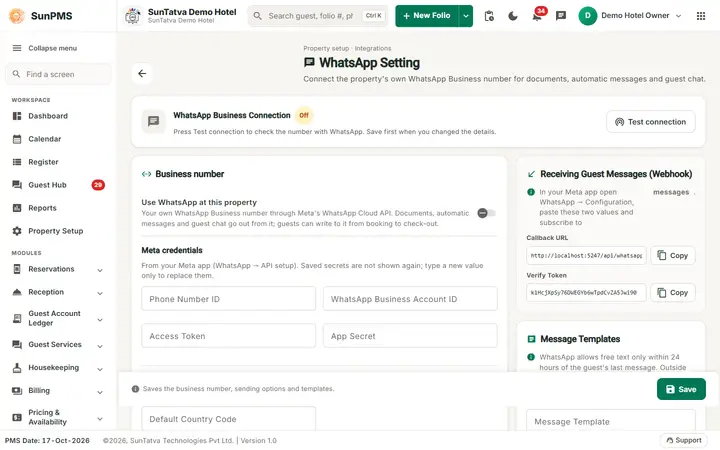
The page header shows the title WhatsApp Setting, the line "Property setup · Integrations", a description and a back arrow to the Property Setup hub. The top card WhatsApp Business Connection has an On / Off chip, a status sentence ("Press Test connection to check the number with WhatsApp. Save first when you changed the details.") and the Test connection button. Below are the cards Business number (switch plus Meta credentials and Sending blocks and Send a test message), Receiving Guest Messages (Webhook) and Message Templates. The bottom bar says "Saves the business number, sending options and templates." and holds Save.
| Field | Meaning | Rules |
|---|---|---|
| Switch Use WhatsApp at this property | Enables the connection (your own WhatsApp Business number through Meta's WhatsApp Cloud API). | |
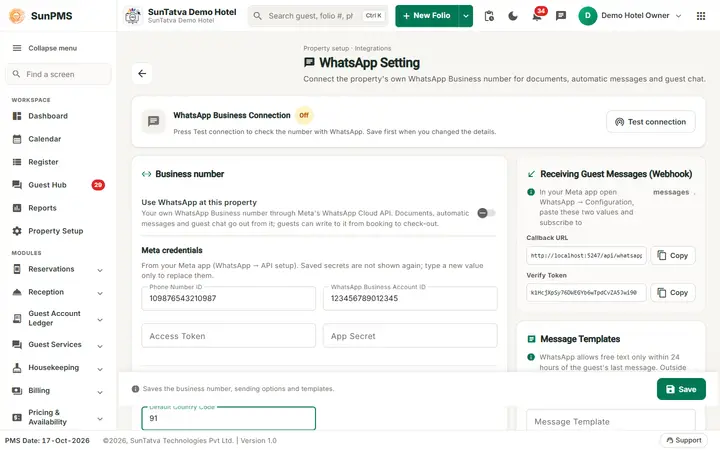
| Phone Number ID | Meta phone number id. | max 50 |
| WhatsApp Business Account ID | Meta account id. | max 50 |
| Access Token | Permanent system-user token. Stored secret; shows "Saved - type to replace" when set. | Leave blank to keep |
| App Secret | Verifies incoming messages. "Saved - type to replace". | Leave blank to keep |
| Default Country Code | Prefix added to local numbers (placeholder 91). | max 4 |
| Automatic messages on WhatsApp (switch) | Also send the automatic e-mails (reservation confirmation etc.) on WhatsApp. | |
| Test connection (top card) | Shows Connected: <name> (<number>) or Not connected: <reason>. |
|
| Send a test to + Send test message | Sends a test to the entered number. | Button disabled until a number is typed |
| Callback URL, Verify Token (a Copy button for each, card Receiving Guest Messages) | Paste both in Meta app > WhatsApp > Configuration and subscribe to messages so guest replies arrive. | Read only |
| Message Template | Template name for free-text outside the 24-hour window (placeholder guest_message): body "Hello {{1}}, {{2}}" (1 = first name, 2 = message). | max 100 |
| Document Template | Header Document, body "Hello {{1}}, please find your {{2}} attached." (placeholder guest_document) | max 100 |
| Template Language | e.g. en | max 10 |
| Save | Stores everything |
How to connect
- Open Property Setup in the left menu and click the WhatsApp Setting card (group Configuration).
- Switch Use WhatsApp at this property on and fill Phone Number ID, Business Account ID, Access Token, App Secret, Default Country Code.
- Click Save, then Test connection.
- Copy Callback URL and Verify Token into the Meta app and subscribe to messages.
- Enter your number in Send a test to and click Send test message.
What happens behind the scenes
- Check-in and folio screens show a WhatsApp button to send documents. Guest chat (Guest Portal) uses the number. WhatsApp allows free text only within 24 hours of the guest's last message; afterwards the templates are used.
Messages you may see
| Message | Why | What to do |
|---|---|---|
| Saved | Stored (also shown as a snack bar) | - |
| Could not load the WhatsApp settings. / Could not save the WhatsApp settings. | Server error | Retry |
| Checking... / Connected:... / Not connected:... | Test result | Re-check ids and token |
| The test message could not be sent. | Number or template invalid | Check template approval |
Tips and FAQ
- Q: Guests' replies do not show. A: Callback URL/Verify Token not set in Meta or messages not subscribed.
Screenshots