Guest Portal Setting
On this page
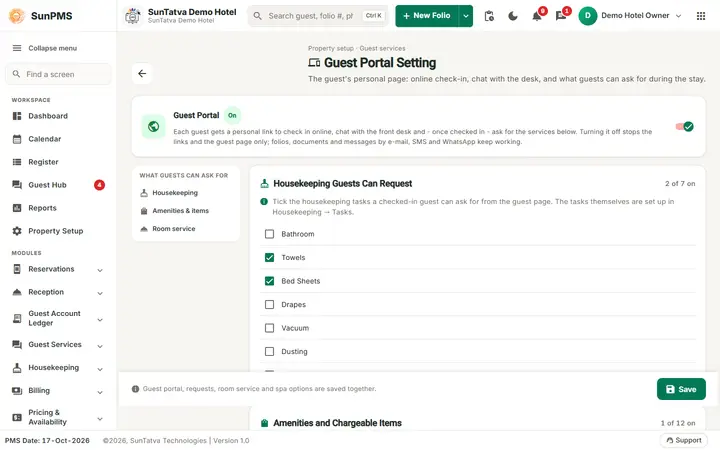
Turns the public guest page on or off and chooses what guests may request during their stay. Each guest gets a personal link to check in online, chat with the front desk and, once checked in, request housekeeping items, amenities and room service.
Before you start
- Licence: the card Guest Portal Setting is shown in Property Setup only when the property has the Guest Interface - Check-in (
ONLINE_CHECKIN) or Guest Interface - Services & Chat (GUEST_MODULE) licence. For an unlicensed property the card is hidden and the server answers guest-portal calls with "is not licensed for this property. The property owner can buy it from Licences." (for example "Guest Interface (check-in or services & chat) is not licensed for this property..."). The property owner buys the module in Licences (see 90-licences). - Privilege: without Configure Guest Portal the page opens but is read-only, with the banner: View only - changing these settings needs the "Configure Guest Portal" right on your role.
- Housekeeping tasks (Housekeeping Task master) and Other Charges must already exist; this page only picks from them.
- Room service needs the SunPOS Integration licence (
POS_INTEGRATION) and a restaurant of the same owner.
Screen layout
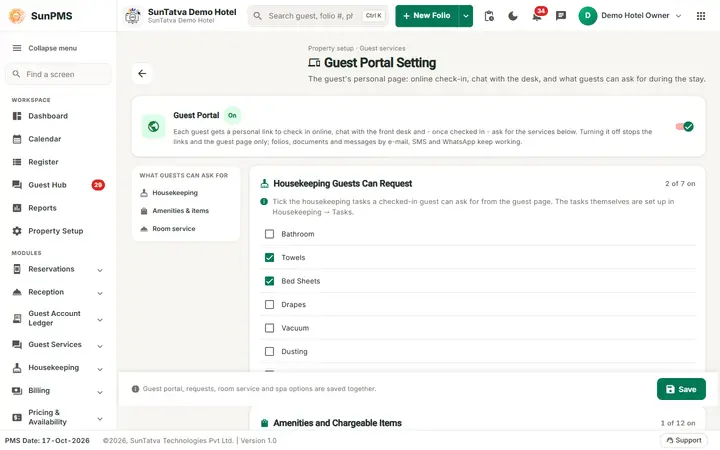
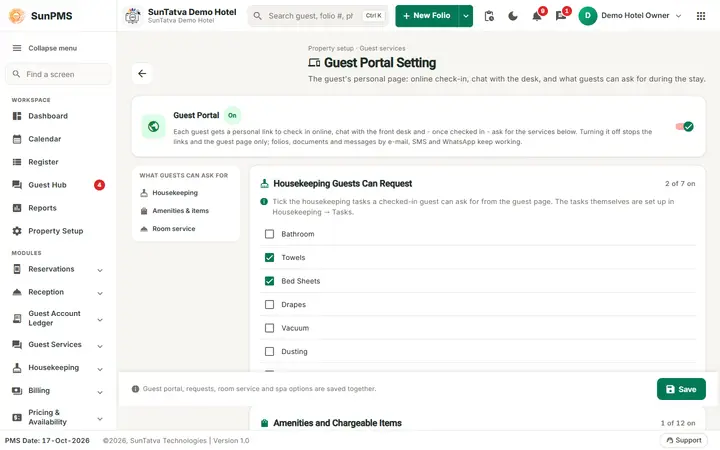
The page header shows the title Guest Portal Setting, the line "Property setup · Guest services", a description and a back arrow to the Property Setup hub. The top card Guest Portal has an On / Off chip and the switch. Below it the On this page index jumps to Housekeeping, Amenities & items, Room service and (with the SunSpa licence) Spa. One bottom bar saves everything: "Guest portal, requests, room service and spa options are saved together."
| Field | What it means | Rules / default |
|---|---|---|
| Guest Portal (switch) | Master switch. Off stops the guest links and the guest page only; folios, documents and e-mail/SMS/WhatsApp messages keep working. | Per property. |
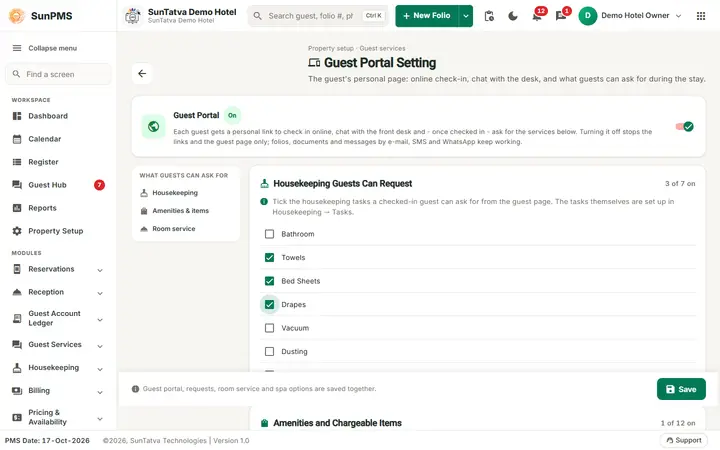
| Housekeeping Guests Can Request | One check box per housekeeping task of the property. Ticked tasks appear as requests on the guest page. | "No housekeeping tasks are set up." if the master is empty. |
| Amenities and Chargeable Items | One check box per Other Charge, shown as name · currency rate (+ tax). A guest request posts the charge to the folio with its tax. Rate 0 means free (for example a toiletry kit). |
"No other charges are set up." if none. |
| Restaurant group | SunPOS restaurant group of the same owner. "- none (room service off) -" switches room service off. | Disabled without POS licence or edit right. |
| Restaurant | The restaurant whose menu guests order from. If the group has only one restaurant it is selected automatically. | Enabled after choosing a group. |
| Test connection | Checks the restaurant link and shows the result message next to the button. | Needs a restaurant selected. |
| Spa (SunSpa) card | Shown only with the SunSpa Integration licence (SPA_INTEGRATION). A red note "No SunSpa property is linked yet" appears until a link exists in Spa Setting; a link in the card header opens that page. |
See the four switches below. |
| Show the Spa tab (guests book treatments) | Master switch of the guest page Spa tab; the options below apply only while it is on. | |
| Guests can buy spa packages, gift cards and memberships | Purchases are paid to the room (posted to the folio) or at the spa. | |
| Guest bookings need the front desk's approval | A booking is held in SunSpa as Booked and shows in Guest Requests as a Spa request: Accept confirms it in SunSpa, Decline cancels it without a fee and the reason goes to the guest. | |
| Guests can move their own treatments to another free time | Guests may reschedule from their page. | |
| Payment offered first | Charge to the room (disabled when room charges are off in Spa Setting) or Pay at the spa. | |
| Save | Saves all of the above together. | Disabled while saving or without the privilege. |
Bookings, moves, cancellations and purchases always show in Guest Requests and the Guest Hub for information. When SunSpa cannot be reached the guest page and the desk carry on and say so.
If no POS licence: "Needs the SunPOS Integration licence - the property owner can buy it from Property Setup > Licences."
How to change the portal settings
- Open Property Setup in the left menu and click the Guest Portal Setting card (group Configuration).
- Switch Guest Portal on (or off).
- Tick the housekeeping tasks and charges guests may request. With the SunSpa licence also set the Spa options.
- For room service, choose Restaurant group, then Restaurant, and click Test connection.
- Click Save. Result: the message "Saved" appears and the page reloads the stored values.
What happens behind the scenes
- Check-in screens show the guest-link, guest chat and guest-hub features only when the licence is present and the portal is on (
ONLINE_CHECKIN/GUEST_MODULE). - Accepted charge requests are posted to the guest's folio as other charges using the master's rate and tax.
- Room service orders arrive in SunPOS as "Room Service" and reach the folio when the restaurant settles them to the room. The restaurant must link back to this hotel in SunPOS Settings > PMS Integration and have an open shift. Both groups need the same owner.
Messages you may see
| Message | Why | What to do |
|---|---|---|
| Saved | Settings stored | - |
| Could not load the settings. / Could not save. | Server error | Retry, then contact support |
| Your SunPOS restaurants could not be listed. | Restaurant list failed | Check POS licence and owner |
| The test failed. | Test connection failed | Check restaurant link and open shift |
| View only... "Configure Guest Portal" right | Missing privilege | Ask the owner to add it to your role |
Tips and FAQ
- Q: Why is the card missing? A: The property has neither Guest Interface licence.
- Q: Does switching the portal off stop guest e-mails? A: No, only the links and the guest page.
Screenshots