WebHook
On this page
Lets the PMS call an external web address (for example a marketing, revenue-management or guest-messaging system) whenever something happens: a reservation or check-in event, a room status change, night audit, or a rate / inventory / statistics sync. Each webhook is one URL with the events it should receive.
Before you start
- Only users with the Owner role are allowed in WebHook (Property Setup, group Integrations). The page also checks the owner role on load.
- You need the partner's endpoint URL, method and credentials.
Screen layout
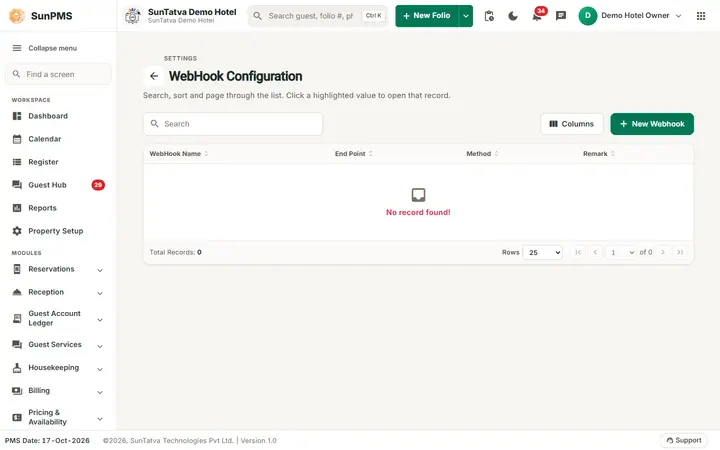
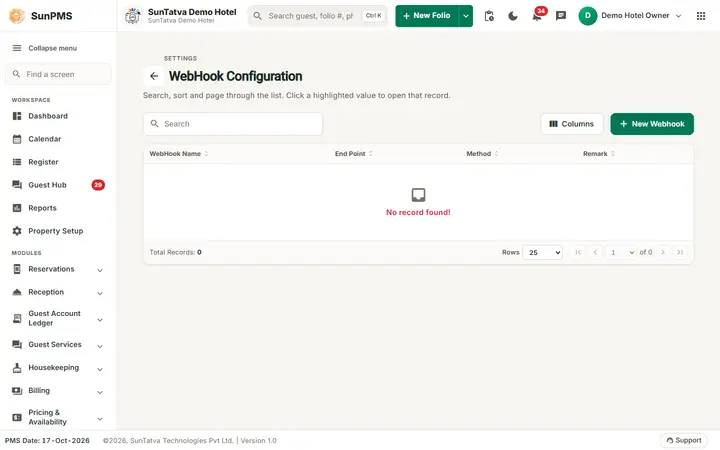
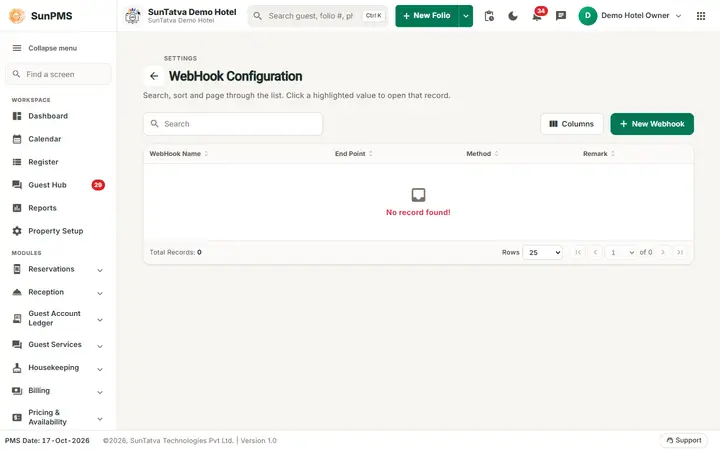
The list page shows the small heading "Settings /", the title WebHook Configuration with a back arrow, the line "Search, sort and page through the list. Click a highlighted value to open that record.", a search box, a Columns button (tick the columns to show, drag to reorder), the button New Webhook and the columns WebHook Name, End Point, Method, Remark. Click a name to edit it.
Details tab
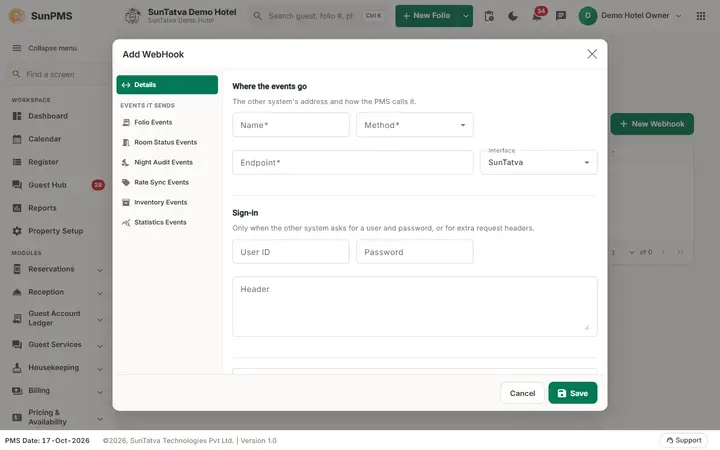
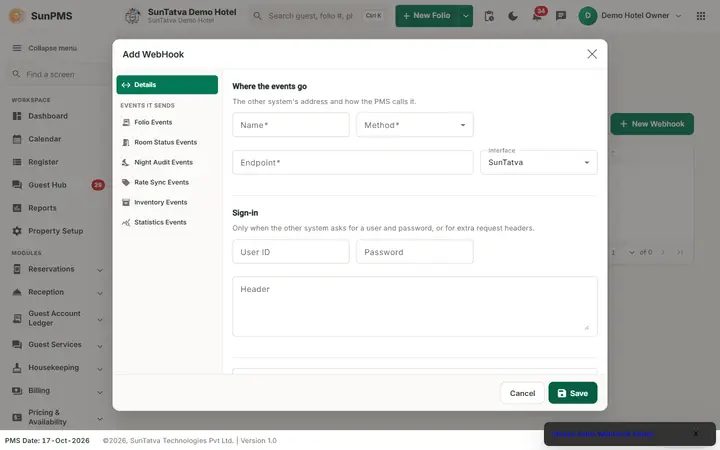
The dialog has the tabs Details, Folio Events, Room Status Events, Night Audit Events, Rate Sync Events, Inventory Events and Statistics Events (a side list titled "Events it sends"). The Details tab has two blocks: Where the events go (the other system's address and how the PMS calls it: Name, Method, Endpoint, Interface) and Sign-in (only when the other system asks for a user and password or extra request headers: User ID, Password, Header, Remark).
| Field | Rules |
|---|---|
| Name | Required, max 200 characters. |
| Method | Required: GET, POST, PUT or DELETE. |
| Endpoint | Required: the URL called. |
| Interface | Drop-down of known partner interfaces (default first entry); selects the payload format of the partner. |
| Header | Free text, extra HTTP headers (one per line). |
| Remark | Max 2000 characters; shown in the list. |
| User ID, Password | Optional credentials sent with the call. No spaces allowed in the password. |
Event tabs
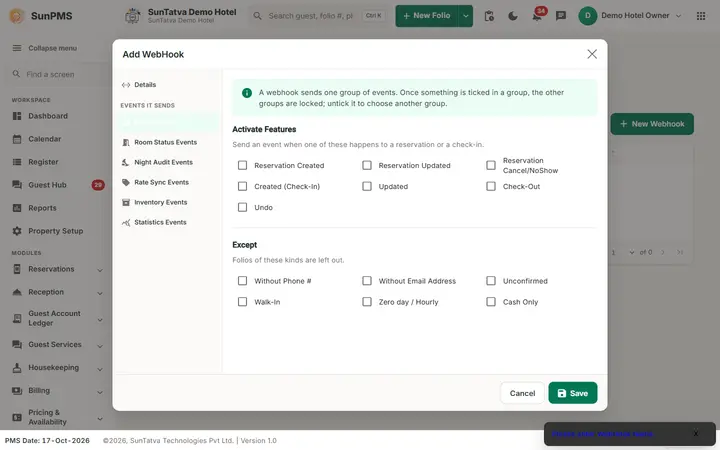
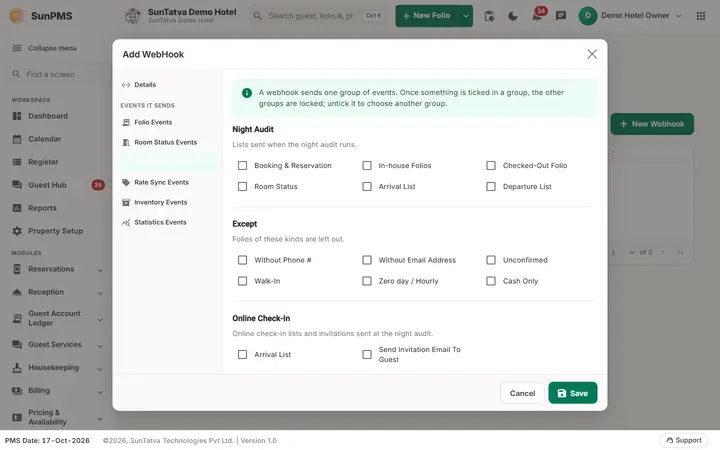
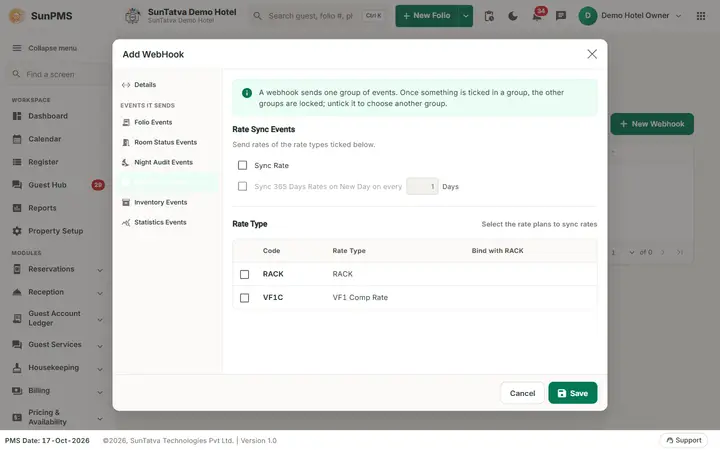
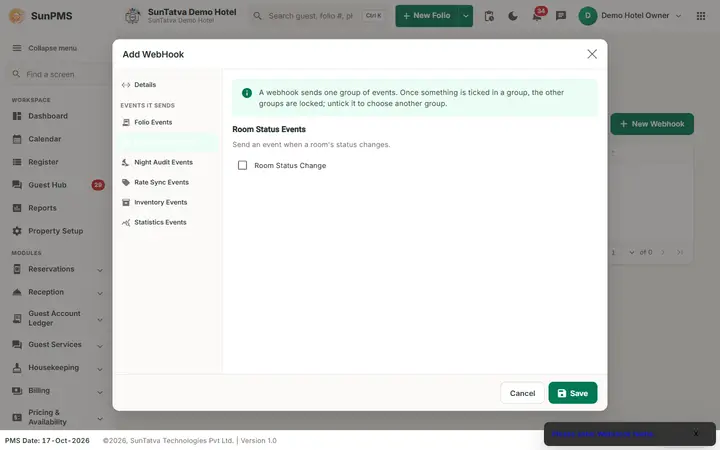
Select what triggers the call. A webhook sends one group of events: once something is ticked in a group the other groups are locked; untick it to choose another group, so one webhook serves one kind of event.
| Tab | Options |
|---|---|
| Folio Events | Reservation Created, Reservation Updated, Reservation Cancel/NoShow, Created (Check-In), Updated, Check-Out, Undo. Except (skip folios): Without Phone #, Without Email Address, Unconfirmed, Walk-In, Zero day / Hourly, Cash Only. |
| Room Status Events | Room Status Change. |
| Night Audit Events | Booking & Reservation, In-house Folios, Checked-Out Folio, Room Status, Arrival List, Departure List; the same Except list; Online Check-In: Arrival List, Send Invitation Email To Guest. |
| Rate Sync Events | Sync Rate; Sync 365 Days Rates on New Day on every N Days (needs Sync Rate; 1 to 365); and a table of rate types to sync (columns Code, Rate Type, Bind with RACK). |
| Inventory Events | Sync Inventory; Sync 365 Days Inventory on New Day on every N Days (1 to 365). |
| Statistics Events | Sync Statistics Data. |
How to add a webhook
- Open Property Setup in the left menu, click the WebHook card (group Integrations) and click New Webhook (dialog title "Add WebHook").
- On Details enter Name, Method, Endpoint, Interface and credentials.
- Open the event tab you need and tick the events.
- Click Save. Result: "Webhook added successfully." The row appears in the list.
How to edit or delete
- Click the webhook's name; the dialog title shows the edit mode.
- Change fields and click Save ("Webhook updated successfully.") or click Delete ("Webhook deleted successfully.").
- Cancel or the close icon leaves without saving.
What happens behind the scenes
The PMS queues each matching event and the webhook worker calls the endpoint. Rate and inventory syncs push the next 365 days when run at the new day every N days. Failures are handled by the worker; check the partner's logs.
Messages you may see
| Message | Why | What to do |
|---|---|---|
| Please enter WebHook Name. | Name empty | Fill it |
| Please enter Endpoint. | Endpoint empty | Fill it |
| Please select Method. | No method | Choose one |
| Rate New day value should be between 1 and 365 | Invalid days | Enter 1-365 |
| Inventory New day value should be between 1 and 365 | Invalid days | Enter 1-365 |
| Webhook added successfully. / updated successfully. / deleted successfully. | Done | - |
Tips and FAQ
- Q: Why can't I see WebHook? A: Your role is not Owner.
- Q: Two kinds of events on one hook? A: Create two webhooks.
Screenshots