Rate Type Binding
On this page
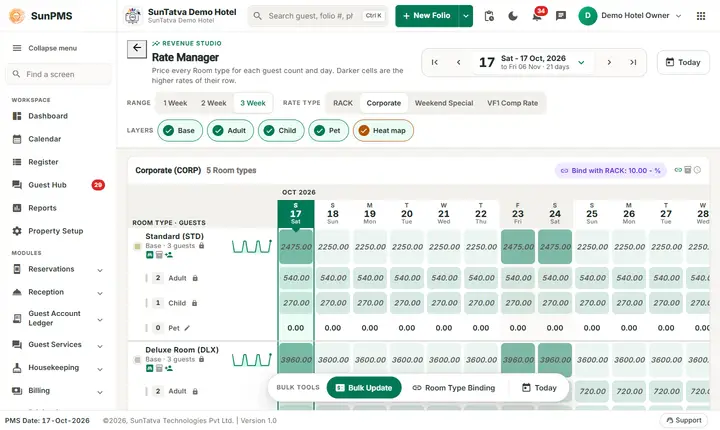
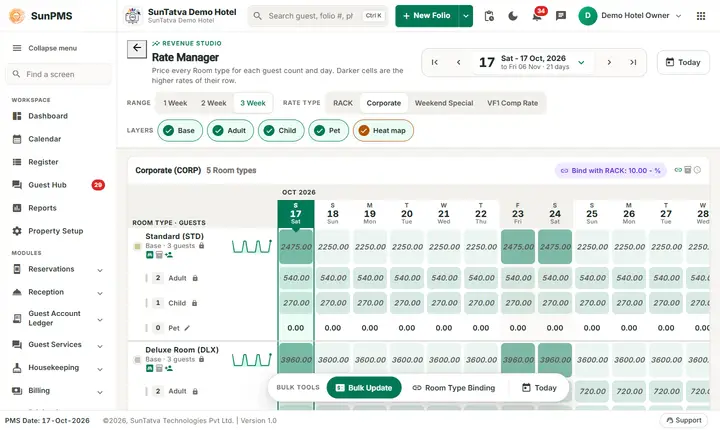
Rate Type Binding lets a rate type follow the base (RACK) rate automatically, for example "Corporate = base rate minus 10%". Binding is also where you mark a rate type as Complementary or House Use. The list is the same as Rate Type, but there is no New button and the edit window only holds binding options.
Before you start
- Create the rate type first in Rate Type.
- Bound rates follow the base rate type of the same kind (normal base for normal rate types, base hourly for hourly ones).
Screen layout
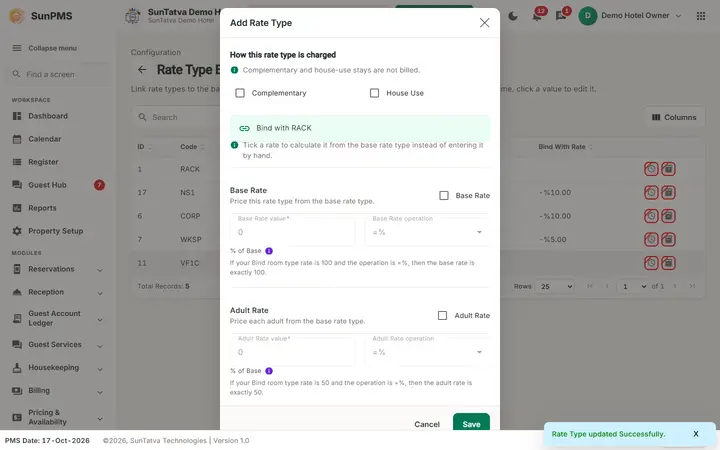
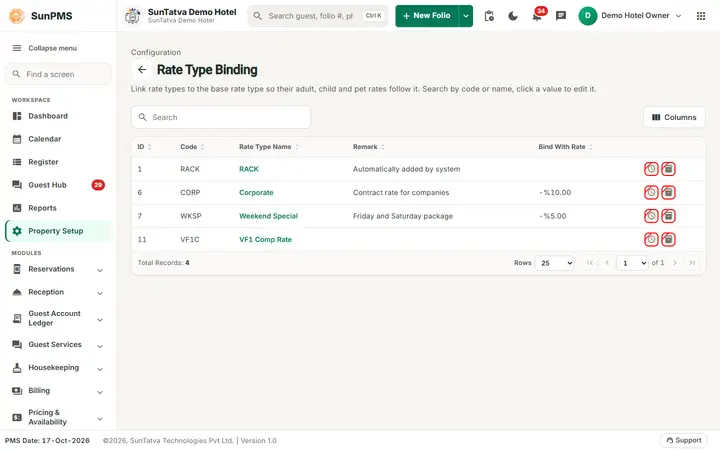
Header: the back arrow, the title Rate Type Binding and the line "Link rate types to the base rate type so their adult, child and pet rates follow it." Below it are the Search box and the Columns button. Columns: ID, Code, Rate Type Name (click to edit), Remark, Bind With Rate, and the clock / inventory icons. Search covers ID, Code and Rate Type Name. No drag ordering and no create button.
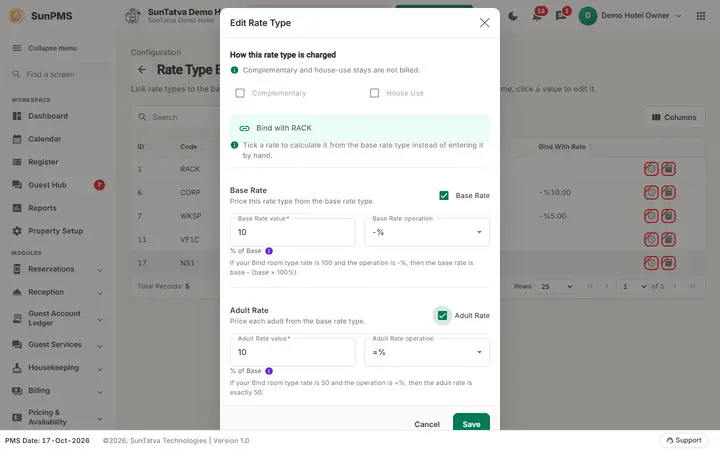
Edit window. The top section How this rate type is charged (help: "Complementary and house-use stays are not billed.") holds the Complementary and House Use tick boxes. Below it, when a base rate type exists, a banner Bind with
| Field | What it means | Rules |
|---|---|---|
| Complementary | Rate is free of charge | Excludes House Use and all bind options |
| House Use | Room used by the hotel | Excludes Complementary and all bind options |
| Bind with |
Section title (shown when a base rate type exists) | |
| Base Rate, Adult Rate, Child Rate, Pet Rate (tick boxes) | Which part of the price follows the base | Ticking one disables Complementary and House Use |
| Value box (next to each) | The number used in the operation | Decimal; set to 100 when you tick Base Rate; Adult/Child/Pet start with the Base value |
| Operation drop-down | =%, +$, -$, +%, -% |
Info icon shows an example sentence |
| "% of Base" | Label only | |
| Save / Cancel | Save is disabled for the base rate type |
Operation meaning (example value 100; the first operation is labelled = % here, and = $ in the Rate Manager bulk update, where it sets the amount): =% the rate equals that value; +$ base plus 100; -$ base minus 100; +% base plus 100% of base; -% base minus 100% of base.
How to bind a rate type
- Click the rate type name.
- Tick Base Rate (and Adult / Child / Pet if needed).
- Enter the value and choose the operation.
- Click Save. "Rate Type updated Successfully."
How to make a rate Complementary or House Use
- Open the rate type, tick Complementary or House Use.
- Click Save. Any bind ticks are cleared.
What happens behind the scenes
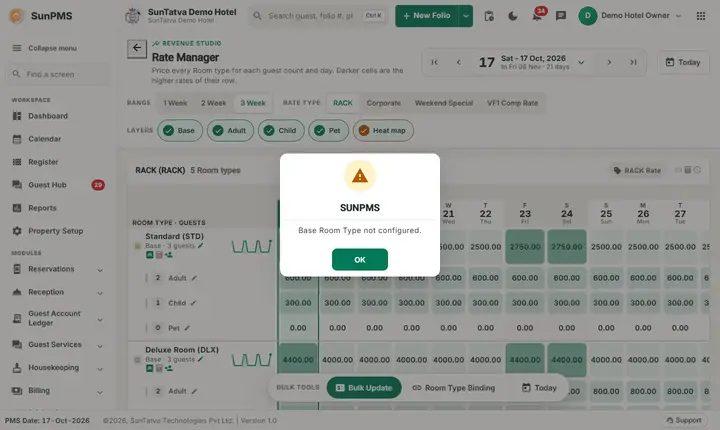
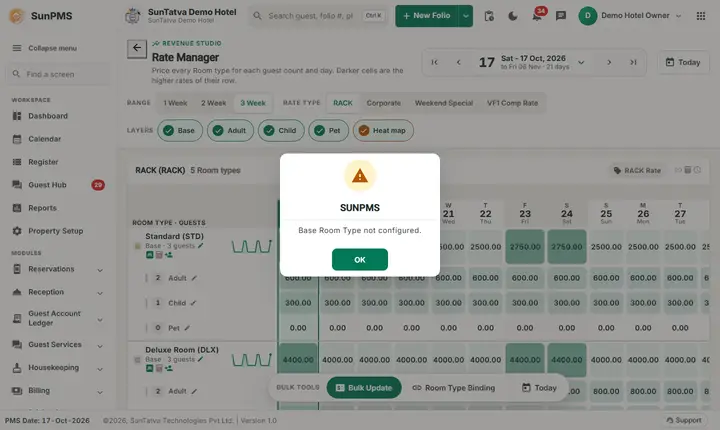
Bound rate types get their rate from the base rate type when rates are set in Rate Manager; their rate boxes there are locked. Saving a rate type with any bind value links it to the base rate type; with none, it is unlinked.
Messages you may see
Same as Rate Type: "Record Already Exist.", save confirmations. A bind value that is not a valid decimal keeps Save disabled.
Tips and FAQ
- Q: Why is Save greyed out? A: You opened the base rate type (RACK); it cannot be bound.
- Q: Why are Complementary / House Use greyed? A: A bind option is ticked; untick them first.
Screenshots