Rate Type
On this page
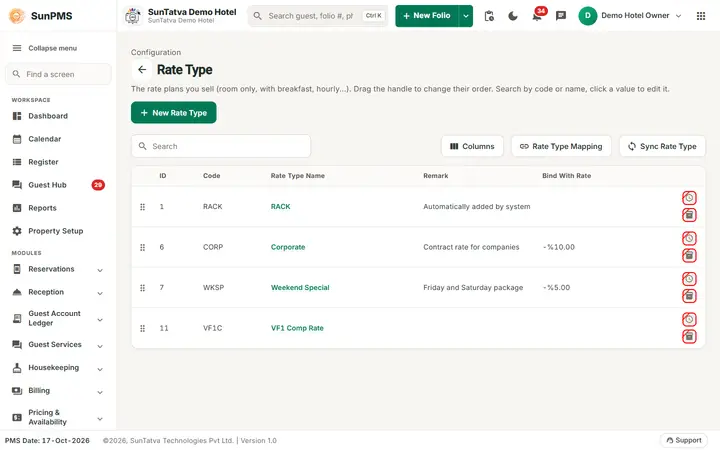
A rate type is a named price list for rooms, for example RACK, Corporate, Weekend or Hourly. Reservations, the Rate Manager and Sales & Channels all pick a rate type. Use this screen to create the rate types your hotel sells and to say how long one "rate period" is (a day, a week, a month, custom days, or hourly).
Before you start
- The system creates one rate type for you, RACK ("Automatically added by system"). It is the base rate type. Other rate types can later be linked to it (see Rate Type Binding).
- To add or change rate types you need the privilege Access to Configure Rate Type (without it the New Rate Type button is hidden).
- CRS buttons need the property to be CRS-enabled.
Screen layout
This screen follows the common master layout described in Property Setup (section "Master screens: one pattern"): a header with the back arrow, the title, a one-line explanation and the main button on the right; a Search box and a Columns button above a sortable table; a footer with Total Records, Rows and page buttons; and an add / edit window with Delete (left, only when editing), Cancel and Save. Specific to this screen:
List columns:
| Column | What it means | Rules |
|---|---|---|
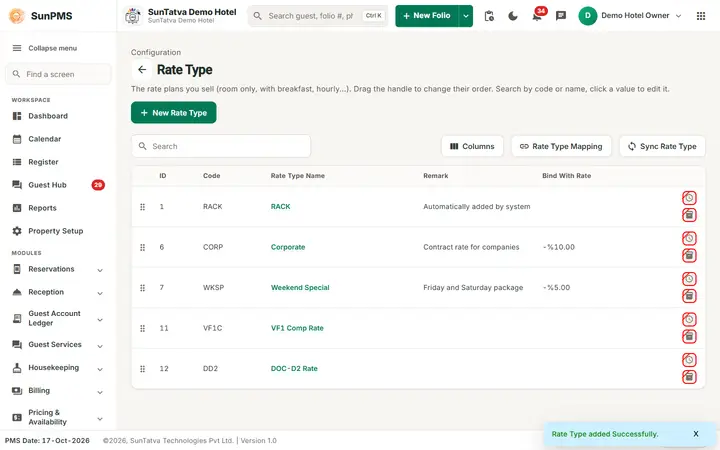
| (drag handle) | Drag a row up or down to change the order in which rate types are listed | Saves at once; message "Rate Type order updated Successfully." |
| ID | System number of the rate type | Read only |
| Code | Short code | Searchable |
| Rate Type Name | Full name. Click it to open the edit window | Searchable |
| Remark | Free note | |
| Bind With Rate | Shows how this rate type is derived from the base rate (set in Rate Type Binding) | Read only |
| Icons | Clock icon = hourly rate type. Inventory icon (CRS only) = CRS enabled. A crossed icon means "No" | Hover for the tooltip |
Header and toolbar: the back arrow, the title Rate Type with the line "The rate plans you sell (room only, with breakfast, hourly...). Drag the handle to change their order.", New Rate Type (top right), the Search box (searches ID, Code and Rate Type Name as you type), Columns, and, for CRS properties, Rate Type Mapping and Sync Rate Type. Rate Type Mapping opens a three-step window (1. Choose the channel: Select OTA and Fetch; 2. Map a rate type: SunTatva Rate Type against the channel rate type, Map; 3. Mapping Details: UnMap or Deactivate rate type on
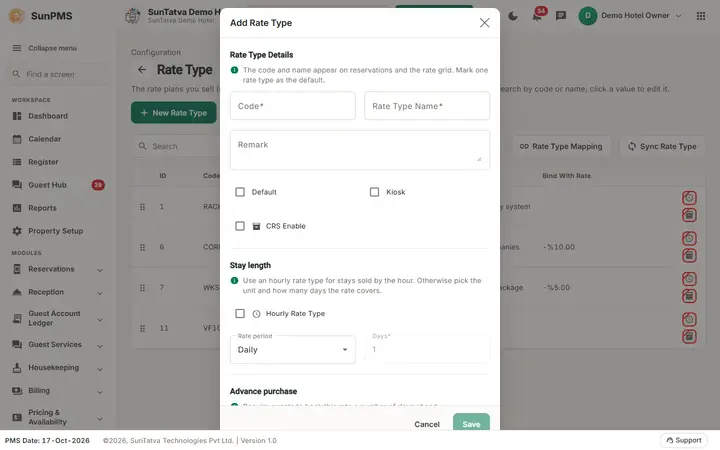
Add / Edit window ("Add Rate Type" / "Edit Rate Type"). It has three sections: Rate Type Details ("The code and name appear on reservations and the rate grid. Mark one rate type as the default."; Code, Rate Type Name, Remark and the tick boxes Default, Kiosk, CRS Enable), Stay length ("Use an hourly rate type for stays sold by the hour. Otherwise pick the unit and how many days the rate covers."; Hourly Rate Type, Rate period, Days) and Advance purchase ("Require guests to book this rate a number of days ahead."; Advance Days).
| Field | What it means | Rules |
|---|---|---|
| Code | Short code | Required. Short-name length limit applies |
| Rate Type Name | Name | Required, max 100 characters. Must be unique among active rate types ("Record Already Exist.") |
| Remark | Note | Optional |
| Hourly Rate Type | Tick if the rate is charged by the hour | Disabled when editing the base hourly rate type. Ticking it clears and disables Days, Default, CRS Enable and Advance Days |
| Rate period (drop-down) | Daily, Weekly, Monthly, Yearly or Custom | Daily = 1 day, Weekly = 7, Monthly = 30, Yearly = 365 |
| Days | Number of days in one rate period | Editable only for Custom; digits only |
| Default | Make this the default rate type | Disabled for hourly |
| CRS Enable | Send this rate type to the CRS | Shown only for CRS properties; disabled for hourly |
| Advance Days (tick box) and Advance Days (number) | Customers must book at least this many days ahead | Number is enabled only when the box is ticked (starts at 1) |
| Kiosk | Rate type can be used on the kiosk | |
| Delete | Only in edit mode | See below |
| Save / Cancel | Save is disabled until the form is valid |
How to add a rate type
- Click New Rate Type.
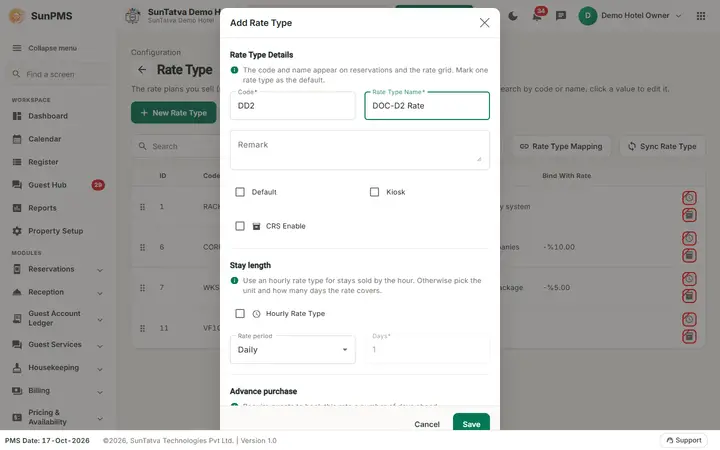
- Enter Code and Rate Type Name.
- Choose the period, set the other tick boxes you need.
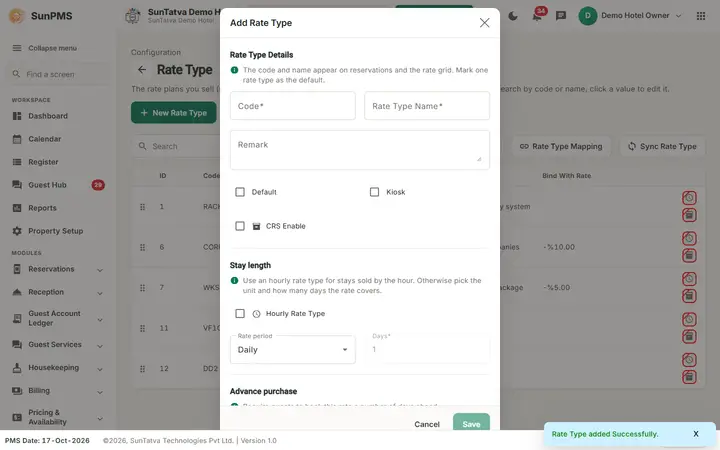
- Click Save. Result: "Rate Type added Successfully." The window stays open with a blank form so you can add another. Click Cancel to close it.
How to edit
- Click the rate type name.
- Change fields and click Save ("Rate Type updated Successfully."). The window then resets to a blank Add form; click Cancel to close. For the base RACK rate type the bind options are locked. For a base hourly rate type the name, code and hourly tick are locked.
How to delete
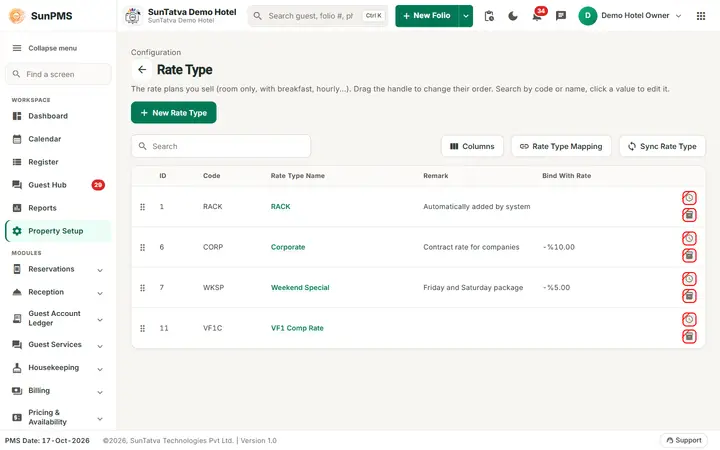
- Open the rate type and click Delete, then confirm "Are you sure want to delete this RateType?".
- The rate type is deactivated ("Rate Type deleted successfully.") and disappears from the list. It cannot be deleted if it is the base rate type ("You can't delete Base RateType"), if it is used by an in-house reservation, or if an active Sales & Channel uses it.
How to sync or map with an OTA (CRS properties)
- Sync Rate Type pushes the rate types to the CRS: "Rate Type sync successfully."
- Rate Type Mapping opens a window: choose Select OTA, click Fetch; then pick a SunTatva Rate Type (only CRS-enabled, not yet mapped ones) and the OTA rate type and click Map. Links "Create rate type on
" and "Create rate type on SUNPMS" create the missing side. In the Mapping Details table use UnMap or Deactivate rate type on .
What happens behind the scenes
- Rate types feed the Rate Manager, reservations, Sales & Channels, reports (Rate Type report, Rate Type chart) and CRS inventory. Enabling CRS on an existing rate type pushes the next 364 days of restrictions to the CRS.
- Delete is a soft delete (the record is deactivated with the current PMS date).
Messages you may see
| Message | Why | What to do |
|---|---|---|
| Please enter Code. | Code empty | Type a code |
| Please enter Rate Type Name. | Name empty | Type a name |
| Record Already Exist. | Name already used | Use another name |
| You can't delete Base RateType | Tried to delete RACK | Not allowed |
| This rate type cannot be deleted because it is used by existing or future reservations. | The rate type is used by an existing or future reservation. (Before 2026-10-17 it reused the room-type text.) | Check the reservations using the rate type |
| The |
An active Sales & Channel uses it | Change the rate type of the Sales & Channel first |
| Please select SunTatva RateType / Please select OTA RateType | Mapping without a choice | Select both |
| Mapped RateType Successfully / UnMapped RateType Successfully / Created and Mapped RateType Successfully | OTA mapping done |
Tips and FAQ
- Q: Why is there no New Rate Type button? A: Your role lacks "Access to Configure Rate Type". Ask an owner to tick it in Assign Transaction Privileges.
- Q: Where do I make a rate "RACK minus 10%"? A: In Rate Type Binding.
- Q: I saved and the form went blank. A: That is normal; the record was saved. Click Cancel to close.
Screenshots