Roles & Privileges
On this page
A role is a named set of privileges (what a person may do). Every user gets one role per property. Use this screen to create and rename roles; tick the privileges in Assign Transaction Privileges and Assign Report Privileges.
Before you start
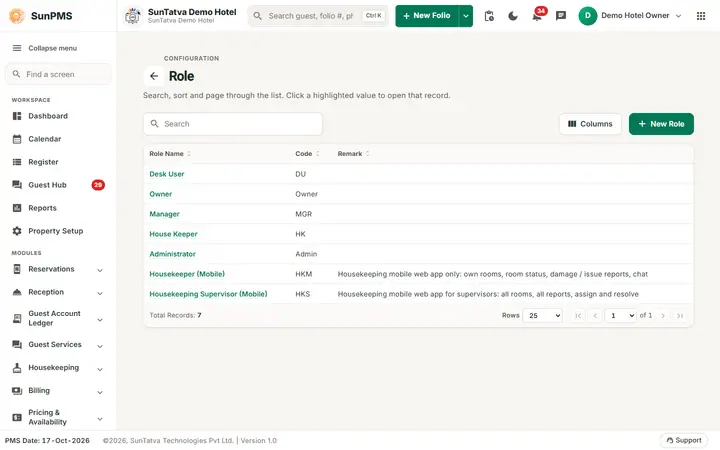
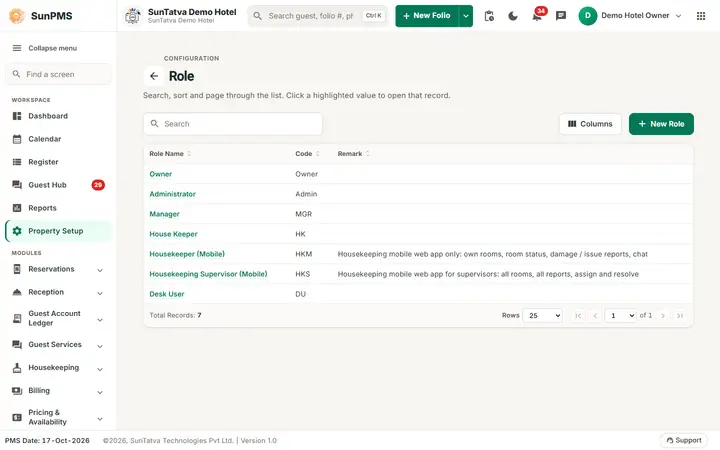
New properties have five roles: Owner (Owner), Administrator (Admin), Manager (MGR), Desk User (DU), House Keeper (HK). Owner always has every privilege.
Screen layout
| Column / field | Meaning | Rules |
|---|---|---|
| Role Name | Name; clickable only with "Access Role Configuration" | Required, name length limit |
| Code | Short code | Required |
| Remark | Note | Optional |
| Role Type (not shown in the window) | Owner, Administrator, Manager, DeskUser, HouseKeeper, Custom | New roles are Custom |
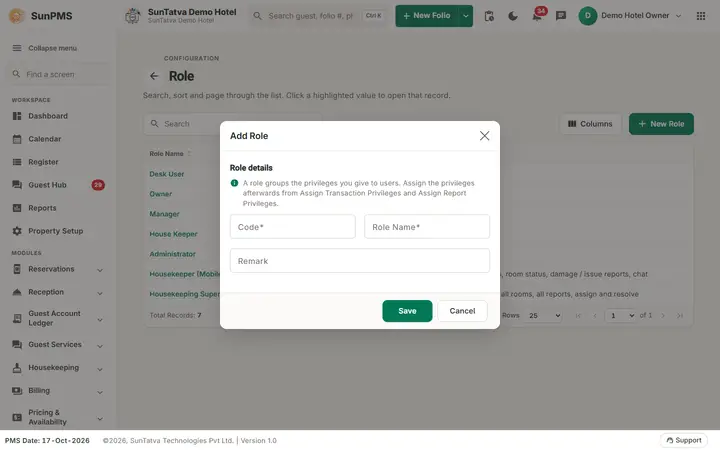
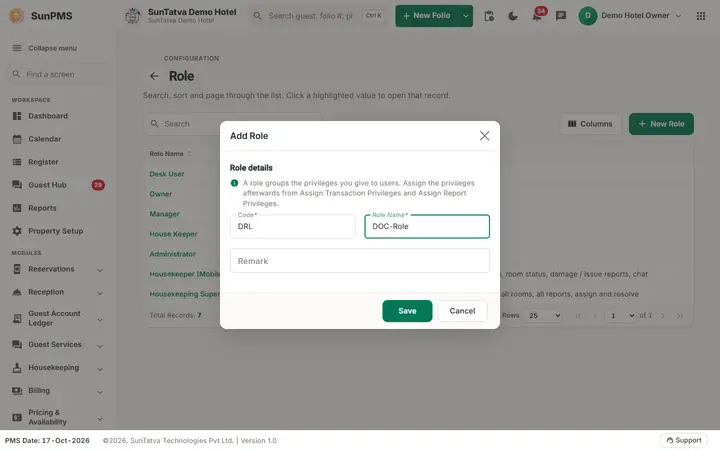
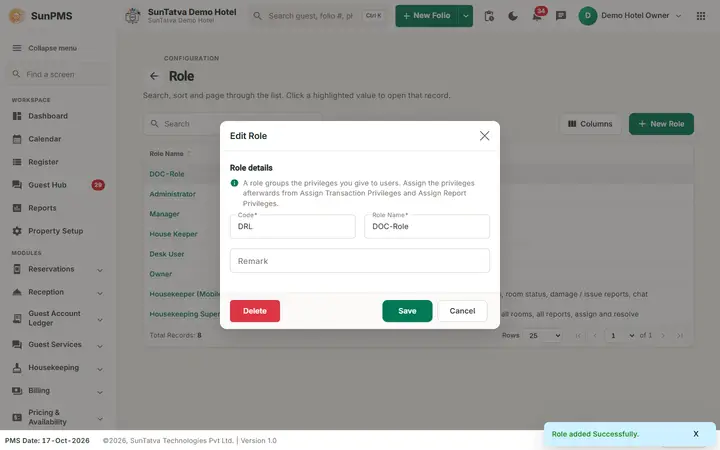
| Window section Role details | "A role groups the privileges you give to users. Assign the privileges afterwards from Assign Transaction Privileges and Assign Report Privileges." Fields: Code, Role Name, Remark (the Role Type list is hidden; new roles are Custom). | |
| Header | The back arrow, the title Role and the line "Search, sort and page through the list." (the small grey line above it reads CONFIGURATION), Search and Columns. | |
| New Role | Opens the add window | Needs "Access Role Configuration" |
| Delete | In the edit window | Not available for the five built-in role types |
How to add a role
- Click New Role; enter Code, Role Name, Remark.
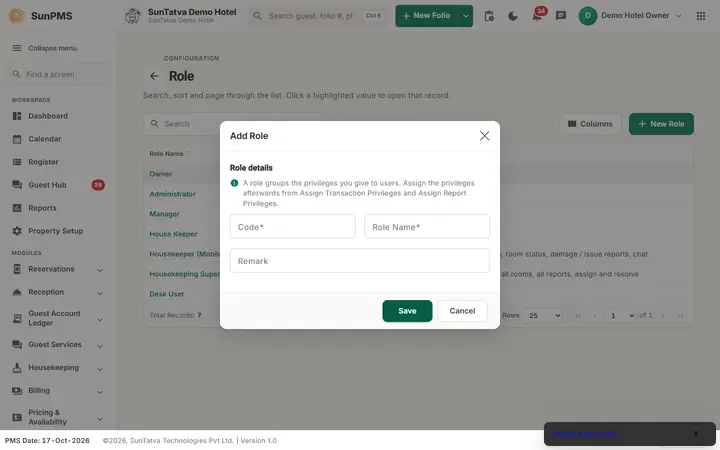
- Click Save. The Role window has no privilege tick boxes. A new role saves without any privilege (the Please check Privilege. check applies only when you edit an existing role) and opens with all flags cleared, so nothing is carried over from the role you opened before. After saving, open Assign Transaction Privileges and Assign Report Privileges and tick what the new role may do.
How to edit
Click the role name, change name/code/remark, Save. Existing privileges of the role are kept. Result "Role updated Successfully."
How to delete
Open a custom role, Delete, confirm "Are you sure want to delete this Role?" -> "Role deleted successfully." The five built-in roles cannot be deleted.
What happens behind the scenes
Role and privilege ticks are stored per property. Changes apply at each user's next login.
Messages you may see
| Message | Why |
|---|---|
| Please enter Code. / Please enter Role Name. | Required field empty |
| Please check Privilege. | Editing an existing role that ends up with no privilege selected (not asked when you create a new role) |
| Role added Successfully. / Role updated Successfully. / Role deleted successfully. | Done |
Tips and FAQ
- Q: Where do I choose what a role can do? A: Assign Transaction Privileges and Assign Report Privileges (see Privilege Reference).
- Q: Why does a new role have no rights? A: A new role starts empty by design. Assign its privileges in Assign Transaction / Report Privileges, then give the role to users.
Screenshots