Assign Report Privileges
On this page
This screen chooses which reports, charts and dashboard tiles each role may open. A report that a role has no privilege for is not listed on the Reports screen, in the Report Dashboard, or in the report menu, and typing its address logs the user out. Use it when a new role is created or when a manager asks why a report is missing.
Before you start
- The roles exist (Roles & Privileges).
- Your role has Access to Configure Role; without it the role names are plain text and cannot be opened.
- Users have to log in again after a change before they see it.
Screen layout
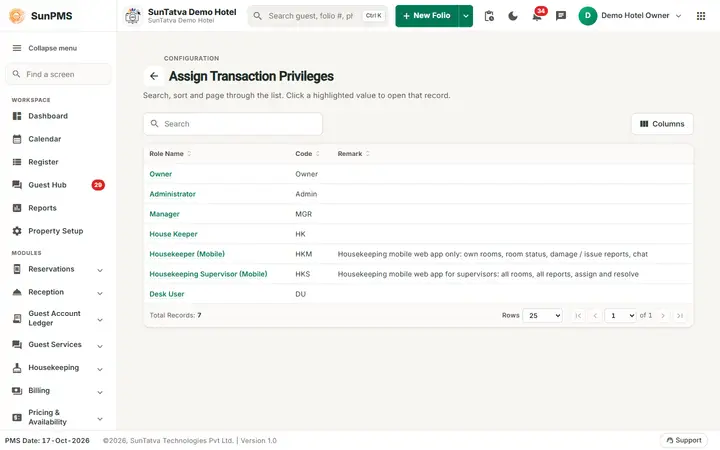
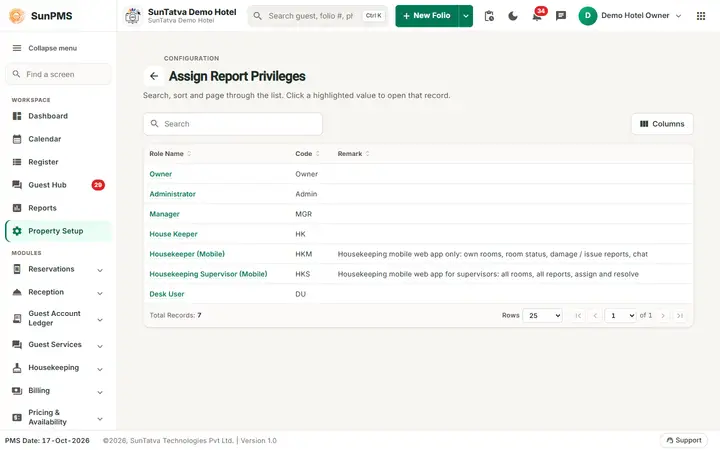
Role list (back arrow and title Assign Report Privileges; Search and Columns above the table)
| Element | What it means | Rules |
|---|---|---|
| Search box | Find a role. | There is no New button on this screen; roles are created on the Roles screen. |
| Role Name | The role. Shown as a link if you may configure roles. | Click to open the report privileges. |
| Code | Short code of the role. | |
| Remark | Description. |
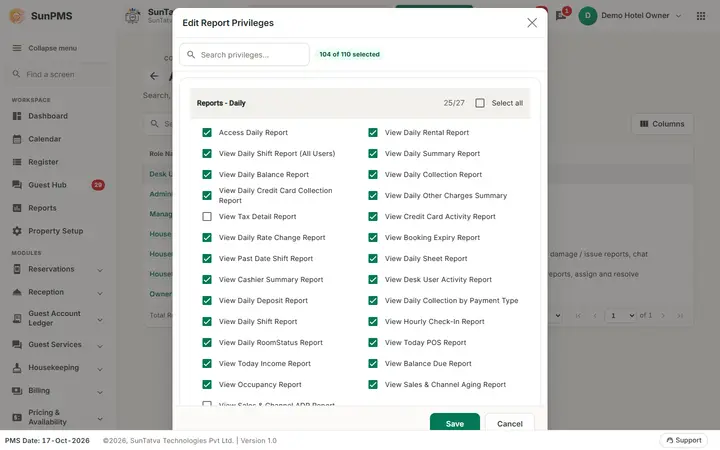
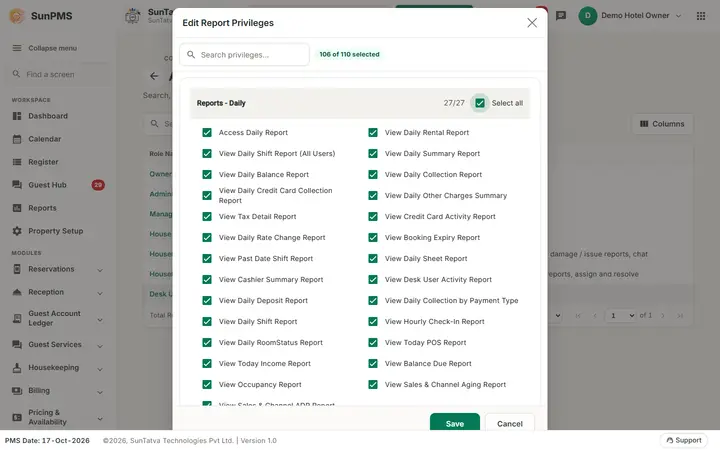
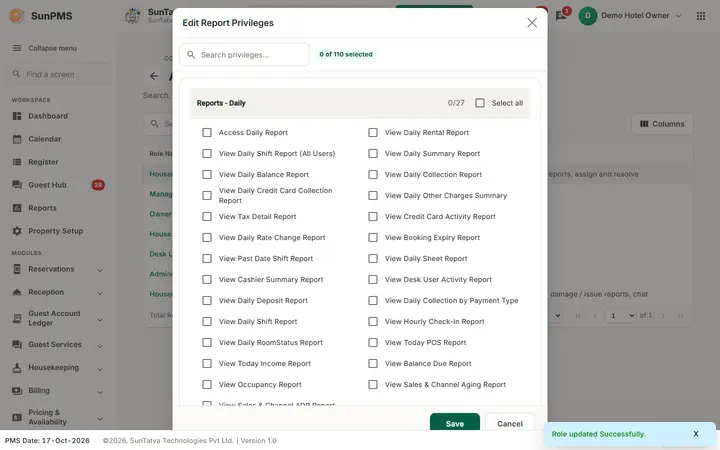
Window "Edit Report Privileges"
| Element | What it means | Rules |
|---|---|---|
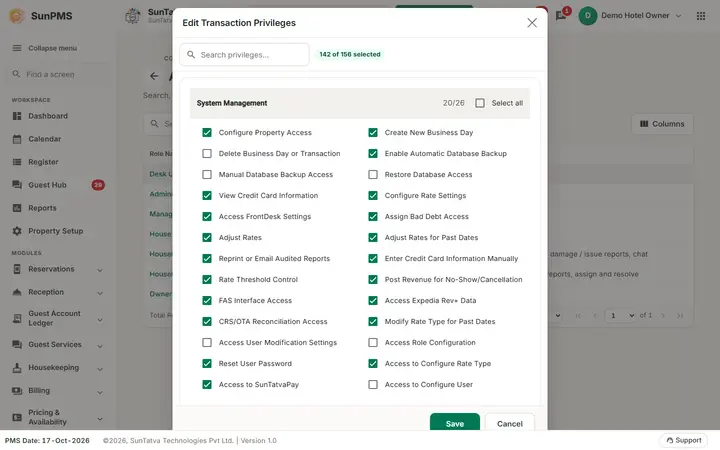
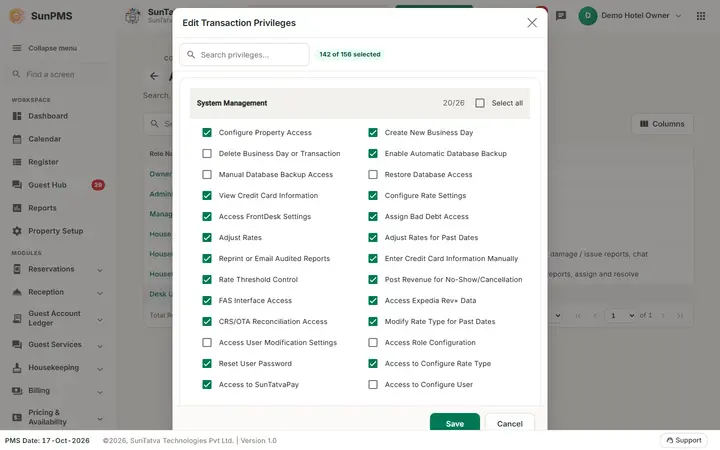
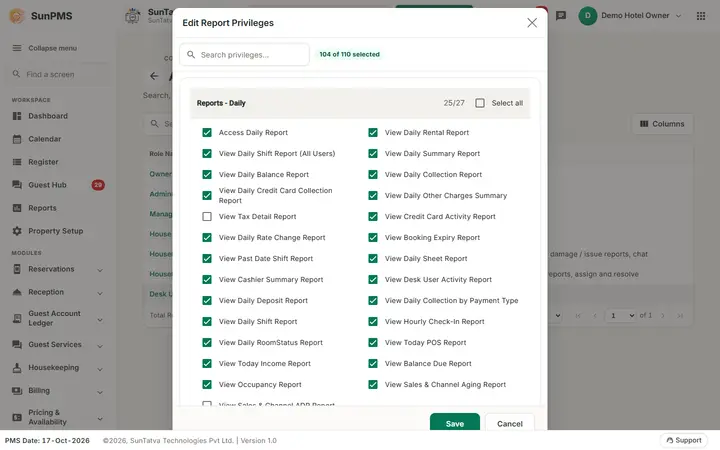
| Search privileges... (sticky bar at the top) | Filters the report names while you type. | When nothing matches the window shows No Data Found. The bar also shows a counter such as 12 of 140 selected. |
| Module cards | One card per group of reports, for example Daily, Monthly, Yearly, Guest, Room, Reservation, Ledger, Accounting, Charts, Custom, Group Property, Housekeeping reports. The card title is the module name. | |
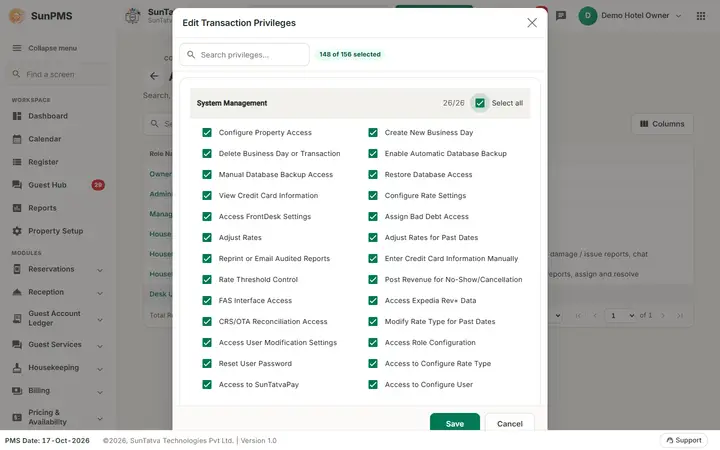
| Select all (card header) and "x/y" count | Selects or clears every report of the card. It shows ticked when all are ticked; the count shows how many of the card's reports are ticked. | |
| Tick box per report | The role may open this report. | |
| Save | Saves the role's privileges. | At least one privilege of any kind must remain ticked. |
| Cancel / close (x) icon | Closes without saving. | |
| The meaning of each tick is explained in Privilege Reference. |
How to assign report privileges
- Open Property Setup in the sidebar and click the card Assign Report Privileges (group User & Access).
- Click the Role Name.
- Use the search box or the cards to find the reports. Tick the reports the role may see, or Select all on a card to select a whole group.
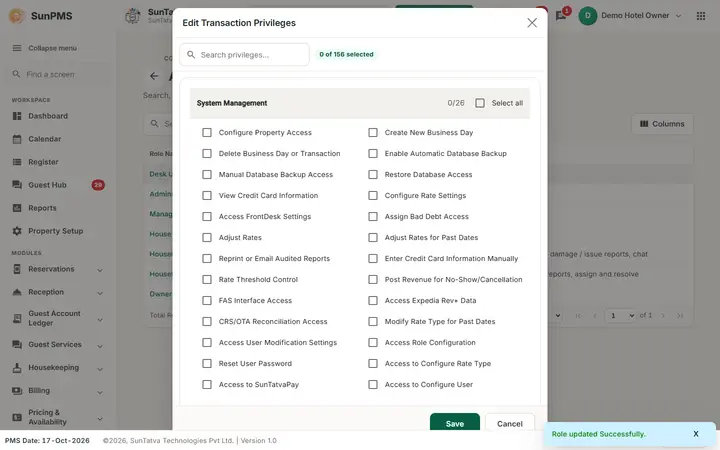
- Click Save. Result: Role updated Successfully. Users of that role see the new reports after their next login.
Special reports
- Daily Shift: two privileges exist, one lets the user choose any desk user, the other shows only their own shifts.
- Cashiers: appears only when shifts are on; the Owner role can choose a user, everyone else sees their own current shift.
- Custom / Customized Report: needs the Customize Report privilege and a custom report configured for the property.
- Some country-specific reports (for example Daily Balance Due and Daily Occupancy) are shown only when the property's country is India.
What happens behind the scenes
- Saving writes the role's complete privilege list again: the report ticks you made plus the transaction privileges that the role already had (they are loaded with the role and kept), so ticking reports here does not remove transaction rights.
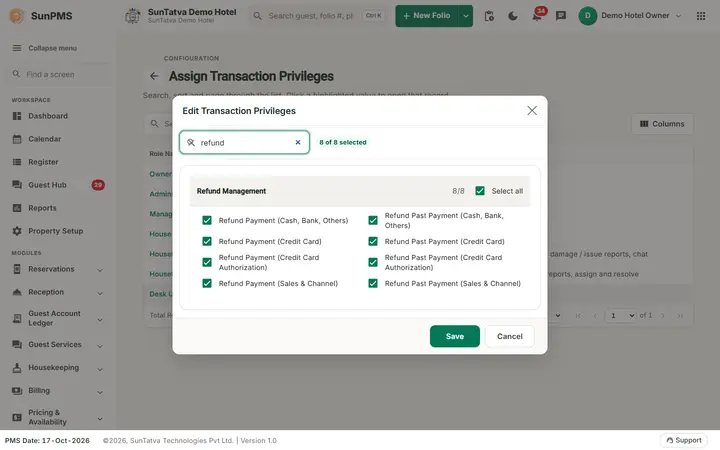
- The same data is changed by Assign Transaction Privileges; the two screens are two views of one list.
Messages you may see
| Message (exact text) | Why it appears | What to do |
|---|---|---|
| Please check Privilege. | Nothing at all is ticked (neither reports nor transaction rights). | Tick at least one privilege. |
| Role updated Successfully. | Saved. | None. |
| No Data Found | The search matches no report. | Change the search text. |
Tips and FAQ
- Q: A report is ticked but not shown. A: The user must log in again; also check the property's country for country-specific reports and that the report is not switched off for the property.
- Q: I cannot open the screen. A: You need the card on Property Setup; ask the administrator for Access to Configure Role.
- Q: I changed the Owner role by mistake. A: Tick the reports again and Save; the Owner role keeps its other rights.
Screenshots