
Report Dashboard
On this page
The Report Dashboard is a page of report cards grouped by category pills, with a Favorite Reports strip on top for the reports you use every day. Use it when you know the report category but not the exact report name, or when you want one-click access to your favourites. The same reports are also reachable from the Reports screen (Reports overview).
Before you start
- Your role needs the privilege of each report you want to see; without it the card does not appear (Assign Report Privileges).
- Some reports depend on a setting or licence: Cashiers appears only when shifts are on (Shift setting, see Shift Start and End); the POS and income reports in the Daily tab appear only when the property uses those integrations.
Screen layout
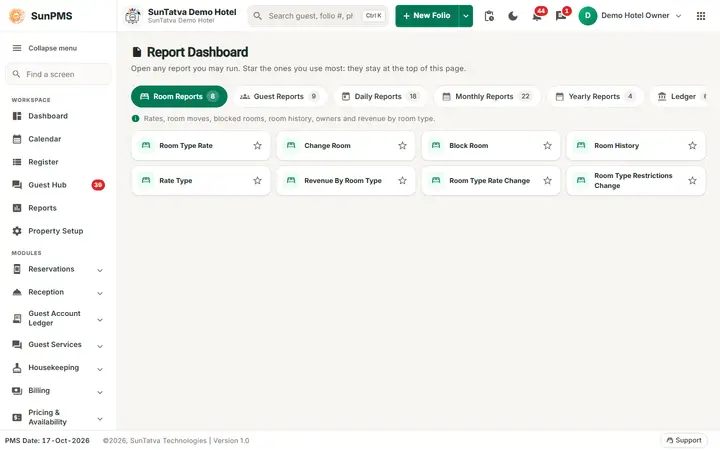
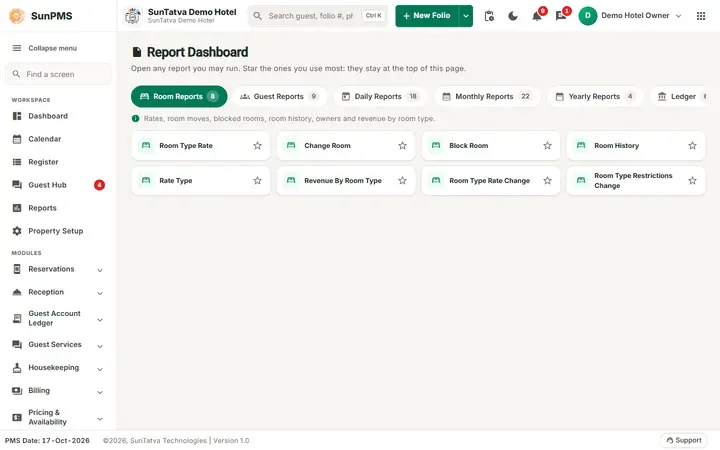
The group tabs run along the top; the star on a card makes it a favourite.
| Element | What it means | Rules |
|---|---|---|
| Title Report Dashboard | Page heading with the line "Open any report you may run. Star the ones you use most: they stay at the top of this page." | |
| Favorite Reports | A row of cards for the reports you starred, shown above the category pills. | The heading and row are hidden until you star at least one report. Favourites are saved per user and follow you to other computers. |
| Category pills Room Reports, Guest Reports, Daily Reports, Monthly Reports, Yearly Reports, Ledger, Reservation, House Keeping, Chart | Category of the reports below, with the number of reports; a help line under the pills describes the category. | The pill you used last is remembered and opened next time. |
| Pill Customized Report | Reports built for your property. | Shown only when the property has at least one custom report and your role has the Customize Report privilege. |
| Report card | Report name. Click the name to open it. | A card is shown only when you have the privilege of the report. Most Stayed Guest (Guest Reports), MTD/YTD Comparision (Yearly Reports) and Daily Guest Payment (Customized Report) are ordinary clickable cards. |
| Star at the end of a card | Add or remove the report from Favorite Reports. | Orange star = favourite. Grey outline = not a favourite. |
How to open a report
- Go to
#/reports/dashboard(or press Ctrl+K and type Report Dashboard). The older address#/report-dashboardredirects. - Click the category pill.
- Click the report name. Result: the report page opens and runs with its default criteria (Reports overview). Reports in the Chart pill open the chart screen (Charts). Ledger Summary opens the ledger summary screen. Booking Comparison Report first opens a criteria window (Booking Comparison Report).
How to add or remove a favourite
- Click the star at the right end of the report card.
- The card appears in (or disappears from) Favorite Reports immediately. Result: the choice is stored in your user profile and applies every time you log in.
What happens behind the scenes
- The dashboard only lists reports; it never changes data.
- Which cards show is decided from your report privileges when the page opens. After an administrator changes privileges you must log out and in again.
- If a user types a report address directly without the privilege, the system logs them out.
Messages you may see
The dashboard shows no message of its own. Report screens show their own messages, for example No record found! when there is no data for the filters (see Reports overview).
Tips and FAQ
- Q: A report I need is missing from the category. A: Ask the administrator to tick it in Assign Report Privileges for your role, then log in again.
- Q: A card is grey and I cannot click it. A: A grey card is a report that is switched off in the report catalogue. At present every listed report is switched on, so you should not see one; if you do, tell support.
- Q: Where is Daily Guest Payment? A: In the Customized Report pill, when support has added it to your property and your role has the Customize Report privilege (Daily Guest Payment).
- Q: Are favourites shared with other users? A: No, they are per user.
- Q: What is the difference from the Reports screen? A: The report library (
#/reports) has a search box and one-line descriptions; the dashboard has favourites and keeps your last category.