
Booking Comparison Report
On this page
The Booking Comparison Report (the screen is titled Reservation Comparison Report) compares the reservations you had on the books as of one date with the reservations you had as of another date, for chosen stay dates. It answers "how many more (or fewer) bookings, room nights and room revenue do I have now than I had yesterday, or this day last week?". Revenue managers and front office managers use it as a pickup (pace) report. Up to five comparisons are shown together.
Before you start
- Your role has the privilege Booking Comparison Report under Reservation reports (privilege 248). Without it you are logged out when the screen opens, and the card is not shown.
- The report reads the reservations stored in the property. The more history the property has, the more useful the older "as of" dates are. A reservation only counts from the day it was booked (its reservation date; a walk-in without a reservation date counts from its arrival date).
- Nothing is saved in the database. The criteria you add are kept in your browser only.
Criteria window: Reservation Comparison Report
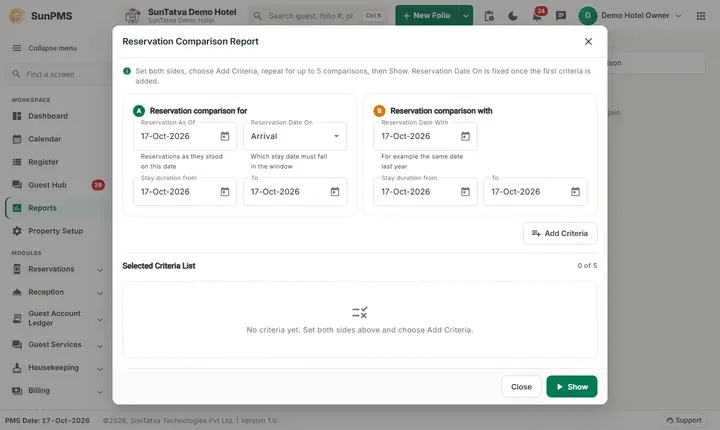
Open Reports in the left menu, choose Reservation Reports (or search "Booking Comparison") and click the Booking Comparison Report card ("Reservations on the books on one date against another date (pace), up to five comparisons."). The window Reservation Comparison Report opens with the line "Set both sides, choose Add Criteria, repeat for up to 5 comparisons, then Show. Reservation Date On is fixed once the first criteria is added." It has two blocks, A and B, and the list Selected Criteria List ("0 of 5").
| Field | Meaning | Rules |
|---|---|---|
| Reservation As Of (block Reservation comparison for) | The date on which you look at the books for the main set (A). | Starts at the PMS date. Cannot be after the PMS date (later days are greyed out in the calendar). |
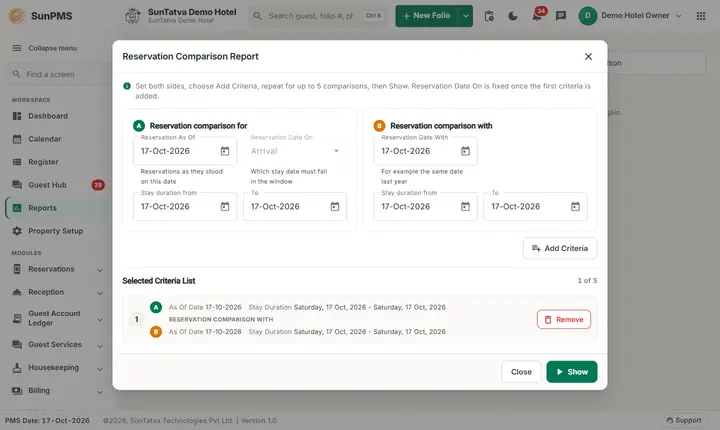
| Reservation Date On | Which stay date the window applies to: Arrival/Departure (arrival or departure inside the window), Arrival, Departure. | Default Arrival. Locked (greyed) as soon as one criterion is in the list, so every criterion uses the same basis. |
| Stay duration from / To (first row) | The window of stay dates for the main set. | Start must not be after the end. Both start on the PMS date. |
| Reservation Date With (block Reservation comparison with) | The date on which you look at the books for the comparison set (B). | Cannot be after the PMS date. |
| Stay duration from / To (second row) | The window of stay dates for the comparison set. | Start must not be after the end. Use a window of the same length as the first one, otherwise the comparison is not fair. |
| Add Criteria | Adds the pair to the Selected Criteria List. | Maximum 5. |
| Selected Criteria List | Table: No, Reservation As Of Date, Stay Duration Start Date / End Date, a row "Reservation Comparison with" and the comparison dates, and Remove. | Remove asks Are you sure you want to delete?; answer Yes. |
| Show / Close | Run the report / close the window. | Show needs at least one criterion. |
How to run it
- Click Reports in the left menu, the category Reservation Reports, then the Booking Comparison Report card.
- In Reservation comparison for set Reservation As Of, Reservation Date On and Stay duration from / To.
- In Reservation comparison with set Reservation Date With and its Stay duration from / To.
- Click Add Criteria. Change only the fields that differ (for example another Reservation Date With) and click Add Criteria again for the next comparison.
- Click Show.
Result: the report page Reservation Comparison Report opens (address
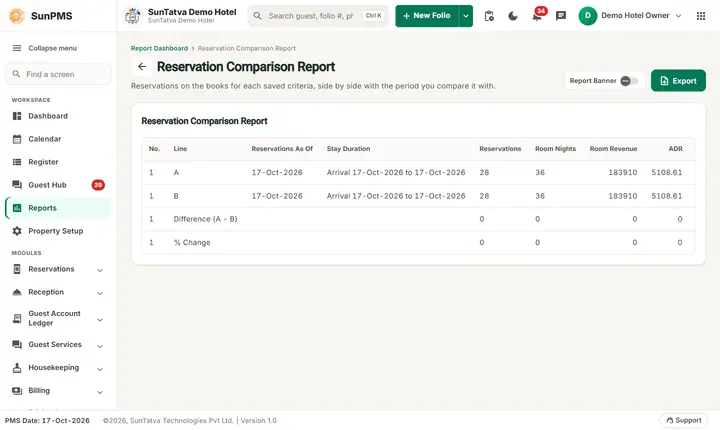
#/reports/booking-comparison/...) with the line "Reservations on the books for each saved criteria, side by side with the period you compare it with.", the Report Banner switch, the Export menu and the grid. The page runs the report as soon as it opens.
The result grid
Each criterion gives four lines, numbered by the criterion in column No.:
| Line | What it shows |
|---|---|
| A | The books as of Reservation Comparison for date, for its stay window. |
| B | The books as of the Reservation Date With date, for its window. |
| Difference (A - B) | A minus B in every figure column. |
| % Change | (A - B) / B x 100, two decimals. Blank when B is 0 (no division by zero). |
| Column | How it is calculated |
|---|---|
| No. | Number of the criterion in the list. |
| Line | A, B, Difference (A - B) or % Change. |
| Reservations As Of | The as-of date of the line (shown in the property date format). Empty on the Difference and % Change lines. |
| Stay Duration | The basis and window, for example Arrival 01-Oct-2026 to 31-Oct-2026, Departure... or Arrival or departure.... |
| Reservations | Number of reservations on the books on the as-of date whose stay date (arrival, departure, or either) falls in the window. |
| Room Nights | The sum of the number of nights of those reservations. |
| Room Revenue | The sum of the stay's room rent (occupancy charges), without tax. |
| ADR | Room Revenue / Room Nights (0 when there are no nights). On the % Change line it is the percent change of the ADR. |
| Cancelled | Reservations of the window that were booked by the as-of date and cancelled on or before it. |
A reservation is "on the books" on the as-of date when it was booked on or before that date and is not cancelled or a no-show by then: it is Confirmed or Unconfirmed (reservation, in house or checked out now), or it was cancelled or marked no-show after the as-of date. Folios moved to another room by a transfer-out are left out. There is no grand total: each criterion covers a different window, so adding them up would mean nothing. The grid is not sortable; the rows stay in the order of the criteria.
The report uses the current dates, room and rent of each folio. If a booking was amended after the as-of date, the report shows the amended values (the amendment history is not replayed).
Example
Run on the demo hotel on 17-Oct-2026 (PMS date) with Reservation Date On = Arrival, both windows 01-Oct-2026 to 31-Oct-2026, and Reservation Date With 16-Oct-2026:
| No. | Line | Reservations As Of | Reservations | Room Nights | Room Revenue | ADR | Cancelled |
|---|---|---|---|---|---|---|---|
| 1 | A | 17-Oct-2026 | 59 | 101 | 414840 | 4107.33 | 129 |
| 1 | B | 16-Oct-2026 | 31 | 65 | 228180 | 3510.46 | 11 |
| 1 | Difference (A - B) | 28 | 36 | 186660 | 596.87 | 118 | |
| 1 | % Change | 90.32 | 55.38 | 81.8 | 17 | 1072.73 |
So in one day the property picked up 28 reservations and 36 room nights for October. ADR is 414840 / 101 = 4107.33. With Reservation Date With 10-Oct-2026 (criterion 2) line B is 0 in every column, because the demo reservations were booked later; the Difference line equals line A and % Change is blank. Demo figures change with the demo data.
Export
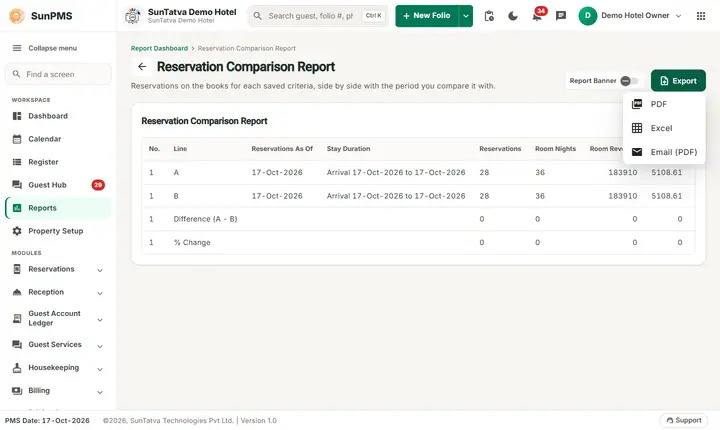
Export (top right) offers three choices:
- PDF opens the report as a PDF in a new browser tab (the columns of the grid, same four lines).
- Excel downloads Reservation Comparison Report.xlsx with the property name, logo, print date (when the report print date setting is on) and the grid.
- Email (PDF) sends the PDF to your own e-mail address and shows Email sent successfully.
What happens behind the scenes
The criteria are kept in the browser (local storage), then sent to the Report service as a list; for each criterion the service counts the books twice (A and B) with the same rules. Nothing is posted or changed in the property.
Messages you may see
| Message (exact text) | Why | What to do |
|---|---|---|
| Please select valid date criteria. | A Stay duration from date is after its To date (when you click Add Criteria); the server also returns it for an invalid date. | Correct the dates. |
| Maximum criteria limit exceeded. | More than 5 criteria. | Remove one first. |
| Please select atleast one criteria. | Show with an empty list; also shown on the report page if it received none. | Add a criterion. |
| Are you sure you want to delete? | Remove in the list. | Yes or No. |
| Email sent successfully. | Email (PDF) finished. | Nothing to do. |
Tips and FAQ
- Q: Line B is all zero. A: No reservation was on the books on that date for the window. Choose a later Reservation Date With, or a window with older bookings.
- Q: Why is Cancelled large? A: It counts every reservation of the window cancelled by the as-of date, including test and demo cancellations.
- Q: Why does Reservation Date On look greyed? A: A criterion is already in the list; remove all criteria to change it.
- Q: I cannot choose a date after today. A: Both "as of" dates are limited to the PMS date.
- Q: Where do I compare with the channel manager? A: Use OTA reconciliation.