
Features
Channel manager integration and OTA sync for hotels
SunPMS connects to a central reservation system (CRS) or channel manager that sells your rooms on online travel agencies and your website. Bookings arrive in your reservation list; availability, rates and restrictions go out automatically in the background, and sync screens let you repair or reload the data.
What you can do
- Understand the connection: bookings in, availability and rates out
- Push reservations, statistics or inventory again to a partner interface
- Bulk inventory, restriction and rate updates for a date range
- OTA reconciliation compares your folios with what the OTA holds
- Sales channels with commission and credit terms and invoices
Guides for channel manager and ota sync
Every screen, field and message is explained in the Help Center.
Sync and Channel Manager Overview
SunPMS does not sell your rooms on Booking.com, Expedia or your website by itself.
Read the guide →Sync Reservation
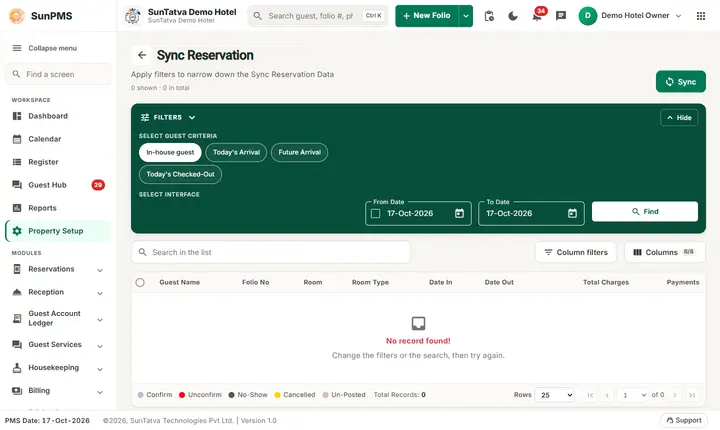
Use this screen to push reservation (folio) data again to a partner system connected through a WebHook interface, such as a CRM…
Read the guide →Bulk Inventory / Restrictions / Rate Update
Three pages that push a whole date range of one data type to your CRS / channel manager at once.
Read the guide →OTA Reconciliation
Compares the reservations you hold in SunPMS with what the OTA (through the CRS) holds for the same period and lists every…
Read the guide →Sales & Channels overview
Sales & Channels is the name the screens use for what the database and some old documents call a business source.
Read the guide →Sync Statistics
Sends your daily Revenue and Room Sold numbers to a partner interface again.
Read the guide →Sync Inventory
Resends the number of rooms you have and the number still available, for a date range, to a partner interface.
Read the guide →Sync Reservation/Statistics/Inventory (tabbed page)
An older all-in-one version of the three sync screens. It has three tabs, Sync Reservation, Sync Statistics and Sync Inventory…
Read the guide →CRS Bulk Update
The history and control screen for pushes to your CRS / channel manager. It lists every earlier inventory, restriction and rate…
Read the guide →Booking Comparison Report
The Booking Comparison Report (the screen is titled Reservation Comparison Report) compares the reservations you had on the…
Read the guide →Sales & Channels Category
A category groups your partners (for example Travel Agent, Web Reservation, Direct Billing) and decides how money moves for…
Read the guide →Sales & Channels (partner master)
The master list of every outside partner: travel agents, corporates, OTAs, channel-manager sources and web booking engines.
Read the guide →Commissionable Sales & Channels (setup)
Here you set the commission terms of each partner whose category has Commission Apply: opening balance, due days, a fixed amount…
Read the guide →Creditable Sales & Channels (setup)
Set credit terms for partners you bill later (corporates, agents on direct billing): opening balance, credit days, credit limit…
Read the guide →Creditable Invoice
Use this screen to invoice a partner for guest folios you charged to it (direct billing), and to record the partner's payments.
Read the guide →Creditable Settled Invoice
Lists creditable invoices that are fully paid (received amount equals posted amount).
Read the guide →Commissionable Invoice
When a travel agent or OTA sends you an invoice for its commission, record it here, tie it to the commissions the PMS has…
Read the guide →Commissionable Settled Invoice
Lists partner commission invoices you have paid in full. Use it to review, print or e-mail them.
Read the guide →Frequently asked questions
What is the difference between "business source" and "Sales & Channels"?
Nothing. The screens, reports, privileges, messages, printouts and e-mails say Sales & Channel; the older name business source survives only in the database, in internal field names and in the title of the older tabbed invoice screens.
Why can't I change the partner on a reservation?
A payment charged to that partner already exists, or an invoice for it exists. Remove the partner payment (or delete the unsettled invoice) first. A settled invoice blocks the change completely.
Why does my partner not appear in the invoice drop-down?
Only partners whose category has Credit Apply appear for creditable invoices.
I ticked Commission Apply but an existing partner shows no commission.
Open the partner in Sales & Channels, re-select its category, save, then enter terms on Commissionable Sales & Channels.
Can a category be both commission and credit?
Yes, both boxes can be ticked. Note the partner form then sets the partner to credit mode on screen; check the partner on both setup screens.
Where do I enter the commission percentage?
See SunPMS with your own hotel in mind
Request a walkthrough and we will show the screens your team will use every day.