Creditable Invoice
On this page
Use this screen to invoice a partner for guest folios you charged to it (direct billing), and to record the partner's payments. Unpaid and part-paid invoices are listed here; fully paid ones move to Creditable Settled Invoice.
Before you start
- The partner's category has Credit Apply (setup).
- Folios were charged to the partner: in the folio section Take payment, tab Sales & Channels, Sales & Channels drop-down (message Please select Sales & Channels. if left empty). Each such payment becomes an invoice posting.
- Card payments need a payment gateway set up (see Integrations chapter).
Screen layout (list)
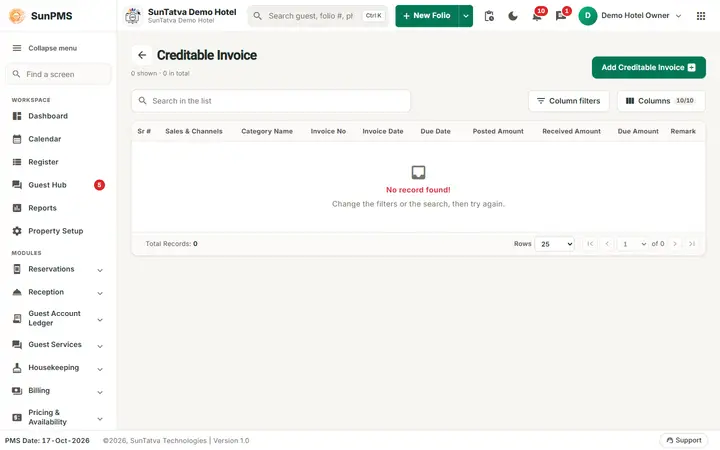
This screen uses the standard search-first list layout: a dark Filters band on top, then a full-width table with Search in the list, a column filter button, Columns, sortable headings and a paging bar (rows become cards on phones). The common parts are explained in Search-first list screens; the fields and columns specific to this screen are listed below. Top: Search in the list, Column filters, Columns (opens Visible columns) and Add Creditable Invoice (disabled without the privilege). The header shows how many rows are shown and in total.
| Column | Meaning |
|---|---|
| Sr # | Row number |
| Sales & Channels | Partner (click to open the invoice) |
| Category Name | Partner category |
| Invoice No | Invoice number |
| Invoice Date, Due Date | Dates (column filters offer =, >, <) |
| Posted Amount | Total of assigned postings |
| Received Amount | Payments received |
| Due Amount | Posted minus received |
| Remark | Note |
Invoice dialog
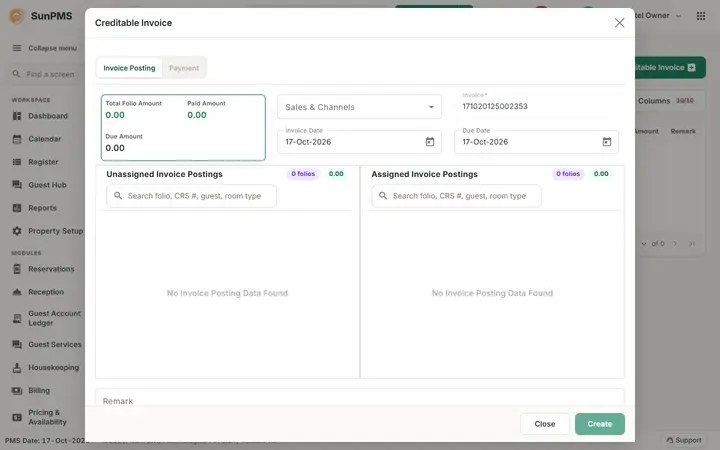
Title Creditable Invoice (new) or Edit Creditable Invoice, followed by the partner's contact name. Two tabs: Invoice Posting and Payment (Payment is disabled until the invoice has been saved, or without the payment privilege).
Invoice Posting tab
| Field / button | Meaning | Rules |
|---|---|---|
| Sales & Channels | Partner | Only credit partners; locked once a posting is assigned |
| Invoice | Invoice number | Read-only, generated |
| Invoice Date | Date | Fixed to the PMS date |
| Due Date | Payment due | Cannot be before the invoice date |
| Unassigned Invoice Postings | Cards of folios charged to the partner and not yet invoiced: room type, Folio#, CRS#, guest, stay dates, amount. The title bar shows a folio count, the total and a search box (folio, CRS #, guest, room type) | Assign button on each card |
| Assigned Invoice Postings | Cards on this invoice | Remove button on each card |
| Remark | Note | Max 255 |
| Totals: Total Folio Amount, Paid Amount, Due Amount | ||
| Create / Save | Saves the invoice (Create for new) | Disabled when nothing is assigned or available |
| Prints the invoice PDF | Saved invoices only | |
| Delete | Deletes the invoice | Saved invoices only |
| Close | Closes the dialog |
Payment tab: Add Payment button, a grid / table switch icon, and the payment cards (type, Receipt#, date, remark, Amount, Ex.Rate, Total, edit and delete icons). Show Deleted Payment appears only when the property setting display deleted payment is on and a deleted payment exists. Save Payment saves added / changed / deleted payments.
Add Payment dialog: Type (payment type), for card types Device / card Add Credit Card / saved card selection, Card #, Valid Till, Auth #, Date (always the PMS date), Receipt # (generated on save), Amount with currency menu, Exchange Rate, Total, Remark, Add / Update / Cancel.
How to create an invoice
- Open Creditable Sales & Channels > Creditable Invoice.
- Click Add Creditable Invoice.
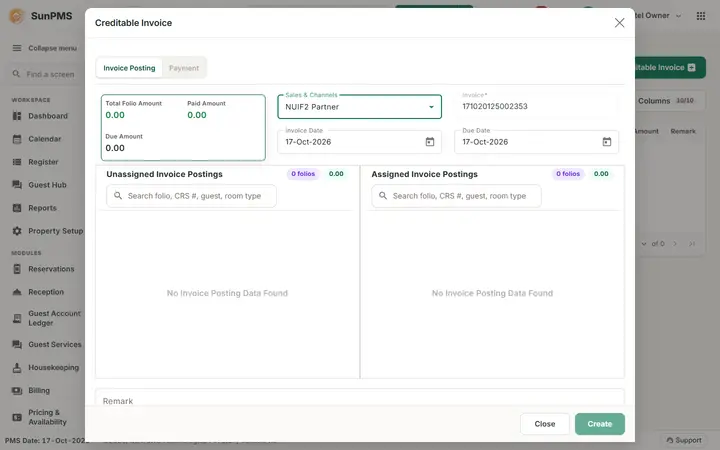
- Pick the Sales & Channels partner. Its unassigned postings appear on the left.
- Click Assign on each folio to include (or Remove to take back). The totals update.
- Set Due Date and Remark.
- Click Create.
Result: a success message from the server appears and the dialog closes; the invoice is in the list with a number. The invoice number is the date-based folio style when the property setting Business source invoice type is 1, otherwise the next sequential number.
How to record a payment
- Click the partner name on the invoice row.
- Open the Payment tab and click Add Payment.
- Choose Type, enter Amount (the exchange rate defaults to the base currency), add a Remark.
- Click Add, then Save Payment.
Result: Received Amount and Due Amount update. When received equals posted the invoice is settled and moves to the Settled screen. To change a payment use the edit icon (only the remark can be changed); to remove one use the delete icon and confirm.
How to pay by card
Card payment types need the gateway (SunPG) API key. Save the invoice first, then in Add Payment choose the card type, pick a Device (card reader) or Add Credit Card (secure form from the payment gateway), then Add and Save Payment. If you pick a reader the system asks Are you sure you want to process credit card through Device (...)?. The card transaction sent to the payment gateway carries the description and last name "Sales & Channel", with the Sales & Channel name as first name, so it is easy to recognise in the gateway records.
How to print, edit, delete
- Print: inside the invoice dialog. Delete: inside the dialog; confirm Are you sure want to delete this invoice?. An invoice with a payment cannot be deleted or have postings changed.
- Edit: you can change Due Date, Remark; postings can be changed only while no payment exists.
What happens behind the scenes
- Assigning marks the posting as invoiced; deleting the invoice frees the postings.
- Payments are stored against the invoice with the user's open shift and appear in shift / collection reports.
- Settled status is automatic (received amount equals posted amount).
Messages you may see
| Message (exact text) | Why | What to do |
|---|---|---|
| You can not perform Add/Edit this Invoice. Reason: Atleast one posting added. |
Saving with no posting assigned | Assign at least one folio |
| Total Chargeble amount should be greater than zero. | Assigned total is zero | Assign postings with an amount |
| Selected folios invoice already created. | Another user already invoiced them | Reopen the screen |
| Please select Payment Type. | No type chosen | Choose one |
| Please specify valid Payment Amount. | Amount empty or zero | Enter an amount |
| Past date payment not allowed. | Payment date is not the PMS date | Use today's PMS date |
| Please save the invoice details before taking Credit Card Payment. | New invoice, card type | Save the invoice first |
| Please select Device or add a Credit Card first. / Please select Credit Card Document. | No card source | Select a device or add a card |
| An unprocessed Credit Card already exists. Please save it before adding new Credit Card transaction. | A card line is waiting | Click Save Payment first |
| Generate the PG API Key before making a card payment. | Gateway key missing | Configure the payment gateway |
| Receive Amount is more then Invoice Amount. | Payments exceed the invoice | Reduce the amount |
| You can not update this invoice. Reason: Payment exist. | Postings changed after a payment | Delete the payment first |
| You can not delete this invoice. Reason: Payment exist. | Invoice has payments | Delete the payments first |
| Are you sure want to delete this invoice? / Are you sure you want to delete? | Confirmations | Yes / No |
| Please configure Email Settings. / Please add Sales & Channel Email Address. / Email not sent. / Email send successfully. | E-mail of invoice (Settled screen) | Configure e-mail or partner address |
Tips and FAQ
- Q: My partner is missing in the drop-down. A: Category without Credit Apply.
- Q: A folio does not show in Unassigned postings. A: It was not charged to the partner via the Sales & Channels tab of Take payment, or is already on an invoice.
- Q: Can I change the invoice date? A: No, it is fixed to the current PMS date.
Screenshots