Sales & Channels overview
On this page
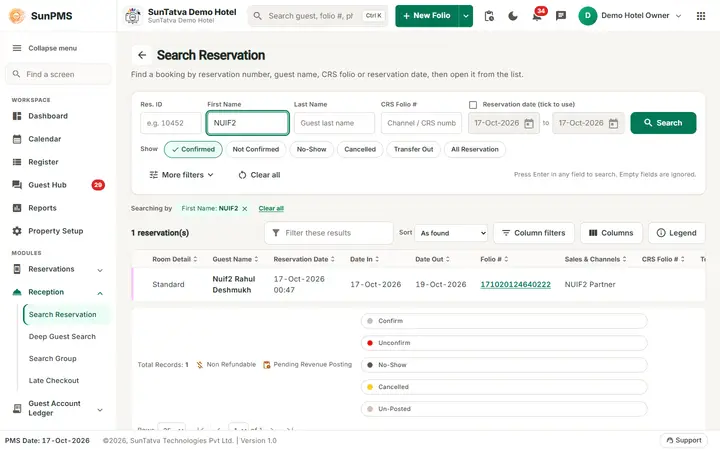
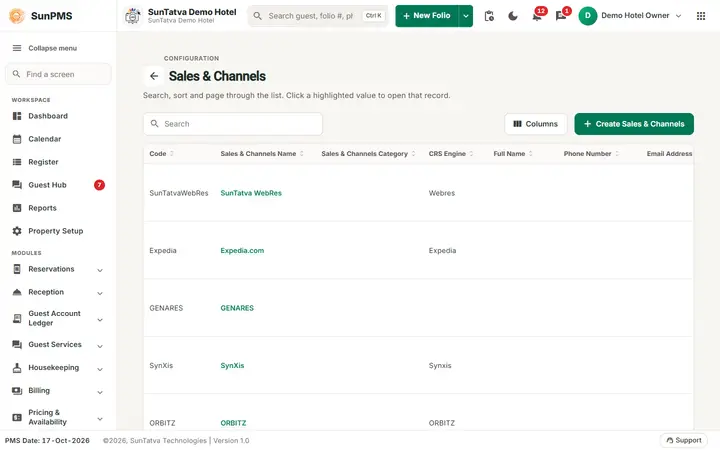
Sales & Channels is the name the screens use for what the database and some old documents call a business source. It is the list of outside parties that send you guests or pay for guests: travel agents, corporate companies, online travel agencies (OTAs such as Expedia or Booking.com), tour operators and web booking engines. Every reservation can be tagged with one of them, and that tag drives two kinds of money flow.
The two money flows
| Flow | Direction | Example | Set up on | Invoice screens |
|---|---|---|---|---|
| Creditable (credit apply) | The partner owes you. The guest's folio is charged to the partner (direct billing / city ledger) and you invoice the partner later. | A corporate pays for its employees' rooms 30 days after check-out. | Category has Credit Apply; credit terms on Creditable Sales & Channels | Creditable Invoice, Creditable Settled Invoice |
| Commissionable (commission apply) | You owe the partner. The partner sends you an invoice for its commission on the reservations it booked, and you pay it. | A travel agent earns 10 % of the room rent. | Category has Commission Apply; commission terms on Commissionable Sales & Channels | Commissionable Invoice, Commissionable Settled Invoice |
A single partner can be both (a category can have both Commission Apply and Credit Apply ticked).
Setup order
- Category - create categories such as Travel Agent, Web Reservation, Direct Billing and tick Commission Apply and/or Credit Apply on each. See Sales & Channels Category.
- Sales & Channels - create each partner, pick its category and enter contact details. See Sales & Channels.
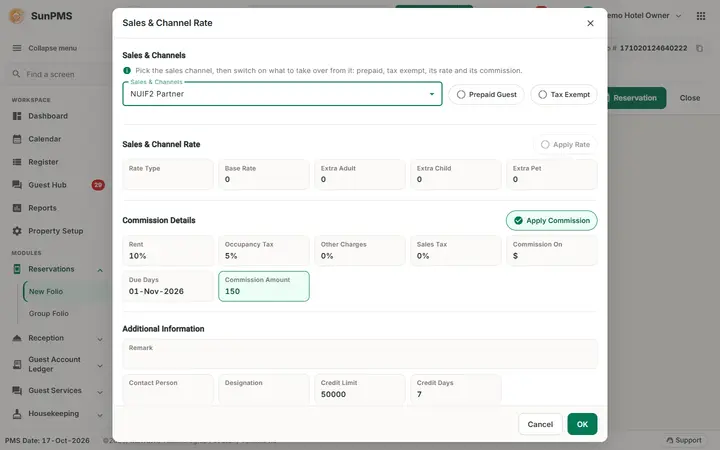
- Commission terms - for commissionable partners open Commissionable Sales & Channels and set opening balance, due days, fixed amount or percentages, and when to post commission.
- Credit terms - for creditable partners open Creditable Sales & Channels and set opening balance, credit days, credit limit and rate type.
End-to-end flow: booking, invoice, settlement
Creditable (partner pays your bill)
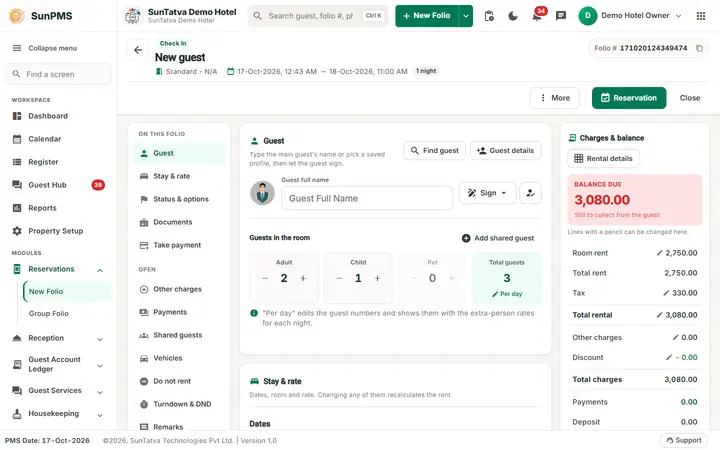
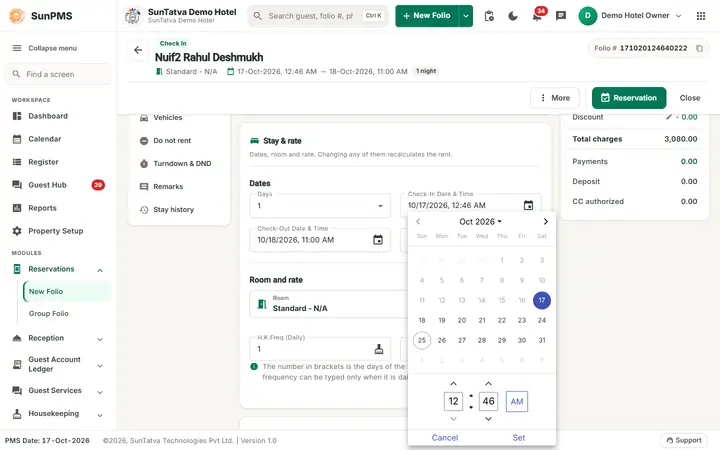
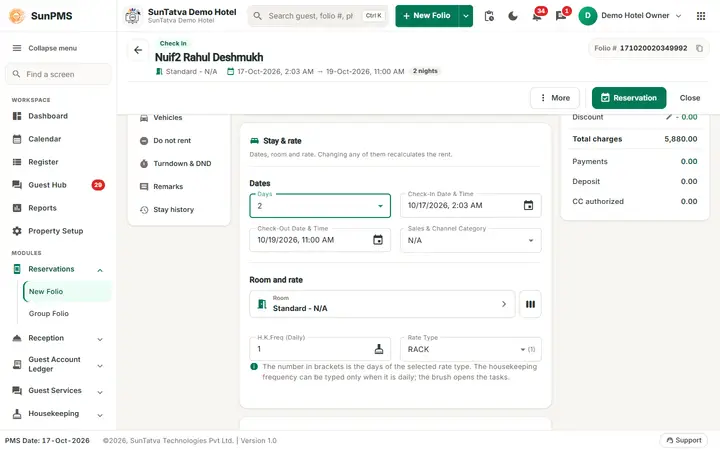
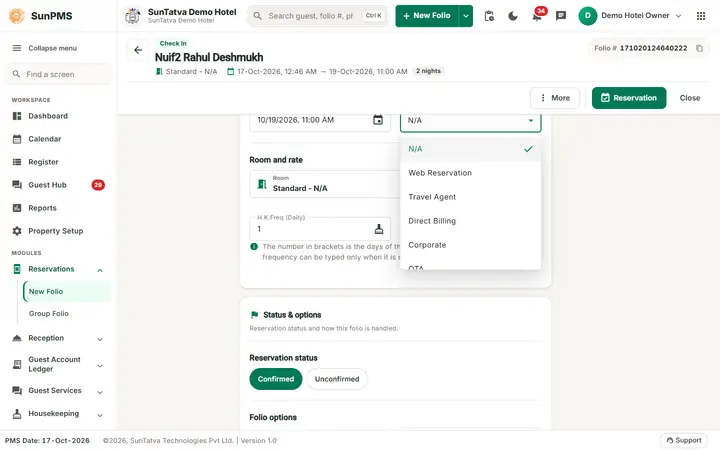
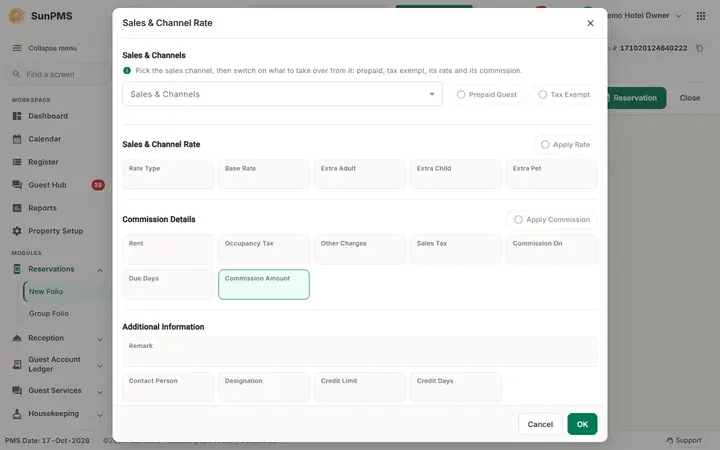
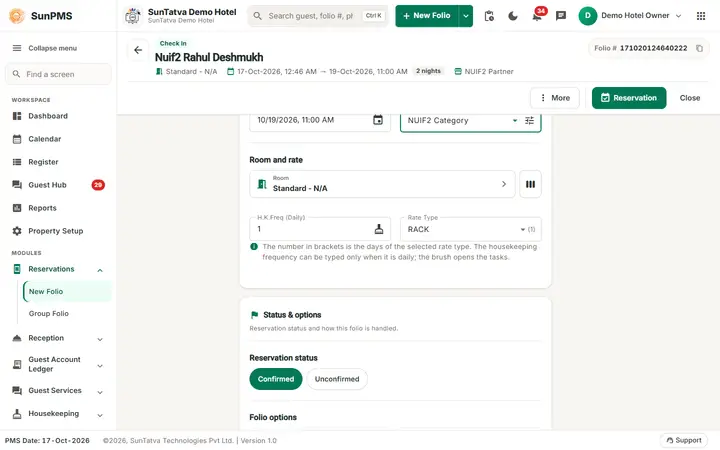
- Tag the booking. In the reservation, choose the Sales & Channels category and the partner (and, if the partner has a rate, the Sales & Channel Rate).
- Charge the folio to the partner. In the folio section Take payment open the Sales & Channels tab, pick the partner in Sales & Channels and add the amount. The system records a posting for that folio and increases the partner's Credit Balance by the amount.
- Create the invoice. Open Creditable Sales & Channels > Creditable Invoice, click Add Creditable Invoice, choose the partner, assign the folio postings to the invoice and click Create. The invoice number is generated for you. See Creditable Invoice.
- Send / print. Print the invoice (Print) and send it to the partner.
- Record the payment. Open the invoice, go to the Payment tab, click Add Payment, enter the money received and Save Payment. When the received amount equals the invoice amount the invoice becomes settled and moves to Creditable Settled Invoice. See Creditable Settled Invoice.
Commissionable (you pay the partner)
- Tag the booking with the partner as above.
- Commission is posted automatically for the reservation, using the terms on Commissionable Sales & Channels: when the guest checks out (Post on checkout), and for a non-refundable no-show or cancellation (Post on non refundable no-show / Post on non refundable cancel). The night audit also posts commission for non-refundable no-shows and cancellations.
- Partner sends its invoice. In Commissionable Sales & Channels > Commissionable Invoice click Add Commissionable Invoice, choose the partner, type the partner's Received Invoice number, assign the posted commissions and Create. See Commissionable Invoice.
- Pay the partner. Open the invoice, Payment tab, Add Payment, Save Payment. A fully paid invoice moves to Commissionable Settled Invoice. See Commissionable Settled Invoice.
Where the screens are
| Screen | How to open |
|---|---|
| Category, Sales & Channels, Commissionable / Creditable Sales & Channels (setup) | Side menu > Property Setup, group Sales & Channels |
| Creditable Invoice, Creditable Settled Invoice | Side menu Creditable Sales & Channels |
| Commissionable Invoice, Commissionable Settled Invoice | Side menu Commissionable Sales & Channels |
| Older tabbed screens Sales & Channels Invoice and Sales & Channels Commission | Not in the current side menu; still reachable by their address #/sales-channels/invoices and #/sales-channels/commission-invoices |
The invoice menus appear only for users with the privilege Generate Sales & Channel Invoices (module Sales & Channel Management); the Payment tab needs Process Sales & Channel Payments.
Related reports
Sales & Channels aging, ADR, monthly summary / payment / commission and account statement reports are in the Reports chapter.
Tips and FAQ
- Q: What is the difference between "business source" and "Sales & Channels"? A: Nothing. The screens, reports, privileges, messages, printouts and e-mails say Sales & Channel; the older name business source survives only in the database, in internal field names and in the title of the older tabbed invoice screens.
- Q: Why can't I change the partner on a reservation? A: A payment charged to that partner already exists, or an invoice for it exists. Remove the partner payment (or delete the unsettled invoice) first. A settled invoice blocks the change completely.
- Q: Why does my partner not appear in the invoice drop-down? A: Only partners whose category has Credit Apply appear for creditable invoices.
Screenshots