Sales & Channels (partner master)
On this page
The master list of every outside partner: travel agents, corporates, OTAs, channel-manager sources and web booking engines. Each partner has a category, contact details and a few billing flags. Reservations are tagged with a partner from this list.
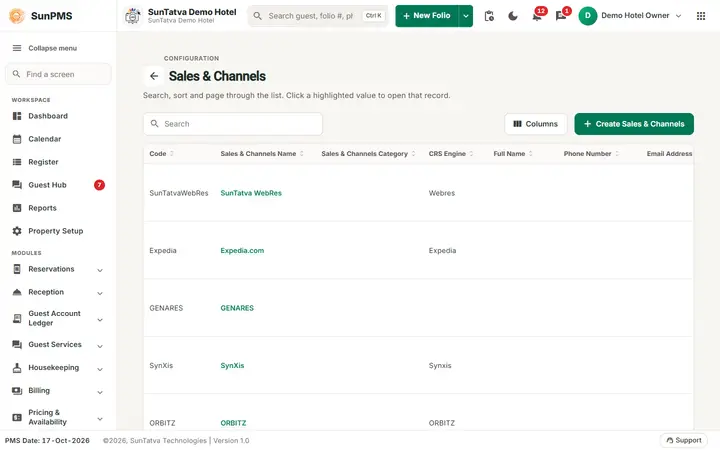
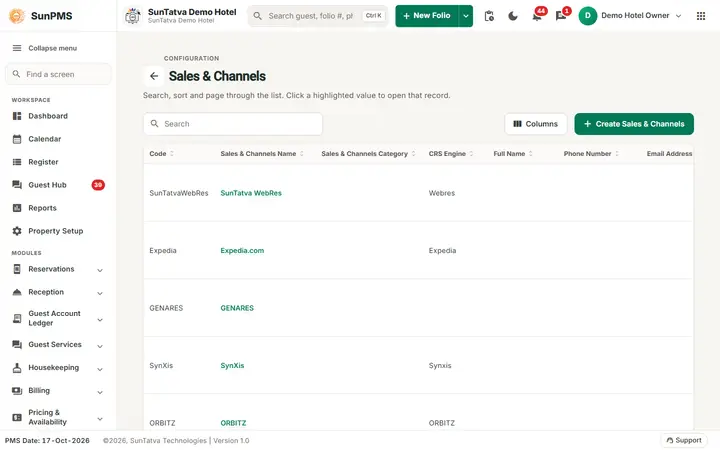
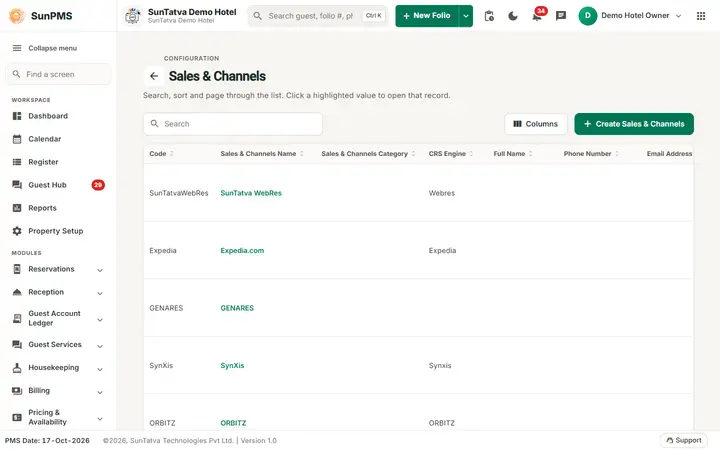
The Sales & Channels master list with the CRS engine each source is linked to.
Before you start
- Create at least one Sales & Channels Category.
- Commission or credit terms are not entered here; use Commissionable and Creditable Sales & Channels afterwards.
Screen layout (list)
Top bar: Search (Code, Sales & Channels Name, CRS Engine, Full Name, Phone Number), Create Sales & Channels, and the Select visible columns panel (handle at the right edge).
| Column | Shown by default | Meaning |
|---|---|---|
| Code | Yes | Short code |
| Sales & Channels Name | Yes (click to edit) | Partner name |
| Sales & Channels Category | Yes | Category |
| CRS Engine | Yes | Channel manager / CRS the partner books through |
| IATA #, Reg.Details, Address, City, State, Zip, Country, Remark | No (turn on in the columns panel) | Detail columns |
| Full Name | Yes | Contact person |
| Phone Number, Email Address | Yes | Contact |
| Three icons (payment, price tag, gavel) | Yes | Prepaid, Rate Apply, Tax Exempt; crossed-out means off |
The status filter at the top of the list offers Active, Inactive and All, so deactivated partners can be found again (since 2026-10-18; before that only active partners could ever be shown). Open an inactive partner to activate it.
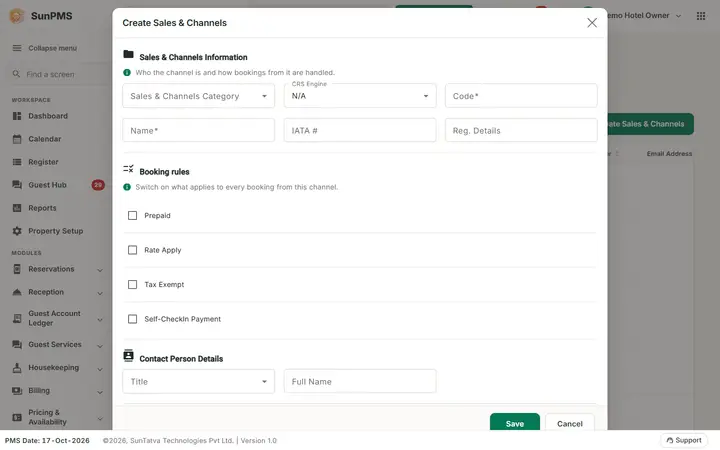
Create / Edit dialog
Title Create Sales & Channels or Edit Sales & Channels.
Sales & Channels Information
| Field | Meaning | Rules |
|---|---|---|
| Prepaid | Partner pays before arrival | Tick box |
| Rate Apply | Partner has its own negotiated rate | Tick box |
| Tax Exempt | Reservations of this partner are tax exempt | Tick box |
| Self-CheckIn Payment | Partner is allowed for payment during guest self check-in | Tick box |
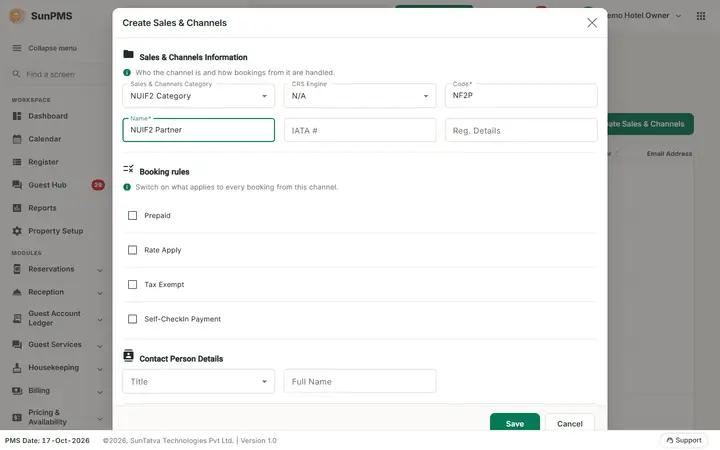
| Sales & Channels Category | Category | Choosing one switches the partner to credit mode or commission mode; a category with both Credit Apply and Commission Apply enables both panels. Changing the category re-checks every panel correctly |
| CRS Engine | Channel manager the partner belongs to | Optional list |
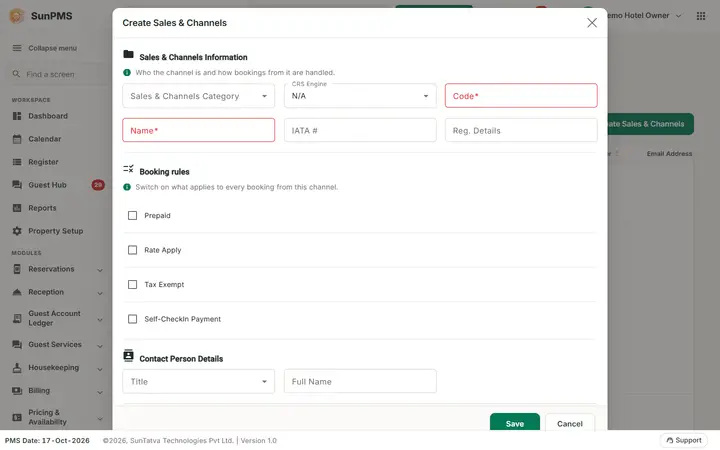
| Code | Short code | Required, max 10 |
| Name | Partner name | Required, max 100 |
| IATA # | Agency number | Max 50 |
| Reg. Details | Registration / tax details | Max 2000 |
Contact Person Details
Title (Miss., Mr., Mrs., Dr., Ms., Prof.), Full Name (100), Address (100), City, State (100 each), ZIP (10; leaving the field fills empty city and state, and sets Country to United States if empty), Country (type to search).
Contact Details
Email Address (valid e-mail, max 100), Phone Number (max 100). Below is the documents area for attaching documents (and stored credit cards when a payment gateway is configured).
Other Details
Remark (max 512). Buttons: Save, Cancel, Delete (edit mode only).
How to add a partner
- Open Property Setup > Sales & Channels > Sales & Channels.
- Click Create Sales & Channels.
- Select the Sales & Channels Category, type Code and Name, fill contact details.
- Click Save.
- If the partner earns commission or is billed on credit, enter terms on Commissionable Sales & Channels or Creditable Sales & Channels.
Result: the partner is saved and the form resets to a blank create state (no confirmation text). Click Cancel to close and check the list.
How to edit
Click the partner name, change fields, Save.
How to delete
Click the partner name > Delete, answer Are you sure want to delete Sales & Channels?. The partner is deactivated and leaves the list; existing reservations and invoices still show it.
Account statement
The code has a Sales & Channels Account Statement dialog (partner, From Date, To Date, Generate PDF) but no button on this list opens it in this version. Use the Reports menu account statement report.
What happens behind the scenes
- The partner appears in the reservation Sales & Channels drop-down, the folio Take payment > Sales & Channels tab and the invoice screens.
- CRS Engine ties OTA reservations arriving from the channel manager to the partner (see the Sync chapter).
- Credit and commission terms edited on the other two screens are saved on the same record.
Messages you may see
| Message (exact text) | Why | What to do |
|---|---|---|
| Please enter Sales & Channels Code. | Code empty | Type a code |
| Please enter Sales & Channels Name. | Name empty | Type a name |
| Please enter valid Email. | E-mail format wrong | Correct it |
| Please enter valid Opening Balance. / Commission Amount. / Rent(%). / Occupancy Tax(%). / Other Charges(%). / Other Charge Tax(%). / Credit Opening Balance. / Credit Limit. | A stored numeric value is not a valid decimal | Fix it on the Commissionable / Creditable screen |
| Are you sure want to delete Sales & Channels? | Delete confirmation | Yes / No |
| Are you sure you want to activate this Sales & Channel? | Activate confirmation | Yes / No |
| You can not deactivate Credit Apply Because Credit is already applied on this Sales & Channel. |
Credit Apply un-ticked while folios were charged to the partner | Settle / remove the credit first |
| Sales & Channels saved. | Save with close (not used by the normal Save button) | - |
| Please select From Date. / Please select To Date. / From Date should not be greater than To Date. / Please select Sales & Channels. | Statement dialog validation | Fill dates and partner |
Tips and FAQ
- Q: Where do I enter the commission percentage? A: On Commissionable Sales & Channels.
- Q: What does Self-CheckIn Payment do? A: It marks the partner as allowed for payment in the guest self check-in flow.
Screenshots