Sales & Channels Category
On this page
A category groups your partners (for example Travel Agent, Web Reservation, Direct Billing) and decides how money moves for every partner in it: whether you pay commission to them, whether you bill them on credit, or both. Create the categories first, then the partners.
Before you start
- None. Categories are the first master in the Sales & Channels group. The demo property ships with Web Reservation, Travel Agent and Direct Billing.
Screen layout
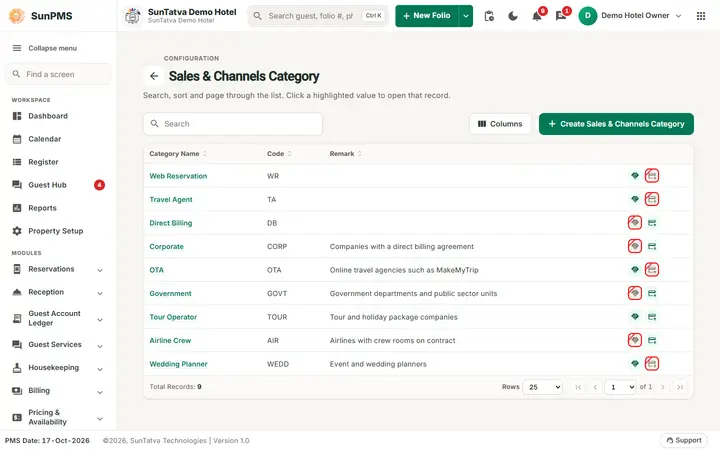
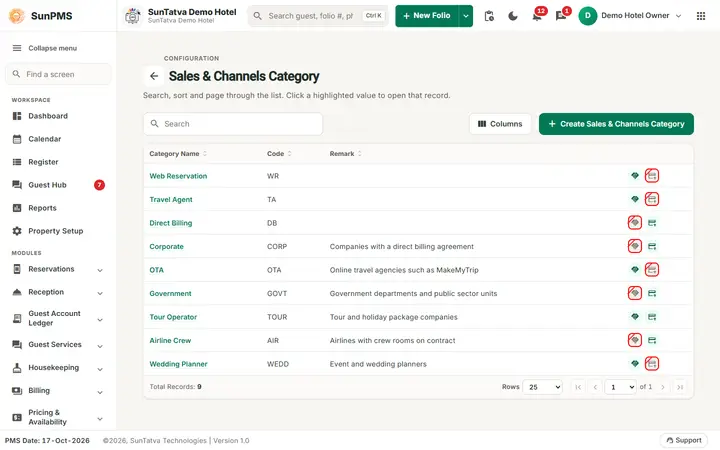
The list has a Search box (searches Category Name and Code), a Create Sales & Channels Category button, the record count / page size / paging bar and a Back arrow.
| Column | What it means | Rules |
|---|---|---|
| Category Name | Name of the category. Click it to edit. | Link |
| Code | Short code | - |
| Remark | Free-text note | - |
| Two icons (handshake, card with plus) | Handshake = Commission Apply, card = Credit Apply. A crossed-out icon means that option is off. Hover shows "... Allowed / Not Allowed". | - |
Only active categories are listed.
Create / Edit dialog
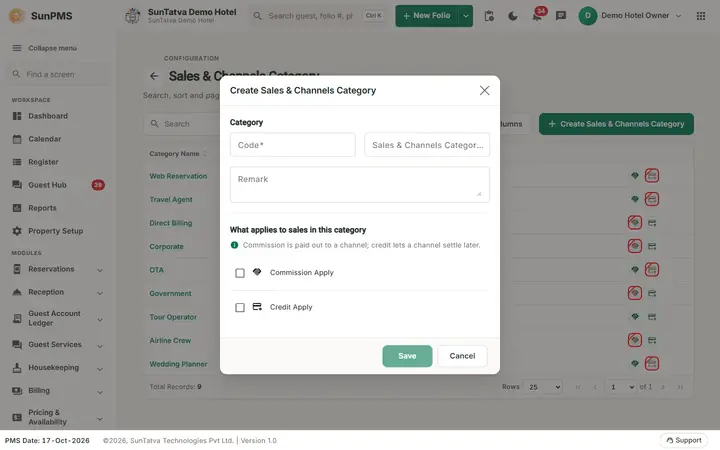
Title: Create Sales & Channels Category or Edit Sales & Channels Category.
| Field | What it means | Rules |
|---|---|---|
| Code | Short code | Required, max 10 characters |
| Sales & Channels Category Name | Name | Required, max 100 characters |
| Remark | Note | Max 512 characters |
| Commission Apply | Partners in this category earn commission that you pay | Tick box, off by default |
| Credit Apply | Partners in this category can be billed on credit (direct billing) | Tick box, off by default |
| Save | Saves. Disabled until Code and Name are filled | - |
| Cancel | Closes without saving | - |
| Delete | Only when editing an existing category | Asks for confirmation |
How to create a category
- Open Property Setup > Sales & Channels > Sales & Channels Category.
- Click Create Sales & Channels Category.
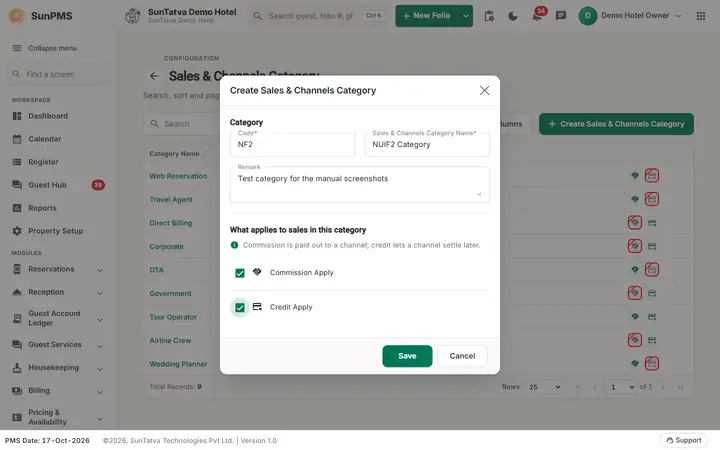
- Type Code and Sales & Channels Category Name; add a Remark if wanted.
- Tick Commission Apply and/or Credit Apply.
- Click Save.
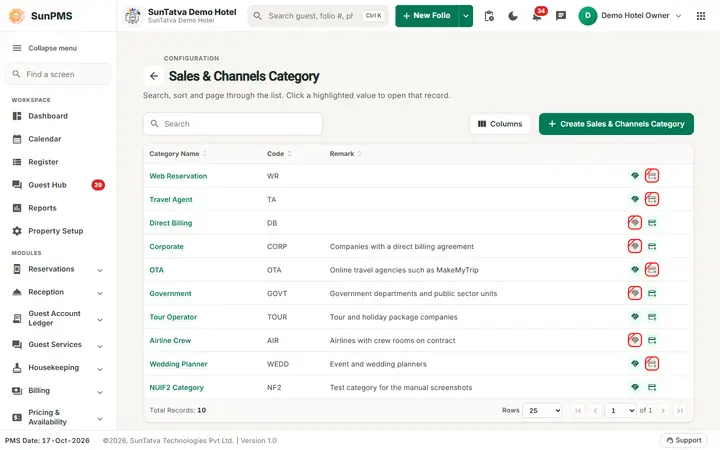
Result: the category is saved and the list refreshes. The dialog stays open with empty fields so you can add another; click Cancel to close it.
How to edit a category
Click the category name, change the fields, click Save.
How to delete a category
- Click the category name, then Delete (bottom left).
- Answer Are you sure want to delete Sales & Channels Category?.
Result: the category is deactivated and disappears from the list, with the message Sales & Channels Category deleted successfully. If the server refuses (for example the category is in use) its message is shown.
What happens behind the scenes
- Credit Apply decides which partners appear in the creditable invoice screens; Commission Apply decides which appear in the commissionable invoice screens and on Commissionable Sales & Channels setup.
- When you pick a category in the Sales & Channels form, the form switches the partner to credit mode (category has Credit Apply) or commission mode (otherwise).
Messages you may see
| Message (exact text) | Why it appears | What to do |
|---|---|---|
| Please enter Sales & Channels Category Name. | Name empty | Type a name |
| Please enter Sales & Channels Category Code. | Code empty | Type a code |
| Are you sure want to delete Sales & Channels Category? | Delete confirmation | Yes / No |
| Sales & Channels Category deleted successfully. | Delete worked | - |
| (server message) | Save or delete refused, e.g. duplicate | Correct the data |
Tips and FAQ
- Q: I ticked Commission Apply but an existing partner shows no commission. A: Open the partner in Sales & Channels, re-select its category, save, then enter terms on Commissionable Sales & Channels.
- Q: Can a category be both commission and credit? A: Yes, both boxes can be ticked. Note the partner form then sets the partner to credit mode on screen; check the partner on both setup screens.
Screenshots