Commissionable Sales & Channels (setup)
On this page
Here you set the commission terms of each partner whose category has Commission Apply: opening balance, due days, a fixed amount or percentages, the rate type and when the commission is posted. The system then calculates commission on each reservation tagged with that partner.
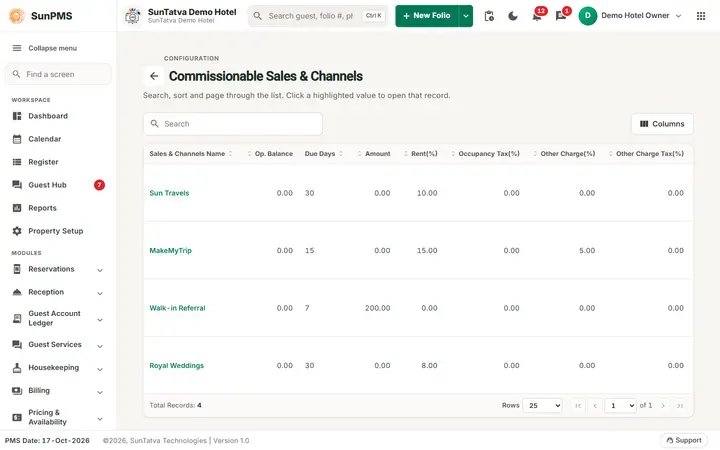
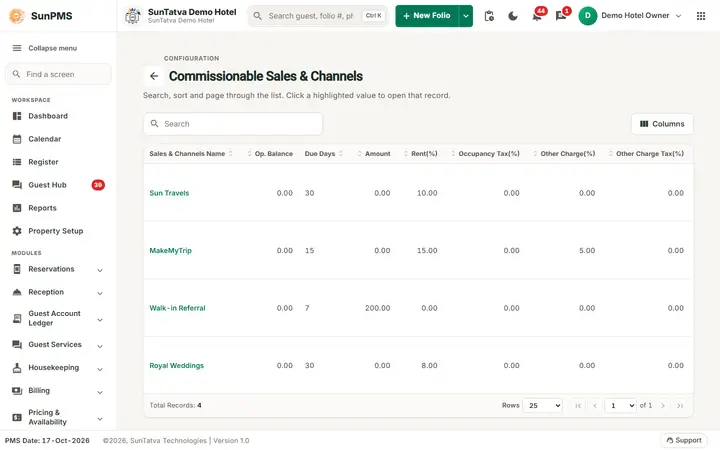
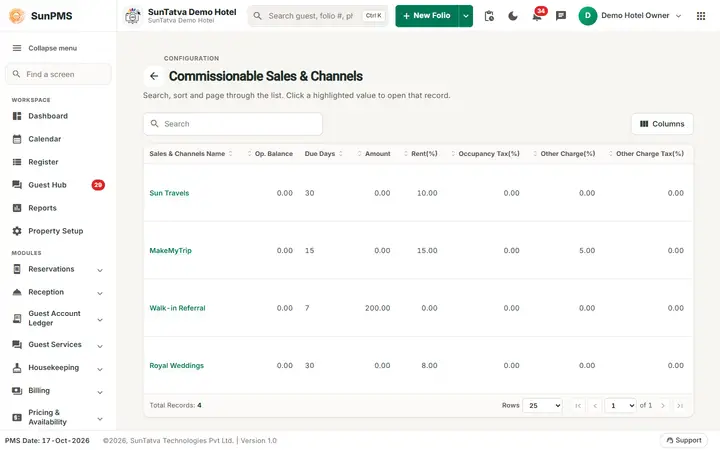
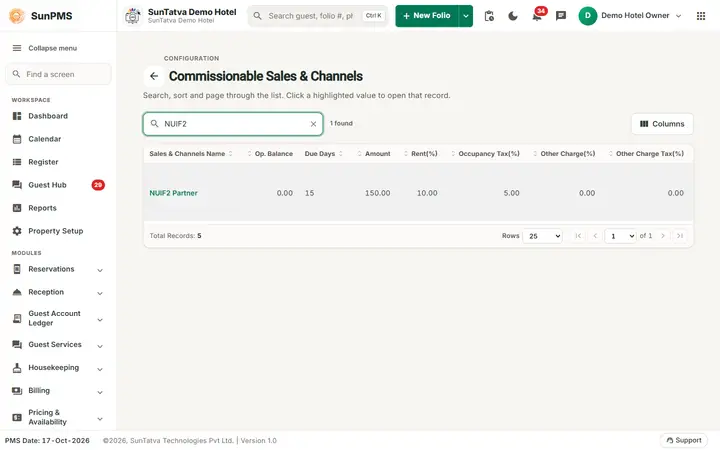
The Commissionable Sales & Channels list on the demo hotel: one row per source with due days, commission percentage and the tax percentages.
Before you start
- The partner exists in Sales & Channels and its category has Commission Apply. Only such partners are listed; the list has no Create button.
Screen layout (list)
Search box plus columns:
| Column | Meaning |
|---|---|
| Sales & Channels Name | Partner (click to edit) |
| Op. Balance | Opening commission balance |
| Due Days | Days after the invoice date the commission is due |
| Amount | Fixed commission per reservation |
| Rent(%), Occupancy Tax(%), Other Charge(%), Other Charge Tax(%) | Percentages of each charge group |
| Three icons | Post on checkout, Post on non-refundable no-show, Post on non refundable cancel; crossed out = off |
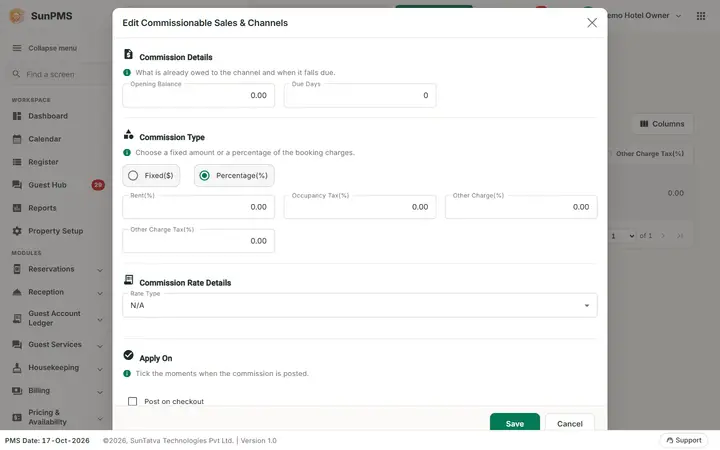
Edit dialog (title "Edit Commissionable Sales & Channels")
| Field | Meaning | Rules |
|---|---|---|
| Opening Balance | Commission already owed at start | Decimal |
| Due Days | Payment terms in days | Whole number, max 6 digits |
| Commission Type | Radio: Fixed($) or Percentage(%) | Chooses which fields show |
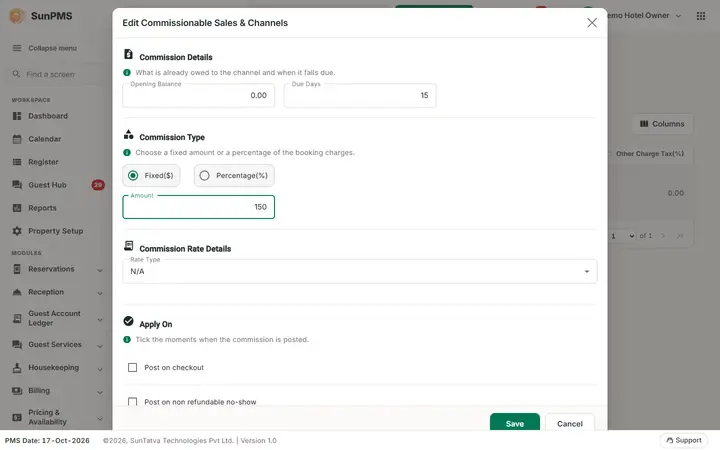
| Amount | Fixed commission | Shown for Fixed |
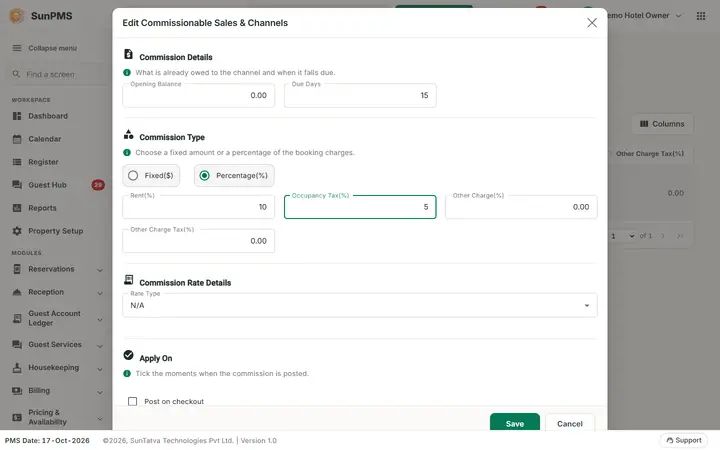
| Rent(%), Occupancy Tax(%), Other Charge(%), Other Charge Tax(%) | Percent of room rent, occupancy tax, other charges, tax on other charges | Shown for Percentage; decimals |
| Rate Type | Rate plan for the partner under Commission Rate Details | List |
| Post on checkout | Post commission when the guest checks out | Tick box |
| Post on non refundable no-show | Post commission when a non-refundable reservation is a no-show | Tick box |
| Post on non refundable cancel | Post commission when a non-refundable reservation is cancelled | Tick box |
| Save / Cancel |
How to set commission for a partner
- Open Property Setup > Sales & Channels > Commissionable Sales & Channels.
- Click the partner name.
- Choose Fixed($) and type Amount, or Percentage(%) and type the percentages.
- Tick when to post commission (Post on checkout, no-show, cancel).
- Click Save.
Result: terms are saved; the dialog stays open with cleared values (this is how the screen behaves). Click Cancel to close and re-check the list.
What happens behind the scenes
- Commission amount = fixed amount, or the sum of (rent x Rent%, occupancy tax x Occupancy Tax%, other charges x Other Charge%, sales tax x Other Charge Tax%).
- Nothing is posted unless at least one Post on... option is ticked.
- Posting happens when the reservation is checked out, and for non-refundable no-show / cancellation when revenue is posted (also by night audit). Commission is updated while it is not yet on an invoice, and removed if it becomes zero.
- Posted commission shows up as assignable lines in Commissionable Invoice.
Messages you may see
Saving uses the same checks as the partner master: Please enter valid Opening Balance., Please enter valid Commission Amount., Please enter valid Rent(%)., Please enter valid Occupancy Tax(%)., Please enter valid Other Charges(%)., Please enter valid Other Charge Tax(%).; server messages are shown as errors.
Tips and FAQ
- Q: Why does my partner not show here? A: Its category does not have Commission Apply.
- Q: I saved, why did the fields clear? A: After saving, the dialog resets to a blank state and stays open. Do not click Save again; click Cancel.
Screenshots