
Sales & Channels Invoice (tabbed screen)
The same creditable-invoice function as Creditable Invoice, in the earlier layout: one page with two tabs, Invoice and Settled Invoice. The current menu points to the newer screens, but this one still works by address and uses the same data.
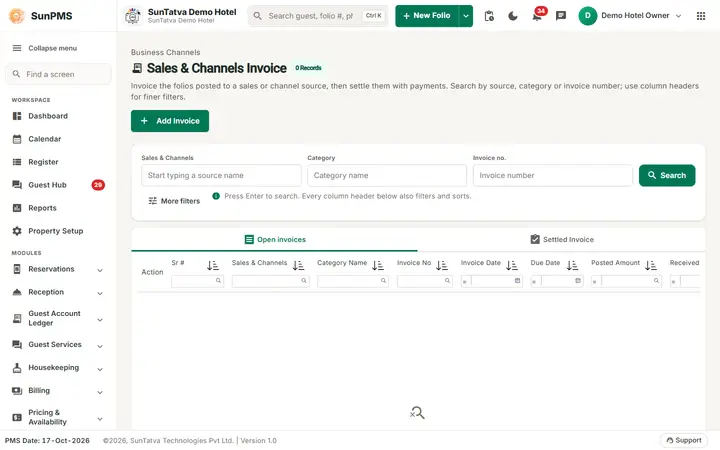
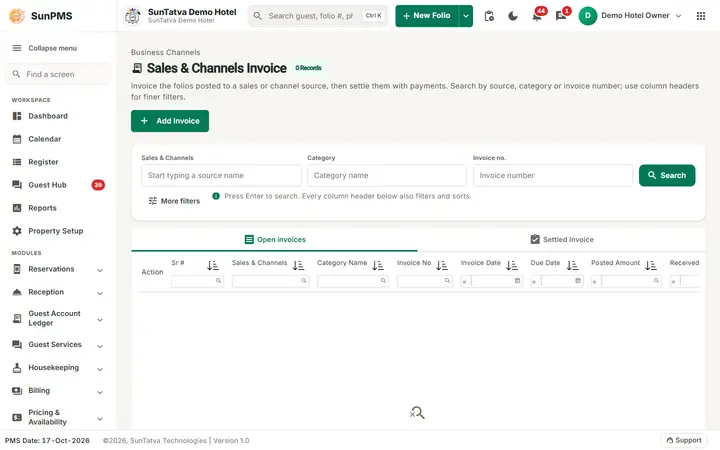
The Sales & Channels Invoice screen: search by source, category or invoice number, with the Open invoices and Settled Invoice tabs.
Screen layout
Breadcrumb "Business Channels / Sales & Channels Invoice". Tabs Invoice and Settled Invoice. Grid columns (each with a filter box; dates and amounts have =, >, < operators): Action, Sr #, Sales & Channels, Category Name, Invoice No, Invoice Date, Due Date, Posted Amount, Received Amount, Due Amount, Remark. Paging: Items per page 25.
| Action icon | Tab | Meaning |
|---|---|---|
| Edit | Invoice | Opens the invoice dialog |
| Print Folio | both | Prints the invoice PDF |
| Delete | Invoice | Deletes the invoice (confirm Are you sure want to delete this invoice?) |
| Show Invoice (eye) | Settled | Opens read-only Settled Invoice dialog |
| Email Folio | Settled | E-mails the invoice |
Button Add Invoice (bottom) opens the dialog.
Invoice dialog
Title Invoice / Edit Invoice; icons Print and Email (saved invoices). Tab Invoice: Sales & Channels (partner), Invoice number (read-only), Invoice Date (PMS date), Due Date, two lists with columns Folio #, CRS Folio #, Guest Name, Date In, Room Type and check boxes with Assign / Remove buttons, Remark, Save, Close. Tab Payment Received (disabled until saved or without payment privilege): Type, card fields (Card #, Valid Till, Auth #, CC Type, Add Credit Card, Device), Date, Receipt #, Amount (with currency menu), Exchange Rate, Total, Remark, Add/Update/Cancel, a payment grid (Action, Date, Payment Mode, Auth #, Receipt #, Amount, Ex. Rate, Total, Remark), Show Deleted Payment, Save Payment. Footer totals Total Chargeable Amount and Received Amount.
How to use
Follow the steps in Creditable Invoice: Add Invoice, choose partner, tick postings and click Assign, Save; then Payment Received tab > Add > Save Payment.
Messages you may see
Same as Creditable Invoice, including Please save the invoice details before taking Credit Card Payment. and Total Chargeble amount should be greater than zero.
Tips and FAQ
- Q: Which screen should I use? A: The side-menu screens under Creditable Sales & Channels; both show the same invoices.