
Search-first list screens (filters, columns, paging)
Most list screens in SunPMS (about thirty) share one layout: you set the search first at the top, then read the results in a full-width table below. This page explains the common parts once; each screen's own page lists its own filters and columns.
Before you start
- Nothing to set up. The same layout appears on tablets and desktops; on a phone each row becomes a card with the same data.
Screen layout
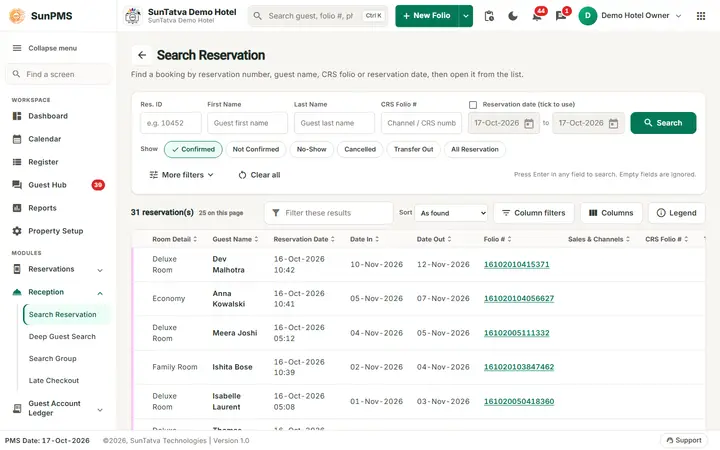
Search Reservation, one of the search-first lists.
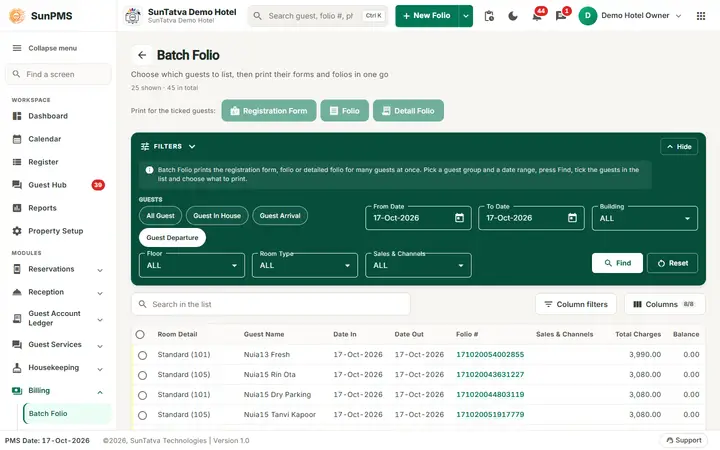
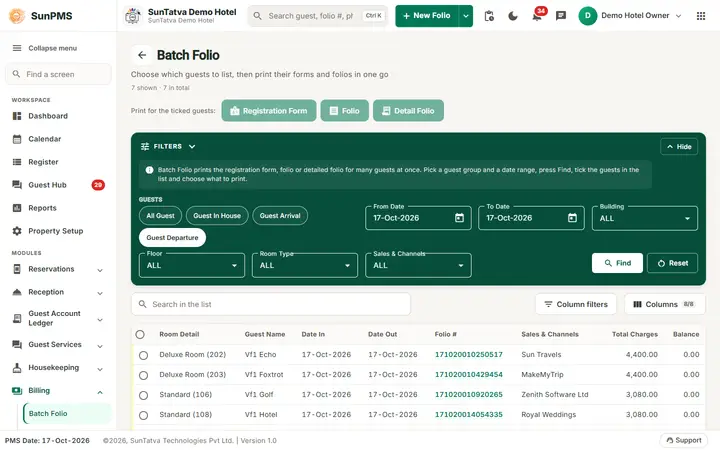
Batch Folio, where you press Find before the list appears.
| Part | What it does | Rules |
|---|---|---|
| Title row | Back arrow, screen title, a subtitle, and "n shown · m in total". Buttons for the screen's own actions (for example Print, Export, Create) sit at the right. | |
| Filters band (dark, at the top) | The screen's own search fields (dates, status, guest, room type, Sales & Channels...) flowing in columns, with the search button. Press Enter in a field to search. | Click Filters (or Hide) to fold the band so the results get more room; Show filters brings it back. |
| Search in the list | Filters the rows already loaded by any text; the x clears it. | Instant, no server call. |
| Column filter button | Shows a filter box under every column heading: text columns match the start of the value, number columns take an operator (=, >, <) and a value, date columns open a date picker. | All filters combine. |
| Columns (with "visible/total") | Opens Visible columns; tick the columns to show. | Your choice is kept for this screen on this browser. |
| Select-all box and row boxes | Select rows for the screen's bulk action. | Only on screens with a bulk action (for example batch folio, posting, release). |
| Table | Sticky header; click a heading to sort. A link-coloured value (for example a folio number) opens the reservation. A deleted row shows a deleted icon. | Empty result: the table says there are no records. |
| Row menu (three dots) | Actions for that row (open, edit, print...), when the screen has any. | Actions need their privilege. |
| Paging bar | Total Records, Rows (rows per page), first / previous / page / next / last. |
How to search
- Fill one or more fields in the Filters band.
- Press Enter or click the search button.
- Narrow the loaded result with Search in the list or the column filters.
- Click a heading to sort, a folio link to open the reservation, or the row menu for actions. Result: the table shows the matching rows and the title row shows "n shown".
What happens behind the scenes
- The Filters band asks the server; Search in the list, column filters and sorting work on the rows already loaded.
- The full list is kept while you page, so clearing a search brings every loaded row back.
Tips and FAQ
- Q: I cannot see the filters. A: The band is folded; click Show filters.
- Q: A column is missing. A: Open Columns and tick it.
- Q: The totals do not match what I see. A: "n shown" is the filtered rows on the loaded list; "m in total" is all rows the search found.