Dark mode (Light, Dark, System)
On this page
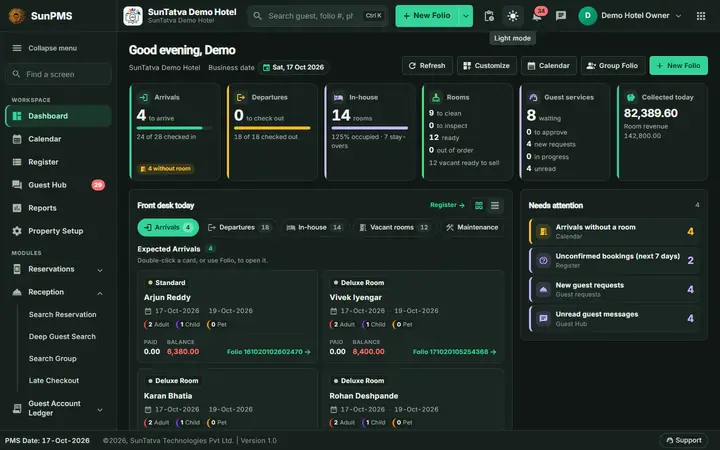
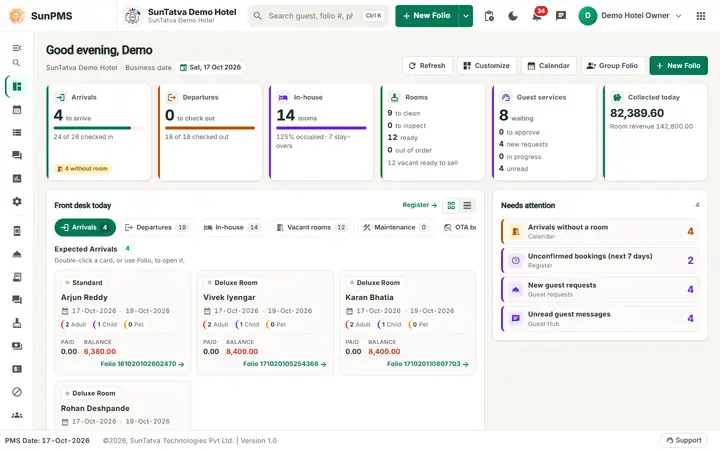
SunPMS can show the desk screens in a light or a dark colour scheme. Dark mode is easier on the eyes in a dim front office or at the night audit. The choice is yours alone; it changes colours only, never data or behaviour.
Before you start
- Nothing to set up. The choice is stored in your browser, so it applies to this computer and browser only.
- The guest portal and Housekeeping Mobile keep their own light look and do not follow the setting.
Screen layout
| Control | Where | What it does |
|---|---|---|
| Moon / sun icon | Header, left of the bell | Switches at once between Light and Dark (tooltip Dark mode or Light mode). Hidden on windows under 1280 pixels. |
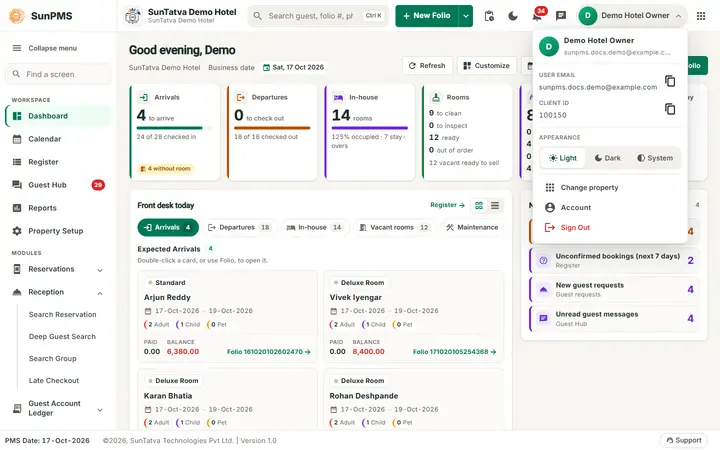
| Appearance: Light, Dark, System | Account menu (your name, top right) | Light and Dark fix the scheme. System follows your computer or phone: dark when the device is dark, and it changes when the device changes. |
| Moon / sun icon | SunAuth landing page (property list) | Same Light / Dark choice, see below. |
How to switch
- Click your name (top right) to open the account menu.
- Under Appearance click Light, Dark or System. Result: the header, side menu, screens, dialogs, charts and tooltips change colour at once. The selected button is highlighted.
How the choice carries over from the landing page
The SunAuth landing page (where you pick the property) has its own moon / sun icon. The choice is shared between the landing page and SunPMS:
- Pick Dark on the landing page, then open a property. SunPMS opens in dark mode.
- Change it in SunPMS (Appearance). The landing page shows the same mode the next time you go back with Change property.
- System in SunPMS removes the shared choice, so the device decides on both sides.
What happens behind the scenes
- SunPMS keeps the choice in a cookie (
sunpms_v2_theme, one year) because the sign-in hand-off from the landing page clears local browser storage. The landing page and SunPMS also share the cookiesun_themeon the common domain; when it exists it wins when a property opens. - Colours that come from your own setup data (for example room status colours) are shown as saved; text on them is chosen for readability.
Tips and FAQ
- Q: I picked Dark but one pop-up is light. A: Report it to support with the screen name; the guest portal and Housekeeping Mobile are light by design.
- Q: Does my choice follow me to another computer? A: No, it is stored per browser.
- Q: The moon icon is missing. A: The window is narrower than 1280 pixels; use Appearance in the account menu.
Screenshots