
User profile (Account Details)
On this page
Shows and edits your own sign-in account (stored centrally in SunAuth, so changes apply to every property you can access) and lists the properties you can open.
Screen layout
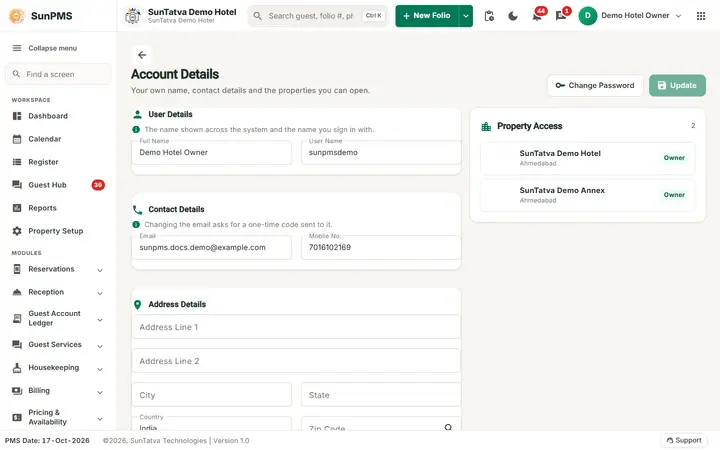
The Account Details screen with Change Password and Update at the top.
| Field | Rules |
|---|---|
| Full Name | Required. |
| User Name | Minimum 3, maximum 50 characters; special characters are blocked. |
| Maximum 128; must be a valid email. Changing it needs an OTP. | |
| Mobile No. | Required, digits only, maximum 100. |
| Address Line 1 (required), Address Line 2 | |
| City, State, Country (pick from list), Zip Code (required, max 15) | The search icon in Zip fetches city, state and country from the zip code. |
| Update | Enabled only after something changed. |
| Change Password | Opens the password pop-up. |
| Property Access | A searchable list of the properties you can open (count at the top): logo, name, city and your role there. Greyed means not configured. |
How to update details
- Edit fields. Update becomes active.
- Click Update. If any required field is empty you see "Please fill the required fields below:" with a list (Mobile No., Full Name, Address Line 1, City, State, Country, Zipcode, Email, or "Username must be 3 or more charactor long").
- In Verify Password enter your own sign-in password and click OK (Next if you changed the email). The password is only compared with yours: a wrong one shows Incorrect password., does not count as a failed sign-in and cannot lock your account. After 5 wrong passwords within 15 minutes the check pauses for 15 minutes.
- If the email changed, enter the OTP sent to the new address and click OK. Result: "User details updated successfully."
How to change password
- Click Change Password.
- Click Change: "Password change successfully."
Messages you may see
| Message | Why |
|---|---|
| Please enter Old Password. / Please enter New Password. / Please enter Confirm New Password. | Empty field. |
| New Password and Confirm Password does not match. | Mismatch. |
| New Password and Old Password does not same. | New equals old. |
| Password does not match the regular expression. | Rules not met. |
| Please enter Password. | Verify box empty. |
| Incorrect password. | Wrong password at verify (not counted as a failed sign-in). |
| Too many wrong passwords. Try again in N minute(s). | 5 wrong passwords within 15 minutes in a password check; wait the minutes shown. |
| Your password could not be checked. Please try again. | The sign-in service did not answer. |
| OTP has been sent to |
OTP issued. |
| Generate OTP failed / Invalid OTP / Please enter OTP. / OTP verified. | OTP steps. |
| User details in PMS not update successfully. | Central account saved but PMS name sync failed. |
Tips and FAQ
- Q: Can a typo in Verify Password lock my account? A: No. It is checked against your own password only (SunAuth verify-own-password) and never counts as a failed sign-in. Only wrong passwords on the sign-in page count towards the lock.