Shift Details (start and end shift)
On this page
When Shift Operation is turned on (Feature Setting), every user must open a shift before working and close it when leaving. The opening cash balance and the end-of-shift cash count are recorded for cashier reports.
Before you start
- Feature Setting > Shift Operation is on.
- Without an open shift, any screen sends you back to Shift Details.
Start shift screen
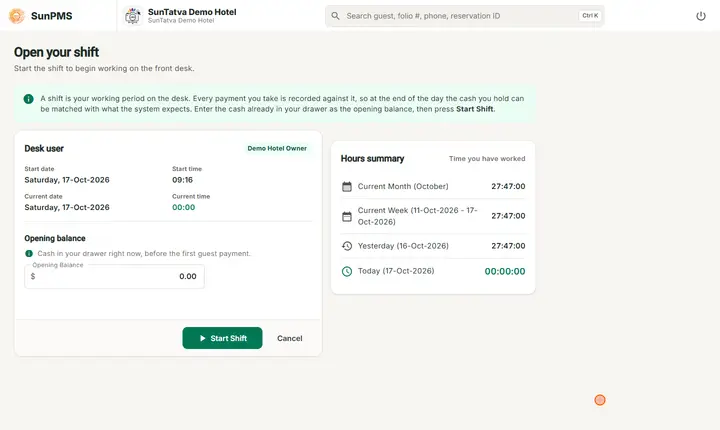
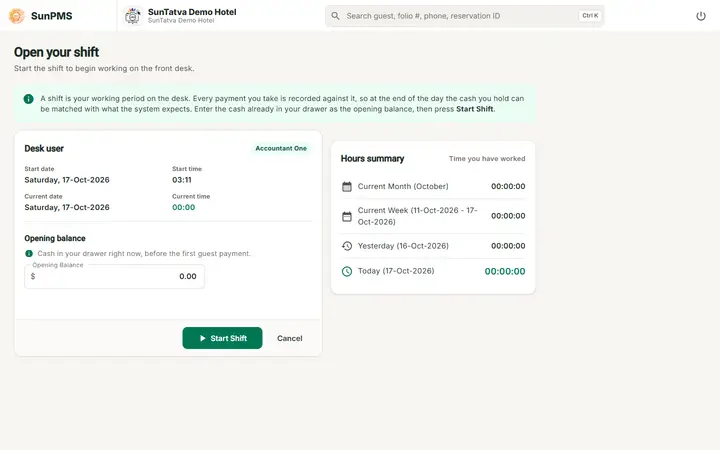
The screen is titled Open your shift. A green note explains that a shift is your working period on the desk, that every payment you take is recorded against it, and that you enter the cash already in your drawer before pressing Start Shift. Only the header (property name, search) shows above it; the menu appears once the shift is open.
| Item | Meaning |
|---|---|
| Hours summary (right card) | Hours you worked this month, this week (Sunday to Saturday), yesterday and today. |
| Desk user (chip on the left card) | Your name. |
| Start date / Start time | PMS date and time the shift starts. |
| Current date / Current time | Now. |
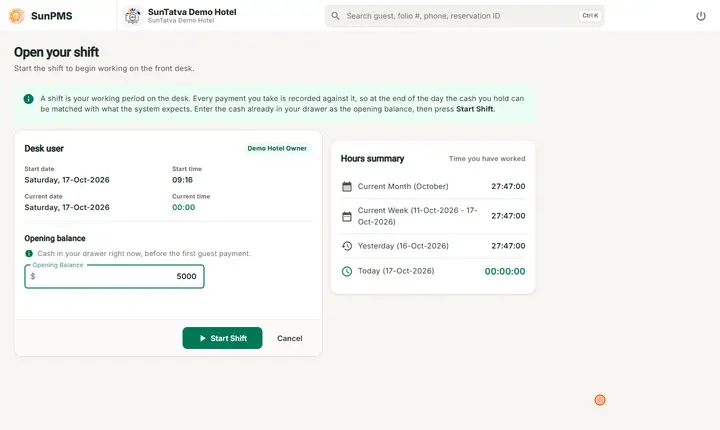
| Opening Balance | Cash in the drawer when you start; numbers only, default 0.00. |
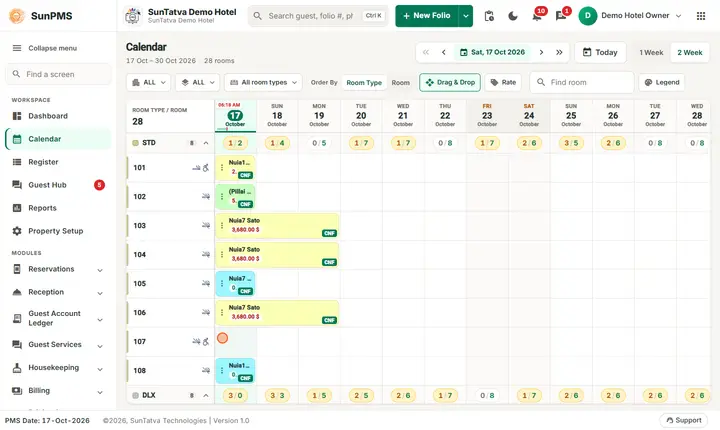
| Start Shift | Opens the shift and takes you to your last view or the Dashboard (Calendar if you lack Dashboard access). |
| Cancel | Clears the session and returns to the landing portal. |
When this computer has a cash drawer chosen in Hardware Setting, Start Shift opens the drawer (opening balance) and End Shift opens it for the closing count.
How to start a shift
- Enter Opening Balance.
- Click Start Shift. If you already have an open shift (for example after a browser crash) the screen skips and opens your last view.
How to end a shift
- Click your name > Sign Out > Yes.
- Shift Details pop-up opens. Left card Payment Info: Payment Type, Quantity, Total per payment type (green for money in such as Cash, Bank, Card, Others, Direct Billing, Extra Income; red for others), Opening Balance, Total Quantity, Total Amount.
- Right card Denominations: click a quantity and type how many notes/coins you hold; Total Cash In Drawer and Quantity update (red once changed).
- Click Shift End. Result: the shift is closed with the closing balance and you are signed out. The window x just closes the pop-up. Cancel closes the pop-up and signs you out without ending the shift.
Tips and FAQ
- Q: Where do I turn shifts on? A: Feature Setting, Shift Operation.
- Q: I pressed Cancel at sign-out; is my shift closed? A: No. It stays open; start-shift will not appear next time.
Screenshots