Main layout and header
On this page
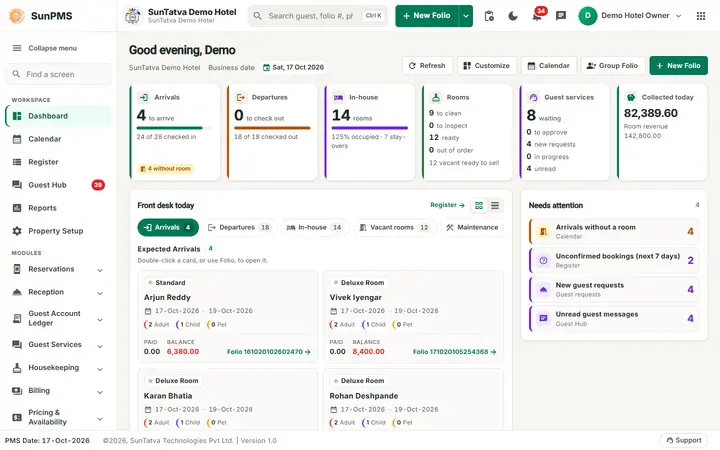
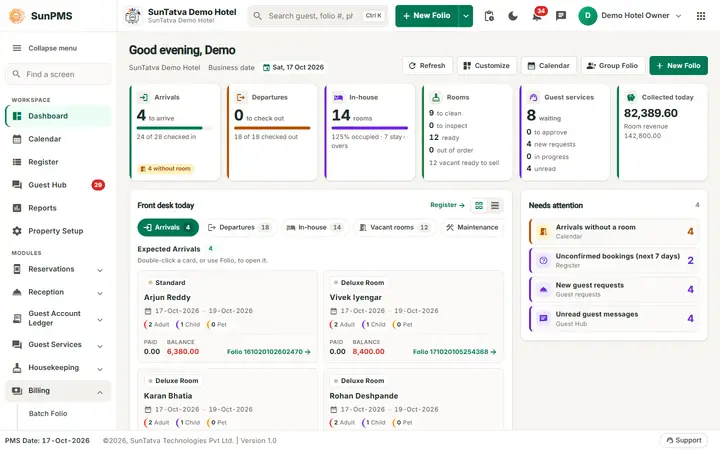
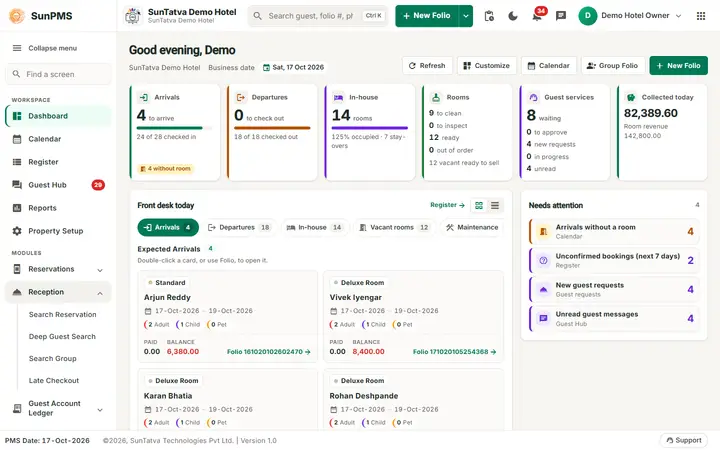
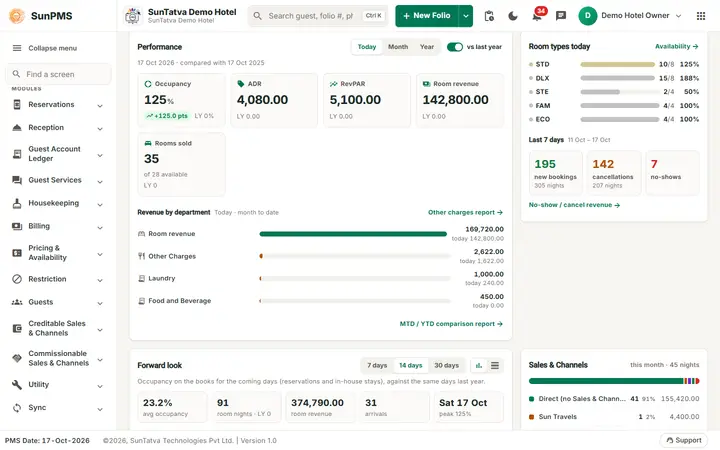
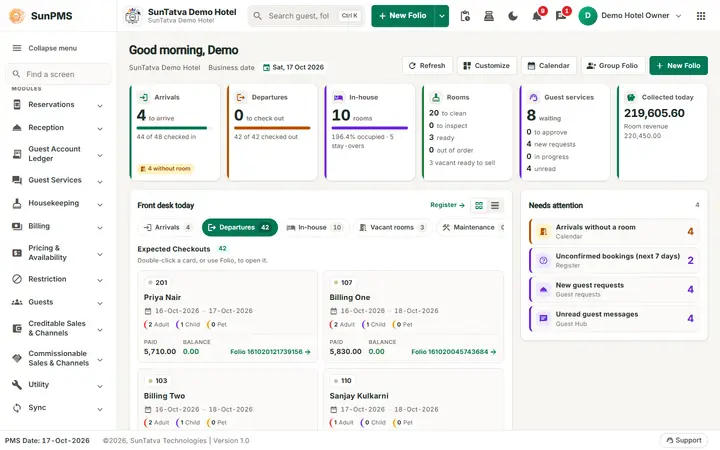
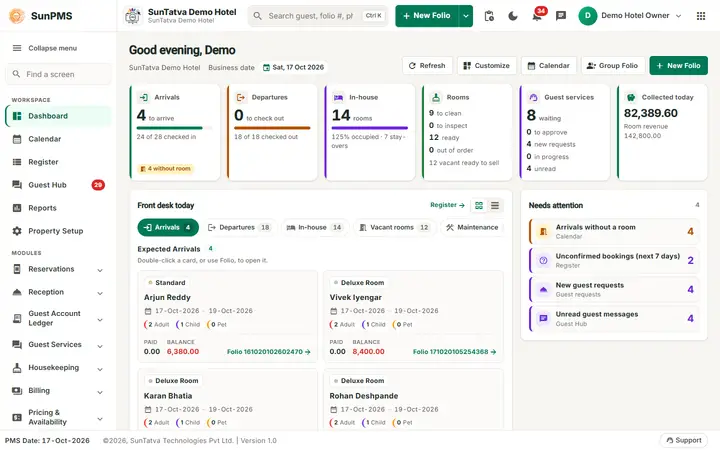
After you sign in, every SunPMS screen has the same frame: a header across the top, a side menu on the left, the working area in the middle and a status bar (footer) at the bottom. The header and the status bar are fixed: only the working area scrolls, so the New Folio button, the search box, the bell and your account menu are always within reach. This page explains the header. From the header you start a new reservation, search any guest, open notifications and team chat, change appearance, change property and sign out.
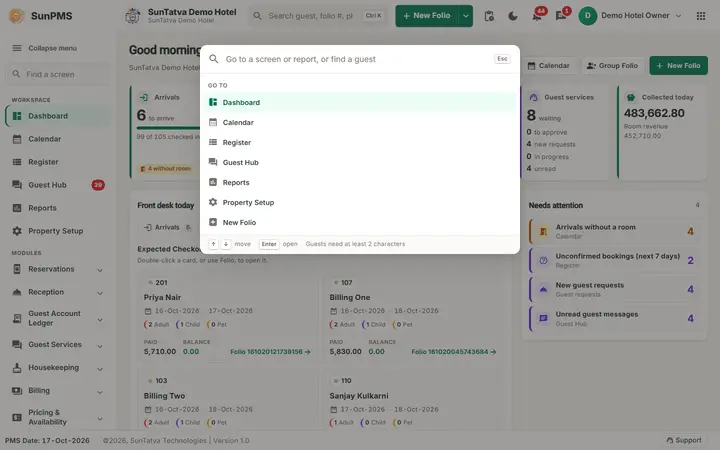
The command palette (Ctrl K): type to find a screen, a report or a guest, move with the arrow keys and press Enter.
Before you start
- You must be signed in and have selected a property. See Log in.
- The header is hidden on the landing page, the guest portal and the callback page. On the Shift screen only a power button (Sign Out) is shown (see Shift details).
- Screens and reports are reached from the side menu (Dashboard, Calendar, Register, Guest Hub, Reports, Property Setup and all modules).
Screen layout
| Item (left to right) | What it does | Rules |
|---|---|---|
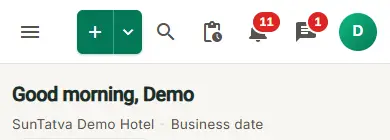
| Menu button (three lines) | Opens the side menu drawer. | Shown only on tablets and phones (screens up to 900 pixels wide). On wider screens the side menu is always there. |
| Brand (logo and SunPMS) | Click it to go to Dashboard. | If you do not have the Access to Dashboard privilege it goes to Calendar instead. It never moves when you collapse the side menu. |
| Property name and group name | Names the property you are working in. Click it to go home. | Hidden on narrow windows (under 1100 pixels); then only the property logo shows. |
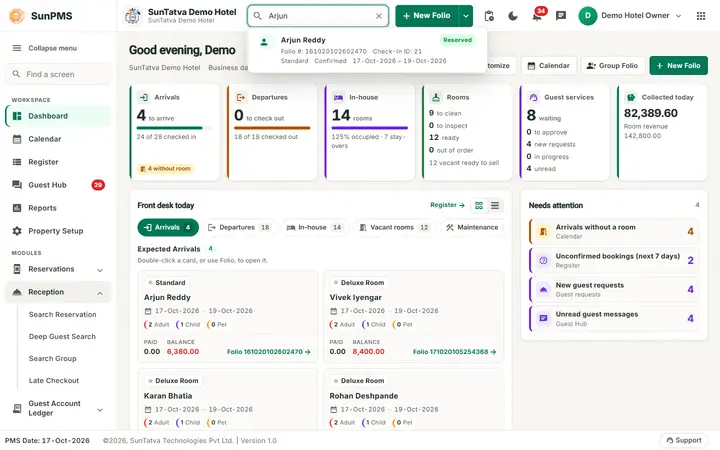
| Search box (centre) | Type a guest's first name, last name, folio number, phone number or reservation ID. After a short pause up to 10 matches appear. | See "How to use the quick search". Empty box: a Ctrl K (Mac: ⌘K) key hint opens the command palette. |
| New Folio button (plus icon) | Opens the new reservation / check-in screen. | The caption comes from the property setting New Folio title, so your hotel may see a different word (for example "New Reservation"). When the property uses groups a small arrow beside it also offers the group folio (caption from Group Folio title). Under 1280 pixels only the plus icon shows. |
| Search (magnifier) button | Opens the Global Search pop-up (same search, larger). | Useful on small screens. |
| Pending Reservation (inbox icon with a count) | A work-queue shortcut, not a notification. Opens Pending reservations, the channel bookings that did not post. | Shown only for properties connected to a CRS (channel manager). The red number counts unposted bookings of the last 7 days that arrive today or later. |
| Guest Review (reviews icon) | Opens a panel of guest reviews from the online channel, where you can reply. | Shown only for properties connected to a CRS and with the Expedia messaging service enabled. |
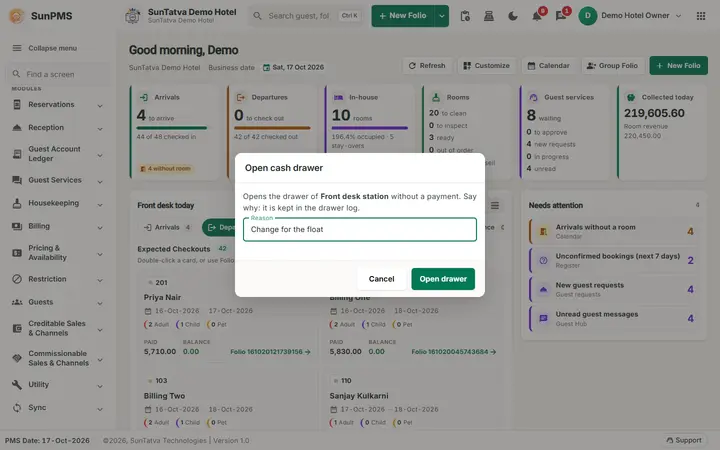
| Open cash drawer (cash register icon) | Opens this computer's cash drawer without a sale. A window asks for a Reason (required, kept in the drawer log) and opens the drawer on Open drawer; message "Opening the cash drawer". | Shown only when this computer has a cash drawer chosen in Hardware Setting, you have the Access Cash Drawer privilege and the SunHardware Integration licence. |
| Dark mode / Light mode (moon or sun icon) | Switches between light and dark at once. | Under 1280 pixels the icon is hidden; use Appearance in the account menu. See Dark mode. |
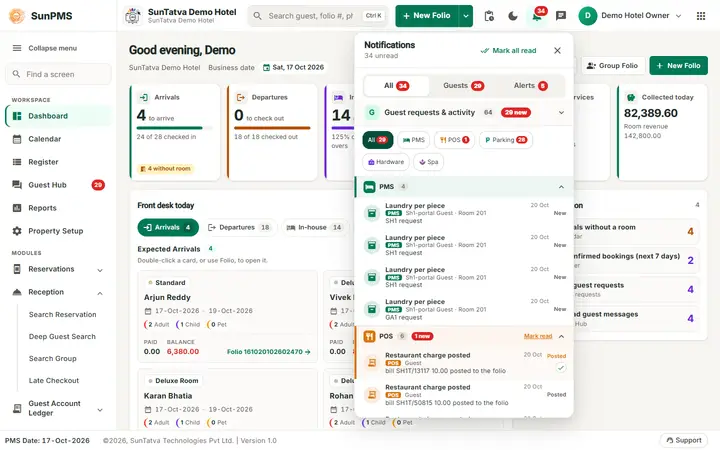
| Notification bell (tooltip Notifications) | The ONE bell for everything: one red number counts all unread items (guest items plus alerts). Click it for the large notification popup with the tabs All, Guests and Alerts. | Always shown; the guest section appears only when the guest portal is licensed. See The notification bell. |
| Team chat button (speech bubble, tooltip Team chat) | Opens the chat window; the red number counts unread chat messages. | Shown only with the licence Team Chat, the privilege Access to Communication (chat), chat switched on for the property and a SunAuth sign-in. See Communication. |
| Account button (your initial, your name) | Opens the account menu. | Under 1440 pixels only the initial shows. |
| Change property (apps icon) | Leaves this property and returns to the landing portal to pick another. | Hidden on phones; use the account menu. Hidden altogether (also in the account menu and the status bar) when you can reach only one property: a user who is not a main user and has one app, one group and one property goes straight into it and has nothing to switch to. See "How to switch property". |
All header icons use the same red count badge at the top right. The property name, the search box and some icons give way on narrower windows so the row always fits; on phones (under 600 pixels) the header keeps the menu button, brand, search, New Folio, bell, chat and account.
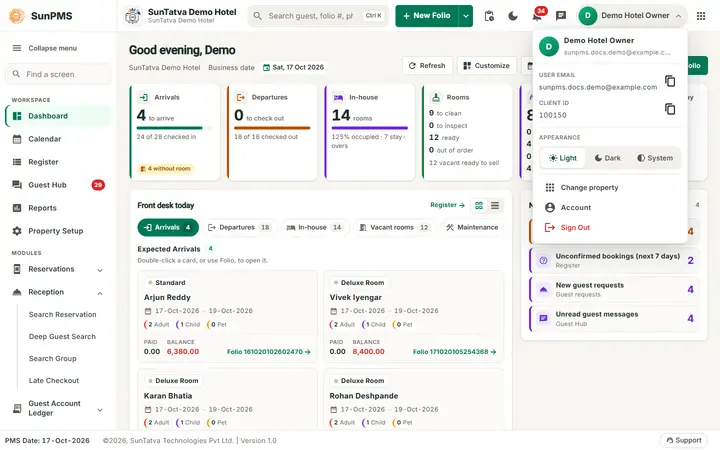
Account menu
Click your initial or name.
| Item | What it does |
|---|---|
| Your name and e-mail | Shown at the top. |
| User Email | Read-only value with a Copy button. A short message "User Email copied to clipboard" confirms the copy. Support staff often ask for it. |
| Client Id | Read-only value with a Copy button. Message: "Client Id copied to clipboard". |
| Appearance | Three buttons: Light, Dark, System. See Dark mode. |
| Change property | Same as the apps button in the header. Always in the menu, so phones can use it. |
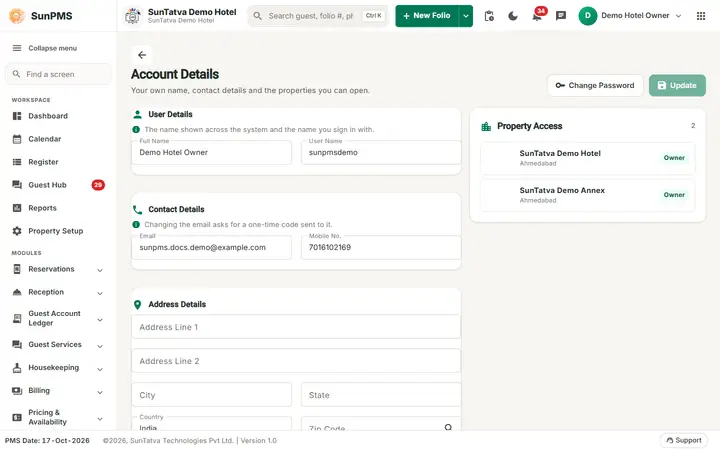
| Account | Opens User profile. |
| Sign Out | Starts the sign-out routine (see below). |
Command palette (Ctrl K)
Press Ctrl K (Mac ⌘K) anywhere, or click the key hint in the search box. A pop-up asks "Go to a screen or report, or find a guest". With an empty box it lists the main screens under Go to. Type two or more characters to see matching Screens, Reports and Guests. Move with the up and down arrows, press Enter to open, Esc to close. Only screens and reports your role may use are listed.
How to use the quick search
- Click the Search box in the header (or the magnifier button for the pop-up).
- Type a first name, last name, folio number, phone number or reservation ID.
- Wait for the list. Each result shows the guest name (group name in brackets), a coloured folio status (Checked In, Reserved, Checked Out), Folio #, CRS # when present, Check-In ID, the room (and room type), the reservation status (Confirmed, Unconfirmed, Not Arrived, Canceled, Guest Transferred) and the stay dates.
- Click a result. The reservation opens in the folio. Result: the search box is cleared and the folio opens. If nothing matches the list says "No guest found. Try first or last name, folio #, phone or reservation ID."
Group entries without a member reservation are not opened from the quick search. Use Search Group for groups, or Deep Guest Search for many filters.
How to start a new reservation
- Click New Folio (the plus button). Result: the folio opens empty. See chapter 7 Reservations.
How to switch property
- Click the apps button (Change property) at the right end of the header, or open the account menu and click Change property. Result: you leave the current property and return to the landing portal, where you pick another property. Your saved view (last visited screen) is restored when you enter that property. See Switch property or group.
How to sign out
- Open the account menu and click Sign Out.
- A confirmation asks Are you sure you want to Sign out? Click Yes.
- If Shift Operation is on for the property, the Shift Details pop-up opens first so you can close your shift (see Shift details). Otherwise you are signed out at once and returned to the sign-in page.
What happens behind the scenes
- The last view you visit (Calendar or Register) is stored in your user preferences and reopened next time you enter the property.
- The unposted-reservation count refreshes in real time when the channel manager sends a new booking.
- Quick search calls the guest search service on the server; results are limited to 10 rows. The palette uses the same service for guests.
- Your Light / Dark / System choice is kept in a browser cookie and shared with the SunAuth landing page.
Messages you may see
| Message (exact text) | Why it appears | What to do |
|---|---|---|
| Are you sure you want to Sign out? | You clicked Sign Out. | Yes to continue, No to stay. |
| No guest found. Try first or last name, folio #, phone or reservation ID. | The quick search found nothing. | Check spelling or use Deep Guest Search. |
| User Email copied to clipboard / Client Id copied to clipboard | You clicked a copy button. | None. |
| No reviews found. | The Guest Review panel is empty. | None. |
Tips and FAQ
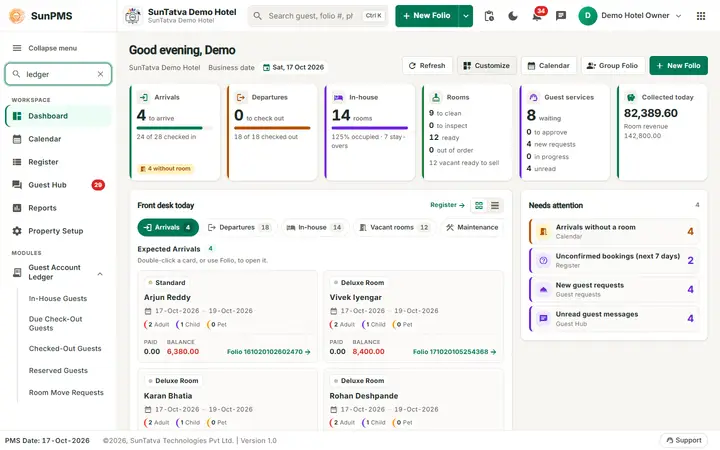
- Q: Where did the Dashboard, Calendar, Register and Reports tabs go? A: They are the Workspace group at the top of the side menu (and the tab bar on phones).
- Q: Where is the chat? A: The chat button is next to the bell. If you do not see it, see Chat problems.
- Q: The Guest Hub entry is missing. A: The property needs the Guest Interface licence. See the Licences screen.
- Q: The Pending Reservation button is missing. A: The property is not connected to a CRS / channel manager.
- Q: Why did New Folio change its name? A: The caption follows the New Folio title setting of the property.
- Q: Where is my User ID? A: It is not shown in the account menu; quote your e-mail and Client Id to support.
Screenshots