
Communication: notifications, team chat and cross-app chat
On this page
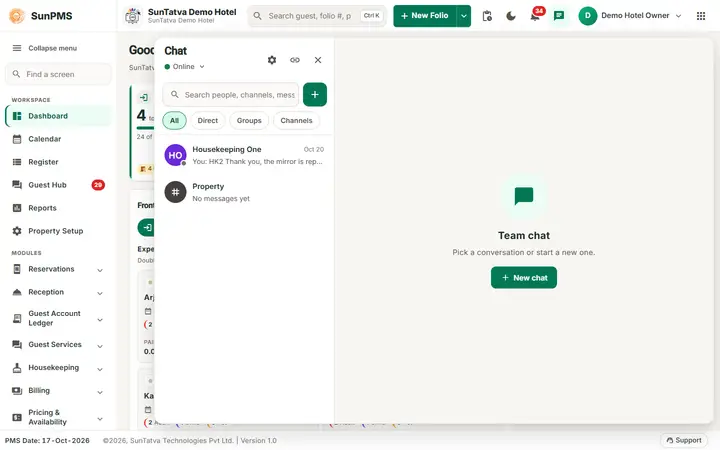
SunPMS has a small built-in messenger so staff can talk to each other without leaving the screen they are working on. It has three parts: the notification bell (alerts the system raises for you), team chat (direct chats, groups and channels between colleagues of the property) and chat with linked apps (the same chat, but with staff of the restaurant in SunPOS or the car park in SunParking that your hotel is linked to). The same chat window exists in SunPOS and SunParking.
Before you start
- You must be signed in through SunAuth (the normal sign-in). Someone who signed in only with a PIN (for example on a till) cannot use chat.
- The bell is always there. The chat button next to it appears only when the property has the licence Team Chat, your role has the privilege Access to Communication (chat) and the chat switch of the property is on. See Licences for chat and Chat settings, privileges and retention.
- Chat with linked apps additionally needs the licence Cross-app Chat, a link between the apps and the privilege Cross-app Chat. See Linked apps and cross-app chat.
What is where
| Part | Where | What it does | Page |
|---|---|---|---|
| Notification bell | Header, first round button | List of alerts such as "Restaurant charge posted"; unread count in red | Notifications bell |
| Chat button | Header, next to the bell | Opens the chat window; red number = unread chat messages | Open chat and direct chats |
| Direct chat | Chat window, + > Direct | One-to-one chat; one chat per pair of people | Open chat and direct chats |
| Group chat | Chat window, + > New group | Named chat for three or more people | Group chats |
| Channel | Chat window, filter Channels | A standing room for a team; members follow a role rule | Channels |
| Messages | Inside any chat | Reply, edit, delete, attach files, ticks, typing | Messages |
| Search, mute, status | Chat window | Find people, groups and words; silence a chat; Online / Away / Do not disturb | Search, mute, status and receipts |
| Linked apps | Chat window, + > Linked apps tab; link icon for administrators | Chat with staff of SunParking or SunPOS; delivery queue | Linked apps and cross-app chat, Linked apps admin screen |
How it works in one minute
- You click the chat button. A large window opens under the header; your work underneath is not lost.
- You pick a person (or a group or channel) and type. Enter sends.
- The other person gets a pop-up, a short sound and a red number on their chat button within about a second, in whatever screen they are using.
- Ticks next to your message tell you whether it was sent, delivered or read.
- Messages are kept for the number of days the administrator set (365 by default), then removed automatically.
What happens behind the scenes
- Chat messages live in the property's own database, not in a shared service. Every app keeps its own copy of a cross-app conversation; messages travel between apps through a queue that retries by itself.
- A person is identified by their SunAuth account, so the same colleague is the same person in every app.
- Live updates use the same kind of push channel as the rest of SunPMS; if it drops, the screen catches up by itself.
Messages you may see
The chat messages are listed in Message catalogue: Communication. The most common ones:
| Message (exact text) | Why it appears | What to do |
|---|---|---|
| Chat is available when you sign in with your SunAuth account. A PIN-only login cannot send or read chat messages. | You are signed in with a PIN only. | Sign in through SunAuth. |
| You are not allowed to do that. | Your role lacks the privilege for that action. | Ask an administrator, see privileges. |
Tips and FAQ
- Q: I see the bell but no chat button. A: The property lacks the Team Chat licence, your role lacks the chat privilege, the property switch is off, or you signed in with a PIN. See Chat problems.
- Q: Is chat private? A: Direct chats and groups are visible only to their members. An administrator can delete a message or remove a member but cannot read chats they are not in.
- Q: Can guests use it? A: No. This chat is for staff. Guests chat with the desk through the guest portal (Guest services).
- Q: Does it work on a phone or tablet? A: Yes. On a narrow screen the chat window fills the screen: list first, then the conversation, with a back arrow.