Team chat: group chats
On this page
A group is a named chat you start yourself for three or more people, for example everybody working a wedding, a big arrival or a maintenance job. Unlike a channel, you choose the members one by one.
Before you start
- Chat is available to you (licence Team Chat, privilege Access to Communication (chat)).
- Decide a clear Group name and who must be in it. You need at least one other person.
How to create a group
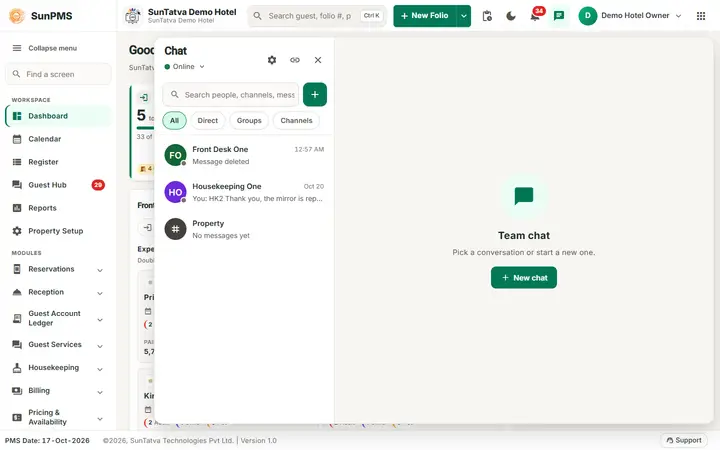
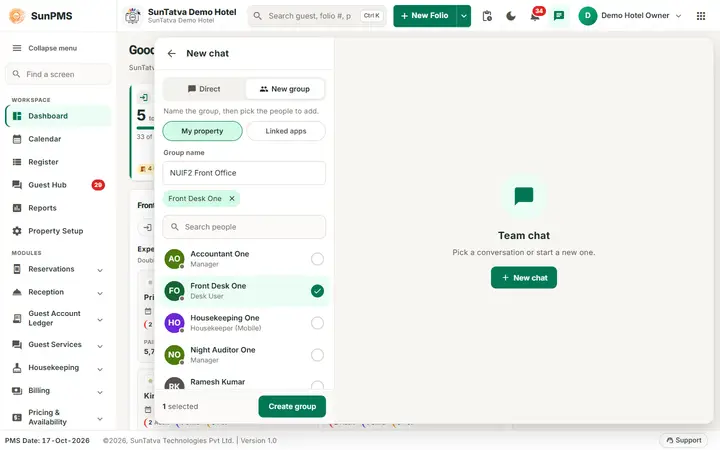
- Click the chat button, then + (New chat).
- Click the tab New group.
- Type the Group name (up to 100 characters).
- Search people and click each one to add. A tick shows who is chosen, and the line at the bottom shows
selected . People you picked also appear as chips; click the small x on a chip to remove one. - Click Create group.
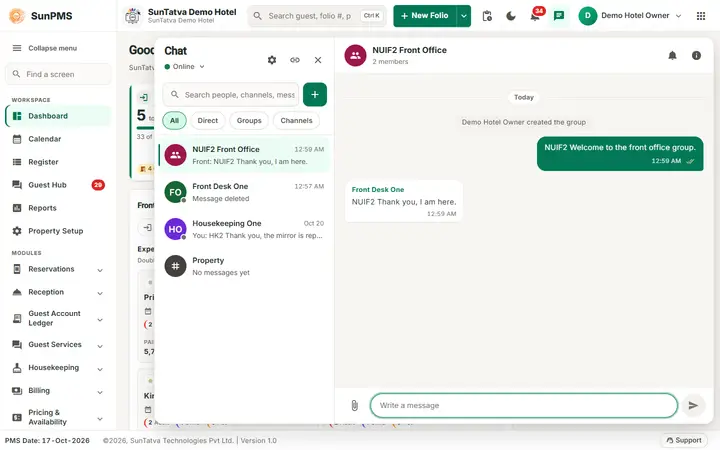
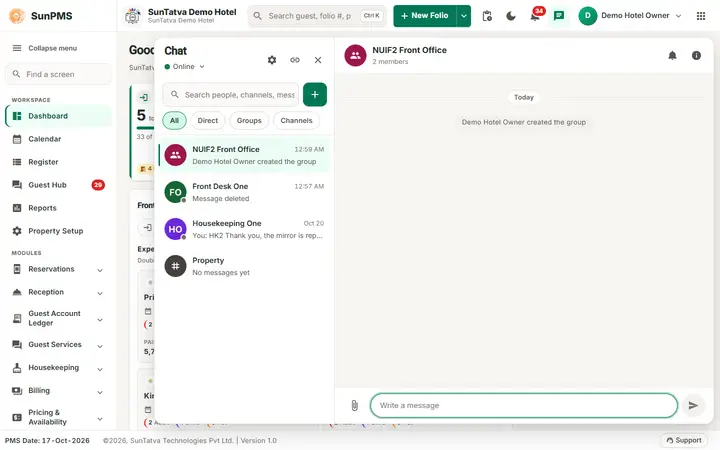
Result: the group opens with a grey line
created the group . You are the group's admin. Write the first message.
If your hotel is linked to a car park or restaurant, the Linked apps tab above the people list lets you also pick people of those apps. See Linked apps and cross-app chat.
How to see and change a group
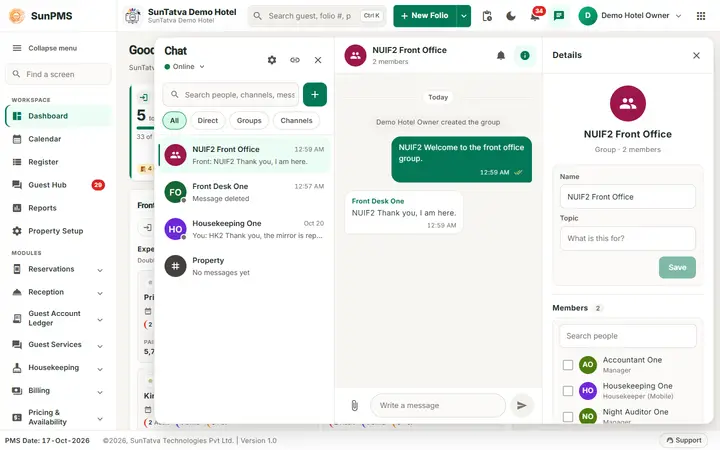
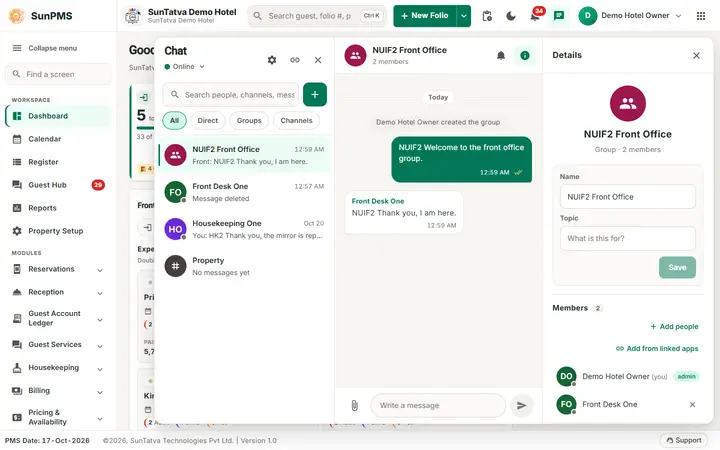
- Open the group and click its name at the top, or the i (Details) button.
- The Details window shows the name, the topic, the members (the creator is marked admin) and Leave group.
- As the creator (admin) you can:
- change Name or Topic and click Save;
- click Add people, tick people, click Add
; - click the small x beside a member (tooltip Remove from group) to remove them.
Result: every member sees a grey line such as
left the group or the new name.
How to leave a group
- Open the group, click Details.
- Click Leave group, then Leave (or Stay to cancel; the question is Leave this group?).
Result: the group disappears from your list. The others see
left the group . You cannot read it any more; someone must add you again to return.
What the ticks mean in a group
Next to your message: one tick = sent, two ticks = delivered, two light-blue ticks = read by everyone. Hover over the ticks (or click them) to see Read by 2 of 3 or the Message status list with each person and Read, Delivered or Sent. In groups of more than 12 members the ticks may update only when you reopen the chat. Channels show no ticks.
What happens behind the scenes
- A group is stored only for its members. Administrators cannot read a group they are not in; they can only delete a message or remove a member (needs Communication Administration).
- Every member has the same history from the day they are added, and the sender and time of each message.
- In a group that includes people of another app, only the app that created it can add, remove or rename (see Linked apps).
Messages you may see
| Message (exact text) | Why it appears | What to do |
|---|---|---|
| A name is required. | Group name is empty. | Type a name. |
| Pick at least one other person. | No other person selected. | Tick at least one person. |
| Could not create the group. | The server refused it (reason follows). | Fix the reason and retry. |
| Could not add people. | Add failed, for example you are not the admin. | Ask the group admin. |
| Could not remove the person. | Remove failed, for example you are not the admin. | Ask the group admin. |
| Could not leave. | Leave failed. | Retry. |
| This works for group chats only. | You tried to rename or manage a direct chat. | Direct chats cannot be renamed. |
| A direct chat cannot be renamed. | See above. | None. |
| Created by another app: only that app can add or remove people. | A group started in SunParking or SunPOS. | Ask the app that created it. |
| This conversation is archived. | A channel was archived. | Ask an administrator to restore it. |
Tips and FAQ
- Q: Who can add people to my group? A: You (the creator) and other admins. Ordinary members can only leave.
- Q: Can I start a direct chat from a group? A: Yes. In Details, click a member's name.
- Q: What is the difference between a group and a channel? A: You pick the members of a group. A channel's members follow a rule (everyone, a role or a privilege), see Channels.
- Q: Can I delete the group? A: No. Everyone can leave; when the last person leaves, nothing more is shown. Old messages are purged after the retention period.
Screenshots