Team chat: messages, reply, edit, delete and attachments
On this page
This page explains everything you can do with a single message once a chat is open: write it, answer a particular message, correct it, remove it and send files.
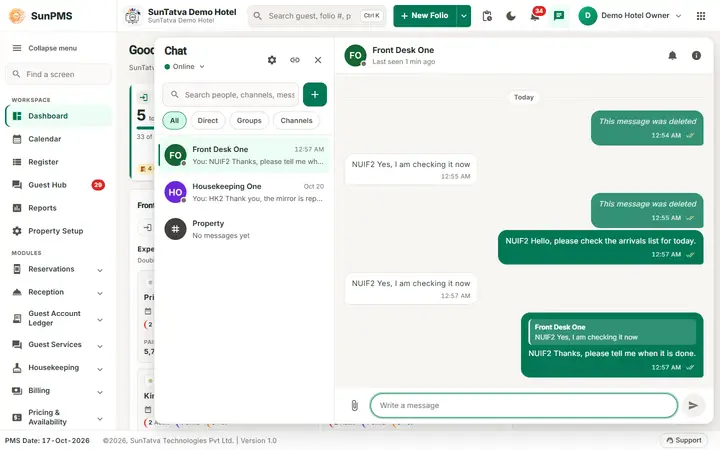
Before you start
- Open a conversation (see Open chat and direct chats).
- Know the limits: 8000 characters per message, 5 files per message, 10 MB per file (the administrator can lower the file limit), and an edit time of 15 minutes (also set by the administrator).
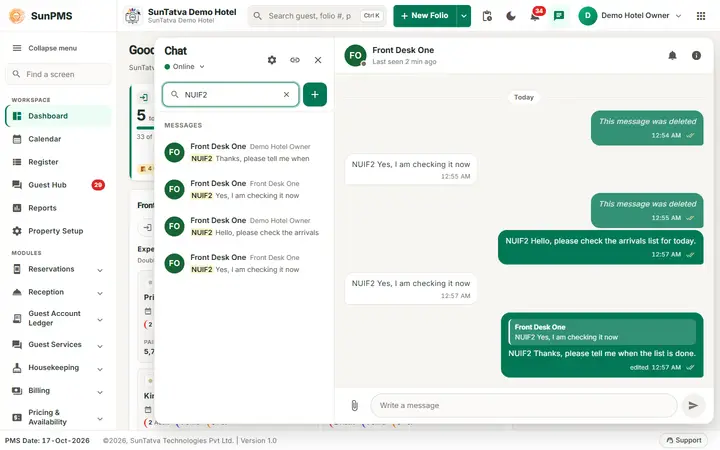
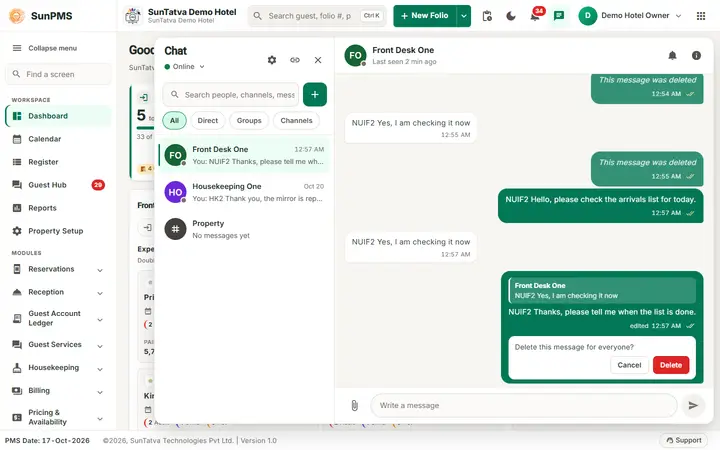
Screen layout of a conversation
| Item | What it means | Rules |
|---|---|---|
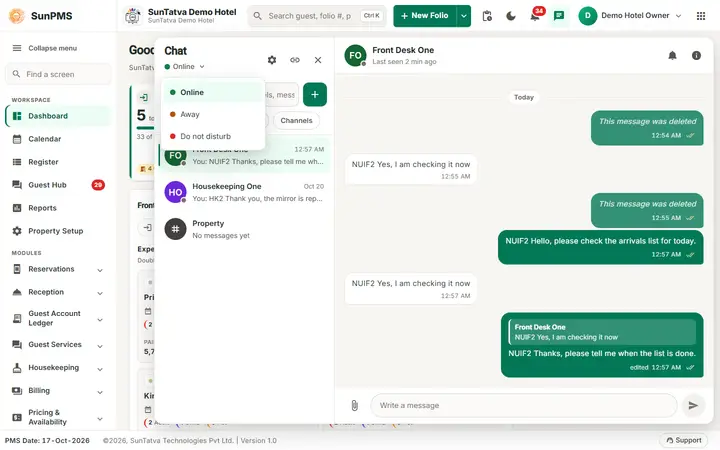
| Header: name, subtitle | Who you talk to. Subtitle: Online, Last seen..., |
Click it for Details. |
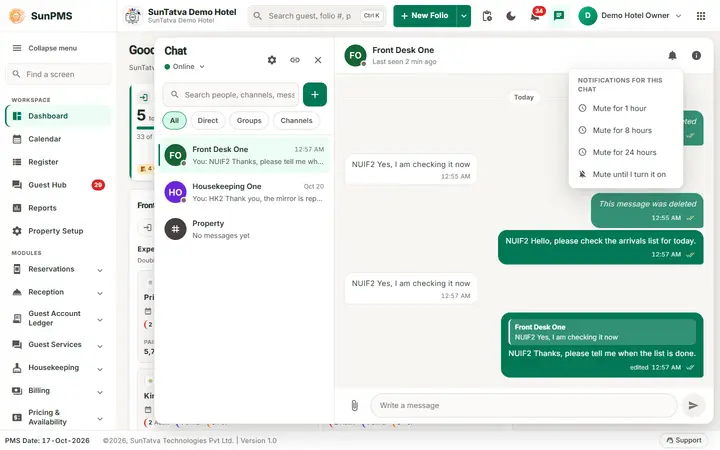
| Bell icon (header) | Mute this chat. | See Search, mute, status and receipts. |
| i button | Details: members, name, topic, leave. | |
| Day label (Today, Mon, 19 Oct) and New messages line | Dates, and where the unread messages start. | |
| Message bubble | Your messages are on the right and coloured; others' on the left, with the sender's name in groups and channels. | A small app badge appears next to the name of someone from another app. |
| Time, edited, ticks | Sent time (your time zone), edited label, delivery ticks. | See below. |
| Three dots (Message actions) | Appears when you point at a message: Reply, Edit, Delete. | Edit only on your own messages within the edit time. Delete on your own messages, or any message for chat administrators. |
| Paper clip (Attach files) | Opens the file picker. | Tooltip Attach files (up to 10 MB each). |
| Write a message box | Type here. Enter sends, Shift + Enter is a new line. | On touch screens Enter is a new line; use the send button. |
| Send button | Sends. Becomes a tick (Save) while editing. | Disabled when the box is empty and no file is ready. |
How to send a message
- Click the box Write a message, type.
- Press Enter or click the send button. Result: the message appears at once with a small "..." while it is saved, then with one tick. Web addresses in the text become clickable links that open in a new tab.
How to reply to one message
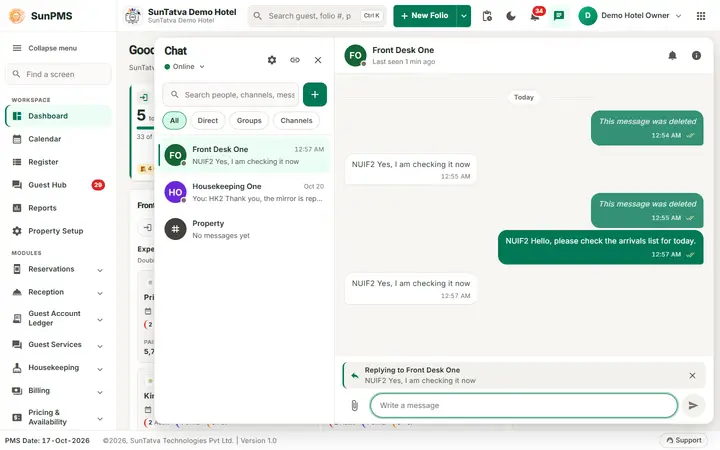
- Point at the message, click the three dots, choose Reply.
- A bar above the box shows the quoted message. Type your answer and send. Result: your message shows the quoted text above it. Click the quote to jump to the original. Press Esc or the x in the bar to cancel the reply.
How to send a file or a picture
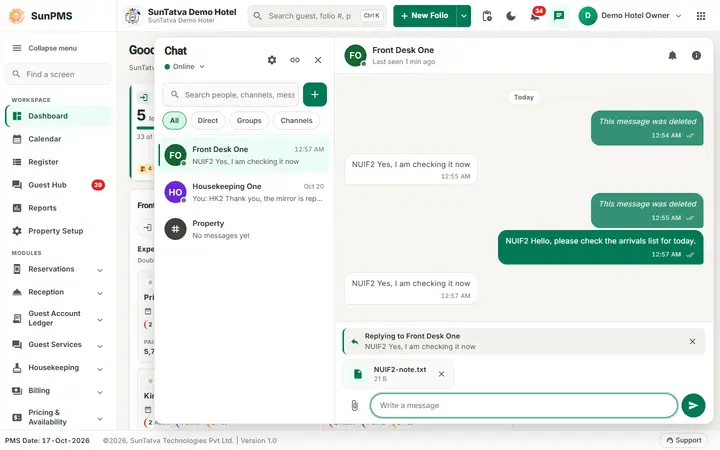
- Click the paper clip and choose one or more files, or drag files onto the chat, or paste a picture with Ctrl + V.
- Each file shows Uploading..., then its size; a red text means it was refused (see the table below). Click the x on a file to remove it.
- Type an optional text and send. Result: pictures show as a preview (click to enlarge, with Download); other files show as a file chip with name and size.
Allowed types (17): pictures (png, jpg, jpeg, gif, webp), PDF, text (txt, csv, rtf) and office files (doc, docx, xls, xlsx, ppt, pptx, odt, ods). Anything else, for example programs (exe), scripts, zip files and web pages, is refused with This file type is not allowed. The file content is also checked, so renaming a file does not help.
How to edit a message
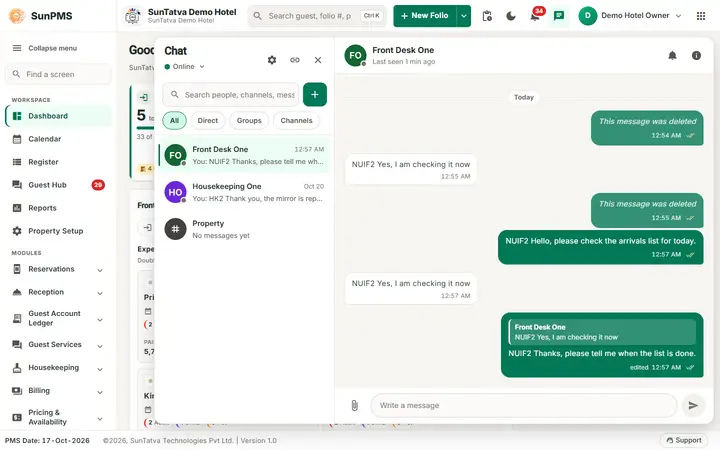
- Three dots on your message, Edit.
- The bar says Editing message and the text returns to the box. Change it and press Enter (or the tick button). Esc cancels. Result: the message shows edited next to the time for everyone. After the edit time (15 minutes by default) Edit is no longer offered, and attachments cannot be changed.
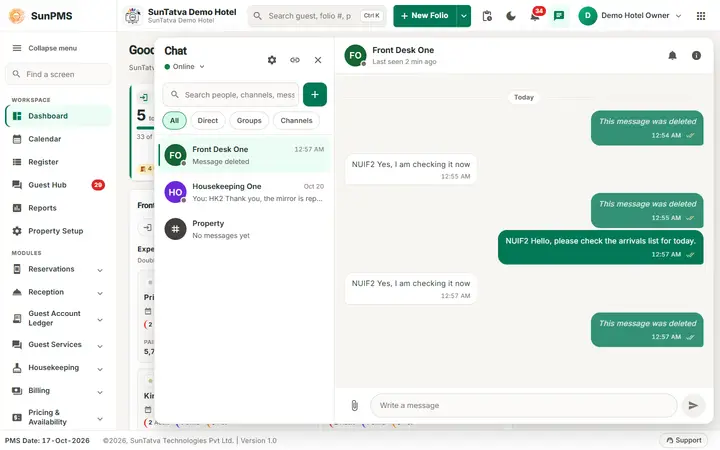
How to delete a message
- Three dots, Delete.
- Read Delete this message for everyone? and click Delete (or Cancel). Result: the text and files are removed for everybody and a grey bubble This message was deleted stays so the conversation still makes sense. A deleted message cannot be restored.
What the ticks mean
| Mark | Meaning |
|---|---|
| "..." | Still being saved. |
| One tick | Sent (stored on the server). For another app: the other app has received it. |
| Two ticks | Delivered to the person's screen. |
| Two light-blue ticks | Read. In groups click the ticks to see Message status (each person: Read, Delivered, Sent). |
| Clock, red warning, Retry | Only for messages to another app, see Linked apps. |
What happens behind the scenes
- A message is saved before it is shown to others; if you are offline, a red text with Retry and Discard appears under it.
- Files are stored on the hotel's own server, never at a public address; they are shown only to members of the conversation.
- A deleted message keeps only a placeholder; the text is removed from the database.
- Messages older than the retention period are purged automatically with their files.
Messages you may see
| Message (exact text) | Why it appears | What to do |
|---|---|---|
| The file exceeds the limit (the number is the property's limit). | Send a smaller file. | |
| The file has no content. | Pick another file. | |
| At most 5 files per message. | More than five files selected. | Send the rest in another message. |
| Upload failed | The upload could not finish. | Retry; check your connection. |
| The file is too large (10 MB at most). | The server refused the file size. | As above. |
| This file type is not allowed. | Type not in the allowed list. | Convert to pdf or a picture. |
| An attachment is missing or not yours. | The upload expired (24 hours) or belongs to someone else. | Attach it again. |
| At most 5 attachments per message. | Server limit. | Split the files. |
| The message is empty. | No text and no file. | Type something. |
| The message is too long (8000 characters at most). | Over the limit. | Shorten. |
| You are sending too fast. Wait a few seconds. | More than 30 messages in 10 seconds. | Wait. |
| The edit time of this message has passed. | Edit window over. | Send a new message. |
| The message was deleted. | You tried to edit a deleted message. | None. |
| Message not found. | It was purged. | Reload the chat. |
| Could not edit the message. | Edit failed. | Retry. |
| Could not delete the message. | Delete failed (for example not yours). | Retry or ask an administrator. |
| Could not load the messages. | The thread could not be read. | Close and reopen the chat. |
| This message was deleted | Placeholder of a deleted message. | None. |
| Sending / Retry / Discard | A message could not be sent. | Retry sends it again; Discard removes it. |
| Sent an attachment | Pop-up text for a message that has only a file. | None. |
Tips and FAQ
- Q: Can I send a message to be read later? A: Yes, it waits for the person; they see the red number at their next visit.
- Q: Can a colleague read my message after I delete it? A: No; they may have seen the pop-up already.
- Q: Can I attach a file bigger than 10 MB? A: No. Use a shared link instead.
- Q: Are my files scanned? A: Their type and content signature are checked; they are not scanned for viruses, so open files only from people you trust.
Screenshots