
Team chat: search, mute, status, typing and read receipts
On this page
Five small features that keep chat useful on a busy desk: finding an old message, silencing a noisy chat, telling colleagues you are busy, seeing that someone is answering, and knowing that your message was read.
Before you start
- Open the chat window. Everything below sits in the list on the left or in the header of a conversation.
How to search
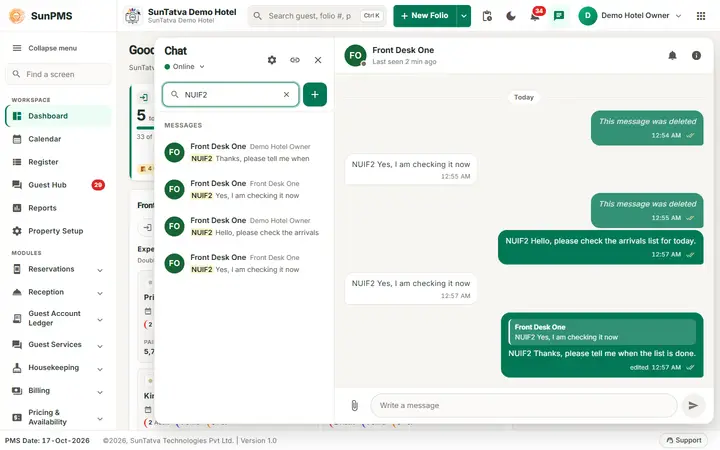
- Click Search people, channels, messages at the top of the list.
- Type at least a few letters. After a short pause the results appear in blocks: People, Linked apps (people of other apps, when chat with linked apps is on), Groups and channels, Messages.
- In Messages each hit shows the conversation, the sender and the words around the match, with the match highlighted. Click it to jump to that message.
- Click the x in the box to clear.
Result: only conversations you are a member of are searched. Matching is by the start of each word and also searches attachment file names. If nothing matches you see Nothing found for "
".
How to mute a conversation
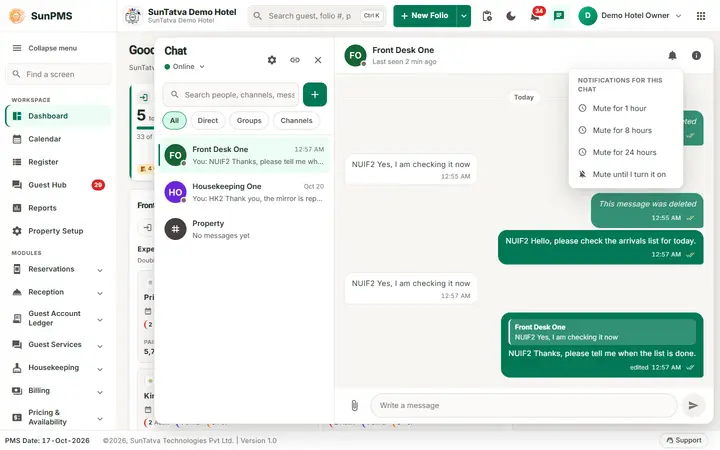
- Open the conversation. Click the bell icon in its header (tooltip Mute notifications).
- Choose Mute for 1 hour, Mute for 8 hours, Mute for 24 hours or Mute until I turn it on.
- To switch back, click the bell-off icon (tooltip Muted) and choose Unmute. Result: new messages are still stored and counted in the list (a grey number), but there is no pop-up, no sound and no red number on the chat button.
How to set your status
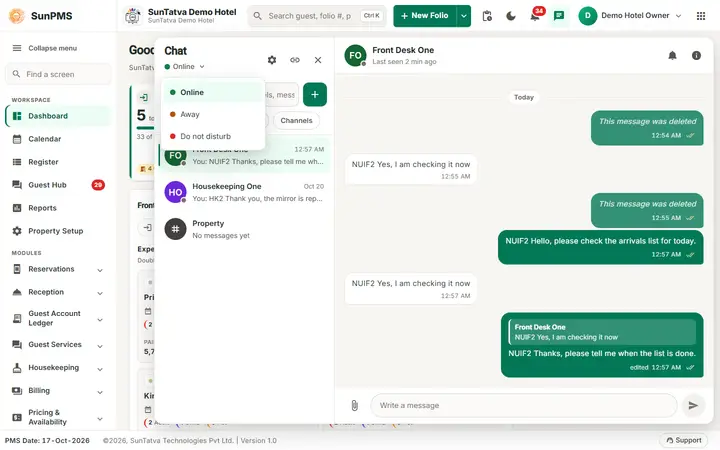
- Click the round dot in the chat header (tooltip Status: Online).
- Choose Online, Away or Do not disturb. Result: others see a green, amber or red dot at your name. Away is also set automatically after 5 minutes without any activity and goes back to Online when you use the screen. Do not disturb stops pop-ups and sounds for you on this computer (kept in the browser); the messages still arrive.
Typing and last seen
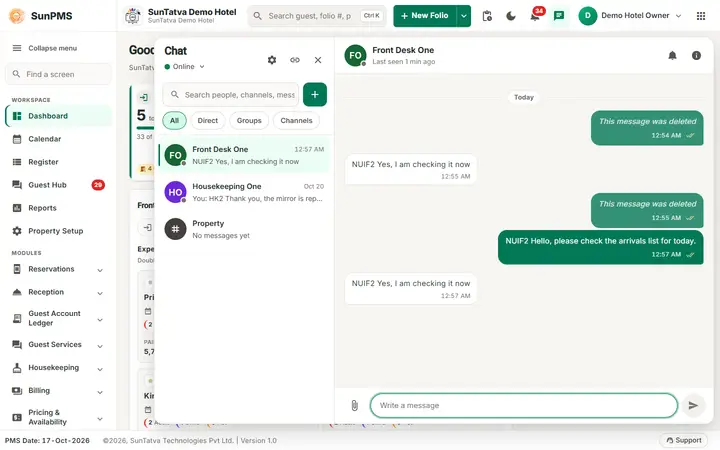
While the other person types you see
Read receipts (ticks)
| What you see next to your message | Meaning |
|---|---|
| One tick | Sent. |
| Two ticks | Delivered to the other person's screen. |
| Two light-blue ticks | Read (the person opened the chat). |
| Click the ticks of a group message to see Message status with Read, Delivered or Sent for each person. Channels show no ticks. |
What happens behind the scenes
- Your unread count per chat is a position ("read up to message n") stored on the server, so it is the same on every computer.
- Search uses the database's text index; it is limited to chats you belong to, so nobody can find a message from a chat they are not in.
- Online / away is kept in memory of the server and written as last seen when your last window closes.
- Typing signals are sent at most every 3 seconds and fade after 6 seconds. Across apps they are relayed best effort (nothing is stored): you see them for a person of a linked app only when that app is reachable, and a lost signal is simply not shown.
Messages you may see
| Message (exact text) | Why it appears | What to do |
|---|---|---|
| Nothing found for " |
The search found no match. | Try fewer letters. |
| Searching... | The search is running. | Wait. |
| Mute notifications / Muted | Tooltips of the bell icon. | None. |
| Unmute | Menu item of a muted chat. | None. |
| Could not change mute. | The server did not accept the choice. | Retry. |
| The mute setting is not valid. | The mute choice was refused. | Use Mute until I turn it on. |
| Status: Online / Away / Do not disturb | Tooltip of your status dot. | None. |
| Message status | Title of the read-receipt list. | None. |
Tips and FAQ
- Q: I muted a chat but still see a number. A: Muted chats keep a grey number in the list but not on the chat button.
- Q: Why does my colleague show "Last seen" although they are at the desk? A: They have no SunPMS window open, or their connection dropped.
- Q: Can I search other people's chats? A: No.