Team chat: open the chat window and start a direct chat
On this page
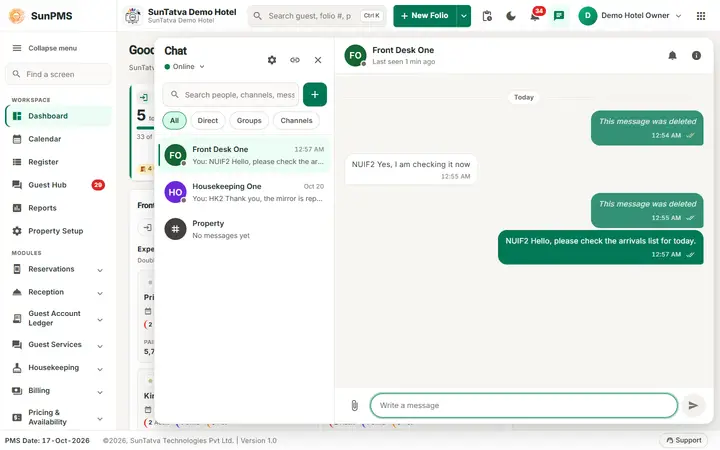
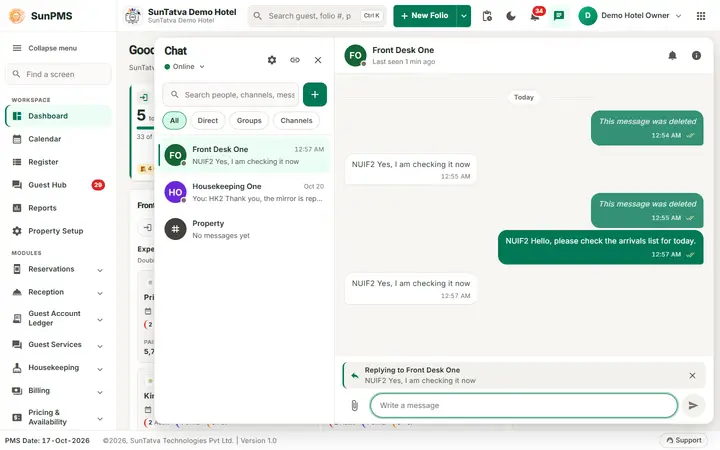
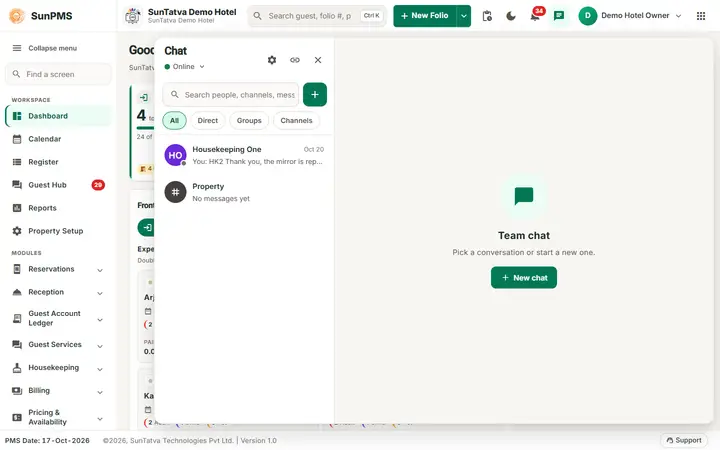
The chat window is a large panel (up to about 1120 pixels wide) that opens under the header at the right, with the conversation list on the left and the open conversation on the right, so you can read and write at the same time. It lets you write to a colleague of your property in a few seconds, from any SunPMS screen. A direct chat is a private conversation between two people; each pair of people has exactly one, so the whole history is always in the same place.
Before you start
- The property has the licence Team Chat and your role has Access to Communication (chat). If the chat button is missing, see Chat problems.
- You signed in through SunAuth (not with a PIN).
- The other person has a user in this property with the chat privilege; people who cannot chat are not listed.
Screen layout
| Item | What it means | Rules |
|---|---|---|
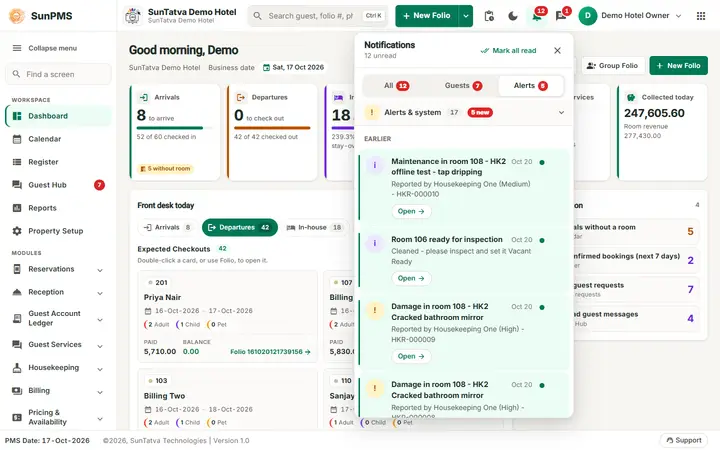
| Chat button (header) | Opens and closes the chat window. | Red number = unread messages in chats that are not muted (99+ above 99). Tooltip Team chat. |
| Chat title | The conversation list. | |
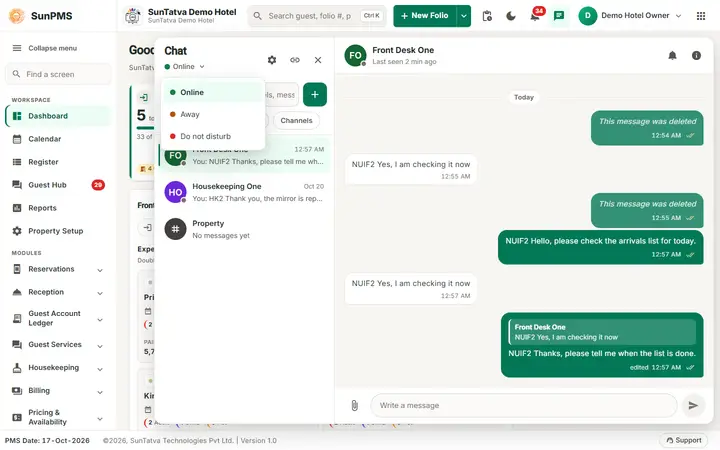
| Round dot | Your status: Online, Away, Do not disturb. | See Search, mute, status and receipts. |
| Gear (Channels and settings) | Manage channels and chat settings. | Only for users with Manage Communication Channels or Communication Administration. |
| Link icon (Linked apps) | Cross-app administration. | Only for administrators, and only when chat with linked apps is available. See Linked apps admin screen. |
| + (New chat) | Start a direct chat or a group. | |
| x (Close chat) | Closes the window. | Your conversations stay. |
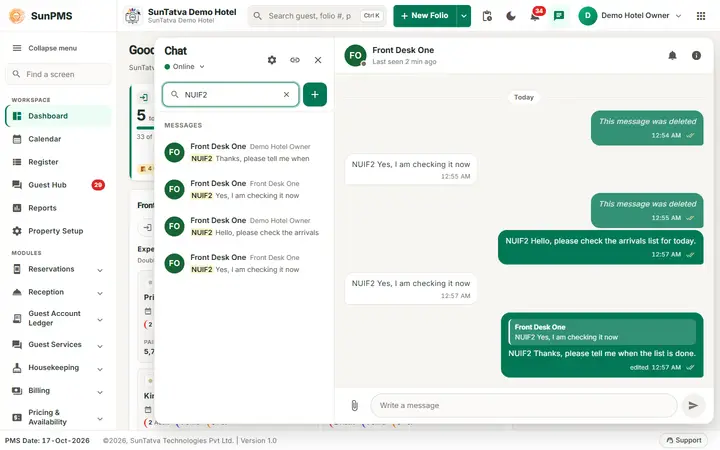
| Search people, channels, messages | Finds people, groups, channels and words inside messages. | |
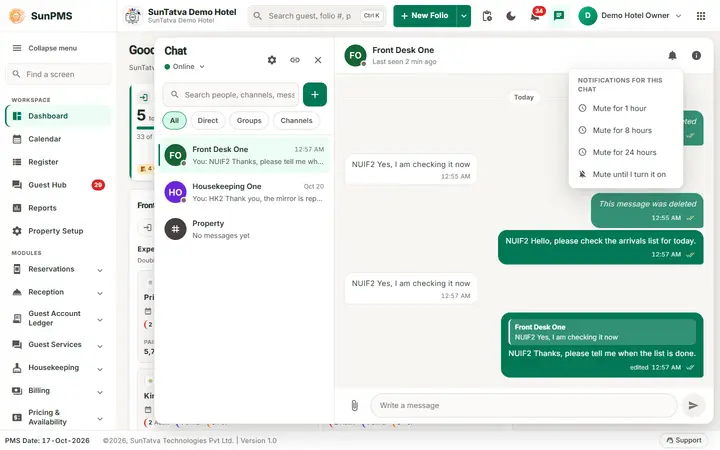
| All / Direct / Groups / Channels | Filters the list. Each shows its own unread count. | |
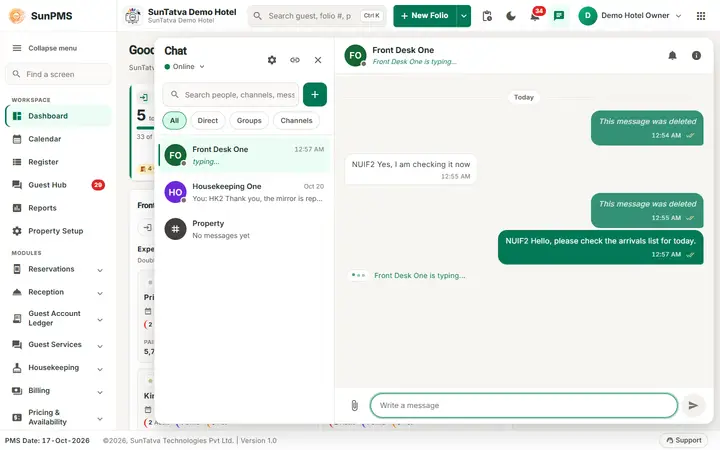
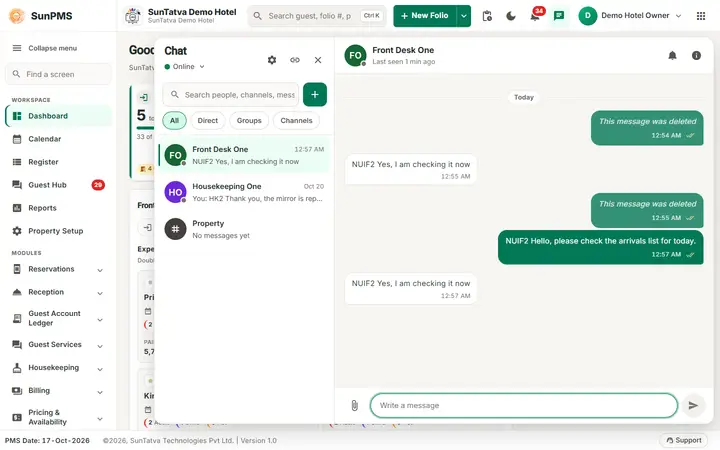
| A conversation row | Name, last message (or typing...), time, unread number. | Bold = unread. A muted chat shows a bell-off icon and a grey number. |
| No conversations here yet. and Start a chat | You have no conversations in this filter. | |
| Right pane | The open conversation, with an info (Details) button that opens the people, files and settings of the conversation beside it (as a slide-over on smaller screens). When none is open: Team chat - Pick a conversation or start a new one. with a New chat button. | On a phone the chat window is full screen and the list and the conversation take turns, with a back arrow. |
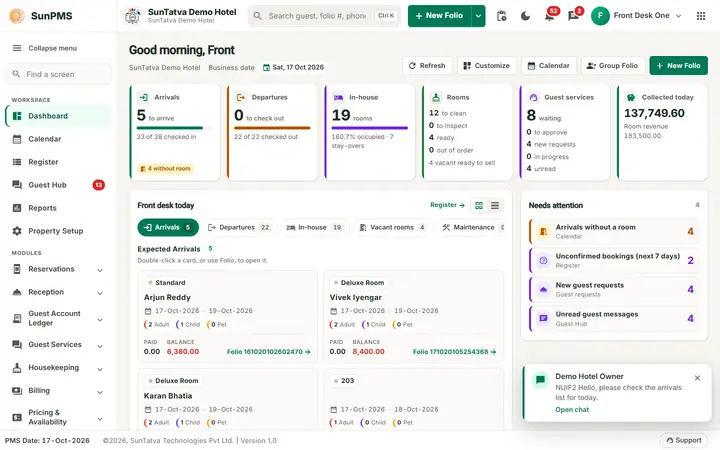
| Pushed message card | Pushed messages appear as a card at the bottom right (about 380 pixels wide, with Open chat); the card opens the chat, the x only dismisses it. |
How to start a direct chat
- Click the chat button in the header. The window opens.
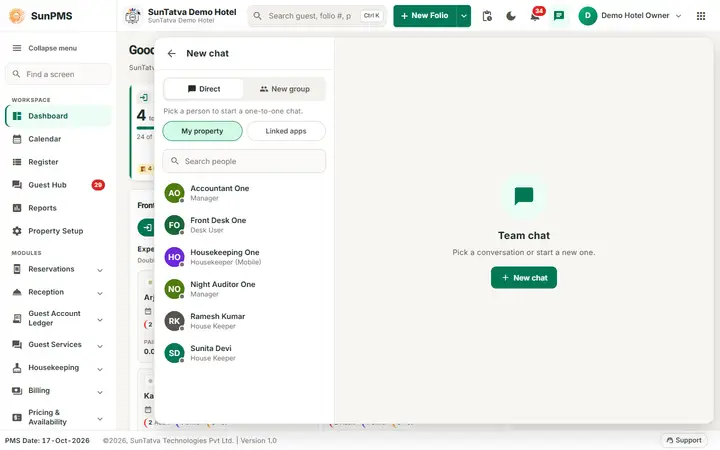
- Click + (New chat). The tab Direct is selected.
- Type a name in Search people (for example Front).
- Click the person. Result: the conversation opens, the heading shows the person's name and Online or Last seen, and the composer says Write a message.
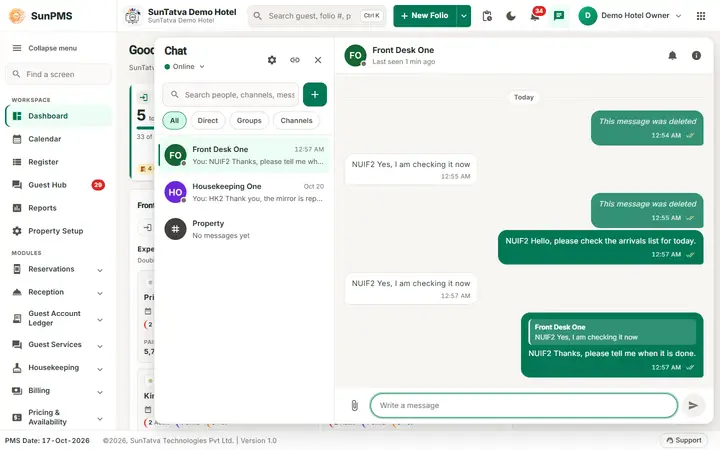
- Type your message and press Enter (or click the send button). Shift + Enter starts a new line.
The first message creates the chat for both people. From then on you find it in the list under Direct.
How to continue an existing chat
- Open the chat window.
- Click the conversation in the list (or type the person's name in the search box).
- Type and press Enter. Older messages load with Load earlier messages; New messages marks where you stopped reading.
What the other person sees
- A pop-up (and a short sound) with your name and the start of your message, a red number on their chat button, and a bold row in their list. If the chat is muted or they are on Do not disturb, there is no pop-up or sound.
- When they open the chat your ticks change (see Messages).
What happens behind the scenes
- The message is saved in the property's database first, then pushed to the other person's open screens; if they are offline they see it at their next sign-in.
- Closing the window does not leave the chat. Unread counts are kept on the server, so they are the same on every computer you use.
- You cannot start a chat with yourself.
Messages you may see
| Message (exact text) | Why it appears | What to do |
|---|---|---|
| No messages yet | A new chat or channel without messages. | Write the first one. |
| No messages yet. Say hello. | The open conversation is empty. | Write the first one. |
| Nobody found. | The search matched nobody who can chat. | Check the spelling; the person may lack the chat privilege or be inactive. |
| You cannot chat with yourself. | You clicked your own name. | Pick someone else. |
| That person is not available for chat. | The person is inactive or has no chat right. | Ask an administrator. |
| You are sending too fast. Wait a few seconds. | More than 30 messages in 10 seconds. | Wait and send again. |
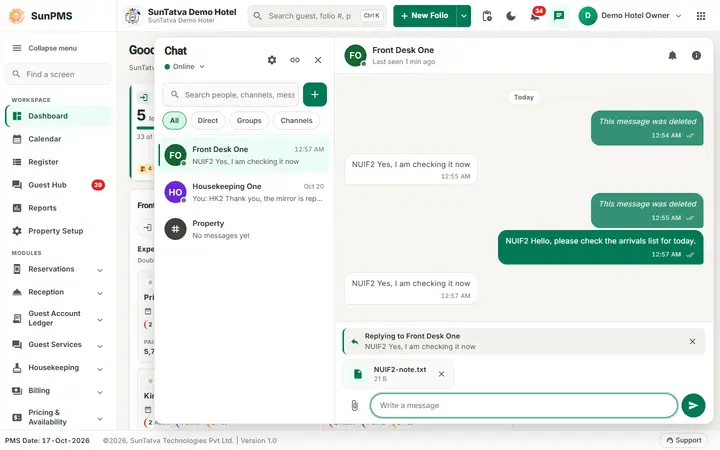
| The message is empty. | You sent only spaces. | Type text or attach a file. |
| The message is too long (8000 characters at most). | The text exceeds the limit. | Shorten it or split it. |
| Could not start the chat. | The server refused (see the reason after it). | Retry; if it repeats, tell support. |
Tips and FAQ
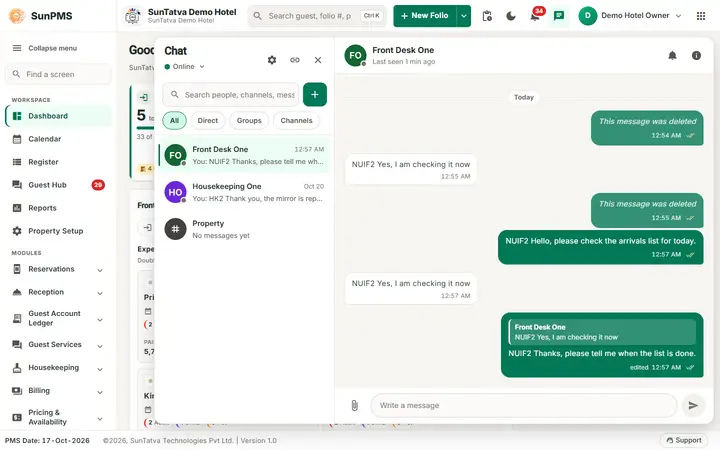
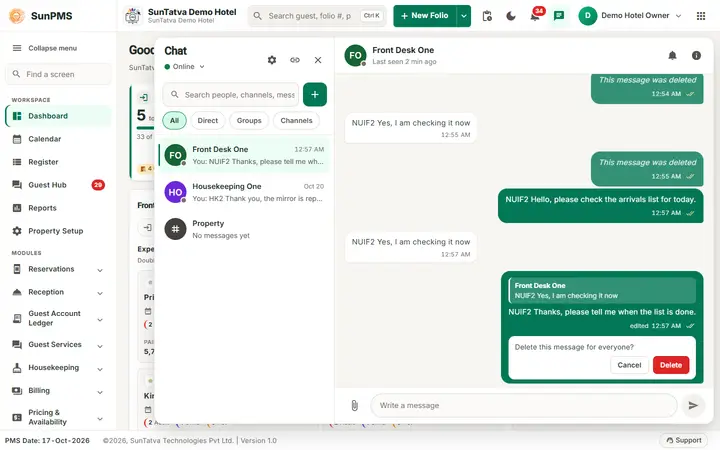
- Q: Can I delete a whole chat? A: No. You can delete your own messages and mute a chat. Old messages are removed automatically after the retention period.
- Q: I closed the window, did I miss messages? A: No. Unread messages stay unread and the chat button keeps its red number.
- Q: How do I write to someone in the restaurant or car park? A: Use the Linked apps tab, see Linked apps and cross-app chat.
Screenshots