Team chat: channels
On this page
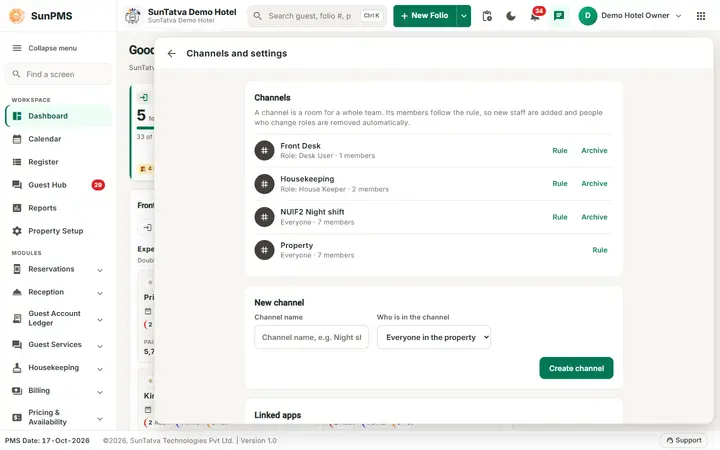
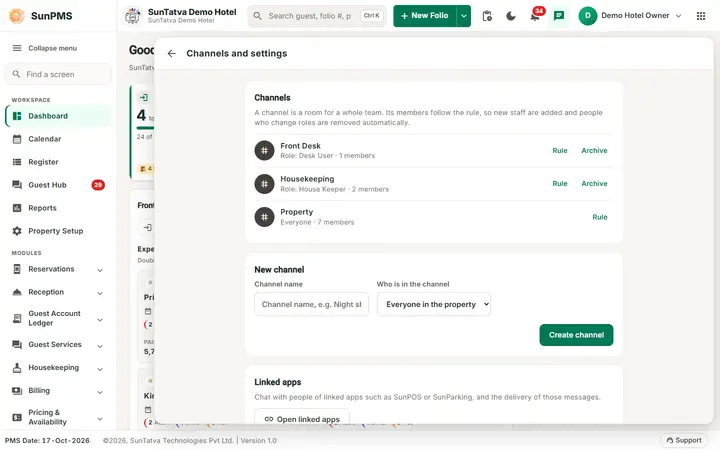
A channel is a standing room for a whole team, such as the front desk, housekeeping or the night shift. Nobody is added by hand: the channel has a rule and everyone who matches the rule is a member. When a new colleague joins a role, they find the channel in their list; when someone changes role, they drop out of it.
Before you start
- To only read and write in channels you need nothing special.
- To create, change or archive a channel you need Manage Communication Channels (privilege 263). To change the chat settings (retention, file size) you need Communication Administration (265). Owners and administrators have both. See Chat settings, privileges and retention.
- Decide the rule: everyone, a role (for example Desk User) or a privilege.
Channels created for you
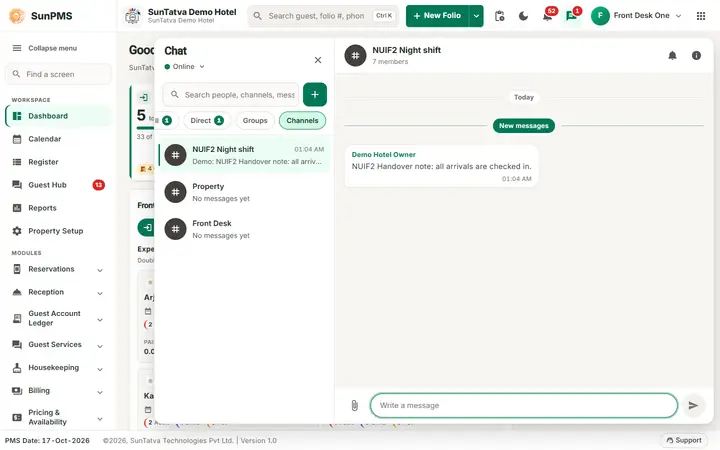
The first time chat is used in a property, the system creates Property (everyone) and one channel per main department, for example Front Desk (role Desk User) and Housekeeping (role House Keeper). You only see the channels whose rule you match.
How to use a channel
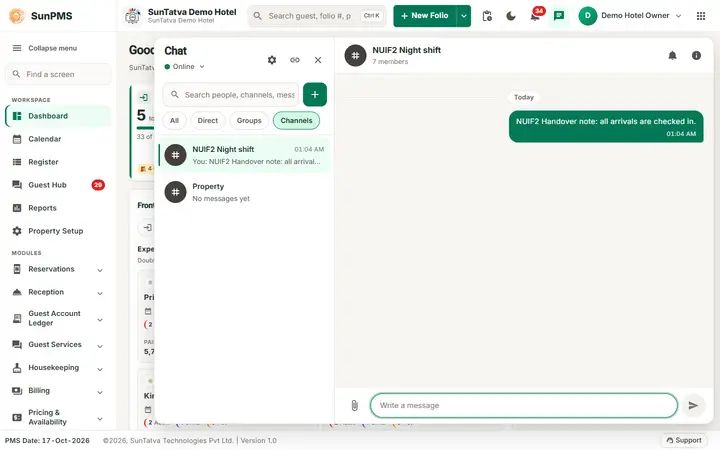
- Open the chat window, click the filter Channels.
- Click a channel and write as in any chat. Everyone in it sees your name above your message.
- Mute it from the bell icon in its header if it is too busy (see Search, mute, status and receipts). There is no Leave in a channel and nobody can add or remove a person: the rule decides.
How to create a channel
- In the chat window click the gear (Channels and settings).
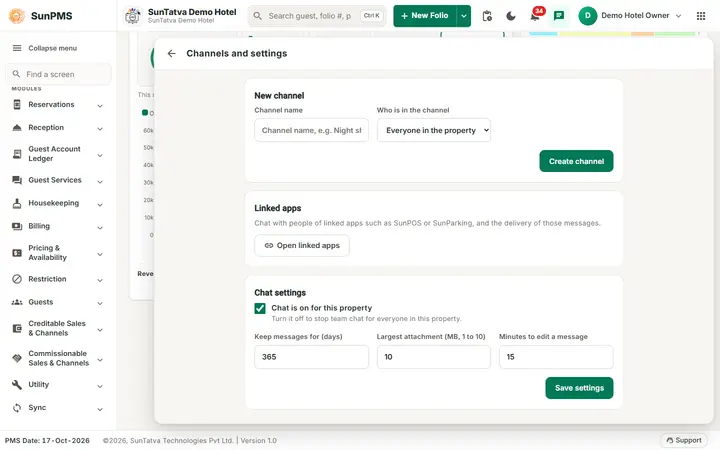
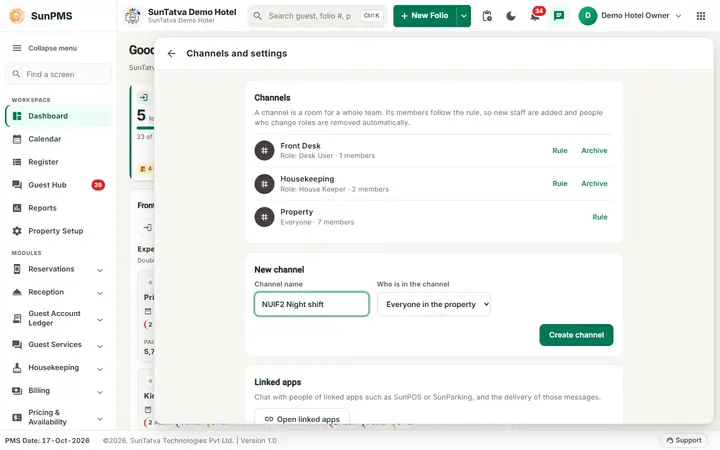
- Under New channel type the Channel name (for example Night shift).
- Choose Who is in the channel: Everyone in the property, People with a role or People with a privilege.
- For a role type the Role name (the suggestion list shows the roles of the property); for a privilege type the Privilege code.
- Click Create channel. Result: Channel created. and the channel appears in the list above, with its rule and member count. The members see it at once, without doing anything.
How to change who is in a channel
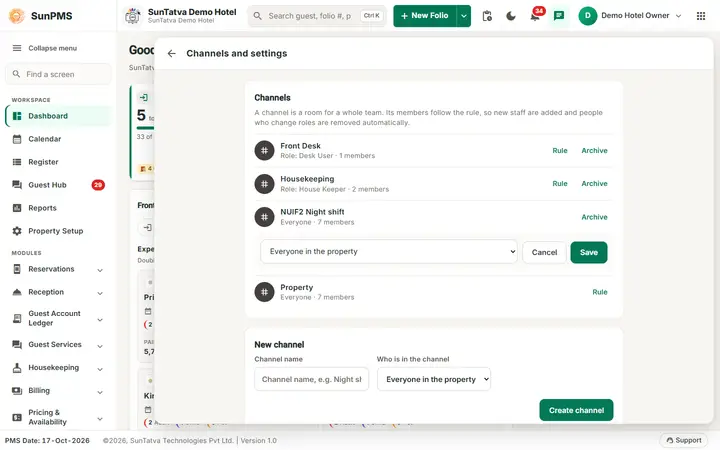
- Gear, Channels and settings.
- Click Rule on the channel.
- Change Rule type and, if needed, the role name or privilege code. Click Save (or Cancel). Result: members are recalculated immediately. People who no longer match drop out; new matches join.
How to archive or restore a channel
- Gear, Channels and settings.
- Click Archive on the channel (not offered for Property). The channel says (archived) and nobody can write in it; the history stays.
- Click Restore to open it again.
Screen layout of Channels and settings
| Block | What it does | Who sees it |
|---|---|---|
| Channels | Lists every channel with its rule ("Everyone", "Role: Desk User",...) and member count; Rule, Archive / Restore. | Users with channel management. |
| New channel | Name, rule type, rule value, Create channel. | Users with channel management. |
| Linked apps | Button Open linked apps. | Chat administrators. |
| Chat settings | Chat is on for this property, Keep messages for (days), Largest attachment (MB, 1 to 10), Minutes to edit a message, Save settings. | Chat administrators. |
What happens behind the scenes
- Membership is refreshed when a rule is saved, when you open the people list and at least every 10 minutes per property, so a role change shows up within minutes, not instantly.
- A channel's messages are visible to every member, including members who join later.
- Archiving does not delete anything.
Messages you may see
| Message (exact text) | Why it appears | What to do |
|---|---|---|
| Channel created. | A channel was created. | None. |
| Give the channel a name. | Channel name empty. | Type a name. |
| The channel rule is not valid. | Missing role / privilege value or an unknown rule type. | Pick a rule type and fill the value. |
| Channel archived. / Channel restored. | You archived or restored a channel. | None. |
| Settings saved. | Chat settings saved. | None. |
| A setting value is out of range. | For example retention below 7 days or file size above 10 MB. | Use the limits shown on the field. |
| This conversation is archived. | Someone tried to write in an archived channel. | An administrator restores it. |
| You are not allowed to do that. | You lack the privilege. | Ask an administrator. |
| Could not load. | The list could not be read. | Close and reopen the window. |
Tips and FAQ
- Q: A colleague does not see a channel. A: Check their role against the rule; role names must match exactly. They may need to open the chat window once to refresh.
- Q: I am the owner but do not see the Front Desk channel. A: Your role does not match its rule. Change the rule to Everyone in the property, or ask to be given that role.
- Q: Can I rename a channel? A: Create a new channel with the right name and archive the old one.
Screenshots