
Chat settings, privileges and message retention
On this page
An administrator decides who may chat, who manages channels, how long messages are kept and how big a file can be. This page lists the four chat privileges and the Chat settings block.
Before you start
- You are the owner or a user whose role has Communication Administration for the settings.
- The property has the licence Team Chat (see Licences for chat); without it no chat privilege has any effect.
The four chat privileges
| Privilege (as shown in Assign Transaction Privileges) | No. | What it allows | Given by default to |
|---|---|---|---|
| Access to Communication (chat) | 262 | See the chat button, read and write messages, start direct chats and groups, use channels you belong to. | Every active role |
| Manage Communication Channels | 263 | Create, change the rule of, archive and restore channels. | Owner and Administrator role types |
| Cross-app Chat | 264 | Start chats with, and add people from, linked apps (SunParking, SunPOS). | Owner and Administrator role types |
| Communication Administration | 265 | Chat settings, the Linked apps screen, delete other people's messages, remove members from groups, run the retention clean-up. | Owner and Administrator role types |
The owner of the group always passes every check.
How to give or take away a chat privilege
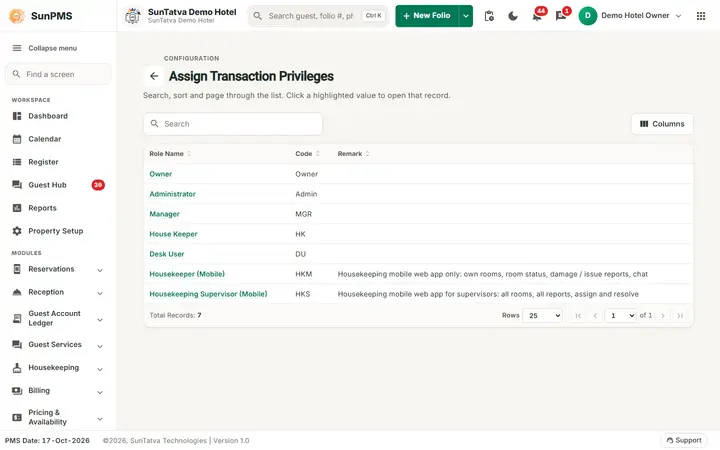
Click a role in Assign Transaction Privileges to open its privileges.
- Open Property Setup > Property Configuration > Configuration > Assign Transaction Privileges.
- Click the role name, use Search privileges... and type Communication or Cross-app.
- Tick or clear the box, click Save.
- Ask the affected users to sign out and in again. Result: with 262 cleared the chat button disappears for that role (the bell stays); with 263 cleared the gear no longer offers channel management. Details of this screen are in Change role privileges.
How to change the chat settings
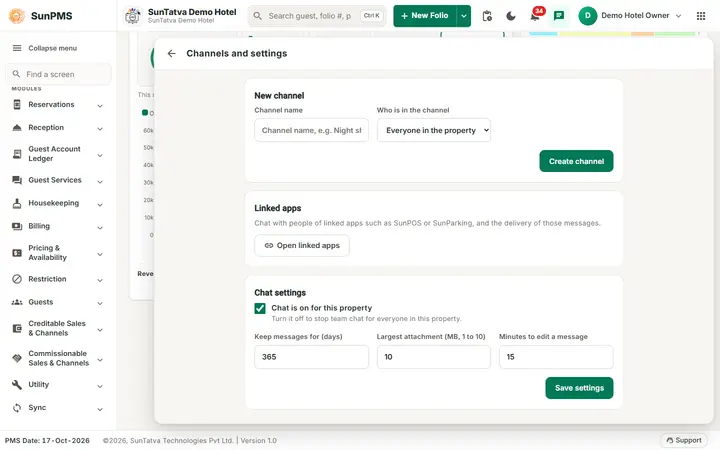
- Open the chat window and click the gear (Channels and settings).
- Scroll to Chat settings.
- Change what you need and click Save settings.
| Field | What it does | Rules |
|---|---|---|
| Chat is on for this property | Master switch. Off hides the chat button for everyone, the bell stays. | Default on. |
| Keep messages for (days) | Messages older than this are deleted automatically with their files. | 7 to 3650. Default 365. |
| Largest attachment (MB, 1 to 10) | Largest file a user may send. | 1 to 10. Default 10. |
| Minutes to edit a message | How long the sender can still edit. | 0 to 1440. Default 15. 0 switches editing off. |
| Result: Settings saved. The settings apply at once to everybody in the property. |
The switch Chat with linked apps is on the separate Linked apps screen.
What happens behind the scenes
- Retention: the clean-up runs once a day for each property (the first time anyone opens the app after a server start and every 24 hours) and when an administrator triggers it. It removes expired messages, their files and old notifications; a message deleted by a user is already empty.
- Privileges are loaded at sign-in; a changed role needs a new sign-in.
- Channels follow roles: when a role is changed or a user is deactivated, channel membership follows within about 10 minutes.
- Administrators can delete a message or remove a member for moderation, but cannot read chats they are not in.
Messages you may see
| Message (exact text) | Why it appears | What to do |
|---|---|---|
| Settings saved. | Saved. | None. |
| A setting value is out of range. | A number outside the limits above. | Use the limits. |
| You are not allowed to do that. | A privilege is missing. | Ask an administrator. |
| Sign in with your SunAuth account to use chat. | PIN-only sign-in. | Sign in through SunAuth. |
| Could not save. | The save failed. | Retry. |
Tips and FAQ
- Q: I switched chat off; where did the history go? A: Nothing is deleted. Switch it on again and it is all there.
- Q: Can I give chat only to the front desk? A: Clear Access to Communication (chat) on the other roles.
- Q: I lowered retention to 30 days; are old messages gone? A: They are removed at the next daily clean-up.