Search Group
On this page
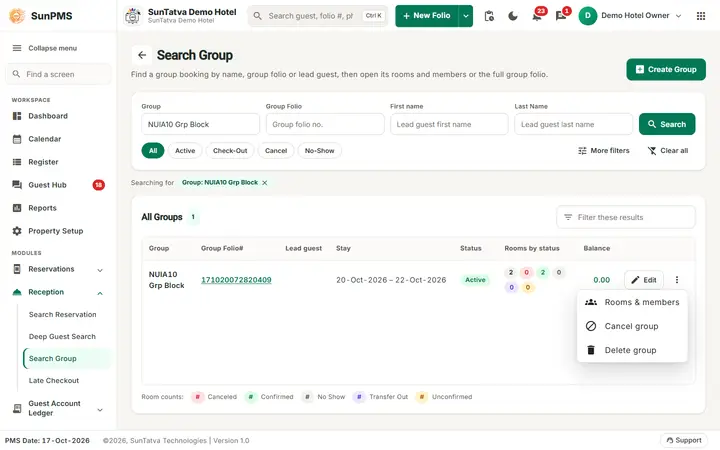
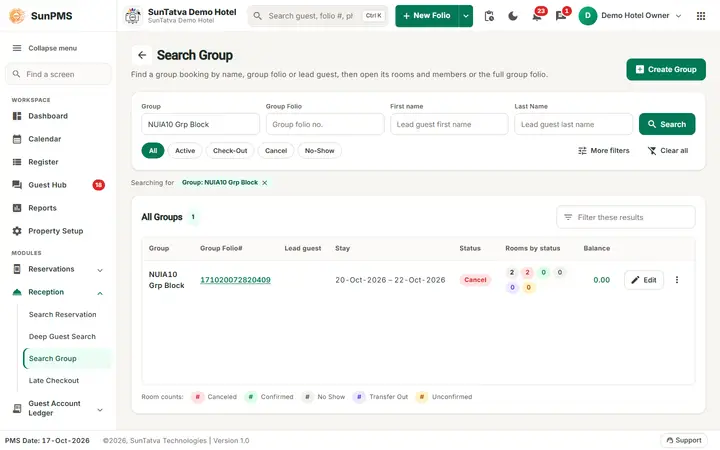
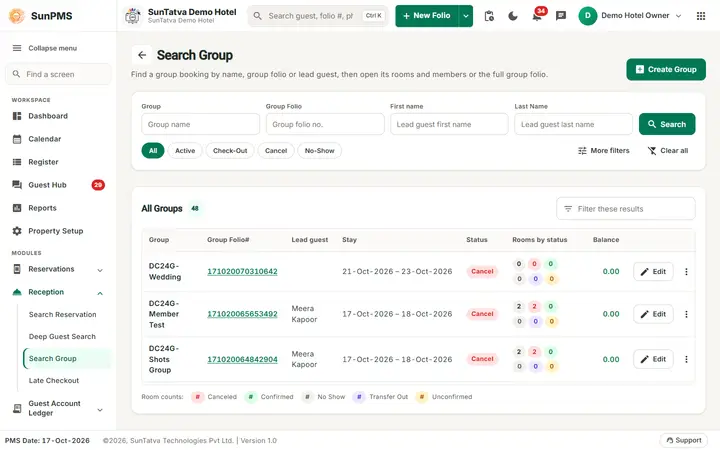
Lists group bookings in a table. Clicking a row shows the group's rooms and members. Creating a group and the group folio are documented in chapter 7 Reservations.
Before you start
- The menu item exists only when Group is on in Feature Setting.
- The Simplified Group Check-In / Reservation Screen switch in Feature Setting changes only the group folio you open from here (see Simplified Search Group); this search screen looks the same either way.
Screen layout
Search card (press Enter in any field to search)
| Item | Meaning |
|---|---|
| Group, Group Folio, First name, Last Name | Filters (group name, group folio number, lead guest). Search runs them. |
| Chips All, Active, Check-Out, Cancel, No-Show | Which groups to list; a click applies at once. |
| More filters (badge = filters in use) | Date In (tick the box to use it) and Source (sales channel). |
| Clear all | Empties the criteria. |
| Create Group (top right) | Opens a new group folio. |
Results (the heading, for example "All Groups", with the count, and Filter these results for a quick text filter; the criteria in use show as removable chips)
| Column | Meaning |
|---|---|
| Group, Group Folio# (link, opens the group folio), Lead guest, Stay | Identity and dates. |
| Status | Group status chip (for example Cancel). |
| Rooms by status | Total count, then coloured counts: Canceled, Confirmed, No Show, Transfer Out, Unconfirmed (explained in the "Room counts" legend under the table). |
| Balance | Green when settled, red when due. |
| Edit, three-dot menu | Edit opens the group folio. The menu has Rooms & members, Cancel group and Delete group (disabled without Access to Delete Reservation). |
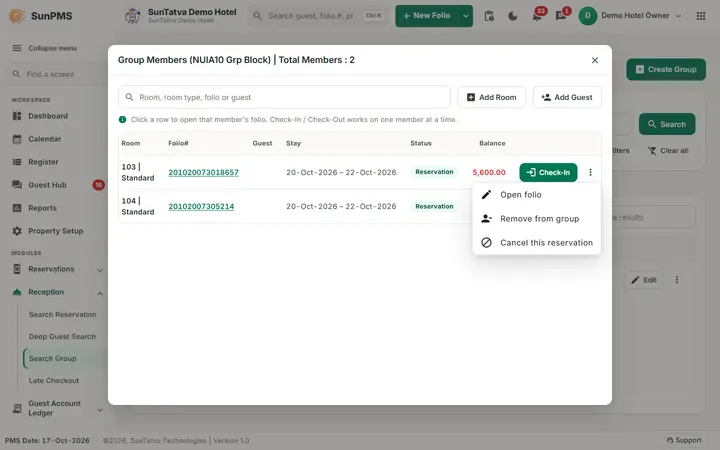
Clicking a row (or pressing Enter on it) opens Group Members (
What the buttons act on
| Button | Acts on | Rule |
|---|---|---|
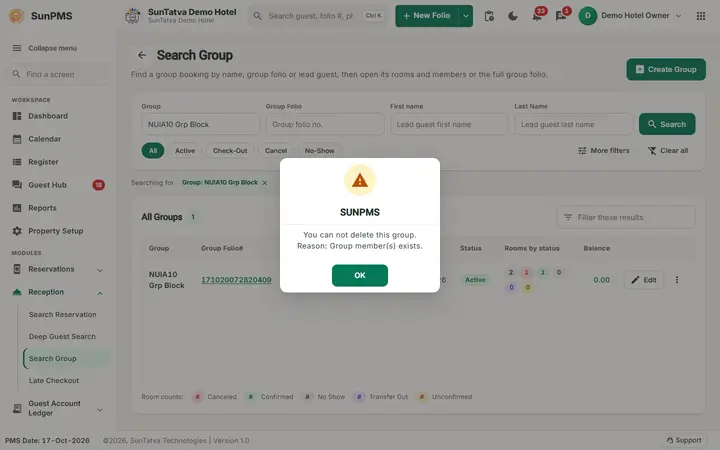
| Delete group (row menu) | The whole group | Are you sure you want to delete this group? The members of that group are read first; refused while it has any (You can not delete this group. Reason: Group member(s) exists.). Needs Access to Delete Reservation. |
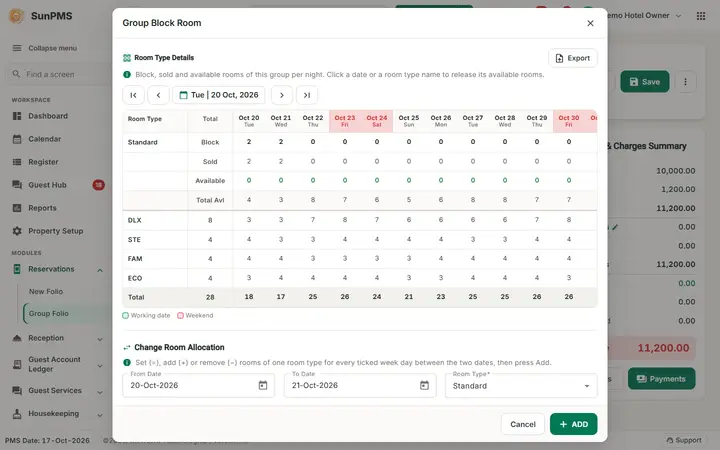
| Cancel group (row menu) | The whole group and its members | Are you sure you want to cancel this group? The members of that group are read first; refused when one is checked in (You can not cancel this group. Reason: Some group member(s) already checked-in.). Result: Group cancelled successfully. The member reservations are cancelled and the group's room block is released. |
| Remove from group (member menu) | Only that member | Are you sure you want to remove? The member leaves the group and stays a normal reservation: Group Member removed successfully. Needs Access to Un-Group members. |
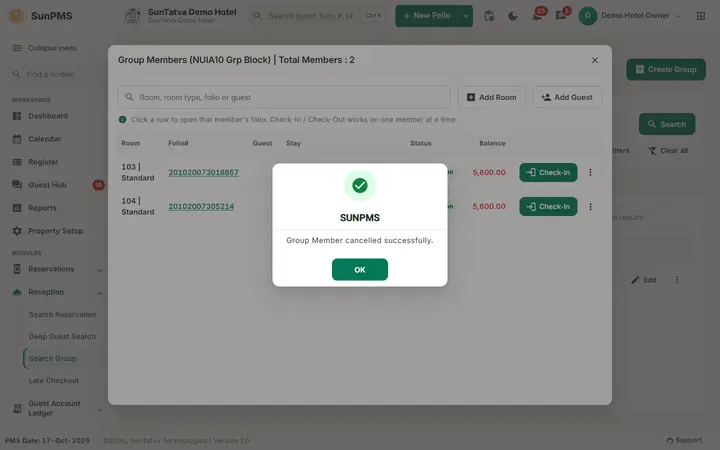
| Cancel this reservation (member menu) | Only that member | Are you sure you want to cancel? Result: Group Member cancelled successfully. Disabled for checked-in, cancelled or no-show members and without the cancel privilege (CRS cancel privilege for CRS groups). |
After a member action the member window reloads the same group.
How to cancel one member
- Click the group's row to open its members.
- On the member's row open the three-dot menu and choose Cancel this reservation.
- Click Yes in Are you sure you want to cancel?. Result: Group Member cancelled successfully.; the other members and the group stay as they are.
How to cancel a whole group
- On the group's row open the three-dot menu and choose Cancel group.
- Click Yes in Are you sure you want to cancel this group?. Result: Group cancelled successfully.; the members are cancelled and the room block is released. A group with a checked-in member cannot be cancelled: check that member out or remove it first.
In the demo (group DC24D-Wedding, 21-23 Oct, rooms 102 and 202, one Economy room blocked): Cancel this reservation on room 202 answered Group Member cancelled successfully.; Delete group answered You can not delete this group. Reason: Group member(s) exists.; Cancel group answered Group cancelled successfully. and the row shows the status Cancel. Demo names and figures change.
Messages you may see
| Message | Why |
|---|---|
| You can not delete this group. Reason: Group member(s) exists. | Remove members first. |
| Group deleted successfully. / Group cancelled successfully. | Done. |
| You can not cancel this group. Reason: Some group member(s) already checked-in. | |
| Group Member removed successfully. / Group Member cancelled successfully. | |
| You can not do check-in to No-show/Cancel Member. | |
| Back date reservation can not be convert to check-in. / Invalid Check-In date. / Please assign Room to this reservation before convert it to check-in. | Check-in rules. |
| Reservation successfully checked-in. / Member successfully checked-out. | |
| You can not add Member(s) in checked-out group. /...in back dated group. | |
| Sorry, you do not have permission to access past dated transaction. | |
| The group members could not be read. Please try again. | Delete or Cancel group could not read the members of the group. Try again. |
Screenshots