
Dashboard
On this page
The Dashboard is the manager's and front desk's one-page view of the property today: what is arriving and leaving, what needs attention, how the month and year are doing against last year, what is booked for the coming days, and how housekeeping is progressing. Every block can be hidden or re-ordered for your own view with Customize (see Customize the dashboard and work the missed arrivals).
Before you start
- Your role needs Access to Dashboard. Without it the brand link and the sign-in go to the Property Calendar, and on phones the first tab is Reports.
- Figures are for the business date (the PMS date shown in the footer).
- Money figures (collected today, room revenue, ADR, RevPAR, revenue by department, the monthly chart) show only to roles with Monthly Revenue Chart. Other roles see a lock line instead and counts only.
Screen layout
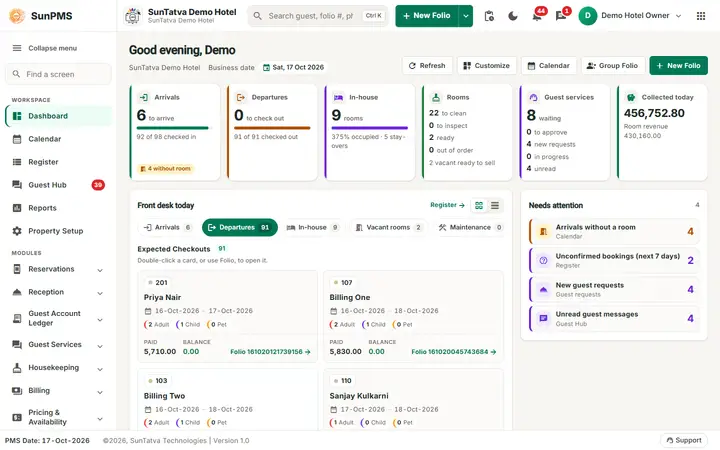
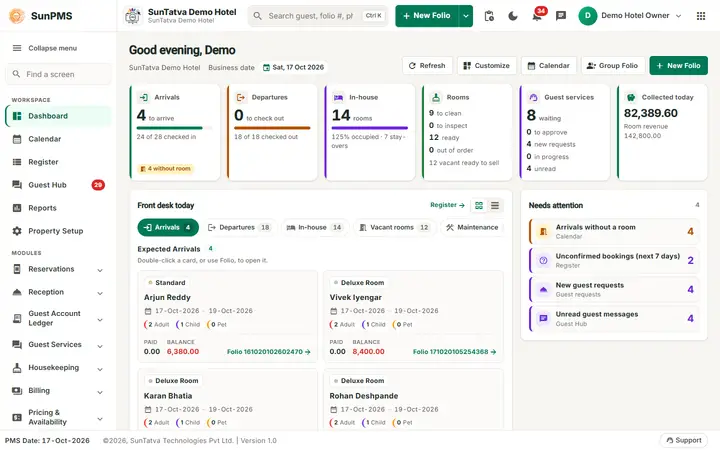
The dashboard of the demo hotel in the evening (figures change).
Top of the page: a greeting with your first name, the property name and the Business date chip (the date picker is limited to the PMS date, so it always shows today), and the buttons Refresh (reload every figure), Customize, Calendar, the group folio button (when groups are on) and New Folio (captions follow your property settings). A dot on Customize means you use a custom layout.
The blocks below appear in the default order. Each can be hidden or moved with Customize.
| Block | What it shows | Rules |
|---|---|---|
| Today strip (tiles) | Arrivals (to arrive, "n of m checked in" bar, chip "n without room"); Departures (to check out, "n of m checked out", chip "n owe amount" for guests leaving with a balance); In-house (rooms, occupancy bar, stay-overs); Rooms (to clean, to inspect, ready, out of order, vacant ready to sell); Guest services (to approve, new requests, in progress, unread); Collected today (payments taken on the business date, with room revenue). | Click Arrivals, Departures or In-house to jump to that list in the worklist. Rooms opens Change room status; Guest services opens Guest Hub (needs the Guest Interface licence). Collected today needs Monthly Revenue Chart. |
| Front desk today (worklist) | Tabs with counts: Arrivals, Departures, In-house, Vacant rooms, Maintenance, OTA bookings. Switch between Cards and Table with the two buttons. A card shows room, folio status, Sales & Channels, guest name, dates, guests (adult / child / pet), paid, balance (red when owed) and Folio n. | Double-click a card, or click Folio n or the arrow, to open the reservation; Back returns here. Room lists (vacant, maintenance) open a new folio for the room. The table columns can be sorted by clicking their headings. |
| Needs attention | One line per follow-up with a count: Overstays, Missed arrivals, Departures with a balance (with the amount due), Arrivals without a room, Unconfirmed bookings (next 7 days), Channel bookings not posted, Online check-ins to approve, New guest requests, Unread guest messages, Rooms out of order. | Hover for the explanation. A line opens the screen that handles it; Missed arrivals opens a list you can act on (see the next page). "All clear: nothing waiting." shows when there is nothing to do. |
| Performance | Choose Today, Month or Year: Occupancy, ADR, RevPAR, Room revenue and Rooms sold. Switch vs last year on to show the same period last year and the change next to each figure. Revenue by department lists room revenue and other-charge categories (restaurant / bar postings are marked) for the month, with today's amount. | Revenue, ADR and RevPAR need Monthly Revenue Chart. Links lead to the Other charges and MTD / YTD comparison reports when your role may open them. |
| Room types today and Last 7 days | Rooms sold against rooms to sell per room type with occupancy %; bookings, cancellations and no-shows of the last 7 business days with their room nights. | The Availability link needs Access to Flash View. |
| Forward look | Occupancy on the books for the next 7, 14 or 30 days as a chart (or a table), with average occupancy, room nights, room revenue, arrivals and the peak day. Under the chart one cell per day shows arrivals and departures. | Revenue columns need Monthly Revenue Chart. The link to Occupancy & Revenue needs Access to Forecasting. |
| Sales & Channels | Room nights per Sales & Channel this month as a stacked bar and a list with share and room revenue. Direct bookings show as "Direct (no Sales & Channel)"; small channels are grouped as "Others". | The link to Monthly Sales & Channels needs that report privilege. |
| Monthly Revenue (the title changes with the figure you pick: Monthly ADR, Monthly RevPAR, Monthly Room Sold, Monthly Occupancy) | Row of business-date figures: Occupancy ring, ADR, RevPAR, Rooms sold, Revenue. Click one to switch the chart. The chart compares this month so far with the same month last year (legend: done, on the books, last year) with a summary line (this month, last year, change, best day). Two buttons switch Chart and Table. | Needs Monthly Revenue Chart; without it you see "Occupancy and rooms sold" only. |
| Rooms by status | A stacked bar and one row per room status with its colour and room count. | Colours come from Room Status setup. |
| Housekeeping | Rooms to clean today: progress bar ("n / m rooms done"), per-room status dot, attendants, chip To clean or Done, and a row menu. The Live badge shows when the list was last updated. The i button explains the statuses. | See "How to work the housekeeping block". |
How to open a reservation from the dashboard
- In Front desk today click a tab, for example Arrivals.
- Double-click a card (or click Folio n). Result: the folio opens for that reservation; Back returns to the dashboard.
How to work the housekeeping block
- Click the three dots at the end of a room row.
- Under Clean pick the next status: a dirty occupied room offers the occupied-clean status; a dirty vacant room offers vacant-clean or vacant-ready; a vacant-clean room offers vacant-ready.
- Or choose Assign attendant... and pick the housekeeper in the side panel that opens; Not assigned removes the assignment. Click Done. Result: the message "Room name: status" or "Assignment Saved." appears and the block refreshes. Changing vacant rooms needs the privilege Allow to change vacant room status.
What happens behind the scenes
- The same requests are used as in Change room status and Room assignment, so the status history and housekeeper lists agree with those screens.
- The housekeeping block refreshes by itself every minute while the page is open and when you return to it, so rooms finished on Housekeeping Mobile show up here.
- A block whose data cannot be loaded says so by itself ("... not available right now") and the others keep working.
- "OTA bookings" lists today's reservations that came from a channel, including cancelled ones.
Messages you may see
| Message (exact text) | Why it appears | What to do |
|---|---|---|
| All clear: nothing waiting. | Needs attention has nothing open. | None. |
| Every block is hidden. | You hid all blocks in Customize. | Click Customize and show a block. |
| Room name: status | A housekeeping action succeeded. | None. |
| Assignment Saved. | An attendant was assigned. | None. |
| Room name cannot be changed here. Open Change room status. | The room is not in a changeable list for the business date. | Use Change housekeeping status. |
| The list is not available right now. /... not available right now | The server call for that block failed. | Click Refresh or Reload; contact support if it persists. |
Tips and FAQ
- Q: The Monthly Revenue block, ADR or RevPAR are missing. A: Add the Monthly Revenue Chart privilege to the role.
- Q: Can I see yesterday's figures? A: No; the date picker only allows the PMS date. Use Reports.
- Q: A block is gone. A: It was hidden in Customize; open it and use Reset to default.
- Q: Why are vacant dirty rooms listed as To clean? A: Housekeeping lists every V/Dirty room, even with no guest folio that day.