Change House Keeping Status
On this page
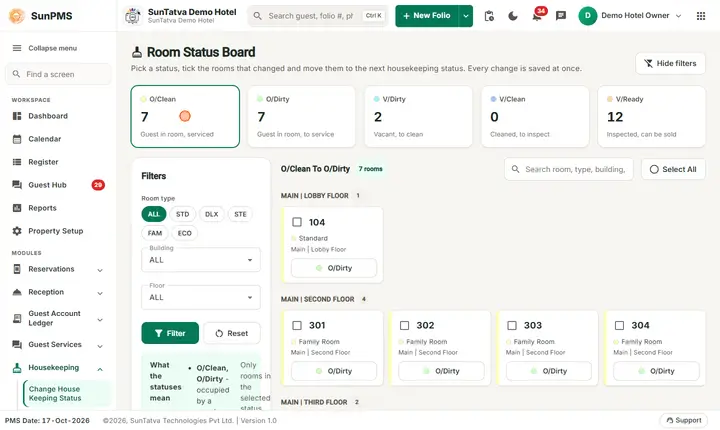
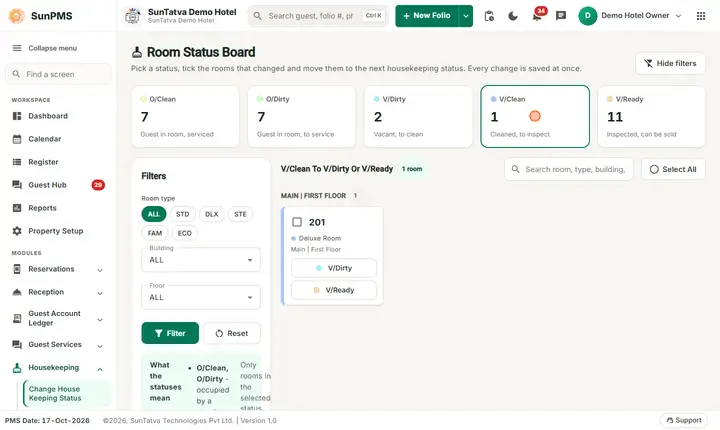
Moves rooms between the cleaning states one by one or in bulk. The screen heading is Room Status Board. Rooms are grouped by building and floor within the chosen status, so a supervisor can select all cleaned rooms and mark them ready in one click.
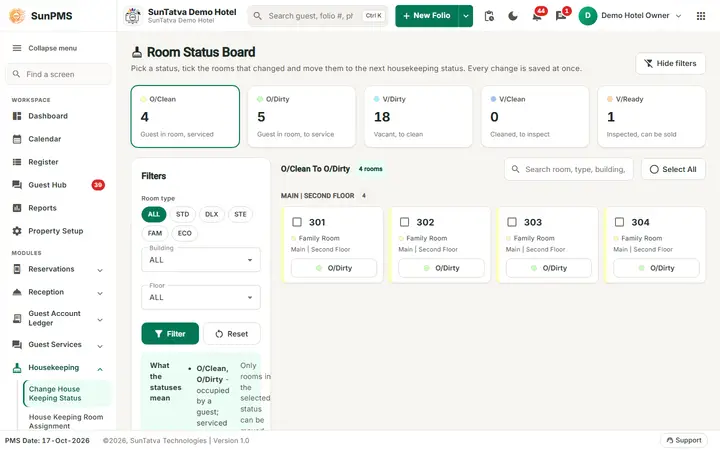
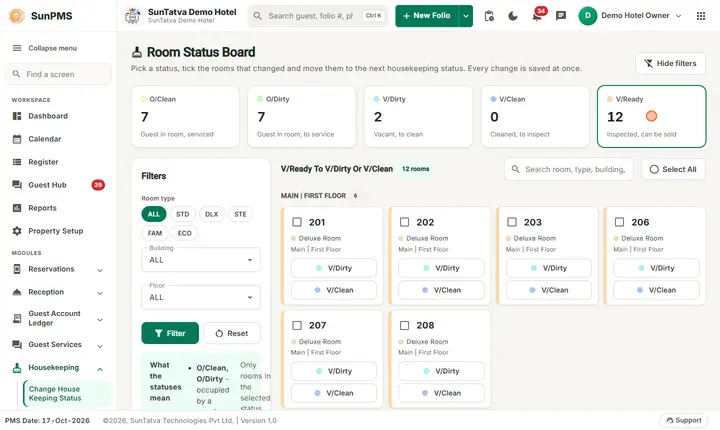
The Room Status Board: status counts on top, filters on the left and the rooms that can move to the next housekeeping status.
Allowed changes
| From | To |
|---|---|
| O/Clean | O/Dirty |
| O/Dirty | O/Clean |
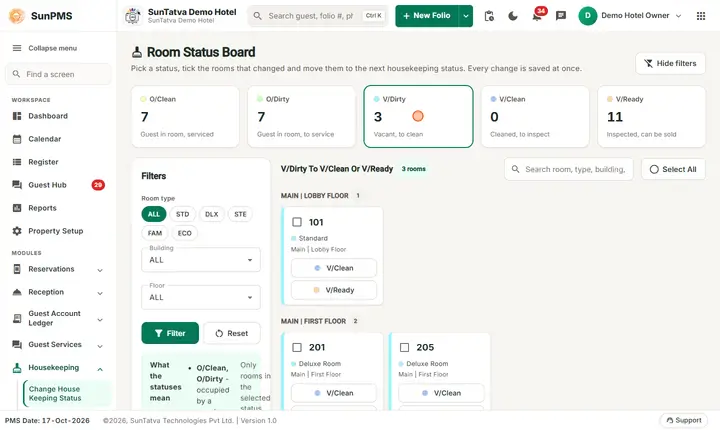
| V/Dirty | V/Clean or V/Ready |
| V/Clean | V/Dirty or V/Ready |
| V/Ready | V/Dirty or V/Clean |
| Other moves are refused by the server with "Invalid New StatusID." |
Screen layout
| Item | Meaning |
|---|---|
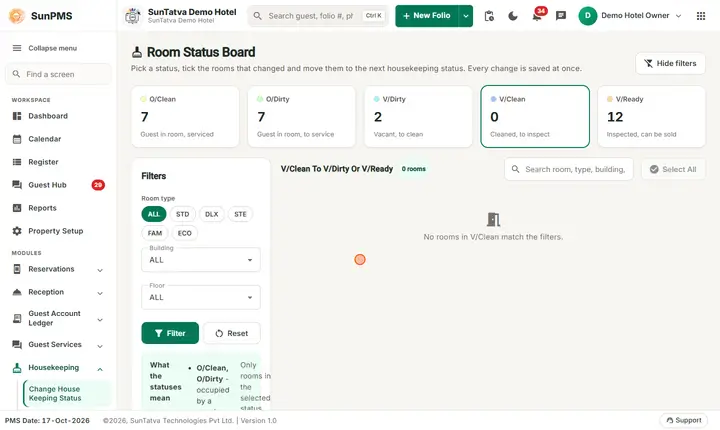
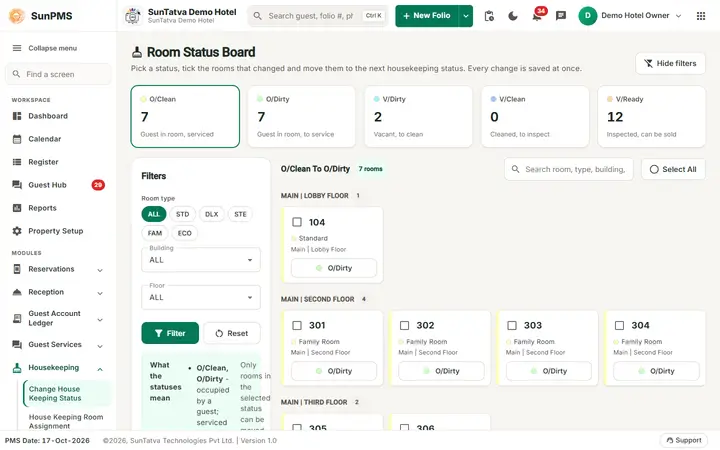
| Five status tiles (O/Clean, O/Dirty, V/Dirty, V/Clean, V/Ready) | Each shows the status colour, the number of rooms and a one-line meaning (for example "Inspected, can be sold"). Click a tile to list its rooms (starts on O/Clean); the chosen tile is outlined. |
| Hide filters / Show filters (top right) | Collapses or opens the filter panel. |
| Filters panel | Room type chips (ALL and one per type), Building, Floor, then Filter / Reset. Under them a note explains what the statuses mean. |
| Title and count | "Change Room Status O/Clean To O/Dirty" etc. with the number of rooms. |
| Search | Matches room name, type, building, floor or the user who last updated. |
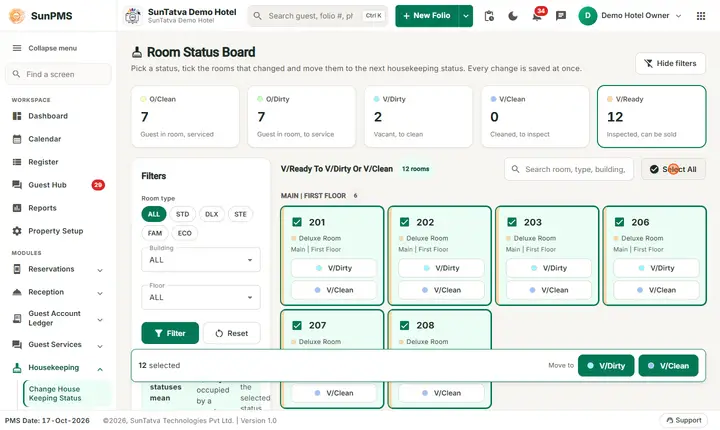
| Select All | Ticks every room currently shown. Click again to untick. |
| Floor groups | Headings such as "MAIN | LOBBY FLOOR" with a room count; the room cards sit under them. |
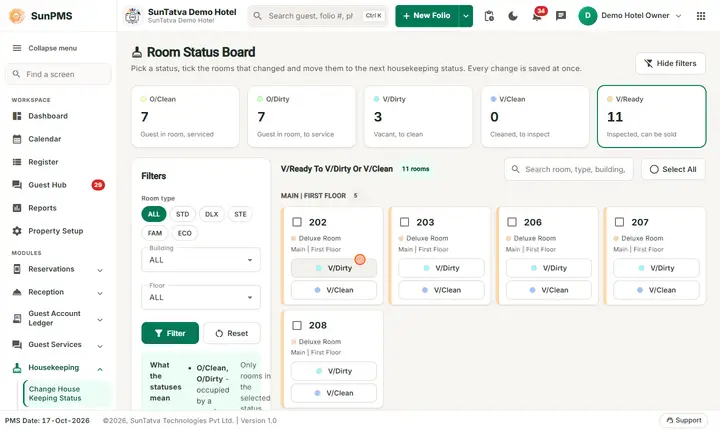
| Room card | Check box, room name (a do-not-disturb mark when the guest set it), room type with status colour, last updated date/time and user, housekeeping remark icon (hover), building and floor, and one button per allowed target status. |
| Bulk bar (bottom, appears when rooms are ticked) | "n selected" and Move to buttons for the allowed target statuses (for example O/Dirty, or V/Clean and V/Ready). |
How to change one room
- Click the status tile.
- On the room card click the target status button. Result: saved at once. "Room Status changed successfully." and the room moves to its new list.
How to change many rooms
- Click the status tile, filter if needed, then Select All or tick rooms.
- Click the target button in the bulk bar.
Messages you may see
| Message | Why |
|---|---|
| Room Status changed successfully. | Saved. |
| Invalid New StatusID. | The move is not allowed. |
| Server error text | Other failure. |
Deleted rooms
A room deleted on the Room screen (Property Setup, it is only switched off and the history is kept) is no longer listed here from the date of the deletion on. Earlier dates still show it, because it existed then. The same rule now applies to the room lists of Group Reservation, Add Block Room (Find) and the Room dropdown of Block-Unblock. A room whose room type is inactive is hidden in the same way.
Tips and FAQ
- Q: Why is a room missing? A: Rooms under maintenance or blocked are not listed here; use Room maintenance.
- Q: Where is the history? A: The card shows the last update time and user.
Screenshots